The Meta Pixel Helper Chrome extension is a free tool developed by Meta that detects whether a Meta Pixel is installed on any webpage and provides real-time feedback on pixel events, errors, and warnings. After installing the extension from the Chrome Web Store, it runs in the background and displays a badge icon showing the number of pixel events firing on each page. The tool validates pixel implementation, identifies common setup errors like duplicate pixels or missing events, and suggests fixes to improve tracking accuracy for Meta ad campaigns.
You installed the Meta Pixel. Events Manager says it's active. Your ads are spending. But the conversion numbers don't match what your store actually reports, and you can't figure out where tracking breaks down.
This is the reality for most advertisers in 2026. Meta's tracking stack has layers: pixel base code, standard events, custom events, advanced matching, Conversions API. A misconfiguration in any layer silently burns ad spend because Meta's algorithm optimizes against bad data.
Meta Pixel Helper is the first debugging tool you should reach for. But it has limits that most guides don't mention, and the 2026 update changed how it works. This guide covers everything: what the extension actually does, how to install it (including the new login requirement), every error message and how to fix it, and when you need Events Manager or the Test Events tool instead.
What Is Meta Pixel Helper?
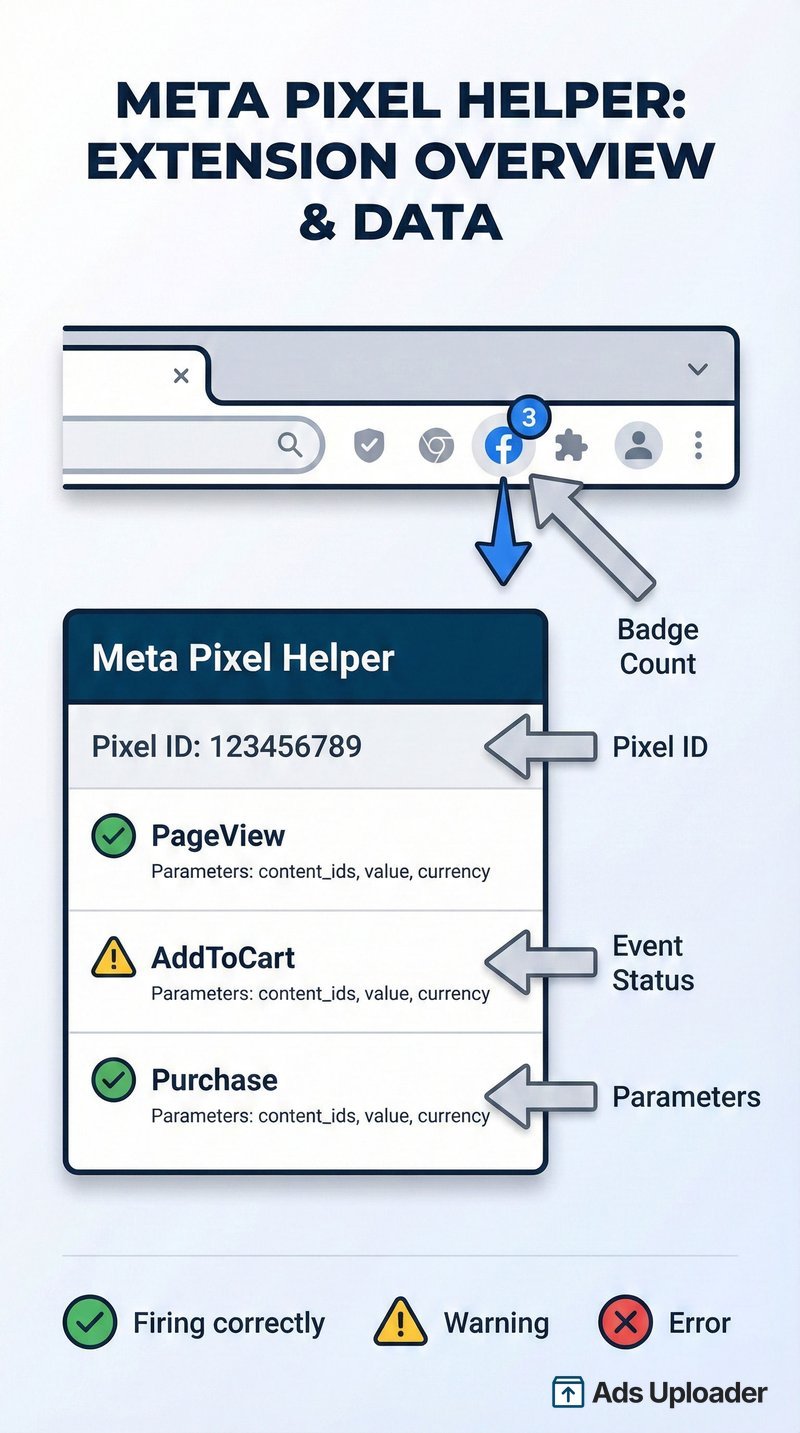
Meta Pixel Helper is a Chrome browser extension built by Meta that validates your pixel implementation in real time. With over 3 million users and a 4.0-star rating on the Chrome Web Store, it's the standard debugging tool for anyone running Meta ads. If you want a refresher on what the extension is actually inspecting, start with our explainer on how the Meta Pixel itself works, then come back here to debug it.
When you visit a webpage with the extension installed, the extension checks for the presence of the Meta Pixel JavaScript library (loaded from connect.facebook.net/en_US/fbevents.js) and monitors outbound tracking requests to https://www.facebook.com/tr/. A small badge appears on the extension icon showing how many pixel events fired on the current page. Click the icon and you get a detailed breakdown: pixel IDs detected, events fired, parameters sent, and any warnings or errors.
Here's what most guides skip: it's a browser instrumentation tool. It shows you what's happening on the client side, in the browser. It confirms that the pixel library loaded and that tracking requests left the browser. It does not confirm that Meta received those events, processed them correctly, or used them for attribution.
This distinction matters in 2026. With Conversions API, consent gating, and ad blockers all affecting tracking, "green checkmarks" no longer means "tracking is solved."
Meta Pixel Helper vs. the Meta Pixel
These are different things, and the naming confuses people.
Meta Pixel is the JavaScript tracking code you install on your website. It collects data about visitor actions (page views, add-to-cart, purchases) and sends that data to Meta for ad targeting, optimization, and conversion reporting.
Pixel Helper is a diagnostic Chrome extension that checks whether your pixel code is present and firing correctly. It's a debugger, not a tracker. You use it to verify your pixel works, then you close it and move on.
How to Install Meta Pixel Helper in 2026
If you remember this tool as the Facebook Pixel Helper, you are in the right place. Meta renamed it Meta Pixel Helper alongside the broader Facebook-to-Meta rebrand, but it is the same extension doing the same job; only the name changed. The pixel itself is also now called the Meta Pixel, though "Facebook pixel" still works in conversation.
Step 1: Open Google Chrome
The extension officially supports Chrome only. Chromium-based browsers like Microsoft Edge can install Chrome extensions from the Web Store, but Meta doesn't guarantee functionality outside Chrome. Safari and Firefox are not supported.
Step 2: Add the Extension from Chrome Web Store
Search for "Meta Pixel Helper" in the Chrome Web Store, or go directly to the extension listing. Click Add to Chrome, then confirm by clicking Add extension in the popup.
The extension is free, offered by Meta Platforms, Inc., and currently at version 4.0.1 (updated February 19, 2026). According to Meta's privacy disclosure, the extension does not collect or use your browsing data.
Step 3: Log In to Facebook (New in 2026)
The 2026 update introduced a Facebook login requirement. When you first open the extension, you'll be prompted to log in. This is Meta's official extension and the login is safe. Community feedback on Reddit confirms the update improved stability, particularly with new browser instances.
If the login prompt doesn't appear, try clicking the extension icon in your toolbar, then follow the authentication flow. Make sure you're not running any extensions that block Facebook login popups.
Step 4: Verify It's Working
Navigate to any website you know has a Meta Pixel installed (your own site, or a major e-commerce store). If the extension icon shows a small number badge, it's detecting pixel events. Click the icon to see the full breakdown of pixels and events on the page.
No badge means no pixel detected on that page, which is expected for sites without Meta tracking.
How to Use Meta Pixel Helper to Debug Your Pixel
Reading the Pixel Helper Interface
When you click the extension icon, a panel opens showing:
- Pixel ID(s): Every Meta Pixel detected on the page, identified by their numeric ID
- Events: Each pixel event that fired (PageView, ViewContent, AddToCart, Purchase, etc.)
- Parameters: The data sent with each event (content_ids, value, currency, content_type)
- Status indicators: Green checkmarks for successful events, yellow for warnings, red for errors
If you see multiple pixel IDs, that could be intentional (agencies managing multiple client pixels) or a problem (old pixel code that wasn't removed). More on that in the errors section below.
Testing Your Pixel Events Step by Step
- Navigate to the page where you expect pixel events to fire
- Perform the specific action you want to test. To test AddToCart, add a product to your cart. To test Purchase, complete a checkout on a test order.
- Click the extension icon immediately after the action
- Check that the correct event name appears with the right parameters
- For commerce events, verify
content_ids,content_type,value, andcurrencyare present and accurate. These are the parameters advertisers mess up most often, and incorrect values silently degrade ad optimization -- whether you're running single image ads or carousel ads.
Pro Tip: The extension is strongest at detecting events that fire on page load. For events triggered by button clicks or dynamic interactions (like an AJAX add-to-cart), the extension may not always capture them reliably. Use Meta's Test Events tool in Events Manager for those.
Checking Advanced Matching Data
Click into a specific pixel event in the extension panel to see the EVENT INFO section. This shows the full payload sent to Meta, including advanced matching parameters like hashed email addresses, phone numbers, and names.
Advanced matching improves event match quality, which directly affects how well Meta can attribute conversions to ad clicks. If you've enabled advanced matching but don't see em (email), ph (phone), or fn/ln (first/last name) parameters in the EVENT INFO section, your implementation needs work.
Common Meta Pixel Helper Errors and How to Fix Them
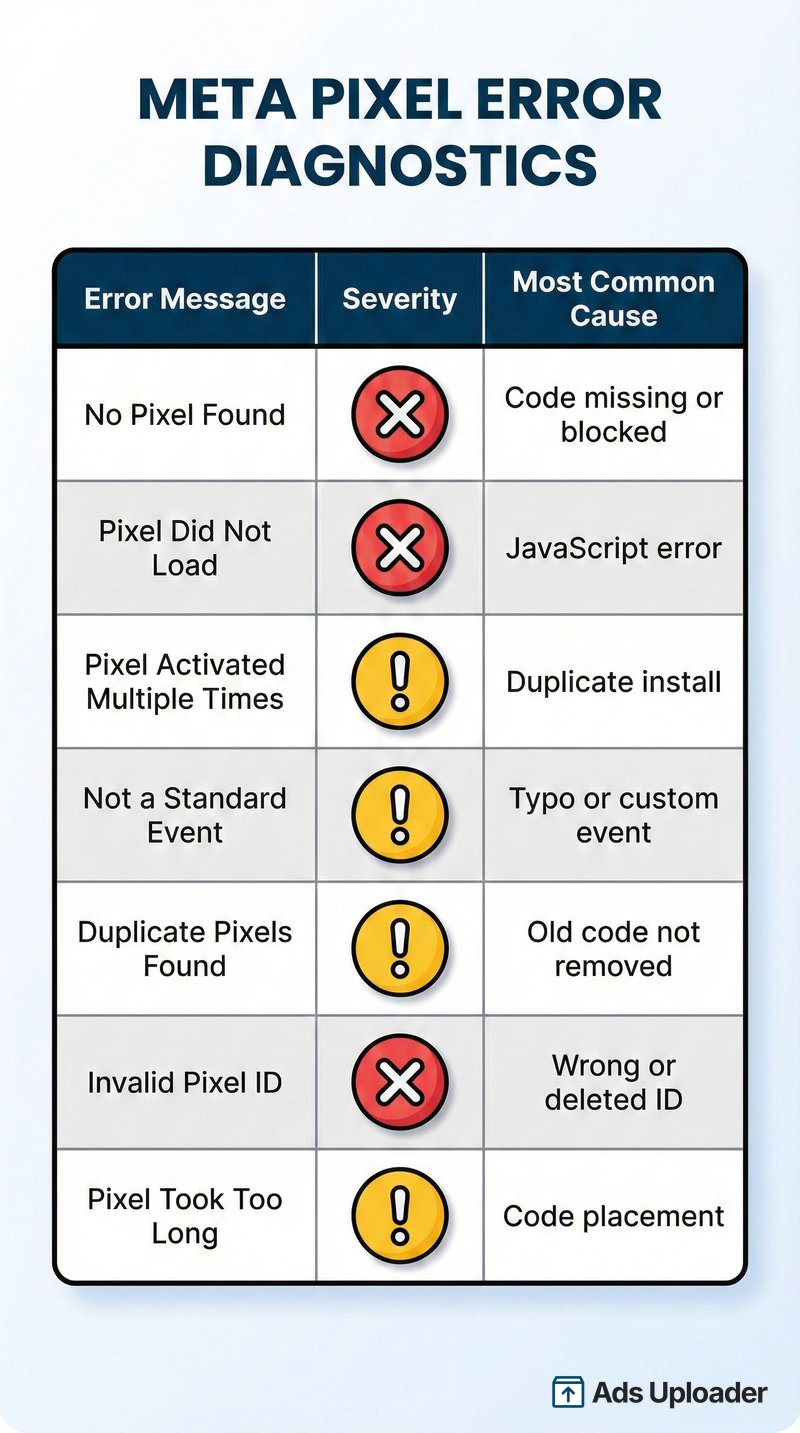
The extension surfaces specific error messages. Here's what each one means and how to resolve it.
"No Pixel Found"
What it means: The extension cannot detect any Meta Pixel code on the current page.
Common causes and fixes:
- Pixel code is missing on this page: Confirm the base code is in the
<head>on the page you are actually viewing, not just the homepage. Check your page source for thefbevents.jsscript. If it's not there, your pixel was never installed on this page. Hard-refresh the page after confirming. - Code is outside the
<head>section: The Meta Pixel base code must be placed within<head>. If it's too far down in the HTML, it may not load before Pixel Helper checks. - Consent has not been granted yet: If you use a consent tool, the pixel will not fire until consent is granted. That is expected behavior, not a bug.
- Ad blocker interference: Extensions like uBlock Origin or Brave's Shields block tracking requests by default. Disable ad blockers temporarily and reload the page to test.
- Consent banner blocking: If your site uses a cookie consent manager, the pixel may not fire until the visitor grants consent. Shopify's own pixel system can show "Pixel is awaiting consent" in this scenario. Grant consent in the banner, then reload.
- VPN or geolocation issues: Some users report Pixel Helper intermittently failing based on VPN location. If the extension works on other sites but not yours, try testing without a VPN.
Real warning you might see: "No pixels have fired on current page, but pixels have fired on other pages of this website." This points to partial coverage, where your base pixel is present on some page templates but missing from others.
Launch More. Click Less.
Upload hundreds of creatives at once, auto-match thumbnails to videos, and publish straight to your ad accounts through Meta's API.
Try Ads Uploader FreeNo credit card required • 7-day free trial
"Pixel Did Not Load"
What it means: Pixel code exists on the page but failed to execute.
Common causes and fixes:
- JavaScript error on the page: Other scripts crashing before the pixel loads will prevent it from firing. Check your browser console (F12 → Console) for red JavaScript errors.
- Code placed too far down: Move the pixel code higher in the
<head>section so it loads before other scripts. - Tag manager conflicts: If you installed the pixel through Google Tag Manager but also have hardcoded pixel code, they can conflict. Use one method, not both.
- Duplicate or hand-edited base code: Remove any duplicate base code. If you hand-edited the snippet, re-paste the clean version straight from Events Manager.
"Pixel Activated Multiple Times"
What it means: The same pixel event (same pixel ID and event name) fired more than once on a single page load.
Common causes and fixes:
- Duplicate pixel code: You may have the pixel installed through multiple methods simultaneously, for example through a Shopify app, GTM, and hardcoded in your theme. Shopify specifically warns that leaving old theme pixel code after enabling the Facebook & Instagram integration creates "more than one pixel," causing duplicate reporting.
- Tag manager misconfiguration: Multiple GTM triggers firing the same event tag. Review your GTM triggers to ensure each event fires exactly once per relevant action.
- Fix: Audit your page source and tag manager for duplicate pixel implementations. Each event should fire only once per page load.
"Not a Standard Event"
What it means: An event name was sent that doesn't match Meta's predefined standard events.
Meta recognizes 17 standard events: PageView, ViewContent, AddToCart, Purchase, Lead, CompleteRegistration, InitiateCheckout, Search, AddPaymentInfo, AddToWishlist, Subscribe, StartTrial, Contact, CustomizeProduct, Donate, FindLocation, Schedule, and SubmitApplication.
Common causes and fixes:
- Typo in event name: Standard events are case-sensitive.
addtocartwon't work; it must beAddToCart. - Custom event not recognized: If you're intentionally using a custom event, this warning is expected and not necessarily a problem. Custom events work fine for tracking, they just won't match Meta's standard event optimization models.
"Duplicate Pixels Found"
What it means: Multiple different pixel IDs were detected on the same page.
When this is a problem: If you only have one ad account and one pixel, a second pixel ID usually means old code that wasn't removed during a migration.
When this is intentional: Agencies or businesses with multiple ad accounts sometimes run multiple pixels on the same site. This is valid but should be deliberate.
"Invalid Pixel ID"
What it means: The pixel ID in your code is incorrectly formatted, or references a pixel that has been deleted or deactivated.
Fix: Go to Events Manager, find your active pixel, copy the correct numeric ID, and update your site code or tag manager configuration.
"Pixel Took Too Long to Load"
What it means: The pixel code took an abnormally long time to execute.
Common causes and fixes:
- Code placed too far down in the page HTML
- Heavy page with many scripts competing for execution
- Slow server response times
Fix: Move the pixel base code as high as possible within the <head> section, before other non-critical scripts.
"Invalid Parameter" or "Field Is Not Supported"
What it means: An event was sent with a parameter the extension does not recognize, or a parameter whose value is the wrong type.
Fix: Check the exact parameter spelling and types against Meta's standard event reference. value must be a number, and currency must be a valid ISO currency code (USD, EUR, GBP). A misspelled or mistyped parameter is silently dropped, so the fix is almost always correcting the name or the type.
"Pixel Is Using an Unsupported or Outdated Version"
What it means: The pixel snippet on your page is an older version that Meta no longer fully supports.
Fix: Regenerate the pixel code from Events Manager and replace the old snippet on your site or in your tag manager. The current code ships with the latest version automatically.
Event Fires but Parameters Are Missing
What it means: The extension shows the event firing, but expected parameters like value, currency, or content_ids are absent.
Fix: Confirm the data layer or theme variable is populated before the event fires. This is most common on Purchase, where value and currency often arrive late, after the event has already fired. Make sure the values exist at the moment the event is triggered, not a few milliseconds later.
Browser PII or Advanced Matching Warning
What it means: The extension detects raw personal information (an unhashed email or phone number) being passed in event parameters, which is a privacy and compliance risk.
Fix: Enable automatic advanced matching in Events Manager rather than passing raw email or phone numbers in parameters. Automatic advanced matching hashes the data before it leaves the browser, which is both safer and better for match quality.
The single most common root cause across all of these is duplicate installation (theme plus tag manager). When in doubt, audit for two copies first.
Cross-Browser: Firefox and Edge
Meta Pixel Helper is a Chrome extension, and Chrome is the only browser Meta officially supports for it. Here is the honest situation on the other browsers people ask about.
- Edge and other Chromium browsers. Microsoft Edge is built on Chromium, so Meta Pixel Helper installs and runs on it directly from the Chrome Web Store, as it does on Brave, Arc, and Opera. Meta does not officially support or test it outside Chrome, so behavior can occasionally lag after updates, but in practice these Chromium browsers work fine. If something looks off, confirm it in Chrome.
- Firefox. Firefox uses a different extension engine and is not Chromium-based, so the official Meta Pixel Helper does not install on it. There is no supported Firefox version. If you are a Firefox user, your options are: use Chrome (or a Chromium browser like Edge) just for pixel debugging, or rely on the Test Events tab in Meta Events Manager, which works in any browser and shows live events server-side without an extension.
Bottom line: install Chrome or any Chromium browser for proper pixel debugging, and use Events Manager Test Events when you are stuck in Firefox.
When Meta Pixel Helper Won't Help (and What to Use Instead)
This is the section most guides skip, and it's the one that will save you the most debugging time.
Limitations You Should Know
It can't see Conversions API events. CAPI sends data server-to-server, completely bypassing the browser. The extension has no way to detect or validate these events. If you're running Enhanced or Maximum data sharing on Shopify, or using a CAPI integration on any platform, the extension only shows you half the picture.
It can't reliably detect dynamic events. Events triggered by button clicks, AJAX calls, or single-page app navigation may not appear in the extension. If the event doesn't trigger a full page reload or a direct pixel call, the extension might miss it entirely.
Ad blockers break it. Extensions like uBlock Origin and Brave's Shields block the tracking requests the extension monitors. Your pixel might be perfectly installed, but the extension shows nothing because the outbound request never left the browser. Shopify's documentation explicitly warns that "browser-based ad blockers can prevent the Meta pixel from sharing data" at the Standard data sharing level. Always disable ad blockers when debugging.
"Green" doesn't mean "working." A frequent pattern in 2026: the extension shows browser events firing correctly, but Ads Manager conversions are off. The root cause is usually dataset ownership mismatches, missing server-side events, or deduplication issues between pixel and CAPI events.
Save Hours on Creative Testing
Stop uploading ads one by one. Bulk process unlimited creatives with automatic media matching and direct API publishing.
Try Ads Uploader FreeNo credit card required • 7-day free trial
The 2026 Debugging Workflow
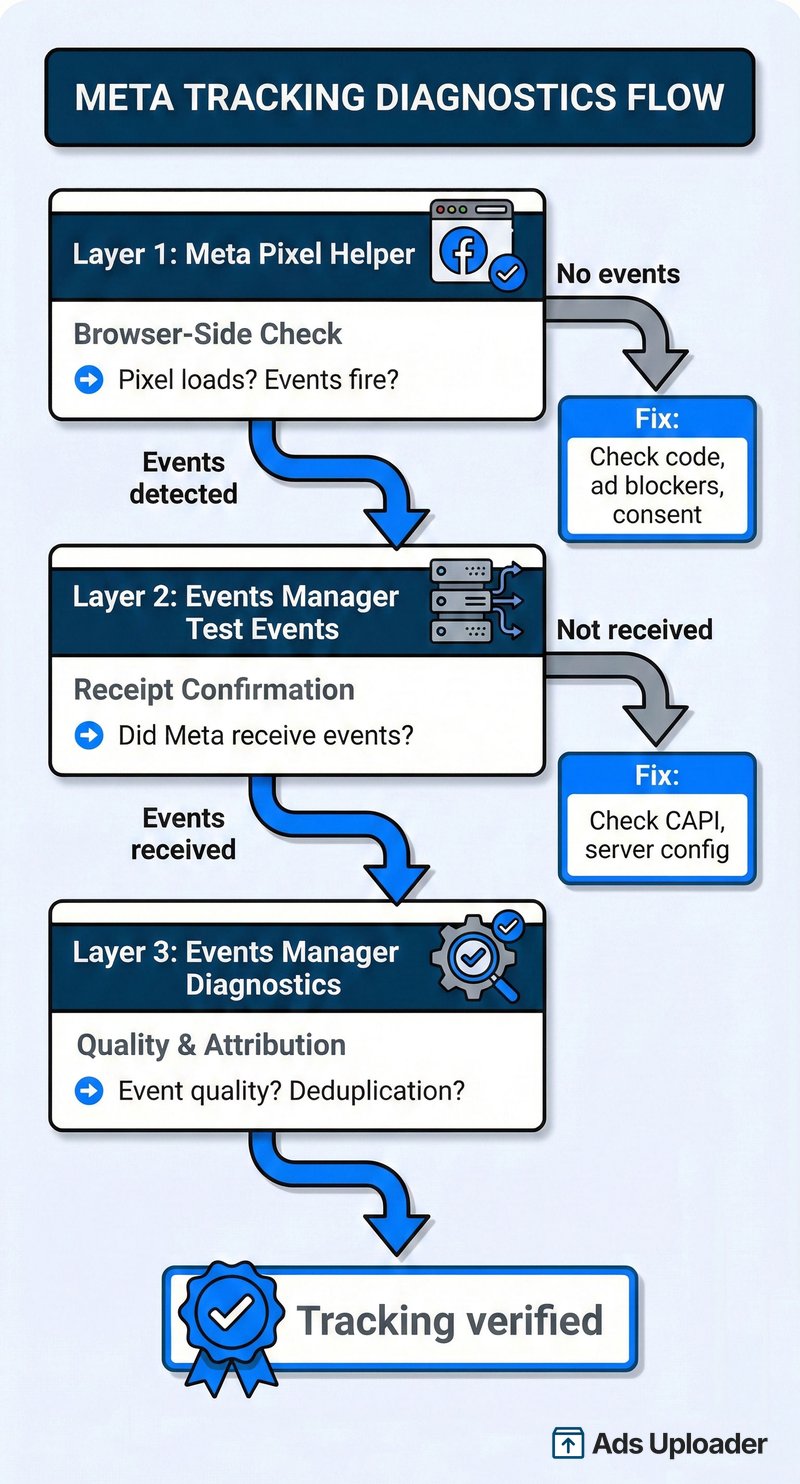
Think of Meta's debugging tools as three layers. Use them in order:
Layer 1: Meta Pixel Helper (browser-side check)
Confirm the pixel library loads and events fire from the browser. If it shows errors, fix them first. If the tool and your own testing disagree, open Chrome DevTools (F12 → Network tab) and filter for facebook.com/tr to see the raw tracking requests yourself.
Layer 2: Events Manager Test Events (receipt confirmation)
Go to Events Manager → your dataset → Test Events tab. This confirms that Meta actually received your events, whether from the pixel, CAPI, or both. Use the test_event_code parameter in your CAPI integration to route test events here for validation.
Layer 3: Events Manager Diagnostics (quality and attribution)
The Diagnostics tab shows event match quality, deduplication status, and any processing issues. This is where you catch problems that the previous two layers can't show you, like mismatched event_id values preventing proper deduplication between pixel and CAPI events.
If you're spending significant ad budget on Meta in 2026, all three layers matter. Meta and platform partners recommend running Pixel + CAPI together, and the browser extension alone only validates one piece of that stack.
Meta Pixel Helper Troubleshooting for GTM Users
Google Tag Manager is one of the most common ways to deploy the Meta Pixel, and it's also one of the most common sources of debugging confusion.
Why GTM Pixels Sometimes Don't Show in Pixel Helper
The most frequent complaint: "GTM tags are firing, Tag Assistant confirms it, but the extension says no pixel found." This happens because GTM loads scripts differently than hardcoded pixel implementations. If your GTM trigger timing is off (firing after the page fully loads, for example), the extension might check before the pixel has a chance to fire.
Fix: Verify your GTM trigger fires on "All Pages" or "Page View" (not DOM Ready or Window Loaded, which fire later). Use Google's Tag Assistant alongside the extension, and cross-reference both with Events Manager's Test Events to confirm Meta is receiving the data.
Consent Mode Interactions
If your site implements a Consent Management Platform (CMP), the pixel may be held back until the visitor grants tracking consent. This is expected behavior, not a bug.
Shopify's pixel system makes this visible: it can show "Pixel is awaiting consent" in its own debugging tools. The extension, by contrast, simply shows nothing, which looks like the pixel is broken when it's actually waiting for permission.
Fix: When testing, always grant consent in the banner first, then reload the page. If the extension still shows nothing after consent, the issue is in your implementation, not consent gating.
Frequently Asked Questions
Is Meta Pixel Helper free?
Yes. It's a free Chrome extension developed and maintained by Meta. It has over 3 million users and requires no paid subscription. The only requirement is a Facebook login, which was added in the 2026 update.
Does it work on browsers other than Chrome?
Meta officially supports Chrome only. Chromium-based browsers like Microsoft Edge can install Chrome Web Store extensions and may run Pixel Helper, but Meta does not guarantee support outside Chrome. Safari and Firefox are not compatible.
Why does it now require login?
The February 2026 update (v4.0.1) introduced a Facebook login requirement. Meta's official documentation states you must log in to Facebook to access the extension. The company has not published a detailed rationale, but community feedback suggests it was added for security purposes.
Can it detect Conversions API events?
No. The extension only detects client-side pixel events fired in the browser. Server-to-server Conversions API (CAPI) events bypass the browser entirely and cannot be seen by the extension. Use the Test Events tool in Events Manager to validate CAPI events.
Why does Pixel Helper show events on other sites but not mine?
This usually means your pixel code is missing, blocked, or incorrectly placed. Check that the pixel base code is in your site's <head> section, that no ad blockers or consent banners are preventing it from firing, and that you don't have conflicting scripts. If using GTM, verify your tags are firing correctly with Tag Assistant first.
Does the extension collect my personal data?
According to Meta's Chrome Web Store privacy disclosure, the extension will not collect or use your data. The Chrome Web Store program rules require transparent disclosures and generally prohibit collection of web browsing activity unless it is necessary for a user-facing feature described in the listing.
How do I uninstall it?
Type chrome://extensions into your Chrome address bar, find the extension in the list, and click Remove. Alternatively, right-click the Pixel Helper icon in your toolbar and select Remove from Chrome.
Does Meta Pixel Helper work on Firefox?
No. Meta Pixel Helper is a Chrome extension built on Chromium, and Firefox uses a different engine, so there is no supported Firefox version. To debug a pixel as a Firefox user, either use Chrome or a Chromium browser like Edge for that task, or use the Test Events tab in Meta Events Manager, which works in any browser and shows live events without an extension.
Get Your Pixel Right, Then Scale
Meta Pixel Helper is the fastest way to confirm your pixel fires correctly from the browser side. For most implementation issues, the error messages it surfaces tell you exactly what's wrong and point you toward the fix.
But the tool's scope is limited to client-side detection. In 2026, with Conversions API becoming the standard alongside browser-side tracking, Pixel Helper is step one of a three-step verification process: confirm browser events fire (Pixel Helper), confirm Meta received them (Test Events), and confirm event quality and deduplication (Diagnostics).
If the extension shows green checkmarks across your key pages and events, you've cleared the first hurdle. If conversions still don't match, look upstream at your CAPI implementation, event deduplication, and dataset configuration in Events Manager.
For teams running high-volume Meta campaigns, the debugging workflow matters as much as the creative strategy. Solid tracking means the algorithm gets clean data, which means better optimization, which means lower CPAs. If you're scaling ad launches and want to focus on strategy instead of pixel troubleshooting, bulk ad launch tools can help you move faster once your tracking foundation is solid. And if you're researching competitor creatives in the Meta Ad Library, Ad Library Helper is another Chrome extension worth adding to your toolkit.