Advantage+ creative enhancements are Meta's suite of AI-powered optimizations that automatically modify your ad creative to improve performance. When enabled, Meta can adjust images, videos and text by applying visual touch-ups, adding music, swapping text positions, expanding images to fit placements and more. Individual enhancements are toggled on or off at the ad level in Ads Manager. Some enhancements like visual touch-ups are generally safe, while others like text improvements require careful testing since they can alter your messaging in unexpected ways.
Advantage+ creative itself is the umbrella: Meta's AI tools in Ads Manager that generate and enhance variations of your single image, video and carousel ads. The enhancements are its individual switches, and there are a lot of them. Meta's Help Center lists 31 as of September 2026, 17 of them labeled AI, and the list keeps growing. Some will improve your performance. Others will play Jingle Bells over your summer campaign.
In my experience, advertisers tend to fall into two camps. The first camp wants everything off because they hate the idea of Meta having any say in their final creative. The second camp trusts Meta completely, turning everything on because Meta's algorithmic learning must be smarter than human judgment.
I sit somewhere in the middle. There are genuinely harmless enhancements, and then there are others (particularly the AI features for backgrounds, text and other elements) that introduce too many variables into an already black-box auction. When you're trying to understand what's actually working in your campaigns, having Meta quietly modify your creative makes that analysis nearly impossible.
The other challenge: getting any real statistical significance when testing enhancements is extremely difficult. Most advertisers are running automated bidding, bid caps, cost caps or CBO campaigns. Isolating whether a specific enhancement is actually improving performance, or whether it's just noise in the auction, requires more controlled conditions than most accounts can realistically set up. A lot of it comes down to gut feeling about whether an enhancement helps your specific situation or not.
There's also a real brand risk, especially for larger advertisers. In 2025, True Classic had AI enhancements turned on without intending to, and Meta generated images featuring a grandma with a product the brand doesn't even sell. Wrong product, wrong target market. An extreme example, but it illustrates how quickly things can go sideways.
For a quick reality check, learn how to use the Meta Ads Library to see how other advertisers' enhanced creative actually renders in the wild, AI backgrounds, expansions, music and all, before you trust the same features on your own ads.
The advertisers I work with through Ads Uploader tend to value control. Many of these enhancements require giving up more control than they're comfortable with.
This guide breaks down every Advantage+ creative enhancement available in 2026, organized by ad format, with clear recommendations on which to enable, which to test and which to avoid. It was last updated on September 30, 2026, with Meta's current enhancement list and everything that changed in Advantage+ creative between June and September.
What Are Advantage+ Creative Enhancements?
Advantage+ creative enhancements are AI-powered optimizations that Meta applies to your creative at delivery time. When you enable these features, Meta tests modified versions of your ads against the originals and shows whichever performs better to each user.
These are distinct from other Advantage+ features like Advantage+ placements or Advantage+ audience. Creative enhancements specifically modify your actual ad content: the images, videos and text that users see.
The key feature most advertisers miss: you can preview what Meta will do before you publish. In the ad preview, click Expand to open Advanced preview, then use the arrows on each enhancement card in the Advantage+ creative tab to step through possible variations. Meta notes these previews are examples, not an exhaustive list of every variation it may serve.
AI-Labeled vs Standard Enhancements
Not all Advantage+ creative enhancements are equal. Some use generative AI to create new content, while others reuse or rearrange what you already provided. Meta's labels have shifted, too: Visual Touch-ups and Music now carry the AI label, because touch-ups generate new pixels when they expand an image and the music enhancement can now generate a custom track.
Generative AI enhancements (17, marked with an AI label in Ads Manager):
- Visual Touch-ups, Video Touch-ups and Image Touch-ups (catalog)
- Text Improvements, Text Generation, Enhance Media Text and Show Summaries
- Enhance CTA, Add Overlays and Create Sticker CTA
- Image Generation, Background Generation and Add Animation
- Add Music, Add Video Effects, Translations and Video Subtitles
Enhancements without the AI label (14):
- Relevant Comments, Adjust Brightness and Contrast, Flex Media and Dynamic Description
- Reveal Details Over Time, Show Spotlights and Add Details to Ad Layout
- Add Dynamic Overlays, Add Standard Label, Add Product Tags, Add Product Browsing and Store Locations
- Highlight Carousel Card and Profile End Card
This distinction matters for brand control. AI-labeled enhancements can generate content that never existed in your original creative. The others only reuse, reorder or surface material you already have: your comments, your catalog, your website.
The Complete Advantage+ Creative Enhancement Matrix
Here's my recommendation for each major Advantage+ creative enhancement in 2026, organized by recommendation level and updated with Meta's current names and AI labels. Use this table as your reference when configuring new ads.
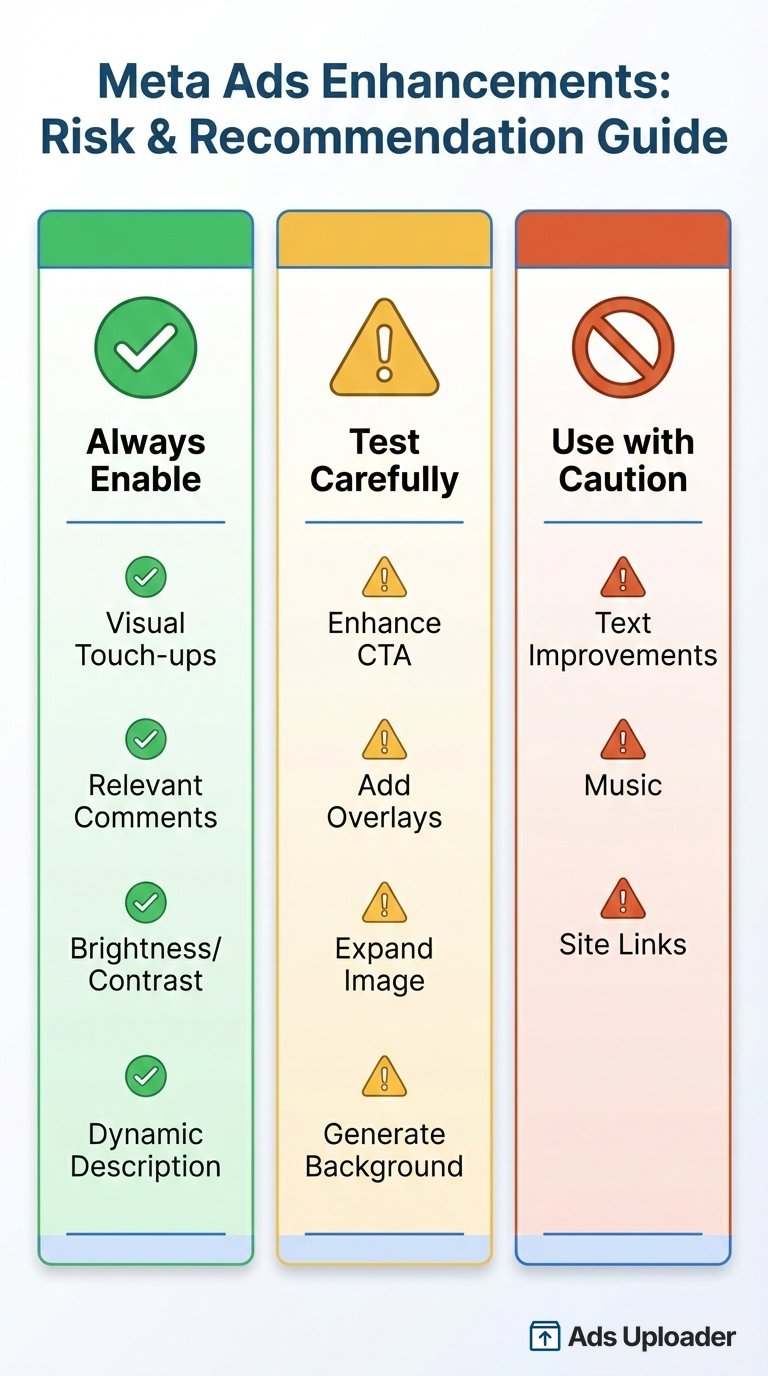
| Enhancement | Formats | AI? | Recommendation | Risk |
|---|---|---|---|---|
| Visual Touch-ups (Images) | Single image | Yes | Always | Low |
| Relevant Comments | Single image, Video | No | Always | Low |
| Adjust Brightness and Contrast | Single image | No | Always | Low |
| Dynamic Description | Carousel, Collection, Catalog | No | Always | Low |
| Adapt to Placement (Image Touch-ups) | Catalog | Yes | Always | Low |
| Dynamic Media (Allow Product Video) | Catalog | No | Always | Low |
| Flex Media | Single image, Video | No | Test | Low |
| Enhance CTA | Image, Video, Catalog (Stories) | Yes | Test | Medium |
| Add Overlays | Single image | Yes | Test | Medium |
| Expand Image | Image | Yes | Test | Medium |
| Generate Background | Catalog | Yes | Test | Medium |
| Visual Touch-ups (Videos) | Video | Yes | Test | Medium |
| Dynamic Overlays | Catalog | No | Test | Medium |
| Add Animation (3D Animation) | Single image | Yes | Test | Medium |
| Image Generation | Single image, Video | Yes | Test | Medium |
| Text Generation | Image, Video, Carousel | Yes | Test | Medium |
| Translations | Image, Video, Carousel | Yes | Test | Medium |
| Add Video Effects | Video | Yes | Test | Medium |
| Video Subtitles | Single video | Yes | Test | Low |
| Highlight Carousel Card | Carousel | No | Test | Low |
| Profile End Card | Carousel | No | Test | Low |
| Add Product Tags | Image, Video | No | Test | Low |
| Show Products (Add Catalog Items) | Image, Video | No | Test | Medium |
| Site Links | Catalog | No | Caution | High |
| Text Improvements | Image, Video, Carousel | Yes | Caution | High |
| Enhance Media Text | Single image | Yes | Caution | High |
| Show Summaries | Single image, Video | Yes | Caution | High |
| Music | Single image, Carousel | Yes | Caution | High |
Every Standard Advantage+ Creative Enhancement (Features List)
The matrix above shows when to use each enhancement. This is the plain, scannable list a lot of people actually want: every Advantage+ creative enhancement Meta lists in its Help Center as of September 30, 2026, what it does, and how to switch it off.
Two terms first. Standard enhancements was Meta's original one-switch bundle. For single image ads it covered Add Overlays, Visual Touch-ups, Text Improvements and Relevant Comments; for single video ads, Visual Touch-ups, Text Improvements and Relevant Comments. Since Marketing API v22.0 the bundle can no longer be switched as one, so every enhancement is now its own toggle. On by default means Meta may switch an enhancement on for you when it predicts a performance gain, and the table flags the ones Meta documents that way.
To turn any of them off in Ads Manager, go to the Enhancements step of the ad creative and switch it off, then check Advanced preview too, because Meta says some enhancements can only be turned off there. Through the Marketing API, set the listed field to OPT_OUT. A dash means Meta's Advantage+ creative developer docs don't map that enhancement to a field.
| Enhancement | What it does | Formats and placements | Standard or optional | API field to opt out |
|---|---|---|---|---|
| Add Animation (AI) | Turns a still image into a short video with pans, zooms and rotation | Single image | Optional | image_animation |
| Add Details to Ad Layout | Shows app ratings, reviews or downloads in the ad | Image, video, carousel | Optional | - |
| Add Dynamic Overlays | Shows catalog prices or discounts as a label on the media | Catalog single image or carousel, Facebook Feed | Optional | add_text_overlay |
| Add Music (AI) | Adds a library track or AI-generated music | Single image, carousel | Optional | Pass an empty audios field in asset_feed_spec |
| Add Overlays (AI) | Shows text you provided as an overlay on the image | Single image | Standard (image) | image_templates |
| Add Product Browsing | Opens a product browsing experience on Facebook or Instagram before your site | Not specified by Meta | Optional | - |
| Add Product Tags | Tags matching catalog products in the ad | Image, video, Instagram Feed only | May be on by default with a catalog (Traffic, Sales) | - |
| Add Standard Label | Adds an info label, such as a product being on sale | Catalog carousel and collection | Optional | - |
| Add Video Effects (AI) | Raises contrast and color vibrancy in video | Video | Optional | video_filtering |
| Adjust Brightness and Contrast | Adjusts brightness and contrast when likely to help | Single image | Optional | image_brightness_and_contrast |
| Background Generation (AI) | Generates new backgrounds for product images | Advantage+ catalog ads | Optional | image_background_gen |
| Create Sticker CTA (AI) | Adds an image sticker to your call-to-action button | Single video | Optional | creative_stickers |
| Dynamic Description | Chooses when to show your carousel or catalog description | Carousel, collection, catalog | On by default (API) | description_automation |
| Enhance CTA (AI) | Swaps in pre-written CTAs and can add promotions like "Free shipping" | Image, video, catalog; Stories only | Optional | enhance_cta |
| Enhance Media Text (AI) | Rewrites the text overlay on your image for each viewer | Single image | Optional | - |
| Flex Media | Shows placement-specific media in other placements too | Single image, video | Optional | pac_relaxation |
| Highlight Carousel Card | Moves the best-performing card to the front | Carousel | Optional | - |
| Image Generation (AI) | Generates new image variations based on your ad | Single image, video | Optional | - |
| Image Touch-ups (AI) | Fits catalog product images to 4:5 and 9:16 | Advantage+ catalog ads | On by default (API) | adapt_to_placement |
| Profile End Card | Adds a final card with your Page's profile picture | Carousel | Optional | - |
| Relevant Comments | Shows a relevant comment below the ad | Single image, video | Standard, on by default (API) | inline_comment |
| Reveal Details Over Time | Surfaces details from your site or app store page as people view | Single image or video; Instagram Stories, Facebook Feed and Reels | May be on by default | reveal_details_over_time |
| Show Spotlights | Shows text and images from your website as people view | Single image or video; Instagram Stories and Reels | May be on by default | show_destination_blurbs |
| Show Summaries (AI) | Adds an AI-written summary of your selling points | Single image or video; Facebook and Instagram Feed | May be on by default | - |
| Store Locations | Highlights nearby physical stores (needs Store Pages) | Single image or video | Optional | - |
| Text Generation (AI) | Writes up to five primary text and headline variations for you to pick | Image, video, carousel | Optional | - |
| Text Improvements (AI) | Moves phrases from your copy into overlays, footers and headlines | Image, video, carousel | Standard | text_optimizations |
| Translations (AI) | Translates your text, voiceover and image text | Image, video, carousel | Optional | text_translation, translate_voiceover, image_text_translation |
| Video Subtitles (AI) | Generates subtitles from the audio | Single video with English voiceover; Instagram Reels | Optional | - |
| Video Touch-ups (AI) | Crops video, or AI-expands it to 9:16 or 4:5 | Single video | Standard (video) | video_auto_crop, video_uncrop |
| Visual Touch-ups (AI) | Crops images and AI-expands them to fit more placements | Single image | Standard (image) | image_touchups, image_uncrop |
Some are safe to leave on globally; others (overlays, music, text generation) deserve a case-by-case decision, which is what the tiers below cover.
AI Features in Advantage+ Creative
Most Advantage+ creative enhancements are now powered by generative AI, and they are worth grouping together because they behave differently from the simple automatic adjustments and they carry AI labeling. The AI-powered Advantage+ creative features fall into four groups:
- Image generation and background generation - create new image variations from your ad, or new backgrounds behind catalog product images. Meta says image generation isn't available in Advantage+ sales, app or catalog campaigns yet.
- Expansion (Visual Touch-ups and Video Touch-ups) - generates new pixels to extend your creative into ratios you did not supply, most importantly 9:16 for Reels and Stories. Video expansion covers up to the first 15 seconds and runs on Facebook Feed and Reels.
- Text generation, Text Improvements, Enhance Media Text and Show Summaries - write or rework your copy: variations of your primary text and headline, your phrases moved into overlays and headlines, rephrased image overlays, and an AI summary of your selling points.
- Motion, sound and language - Add Animation turns a still into a short video, Add Music can generate a custom track, Add Video Effects boosts color and contrast, and Translations and Video Subtitles localize and caption your ads.
Best practices for 2026 and into 2027:
- Always preview AI-generated output before publishing. Background generation and image expansion can warp logos, hands, product edges, and text. Check every generated variant, especially on products with packaging or fine detail. Meta says its previews are examples, not every variation it may serve, so judge the worst card you see, not the best.
- Check what's on before you publish. Click Review defaults, next to Advanced preview, to see every creative feature Meta switched on by default, grouped by category. Then check Advanced preview as well as the Enhancements step, because some enhancements can only be turned off there.
- Use AI to expand reach, not to invent your message. Let image expansion handle ratios and let background generation refresh placements, but keep your core hook and offer human-written.
- Treat text generation as a draft, not a final. Review AI text variations for compliance and brand voice before they run. The same goes for Enhance Media Text and Show Summaries, which rewrite or summarize your message at delivery time.
- Lean into it for volume, guard it for hero creative. AI features are excellent for filling out a large test matrix cheaply; for your proven flagship creative, be more conservative.
- Opt out of surprise tests if you need control. In Ads Manager's Advertising settings, under Creative features, untick Test new creative features so features still in testing aren't applied to your campaigns. Meta only shows the option to eligible advertisers.
- Plan for AI disclosure. Meta may add an AI info label to ads made or materially edited with its generative AI features. If you deliver ads in the EU, Article 50 of the EU AI Act, which covers disclosure of deepfake-style content, has applied since August 2, 2026.
- Expect more AI features, and more labeling. Meta keeps adding generative options, from June's brand memory tests to the Muse Image model announced in July. Build the habit of previewing now.
The honest summary: AI features in Advantage+ creative are a genuine time-saver for testing and placement coverage, and a genuine risk on detail-heavy or compliance-sensitive creative. Preview everything, and keep a human on the message.
What's New in Advantage+ Creative (June to September 2026)
Here's what changed in Advantage+ creative since this guide's June update, with dates and the status of each. For every Meta Ads change, not just creative, see our Meta Ads updates roundup.
| Date | Change | Status |
|---|---|---|
| June 23, 2026 | Brand memory: generation that learns your brand's identity and tone from your existing ads, inside a new end-to-end creative space | Testing, broader rollout "in the coming months" |
| June 23, 2026 | Text generation in Ads Manager expanded from headlines and primary text to text that appears inside image creative | Announced |
| June 23, 2026 | Translations: Portuguese, French, German, Italian and Indonesian added to text on media; 11 languages added to video voiceover | Announced |
| June 23, 2026 | Built-in creative approval workflow for feedback on creative modifications | Testing |
| July 7, 2026 | Muse Image, Meta's new image model, to power image generation in Advantage+ creative | Announced for "the coming weeks"; not confirmed live as of September 30 |
| August 19, 2026 | Placement exclusions being removed from ad sets for some advertisers | Reported test, no official Meta announcement |
Three of these change how you should run Advantage+ creative.
Muse Image raises the quality bar, not your control. Meta says Muse will generate new backgrounds around product images, full lifestyle variations inspired by your existing ads, and static images made from your video creative. It also says more than 8 million advertisers already use at least one of its generative AI ad creative tools. When Muse-powered variants reach your account, preview them like any other AI enhancement before they run.
Translations now cover far more markets. The June additions put Portuguese, French, German, Italian and Indonesian into text-on-media translation, and 11 languages, including Hindi, Arabic and Chinese, into video voiceover. That's real reach for multi-market advertisers. Have a native speaker check the previews before you scale, because a mistranslated offer is worse than no translation.
Placement exclusions are going away for some advertisers. Around August 19, some advertisers saw a notice in Ads Manager that excluding placements, platforms, devices and operating systems will no longer be available for their ad sets. Jon Loomer, who first reported it, describes it as a test on the Sales and Leads objectives, and Meta hasn't announced it officially. If it reaches your account, your ads will run in placements you used to exclude, so Visual Touch-ups, Video Touch-ups and Flex Media decide how your creative looks there. Supplying your own 4:5 and 9:16 versions is safer than leaning on AI expansion. If you launch in bulk, Ads Uploader pairs aspect ratio variations of the same creative into one ad and sends each version to the placements it fits.
Enhancements You Should Almost Always Enable
These enhancements carry minimal risk and generally improve performance without modifying your core message.
Visual Touch-ups (Images)
Visual touch-ups automatically crop and expand your images to fit different placements. If you upload a 1:1 square image, Meta can expand it to 4:5 for Feed or 9:16 for Stories without cutting off important elements.
Why it's safe: These adjustments help your creative appear in more placements without touching your core message. Note that Meta now labels Visual Touch-ups as AI: when it expands an image, it generates new pixels at the edges. That's usually fine on clean product shots, but preview the 9:16 version before you publish.
Best practice: Design with safe zones in mind. Keep key elements centered so auto-cropping doesn't cut off faces or text.
Relevant Comments
This enhancement displays the most relevant comment below your ad, showing social proof to new viewers.
Why it's safe: It uses existing engagement from your actual audience. No creative modification involved.
Caveat: Monitor comment quality on controversial ads. If negative comments surface, disable this enhancement for those specific ads.
Adjust Brightness and Contrast
Minor adjustments to make images pop in the feed. Meta subtly increases contrast or brightness to help your creative compete with organic content.
Why it's safe: Changes are subtle and you can preview them before enabling. Most adjustments are nearly imperceptible.
Note: Test first if you have strict brand guidelines on color consistency.
Dynamic Description (Catalog)
For catalog ads, this pulls product information directly from your feed to populate ad descriptions automatically.
Why it's safe: It uses your own data, not AI-generated content. Descriptions match what's in your catalog.
Best for: Large catalogs where writing manual descriptions for thousands of products isn't feasible.
Adapt to Placement (Catalog)
Meta's Help Center now calls this Image Touch-ups for catalog ads. It fits your catalog images to 4:5 for Feed and 9:16 for Reels and Stories, either automatically or with manual options to crop and add borders, expand the space around the product, or zoom in.
Why it's safe: On Auto it respects your original product image and adapts it to the placement. It carries the AI label because it can expand the image space, so check the preview if your product photos have busy edges. It also takes priority over any product image cropping settings you've applied in Commerce Manager.
Dynamic Media (Catalog)
Automatically chooses between showing a product image or video for each impression based on what's likely to perform better. Meta's developer docs now label it Allow product video.
Why it's safe: Uses assets you've already uploaded to your catalog. It picks the best one rather than creating new content.
Enhancements to Test Carefully
These enhancements can improve performance but carry meaningful risks. Test with small audiences and always preview before enabling.
Enhance CTA
This AI feature can swap your CTA link sticker for one of Meta's pre-written CTAs. For single image and video ads, it can also pair key phrases from your ad sources with the CTA to show promotions, such as "X% off" or "Free shipping". It only delivers to Stories placements.
When to use: Generic ads where Meta's AI might surface compelling phrases you didn't emphasize.
When to avoid: Specific CTAs like "Start Free Trial" or "Book Your Demo" where you want exact phrasing preserved.
Testing tip: Run a split test with a small audience segment. Check if the enhanced version preserves your intended message.
Add Overlays
Adds text overlays to images using content from your headline or primary text. Meta positions and styles the text automatically, and if its branding feature is on, it applies your brand preferences. It's available for single image ads.
When to use: Simple product images that could benefit from text reinforcement.
When to avoid: Already text-heavy creatives, branded graphics with existing typography.
Known issue: Jon Loomer, a respected Meta advertising expert, evaluated Add Overlays directly: "It looks pretty awful. There's no way to sugarcoat it." The styling often clashes with professional brand guidelines.
Launch More. Click Less.
Upload hundreds of creatives at once, auto-match thumbnails to videos, and publish straight to your ad accounts through Meta's API.
Try Ads Uploader FreeNo credit card required • 7-day free trial
Expand Image
AI extends image edges to fit additional aspect ratios. For example, expanding a square product shot to fill a 9:16 Stories placement.
When to use: Product shots with simple, solid-color backgrounds.
When to avoid: Lifestyle images, photos with people near edges, images with complex backgrounds.
Preview tip: Always check the expanded version. AI-generated edges can look obviously artificial, especially with patterned or textured backgrounds.
Where it lives now: Meta's Help Center no longer lists Expand Image as its own enhancement. It describes image expansion as part of Visual Touch-ups, while the API still has a separate image_uncrop field.
Generate Background (Catalog)
Creates AI-generated backgrounds for product images. Takes a product on a white background and places it in a lifestyle setting.
When to use: Simple product photography on plain backgrounds.
When to avoid: Products that require specific contextual settings, premium brands with strict aesthetic guidelines.
Quality varies: Results range from impressive to obviously AI-generated. Preview every product before enabling at scale. Meta says Muse Image, announced July 7, will generate new backgrounds around product images in Advantage+ creative, so expect the output to change as that rolls out.
Visual Touch-ups (Videos)
Meta now calls this Video Touch-ups. It either crops the video (or adds blurred padding) or uses AI to expand it to 9:16 or 4:5, generating new pixels in each frame for up to the first 15 seconds. Expansion runs on Facebook Feed and Reels; cropping covers Facebook and Instagram Feed, Reels and Stories. The risk is higher than with images, since video cropping can cut key action.
Medium risk because: Important elements might appear at frame edges. A person speaking might get their face cropped in Stories format.
Testing tip: Check Reels and Stories previews specifically. These extreme aspect ratios cause the most issues.
Dynamic Overlays (Catalog)
Adds price, discount or urgency badges to catalog items automatically. Meta labels it Add Dynamic Overlays and limits it to Advantage+ catalog ads in single image or carousel format on Facebook Feed.
When to use: Sale campaigns, price-competitive products where showing discounts drives conversions.
When to avoid: Premium brands, non-transactional campaigns, products where price isn't the selling point.
Add Animation (3D Animation)
Converts static images into short videos with common movements like panning, zooming and rotating, and text in the image may be animated too. Meta labels it AI and offers it for single image ads only.
When to test: Attention-grabbing campaigns where novelty helps stop the scroll.
Risk: Can look gimmicky or distract from your message. Some audiences find it cheap-looking.
Enhancements to Approach with Caution
These enhancements have higher risk profiles and documented cases of causing issues. They may work for some accounts, but approach them carefully and test thoroughly before enabling at scale.
Text Improvements
This AI enhancement takes keywords and phrases from your original copy and shows them directly, or adjusted, on or around your creative: as text overlays, footers, prominent headlines and more. It can also swap which of your text options appears as primary text, headline or description, and adjusts how copy appears across placements.
Why it's dangerous: Meta's AI optimizes for engagement metrics, not message accuracy. It can completely change your intended communication.
Real examples of failures:
- Headlines appearing as primary text while key selling points get buried
- Compliance-required disclaimers moved to less visible positions
- Brand voice distorted by "optimized" phrasing
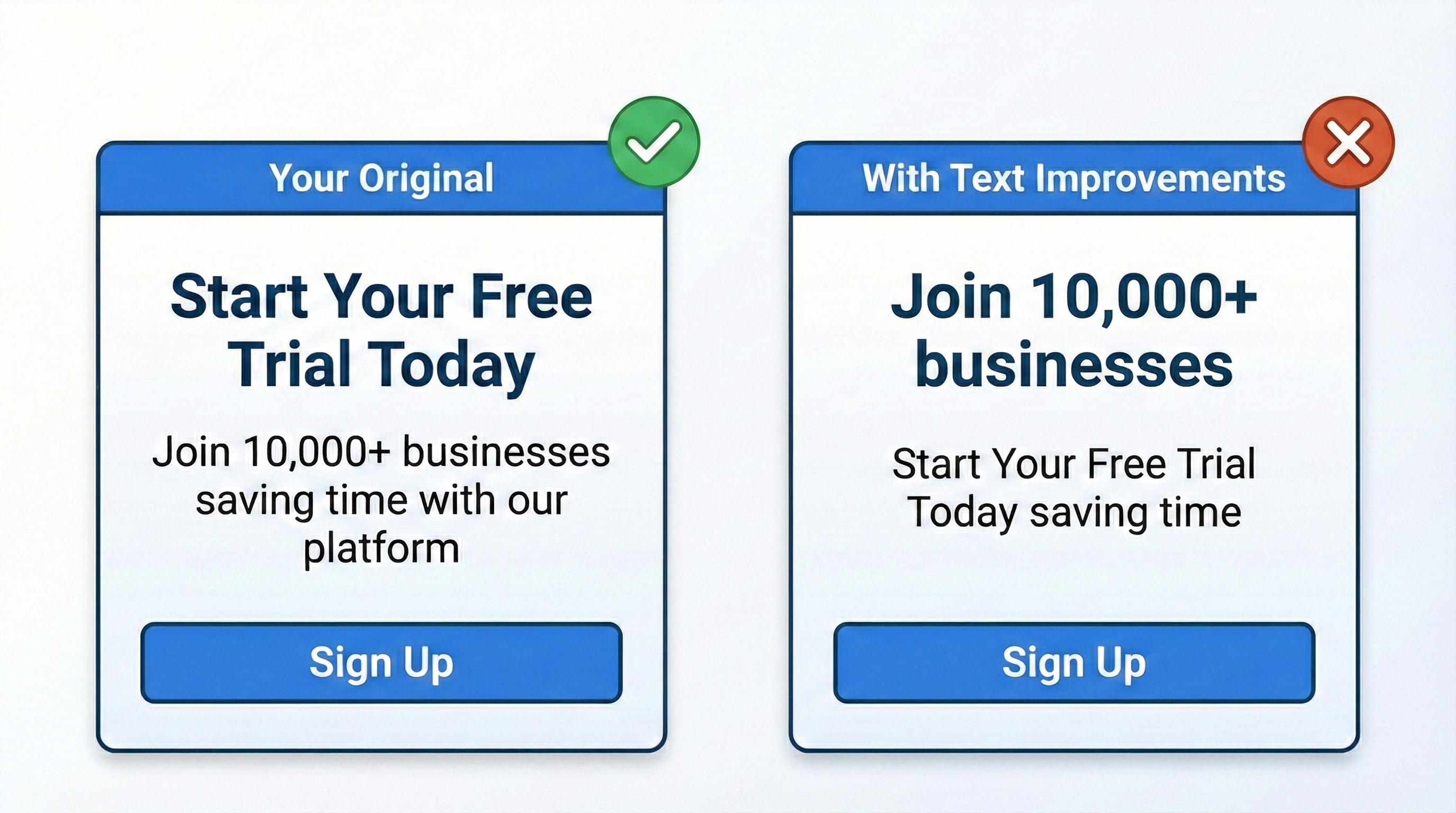
The bigger issue: Every time Meta rearranges your copy, you lose the ability to understand what's actually driving performance. If your ROAS improves, was it the creative concept or Meta's text shuffling? You'll never know.
When it might work: Only if you're genuinely indifferent to how your copy appears and prioritize pure performance over message control.
Music
Adds background music to your ad. Meta's music enhancement now covers both tracks from its music library and AI-generated music made for your ad; on automatic selection Meta picks between the two, and on manual you choose. Library music can run on Facebook Feed and Reels and on Instagram Feed, Stories and Reels for single image and carousel ads. AI-generated music runs on Facebook Reels for single image ads.
Why it's dangerous: Meta's music selection algorithm doesn't understand context, seasonality or brand tone.
Real example of failure: One advertiser reported their spin class ad received "horror movie music" instead of upbeat fitness tracks. Others have reported Christmas music playing on summer campaigns.
When it might work: Silent static or carousel ads headed for Reels and Stories, where you're okay with any music Meta selects.
Better approach: Add your own music during video production. This gives you control over tone while still benefiting from audio engagement.
Site Links
Adds up to four additional clickable links below your main ad CTA.
Status check: Site Links no longer appears in Meta's current Help Center list of Advantage+ creative enhancements, so newer ad setups may not show it. If older ads still have it on, the advice below stands.
Why it's problematic: Site Links divert users from your primary conversion path. Instead of clicking your main CTA, users click random navigation links.
Documented issue: Multiple advertisers report conversion rate drops when Site Links are enabled because users click auxiliary links instead of the intended action. If you're optimizing for conversions, a single clear path performs better than multiple options competing for attention.
Advantage+ Creative for Catalog Ads
Catalog ads (formerly Dynamic Product Ads) have unique enhancements that standard ads don't offer. Here's the catalog-specific breakdown:
Catalog-Specific Enhancements
- Generate Background (AI): Creates lifestyle backgrounds for product photos
- Expand Image (AI): Extends image edges for different aspect ratios
- Adapt to Placement (AI, now labeled Image Touch-ups): Fits product images to 4:5 and 9:16 placements
- Dynamic Media (Allow Product Video): Chooses between image or video per impression
- Add Catalog Items (Show Products): Shows catalog items next to your main creative
- Dynamic Description: Pulls product data for descriptions
- Site Links: Additional navigation links (no longer in Meta's current list)
- Dynamic Overlays: Price, discount and urgency badges on Facebook Feed
- Info Labels (Add Standard Label): Highlights product information, such as items on sale
- Add Product Browsing: Opens a product browsing experience on Facebook or Instagram before your website
Recommended Catalog Setup
Enable:
- Adapt to Placement (Image Touch-ups)
- Dynamic Media
- Dynamic Description
- Info Labels (if you have valid sale or label data)
Test:
- Generate Background (preview every product)
- Dynamic Overlays (for price-driven campaigns)
- Expand Image (for simple product photography)
Approach with caution:
- Site Links (can disrupt conversion path)
- Text Improvements (applies to catalog too)
Performance tip: Catalog enhancements work best with clean product photography and complete catalog data. If your feed has missing attributes or low-quality images, enhancements won't fix those issues. They'll amplify them.
How to Enable and Preview Advantage+ Creative
In Meta Ads Manager
- Create an ad in Ads Manager (or open a draft) and continue to the Ad setup step
- In Ad creative, click Set up creative and continue to Enhancements
- Turn individual enhancements on or off, and click Customize where an enhancement offers options
- In the ad preview, click Expand to open Advanced preview
- Use the Placements tab to see how each enhancement varies by placement, and the arrows on each card in the Advantage+ creative tab to step through variations
- Click Review defaults, next to Advanced preview, to see every creative feature that's on by default, grouped by category
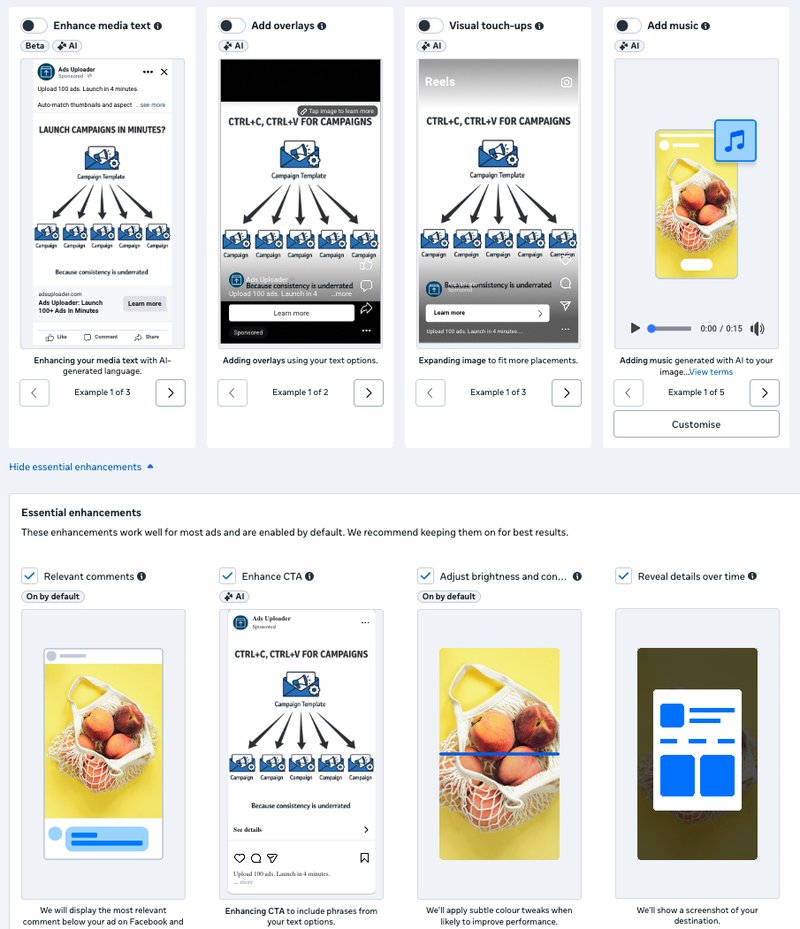
Critical step: Some enhancements can only be turned off in Advanced preview and won't appear in the Enhancements step of the ad creative. Check both before you publish. For an ad that's already live, select it in the Ads tab, click Edit, and click Edit in the Advantage+ creative section, which shows how many enhancements are on.
Bulk Editing Enhancements
To edit enhancement settings across multiple ads:
- In Ads Manager, open the Ads tab and tick the ads you want to change
- Click the menu button next to Edit and select Advantage+ creative
- Review which enhancements are on for each selected ad, then click Edit under Edit all selected ads
- Tick the enhancements to turn on, untick the ones to turn off, then save to draft or publish
Limitation: Every ad you select must use the same ad format, so mixed image, video and carousel selections need separate passes.
Account-level switch: Ads Manager's Advertising settings have a Creative features section with a Test new creative features checkbox. Untick it to stop creative features that are still in testing from being applied to eligible campaigns. Meta only offers it to eligible advertisers.
Via API and Bulk Upload
For advertisers using the Marketing API, enhancement settings live in creative_features_spec, inside the creative's degrees_of_freedom_spec. Each feature takes an enroll_status of OPT_IN or OPT_OUT.
As of Marketing API v22.0 (January 2025), Meta no longer lets you opt in or out of the single standard_enhancements bundle. You now set each feature individually, for example:
image_touchups(Visual Touch-ups)text_optimizations(Text Improvements)enhance_cta(Enhance CTA)inline_comment(Relevant Comments)
Music is the exception: it's set through the audios field of asset_feed_spec, and you opt out by passing it empty. The reference table above lists every documented field.
Ads Uploader handles this at launch without API code. Pick an ad you already run as the model and the new ads start with its creative enhancement settings. Untick anything you want off, or use Select All to switch every option at once, and the choice applies to the whole batch. Options are split into images, videos and carousel, catalog options appear when the model ad uses a catalog, and an AI-generated content checkbox handles the disclosure. From the command line, "creativeEnhancements": "none" in the CLI spec switches off every enhancement listed in the CLI reference. See how creative enhancements work in Ads Uploader for the full list.
Save Hours on Creative Testing
Stop uploading ads one by one. Bulk process unlimited creatives with automatic media matching and direct API publishing.
Try Ads Uploader FreeNo credit card required • 7-day free trial
Common Advantage+ Creative Problems (and Fixes)
Problem 1: Enhancement Changed My Messaging
Cause: Text Improvements is enabled, and Meta rearranged your copy.
Fix: Disable Text Improvements. Always preview before enabling. If you need text optimization, test manually with specific copy variations instead of letting AI decide.
Problem 2: Music Doesn't Match My Brand
Cause: Music enhancement auto-selected an inappropriate track.
Fix: Disable the Add Music enhancement. Add your own audio during production for full control. Automatic selection can now pick AI-generated music as well as library tracks, so the mismatch risk hasn't gone away.
Problem 3: Images Look Stretched or Cropped Weird
Cause: Visual touch-ups applied aggressive cropping to images with edge elements, or AI expansion generated edges that don't match the original.
Fix: Design with safe zones in mind. Keep important elements in the center third of your image. Alternatively, disable Visual Touch-ups for specific ads where cropping causes issues.
Problem 4: Can't Tell Which Enhancements Are Active
Cause: Settings inherited from duplicated ads, bulk changes, or enhancements Meta turned on by default.
Fix: Select the ads in the Ads tab and open Advantage+ creative from the menu next to Edit. The bulk editor shows which enhancements are on for each selected ad. For new ads, click Review defaults next to Advanced preview before you publish.
Problem 5: Conversion Rates Dropped After Enabling Site Links
Cause: Users clicking auxiliary links instead of main CTA.
Fix: Disable Site Links. Focus on a single, clear conversion path.
Frequently Asked Questions
Should I turn on all Advantage+ creative enhancements?
No. Enable low-risk enhancements like Relevant Comments, Visual Touch-ups (Images) and Adjust Brightness and Contrast. Approach high-risk ones like Text Improvements, Enhance Media Text and Music with caution. Test them specifically for your account before rolling out broadly.
Do Advantage+ creative enhancements use AI?
Many do. Of the 31 enhancements in Meta's Help Center list (September 2026), 17 carry the "AI" label because they use, or can use, generative AI. That includes Visual Touch-ups, Text Improvements, Enhance CTA, Add Overlays, Add Music, Background Generation, Image Generation and Translations. Relevant Comments, Adjust Brightness and Contrast, Flex Media and Dynamic Description are not AI-labeled and don't generate new content.
Can I preview Advantage+ creative changes before enabling?
Yes. In the ad preview, click Expand to open Advanced preview, then use the arrows on each card in the Advantage+ creative tab to step through possible variations. Some enhancements can only be turned off in Advanced preview, so check it as well as the Enhancements step of the ad creative. Always preview before enabling new enhancements.
Do enhancements affect all placements?
Enhancements apply based on placement compatibility, and many are limited to specific placements. Show Spotlights only delivers to Instagram Stories and Reels, Show Summaries to Facebook and Instagram Feed, Enhance CTA to Stories, and AI-generated music to Facebook Reels. Check the Placements tab in Advanced preview to see exactly how each enhancement appears.
Can I bulk edit Advantage+ creative settings?
Yes. In Ads Manager, select the ads, open the menu next to Edit and choose Advantage+ creative, then edit all selected ads at once. Every selected ad must use the same ad format. Tools that launch ads through Meta's API, such as Ads Uploader, can also set enhancements for a whole batch at launch.
Will Advantage+ creative hurt my ad performance?
It depends on which enhancements you enable. Low-risk enhancements (Visual Touch-ups, Relevant Comments, Brightness/Contrast) generally help or have neutral impact. High-risk ones like Text Improvements can hurt performance if they distort your messaging. Meta's Advantage+ creative page cites a 2-3% conversion lift from background generation on Advantage+ catalog ads and a 2% lift on Facebook Reels from video expansion, but individual results vary significantly by enhancement and account.
What are the standard Advantage+ creative enhancements?
Standard enhancements was Meta's one-switch bundle. For single image ads it covered Add Overlays, Visual Touch-ups, Text Improvements and Relevant Comments; for single video ads, Visual Touch-ups, Text Improvements and Relevant Comments. Since Marketing API v22.0 the bundle can no longer be switched as one, so each enhancement is its own toggle. Others, such as Reveal Details Over Time, Show Spotlights and Show Summaries, may be on by default, which you can check under Review defaults in Ads Manager.
Which Advantage+ enhancements use AI?
Meta labels 17 enhancements as AI: Add Animation, Add Music, Add Overlays, Add Video Effects, Background Generation, Create Sticker CTA, Enhance CTA, Enhance Media Text, Image Generation, Image Touch-ups (catalog), Show Summaries, Text Generation, Text Improvements, Translations, Video Subtitles, Video Touch-ups and Visual Touch-ups. Preview them before publishing, because generated pixels and rewritten text can distort logos, product edges and your message.
What's new in Advantage+ creative in 2026?
Between June and September 2026, Meta announced brand memory (generation that learns your brand's identity and tone from existing ads, in testing), extended text generation to text inside image creative, added five languages to text-on-media translation and eleven to video voiceover, and began testing a built-in creative approval workflow. On July 7 it said Muse Image would power Advantage+ creative image generation "in the coming weeks", but by September 30 it had not confirmed the rollout. Separately, since around August 19 some advertisers have been told placement exclusions will no longer be available for their ad sets, in what is reported as a test that Meta has not announced.
The Bottom Line
Not all Advantage+ creative enhancements are created equal. The key is knowing which ones to trust and which ones to test carefully.
Enable by default:
- Visual Touch-ups (Images)
- Relevant Comments
- Adjust Brightness and Contrast
- Adapt to Placement (Catalog)
- Dynamic Description (Catalog)
- Dynamic Media (Catalog)
Test with small audiences first:
- Enhance CTA
- Add Overlays
- Expand Image
- Generate Background
- Visual Touch-ups (Videos)
- Dynamic Overlays
- Image Generation and Translations
Approach with caution:
- Text Improvements
- Enhance Media Text and Show Summaries
- Music
- Site Links
Always use the preview function before enabling new enhancements. For catalog ads, start with the non-AI enhancements and add AI features gradually after validating their impact on your specific products.
Scaling creative testing requires uploading dozens of ad variations with different enhancement configurations. Ads Uploader lets you configure Advantage+ creative settings in bulk across all your ads, saving hours of manual configuration in Ads Manager. Start your free 7-day trial and see how hours of clicking through individual ads becomes minutes of streamlined setup.