Meta ads safe zones are designated areas within your ad creative where text, logos, and CTAs must be placed to avoid being obscured by platform UI elements like buttons, profile icons, and interactive overlays. For Stories and Reels, keep content away from the top 14% (269px), the bottom 35% (672px), and 6% (65px) on each side. Using Meta's Safe Zone Guardrail in Ads Manager helps verify placement before launching campaigns.
You spend hours designing the perfect ad. The headline is punchy, the CTA is bold, and the visuals are on point. Then you launch, and Meta's "Shop Now" button lands directly on top of your carefully crafted message.
This happens constantly. UI overlays crop your text, hide your CTAs, and waste your ad spend on creative that viewers can't fully see. The fix isn't complicated, but it requires understanding exactly where Meta places its interface elements across different placements.
This guide gives you the complete safe zone dimensions for every Meta ad placement, explains what changed when Meta merged the Stories and Reels specs (most advertisers are still designing to the old one), and shows you how to verify safe zones before launching. If you're testing creative at scale in the Andromeda era, getting safe zones right on every variation matters more than ever.
What Are Meta Ads Safe Zones?
Safe zones are the areas within your ad creative where critical content, text, logos, CTAs, won't be obscured by platform UI elements. When your ad runs on Facebook or Instagram, Meta overlays interface elements like profile icons, like buttons, share icons, captions, and CTA buttons on top of your creative.
If your headline or logo sits underneath those elements, viewers never see it.
The challenge is that each placement has different overlays. A feed ad has minimal UI interference. A Reels ad has likes, comments, share buttons, captions, and audio information stacked on the right side and bottom. Stories have profile icons at the top and swipe-up prompts at the bottom.
Designing one creative and expecting it to work everywhere without considering these differences is how ads fail silently, burning budget on impressions where your message is partially hidden.
Why Safe Zones Matter for Ad Performance
The Real Cost of Ignoring Safe Zones
When your CTA gets covered by Meta's "Shop Now" button, you're paying for impressions that can't convert. When your logo is hidden behind a profile icon, you're wasting brand impressions. When your headline is truncated by caption overlays, your message becomes unclear.
These aren't edge cases. Run any 9:16 vertical ad without considering safe zones and you'll likely have content obscured on at least one placement.
The math is simple: if 20% of your creative's key message is hidden on 40% of your placements, you're effectively paying full price for diminished impact.
How Safe Zones Impact Creative Testing
In the current Meta advertising landscape, creative diversity drives performance. The advertisers winning aren't using secret targeting hacks. They're testing massive amounts of creative variations and letting Meta's AI find the winners.
But more variations means more opportunities for safe zone mistakes. If you're launching 50 creative variations and half of them have CTAs in the danger zone, you're undermining your own test before it starts.
Getting safe zones right at the template level, before you scale, prevents this problem entirely.
Complete Safe Zone Dimensions by Placement
Here's the complete reference for every major Meta ad placement. Bookmark this section.
Feed Ads (1:1 Square)
Dimensions: 1080×1080px
Safe zone: Keep all critical content within the center 80%, approximately 100px from all edges.
Feed ads have the least UI interference. Meta displays your image or video with minimal overlay. Meta's instruction for non-9:16 Feed ratios is to keep the bottom and side edges clear. It publishes no percentages for these, so 100px is a working figure rather than a Meta number.
Key placement: Center your most important message in the middle quadrant.
Feed Ads (4:5 Vertical)
Dimensions: 1080×1350px
Safe zone: Leave 250px margin at top and bottom.
The 4:5 format dominates mobile feeds because it takes up more screen real estate than square. The extra vertical space means more room for your message, but also more area near the edges that might get cropped on certain devices.
Best for: Mobile feed dominance with maximum visible creative space.
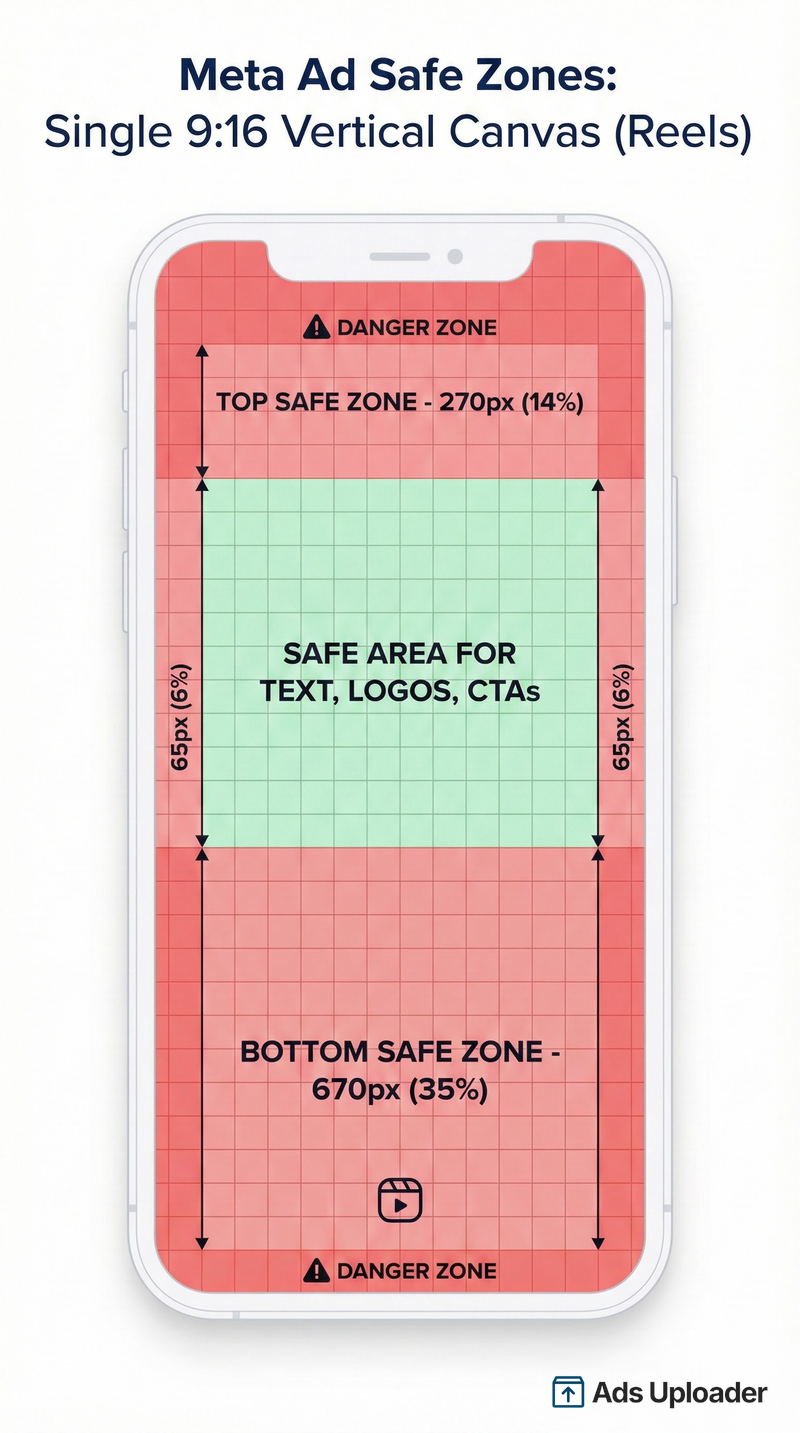
Stories and Reels (9:16 Vertical)
Dimensions: 1080×1920px
Safe zones:
- Top: 269px (14%), profile icon, username, "Ad" label
- Bottom: 672px (35%), CTA button, caption, engagement icons
- Sides: 65px (6%) each
- Bottom-right corner: 40% instead of 35%, to clear the engagement rail
Critical safe area: The center 950×979px is your working space for all key elements.
Stories and Reels use the same numbers. Meta publishes one 9:16 safe zone, and it covers Feed and Facebook in-stream reels too. Meta's help center publishes it as a labelled diagram.
You may still find 20% quoted for Stories. That number is real but narrower than it looks: it appears on Meta's link sticker help page, where it describes the clearance needed for the call-to-action sticker alone, not the full interface. Ads Manager draws 35% for Instagram Stories. Design to 35%.
Compose slightly high. The safe area runs from 269px down to 1248px, so its midpoint sits about 200px above the centre of the canvas. Anything you centre on the canvas sits low in the safe area.
On phones taller than 9:16, Meta either zooms the creative to fill the screen, cropping outside the safe zone, or letterboxes it against black. You don't choose which. Keep key elements a comfortable margin inside the safe area rather than against its edge.
What the Guardrail Draws
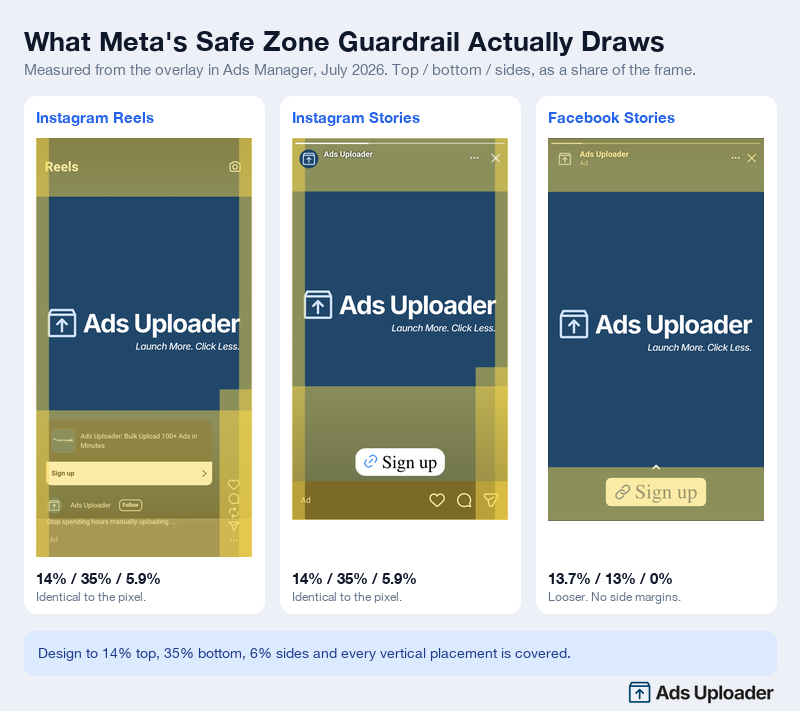
Toggle the Safe Zone Guardrail in Ads Manager and Meta draws the box on your creative. Measured as a percentage of the frame:
| Placement | Top | Bottom | Sides |
|---|---|---|---|
| Instagram Reels | 14.0% | 35.0% | 5.9% |
| Facebook Reels | 14.0% | 35.0% | 5.9% |
| Instagram Stories | 14.0% | 35.0% | 5.9% |
| Facebook Stories | 13.7% | 13.0% | 0% |
Instagram Stories, Instagram Reels and Facebook Reels are identical. Facebook Stories is looser, so a creative built to the 9:16 spec clears it with room to spare.
Design to 14 / 35 / 6 and every vertical placement is covered.
Launch More. Click Less.
Upload hundreds of creatives at once, auto-match thumbnails to videos, and publish straight to your ad accounts through Meta's API.
Try Ads Uploader FreeNo credit card required • 7-day free trial
Horizontal/Landscape (16:9)
Dimensions: 1200×628px
Safe zone: Keep content within the middle 80%, approximately 60px from top and bottom, 120px from sides.
Horizontal format appears in link previews, desktop right column ads, and some in-stream placements. It's less common for primary creative but still requires attention to safe zones, especially for text-heavy designs.
Complete Safe Zone Reference Table
| Placement | Size (px) | Aspect Ratio | Top Safe | Bottom Safe | Sides |
|---|---|---|---|---|---|
| Feed Square | 1080×1080 | 1:1 | 100px | 100px | 100px |
| Feed Vertical | 1080×1350 | 4:5 | 250px | 250px | 100px |
| Stories | 1080×1920 | 9:16 | 269px (14%) | 672px (35%) | 65px (6%) |
| Reels | 1080×1920 | 9:16 | 269px (14%) | 672px (35%) | 65px (6%) |
| Feed (9:16 video) | 1080×1920 | 9:16 | 269px (14%) | 672px (35%) | 65px (6%) |
| Horizontal | 1200×628 | 16:9 | 60px | 60px | 120px |
Two exceptions on the 9:16 rows: the bottom-right corner needs 40%, and a Reels ad carrying a disclaimer needs the bottom 40% clear across the full width.
The "One Creative for All Placements" Strategy
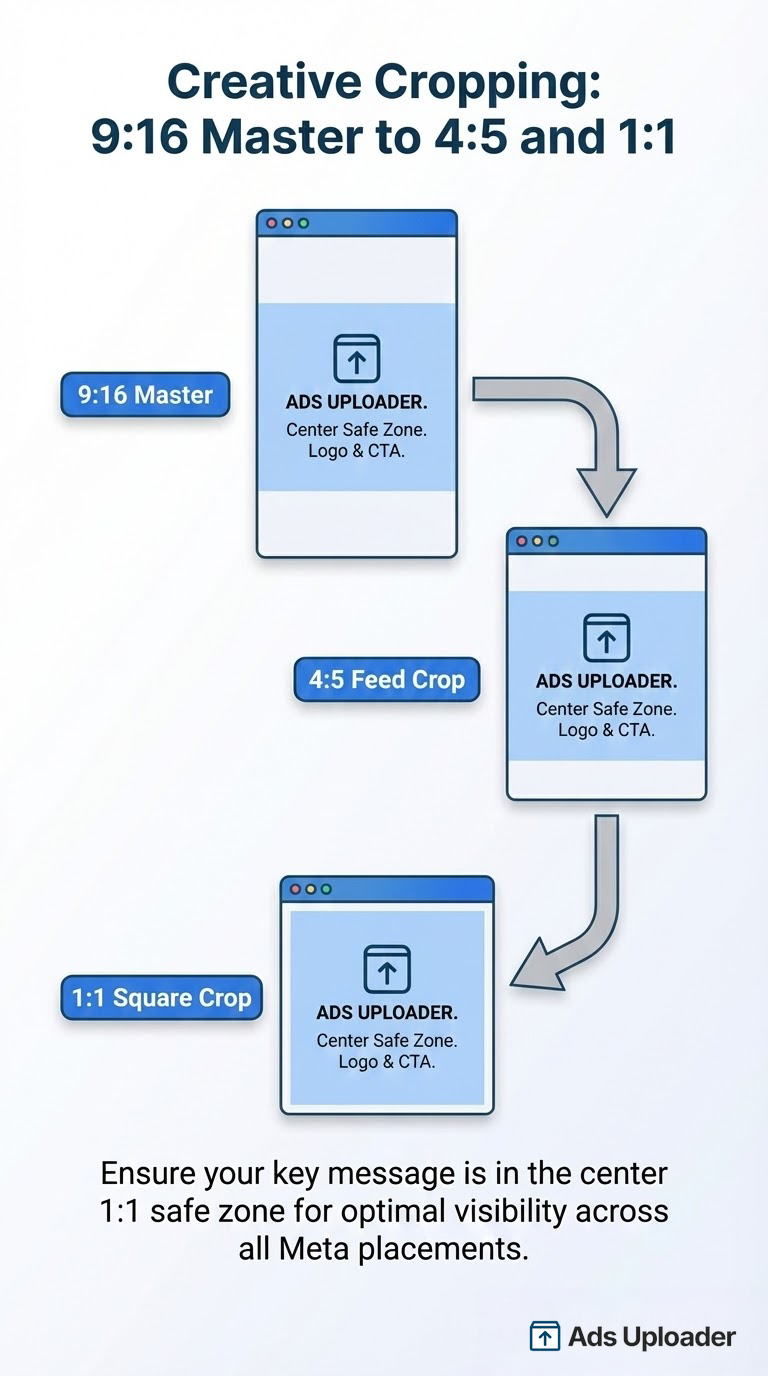
There's a workflow that experienced media buyers use to simplify safe zone compliance across all placements: design one 9:16 vertical creative with all critical content confined to a centre box.
Here's how it works:
- Start with 9:16 (1080×1920) as your master canvas
- Mark the safe area: 950×979px, running from 269px down to 1248px
- Keep all text, logos, and CTAs within that area
- Pull the bottom-right corner in further to clear the engagement rail
When you upload this creative, Meta will display the full 9:16 for Stories and Reels. For feed placements, it crops to 1:1 or 4:5 from the center, and because your critical content is in the center square, it remains visible.
The happy accident here is that a 950×979px safe area is almost exactly square. The "design inside a centre square" advice that has circulated for years turns out to describe the real safe zone quite well, with one correction: the square sits above the vertical centre, not on it.
This approach was popularized by Jon Loomer and works well for advertisers who want to minimize production time while maintaining safe zone compliance.
Pros: Less production time, consistent messaging across placements, automatic safe zone compliance for most placements.
Cons: Less optimization per placement, may feel visually constrained, doesn't maximize available creative space.
For high-volume creative testing, this strategy reduces the risk of safe zone errors across dozens of variations.
How to Use Safe Zone Guardrail in Ads Manager
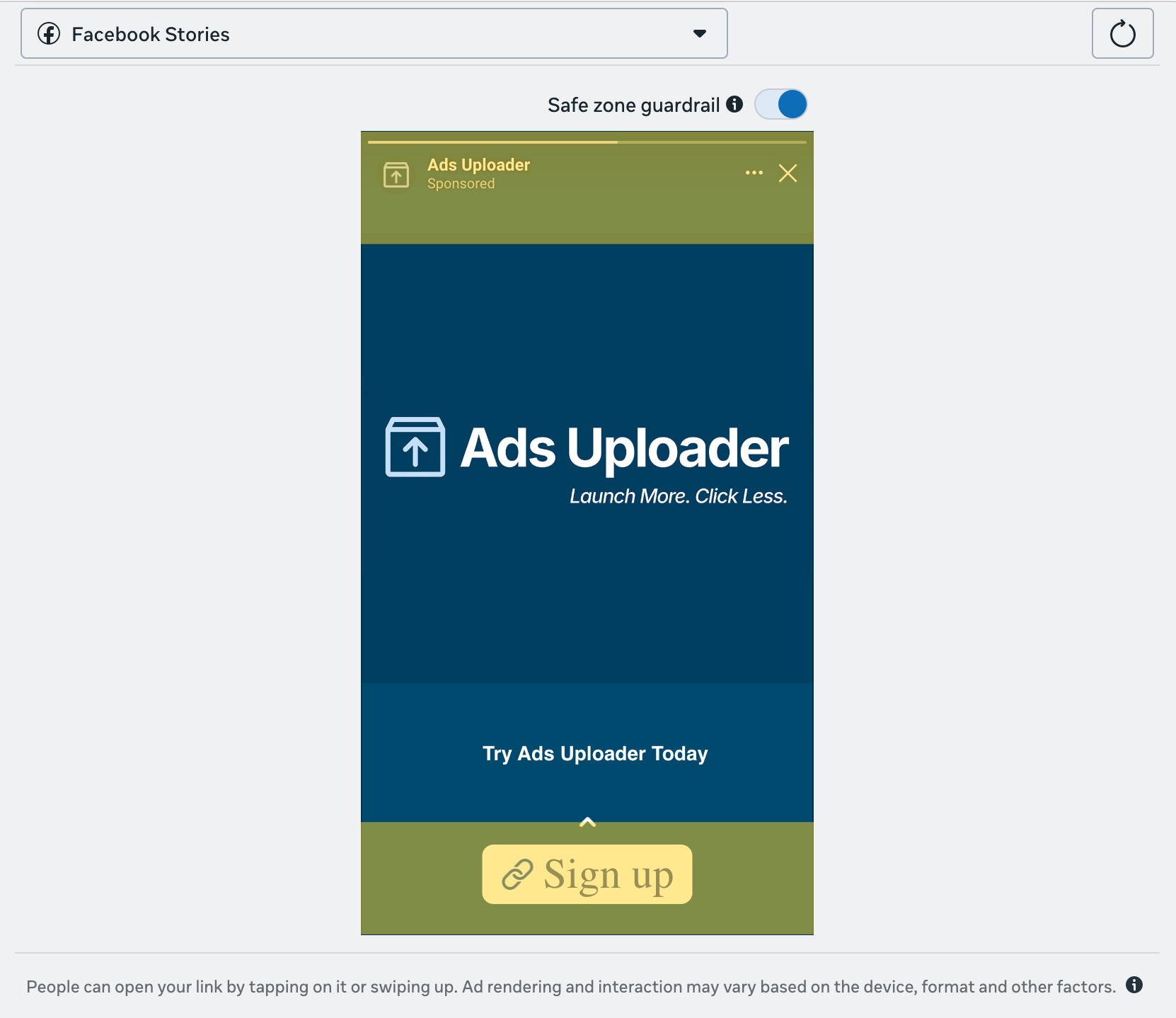
Meta provides a built-in tool to verify safe zones before you launch. Here's how to use it:
Step-by-Step Workflow
- Create or upload your ad creative in Ads Manager
- Navigate to the ad preview section
- Click "Edit" on your media asset
- Look for the "Safe Zone Guardrail" toggle
- Turn it on, a yellow overlay appears showing danger zones
- Review your creative, if any text or logos fall within the yellow area, they may be obscured
- Adjust your creative positioning if needed
- Preview across all placements before launching
What the Guardrail Shows You
The yellow overlay indicates areas where Meta's UI elements will appear. Content within the yellow zone may be:
- Completely hidden by buttons or icons
- Partially obscured by overlapping elements
- Difficult to read due to visual interference
The clear areas are safe for text, logos, and CTAs.
Meta's help page currently describes this the other way round, but the tool is unambiguous. The yellow tint sits on the interface furniture: the header, the caption, the CTA button, the engagement rail. Keep your content out of the yellow.
Important: The Guardrail shows you what happens on standard placements. Always use the advanced preview to check how your ad appears across Facebook Feed, Instagram Feed, Stories, Reels, and other placements before launching.
Safe Zones for Bulk Creative Uploads
The Scale Challenge
When you're uploading 10, 20, or 50 creative variations at once, manually checking Safe Zone Guardrail for each one isn't practical. You need a systematic approach that builds safe zone compliance into your workflow from the start.
Best Practices for Bulk Uploads
- Design all creatives with safe zones baked in, use templates with pre-defined safe areas so every variation is compliant by default
- Create aspect ratio variations from a single source, start with your 9:16 master, then export 4:5 and 1:1 crops from the same design
- Use the "one creative" strategy for maximum efficiency, center-weighted designs translate cleanly across placements
- Batch preview before final upload, spot-check a sample from each variation type across all placements
- Use aspect ratio variation features to maintain consistency when uploading multiple formats
Template Approach
The most reliable method for bulk creative is building safe zones into your templates:
- Create a master template at 1080×1920 (9:16)
- Add guide layers at 269px from the top, 672px from the bottom, and 65px on each side
- Add a second guide for the bottom-right carve-out, 40% up from the bottom
- Export variations (4:5, 1:1) by cropping from the center
- All variations automatically inherit safe zone compliance
This takes 30 minutes to set up once and saves hours of troubleshooting across hundreds of creative launches. It also means the next time Meta moves a number, you edit one template instead of auditing a library.
Save Hours on Creative Testing
Stop uploading ads one by one. Bulk process unlimited creatives with automatic media matching and direct API publishing.
Try Ads Uploader FreeNo credit card required • 7-day free trial
Common Safe Zone Mistakes to Avoid
1. Designing to Old Stories Templates
Instagram Stories draws the same 35% guardrail as Reels, so a template built to 20% puts your headline under the caption. Templates carrying that number are still in wide circulation. If one in your library predates 2026, measure it before you use it.
2. Forgetting Side Margins
The 6% side margins on 9:16 formats are easy to overlook. Text that runs edge-to-edge looks fine in your design tool but gets clipped or cramped against UI elements on mobile.
3. Placing CTAs at the Bottom
It's intuitive to put your call-to-action at the bottom of a vertical creative. It's also wrong for Stories and Reels, where Meta places its own CTA buttons in that exact location. With 35% of the canvas spoken for, the bottom third is not a design choice you get to make. Move your CTA to the centre or upper-centre.
4. Ignoring Automatic Placements
When you enable Advantage+ placements, Meta shows your ad across all compatible placements. A creative designed for Feed will get cropped and displayed on Stories and Reels. This is especially important for carousel ads, where each card must respect safe zones independently. If you haven't considered those safe zones, parts of your message will be hidden. The Advantage+ creative enhancements you switch on compound this, since image expansion, overlays, and added text can shift elements into unsafe areas, so check them against the guardrail before launching.
5. Using Tiny Text Near Edges
Small text near the edges of your creative is at highest risk. It either gets clipped entirely or becomes unreadable when it competes with UI elements. Keep body text well within safe zones and use larger fonts for anything near boundaries.
6. Not Previewing All Placements
What looks perfect in Feed might fail in Reels. Always use Ads Manager's placement preview to see exactly how your creative appears across every placement before launching.
Frequently Asked Questions
What is the safe zone for Meta ads?
The safe zone is the area within your ad creative where text, logos, and CTAs won't be covered by platform UI elements. Meta now publishes a single 9:16 safe zone covering Stories, Reels, Feed and Facebook in-stream reels: keep the top 14%, the bottom 35%, and 6% on each side clear. Non-9:16 Feed ads (1:1 and 4:5) need roughly 100px of clearance from the bottom and side edges.
What are the Instagram Reels safe zone dimensions?
For Instagram Reels at 1080×1920px, keep content away from the top 269px (14%), the bottom 672px (35%), and 65px (6%) on each side. That leaves a working area of about 950×979px. The bottom clearance deepens to 40% in the bottom-right corner, where the like, comment, share and audio rail sits.
How do I check safe zones in Ads Manager?
In Ads Manager, go to your ad preview and click "Edit" on your media. Toggle on the "Safe Zone Guardrail" to see a yellow overlay. The yellow area is where Meta's UI will sit, so keep text, logos and CTAs out of it. Switch placements in the preview dropdown, because the guardrail draws a different box for Facebook Stories than it does for Reels.
Can I use one creative for all Meta placements?
Yes. Create a 9:16 vertical creative with all critical content inside the 950×979px safe area, which sits slightly above the centre of the canvas. When Meta crops for feed placements, your content stays visible. This "one creative" approach reduces production time and ensures safe zone compliance, though it sacrifices some placement-specific optimization.
What's the difference between Stories and Reels safe zones?
There is no longer a difference on Instagram. Meta publishes a single 9:16 safe zone, and the Safe Zone Guardrail draws an identical box for Instagram Stories and Instagram Reels: 14% top, 35% bottom, 6% sides. The 20% bottom figure still quoted for Stories comes from Meta's link sticker page and covers the call-to-action sticker alone, not the full interface. Facebook Stories is looser, roughly 13% top and bottom with no side margins, so a creative built to the Reels spec is safe there too.
Do I need different creatives for Facebook and Instagram?
Not necessarily for safe zones. Facebook and Instagram use the same safe zone dimensions for equivalent placements (Stories, Reels, Feed). Design to the 9:16 spec of 14% top, 35% bottom and 6% sides and your creative clears the UI on both. However, if you're optimizing creative for platform-specific audiences, you might want different messaging or visuals even though the safe zone requirements are identical.
Download Free Safe Zone Templates
We've created transparent PNG overlay templates for each major placement. Drop them into Photoshop, Figma, Canva, or any design tool to see exactly where your safe zones are while designing.
Download Safe Zone Templates (ZIP)
Available templates:
- 9:16 Stories and Reels (1080×1920), with 14% top, 35% bottom and 6% side markers, plus the bottom-right carve-out
- 4:5 Feed Vertical (1080×1350), with 250px margins
- 1:1 Feed Square (1080×1080), with 100px margins
- 16:9 Horizontal (1200×628), with edge margins
The 9:16 template replaces the separate Stories and Reels files. They now describe the same box.
Conclusion
Meta ads safe zones aren't complicated once you know the dimensions. The key points:
- Feed ads (1:1, 4:5): 100-250px margins from edges
- Stories, Reels and 9:16 Feed: 14% top, 35% bottom, 6% sides, one spec across all of them
- The bottom-right corner: 40%, not 35%, to clear the engagement rail
- Facebook Stories: looser than the rest, so designing to the 9:16 spec covers it
- Use Safe Zone Guardrail in Ads Manager to verify before launching
- Build safe zones into templates for bulk creative uploads
The mistake that costs the most now is an old template. For years the working assumption was that Stories needed about 20% of bottom clearance and Reels needed 35%. Instagram Stories draws the same 35% as Reels, so a headline placed to the old spec sits under the caption.
For advertisers testing creative at volume, the "one creative" approach reduces errors across all placements. Keep every critical element inside the 950×979px safe area, compose slightly above centre, and you can launch dozens of variations confident that your message will actually be visible.
Download the free templates above and start designing within the safe zones from your next campaign.