A Meta Pixel ID is a unique 15 to 16 digit numeric identifier that connects your website tracking to your Meta ad account. You find it in Meta Events Manager under Data Sources, where the field is now labeled Dataset ID after Meta's rename, though the number itself is unchanged. The same ID also appears inside your Pixel base code, in the fbq('init') line and the noscript image tag. It tells third-party tools and Meta which dataset to send your events to.
You are mid-setup. A landing page builder, a tag manager, or a checkout app is asking for your "Meta Pixel ID." You open Events Manager to grab it, and the field that used to say Pixel ID now says Dataset ID. Same number, new label, and instructions written for "Pixel ID" can send you hunting for a field that no longer exists.
The fastest path: open Events Manager, click Data Sources in the left menu, and scan the list - the 15 to 16 digit ID usually sits right under each pixel's name, no clicks needed. If it is not shown there, select the pixel and open its Settings tab. Everything below covers the edge cases: no Events Manager access, multiple pixels, or reading the ID off a live page.
This article is about one thing: locating your Meta Pixel ID and the pixel code, fast, no matter what access you have. You will learn exactly where the ID lives in the current Events Manager, what it looks like so you copy the right value, how to pull it straight from your own base code, and how to read it off a live page. For the full picture of what the Meta Pixel is and why it matters, see the pillar guide. Here, we just find the number.
What Is a Meta Pixel ID?
A Meta Pixel ID is the unique numeric identifier for your pixel, the tracking object that records what visitors do on your website and reports it back to Meta. Every pixel gets its own ID when it is created, and that ID never changes for the life of the pixel.
When a third-party tool, a Shopify app, or a tag manager asks for your "Pixel ID," this is the number it wants. It is how Meta knows which dataset your website events belong to, so they reach the right ad account for optimization, attribution, and audience building.
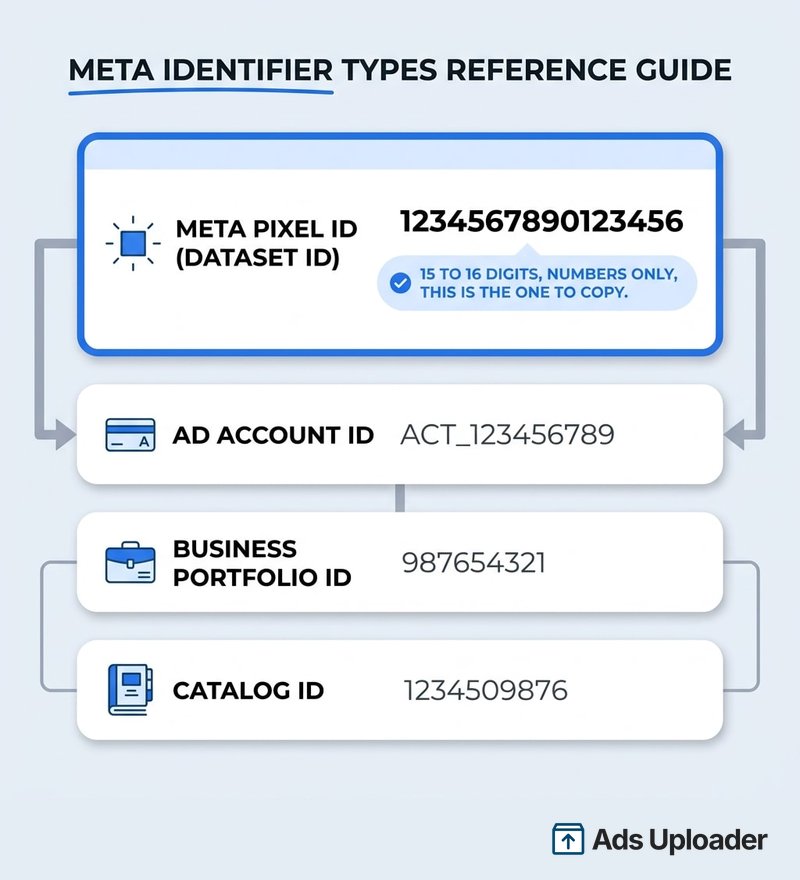
One thing to get straight up front: the Pixel ID is not your ad account ID, your business portfolio ID, or a product catalog ID. Those are separate numbers used in separate places, and mixing them up is the most common reason tracking silently breaks. We cover how to tell them apart below.
What a Meta Pixel ID Looks Like
A Meta Pixel ID is a long string of digits, typically 15 to 16 numbers, with no letters, dashes, or prefixes. It looks like this:
1234567890123456
That is the whole format. If the value you copied has an act_ in front of it, contains letters, or includes dashes, you grabbed the wrong identifier. Quick reference:
- Pixel ID (Dataset ID): 15 to 16 digits, numbers only. This is what goes in your pixel code.
- Ad account ID: often shown as
act_123456789. Used in Ads Manager and the Marketing API, never in the pixel code. - Business portfolio ID: a separate numeric ID for your Meta Business account.
- Catalog ID: a separate number tied to a product catalog, not your pixel.
When in doubt, the rule is simple: the number you paste into fbq('init', '...') is your Pixel ID, and nothing else.
How to Find Your Meta Pixel ID in Events Manager
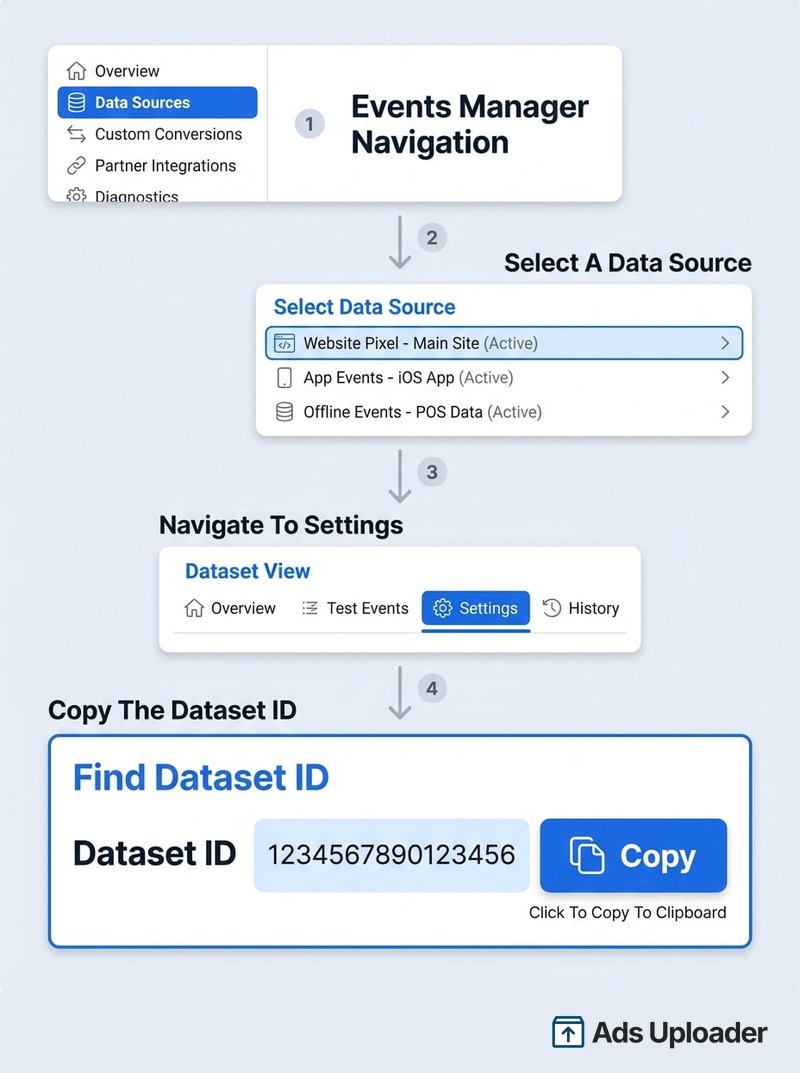
The canonical place to find your Pixel ID is Meta Events Manager. Here is the current path:
- Log into your Meta Business account and open Meta Events Manager (All Tools, then Events Manager).
- In the left menu, click Data Sources. Your pixel is listed here, under Meta's unified Datasets view.
- Click your pixel's name to open it.
- Open the Settings tab. The number shown as Dataset ID is your Pixel ID.
- Copy it to clipboard.
That is the value every tool is asking for. It is the same number whether a field calls it Pixel ID or Dataset ID.
Why It Now Says "Dataset ID"
Meta consolidated pixels, app events, and offline events into a single object called a dataset, and relabeled the ID field to match. Events Manager even shows a notice that your asset "has a new location" under Data Sources, which is why so many advertisers think their pixel vanished. It did not. It is a dataset now, and the number is unchanged.
Launch More. Click Less.
Upload hundreds of creatives at once, auto-match thumbnails to videos, and publish straight to your ad accounts through Meta's API.
Try Ads Uploader FreeNo credit card required • 7-day free trial
Finding It in the Data Sources List
You often do not need to open Settings at all. In the Data Sources list, the Pixel ID frequently appears directly under the pixel's name. If you manage several pixels, this list view is the fastest way to scan all of them and their IDs at once, then copy the one you need.
How to Find the Meta Pixel Code (Base Code)
Sometimes you do not just need the ID, you need the full Meta Pixel code, the base snippet that goes on your site. You get it in the same place:
- In Events Manager, open your pixel under Data Sources.
- Choose the manual setup option (Set up, then Install code manually).
- Meta displays the full base code with your Pixel ID already inserted. Copy the entire block.
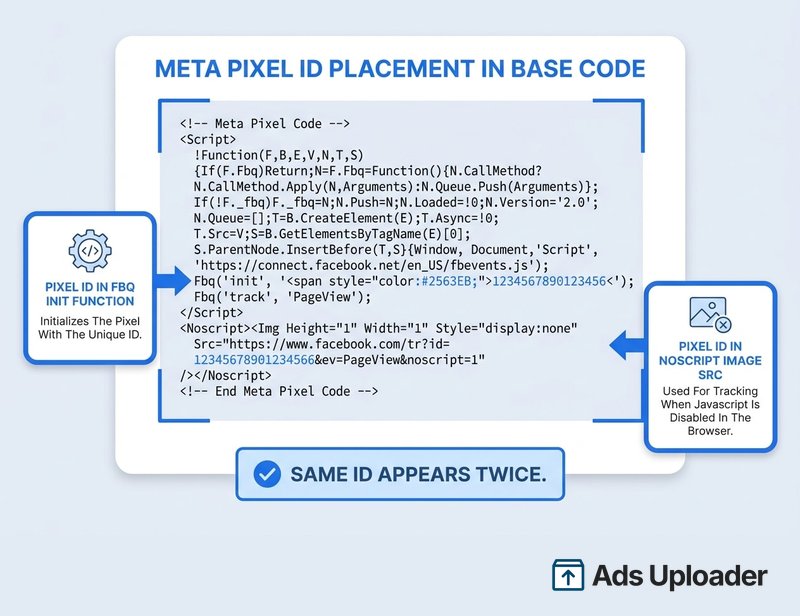
The snippet has not changed in structure for years. It loads Meta's library and initializes your pixel:
<script>
  !function(f,b,e,v,n,t,s){
    if(f.fbq) return; n=f.fbq=function(){n.callMethod?
    n.callMethod.apply(n,arguments):n.queue.push(arguments)};
    if(!f._fbq) f._fbq = n; n.push = n; n.loaded = !0; n.version = '2.0';
    n.queue = []; t = b.createElement(e); t.async = !0;
    t.src = v; s = b.getElementsByTagName(e)[0];
    s.parentNode.insertBefore(t,s)
  }(window, document,'script',
     'https://connect.facebook.net/en_US/fbevents.js');
  fbq('init', 'YOUR_PIXEL_ID');
  fbq('track', 'PageView');
</script>
<noscript>
  <img height="1" width="1" style="display:none"
       src="https://www.facebook.com/tr?id=YOUR_PIXEL_ID&ev=PageView&noscript=1"/>
</noscript>
Notice your Pixel ID appears twice: once in fbq('init', 'YOUR_PIXEL_ID') and once in the noscript image as id=YOUR_PIXEL_ID. Both must hold the same number. The code still loads fbevents.js from connect.facebook.net, and the tracking call still hits facebook.com/tr, exactly as Meta documents it.
This article stops at finding the code. For where to place it, how to add events, and how to confirm it fires, follow the full install walkthrough.
How to Find Your Pixel ID From Your Website Code
What if you can see your website's code but cannot log into Events Manager? You can still recover the Pixel ID directly from the page:
- View source: Open the page, view its source (Ctrl+U or Cmd+U), and search for
fbq('init'. The number right after it is your Pixel ID. - Network tab: Open your browser's developer tools, go to the Network tab, reload the page, and filter for
tr. Requests tofacebook.com/tr?id=...expose the ID in theid=parameter.
One caveat: a single site can carry more than one pixel, so you may see several IDs. That is normal for sites that have changed agencies or run multiple tracking setups. The next sections help you sort out which one is yours.
Read the Pixel ID Off a Live Page With Pixel Helper
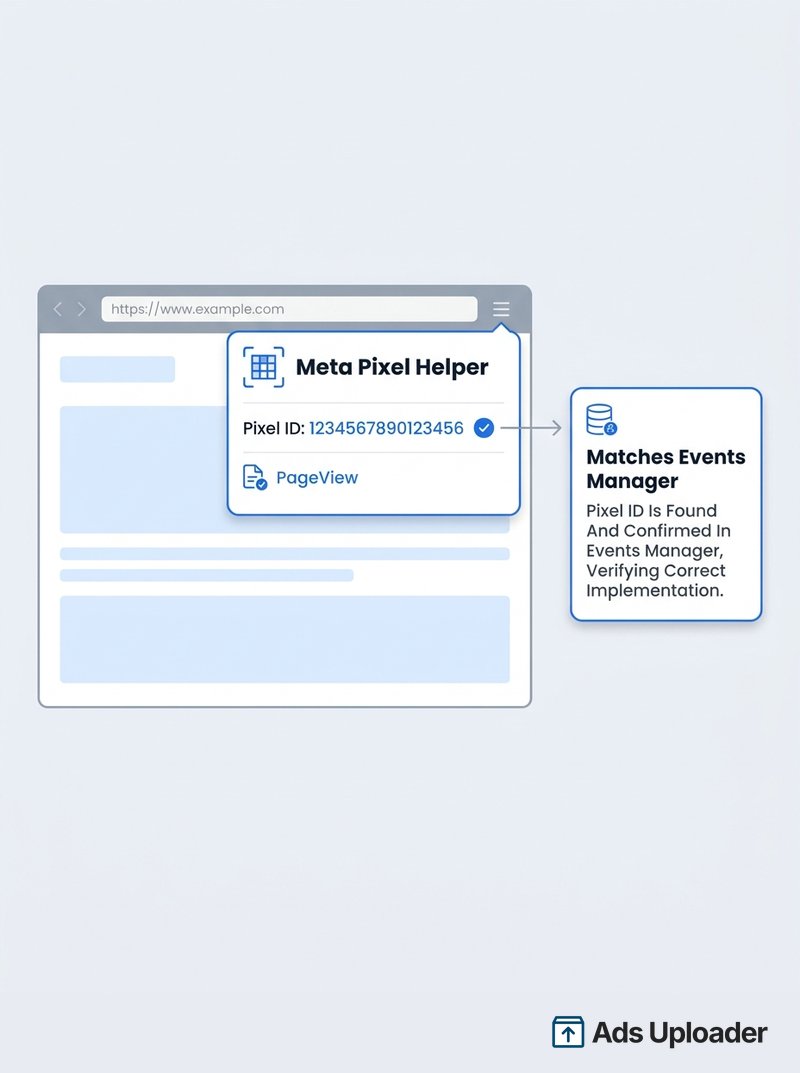
The cleanest way to read the Pixel IDs firing on any live page is the Meta Pixel Helper Chrome extension. Install it, visit the page, and click the extension icon. It lists every Pixel ID detected, the events firing, and any warnings, so you can confirm at a glance which pixel is live and spot duplicates instantly.
It is also the standard way to verify you copied the right ID: load your own site, check that the pixel firing matches the ID in Events Manager, and you know your setup points at the correct dataset. One limit worth remembering: the extension only sees client-side pixel events. Server-side events sent through the Conversions API bypass the browser and will not appear there.
Save Hours on Creative Testing
Stop uploading ads one by one. Bulk process unlimited creatives with automatic media matching and direct API publishing.
Try Ads Uploader FreeNo credit card required • 7-day free trial
Multiple Pixel IDs: Which One Is Mine?
Agencies, migrated accounts, and sites that have been rebuilt often end up with several Pixel IDs in play. To pick the right one:
- Check recent activity. In Events Manager, the pixel with recent event volume is almost always the live one for your site.
- Match the connection. Use the pixel that is named for and connected to the ad account you actually optimize campaigns in.
- Cross-check the live site. Compare the ID firing on your site (from page source or Pixel Helper) against the IDs in Events Manager. The match is your answer.
- Look under Partners. A pixel shared by an agency or partner may appear in Business Settings under Partners rather than your own Data Sources list.
Once you have confirmed the right ID, ignore or remove the stale duplicates so nobody pastes the wrong one later.
Can't Find Your Pixel ID? Common Fixes
If the ID is nowhere to be found, it is usually one of these:
- You are looking in the old place. Pixels live under Data Sources as datasets now. If Events Manager looks empty, confirm you are viewing Data Sources, then your dataset.
- You are in the wrong account. A pixel created in a different business portfolio, or under a personal login, will not show up. Switch to the correct Meta Business account.
- You lack the right role. You need an admin role, or full pixel permissions, to view the dataset. Ask the account owner to grant access.
- A partner owns it. If an agency created the pixel, it may not appear in your Events Manager until they share the dataset or assign it to your business.
- No pixel exists yet. If one was never created in this account, there is no ID to find. You create one first, then come back for the ID.
Frequently Asked Questions
What does a Meta Pixel ID look like?
A Meta Pixel ID is a long numeric string, typically 15 to 16 digits, with no letters. For example, 123456789012345. If your value has letters, an act_ prefix, or dashes, it is a different identifier, not your Pixel ID.
Why does Events Manager call my Pixel a Dataset now? Meta consolidated pixels, app events, and offline events into a single object called a dataset, and the Pixel ID field is now labeled Dataset ID. The number is unchanged, only the label. Find it under Data Sources, then your dataset's Settings tab.
Where do I find the Meta Pixel base code?
In Events Manager, open your pixel under Data Sources and choose the manual install option. Meta shows the full base code with your Pixel ID already inserted. Copy the whole block. The ID appears in the fbq('init') line and the noscript image.
Can I find my Pixel ID without Events Manager access?
Yes. If you can view the site's code, search the page source for fbq('init', or check the network tab for requests to facebook.com/tr. You can also install the Meta Pixel Helper extension and let it read the Pixel IDs on any live page.
Is the Pixel ID the same as my ad account ID?
No. They are separate identifiers. An ad account ID often carries an act_ prefix and is used in Ads Manager. The Pixel ID is the number that goes into your pixel code. Do not paste one where a tool asks for the other.
How do I find another website's Pixel ID?
Use the Meta Pixel Helper extension or search the public page source for fbq('init'. Both reveal any Pixel IDs the page uses. Seeing the ID does not grant access to that pixel's data, it only shows which pixel fires.
I have several Pixel IDs, which one should I use? Use the pixel named for and connected to the ad account you run, and that shows recent activity. Confirm by matching the ID firing on your live site to the one in Events Manager.
Conclusion
Finding your Meta Pixel ID comes down to knowing where it lives and what it looks like. It is a 15 to 16 digit number. The fastest route is Meta Events Manager, under Data Sources, in your dataset's Settings tab, where the field now reads Dataset ID after Meta's rename. The same number sits inside your base code in the fbq('init') line, and you can read it off any live page with Meta Pixel Helper.
If the ID seems missing, you are almost always in the wrong account, the wrong UI section, or missing a role, not staring at a vanished pixel. Once you have the number, the next step is installing or verifying it on your site, which the install walkthrough covers end to end.