Sending Facebook lead ads to Google Sheets means routing each instant-form submission into a spreadsheet row automatically. Meta now connects Google Sheets natively from Business Suite (Instant Forms, CRM Setup, Google Sheets), free and in real time, with no third-party tool. Connectors like Zapier, n8n, and LeadsBridge offer the same result with extra field mapping, filtering, and multi-destination routing on a polling schedule. A spreadsheet gives instant follow-up, a permanent backup, and a lightweight lead database without committing to a full CRM.
A lead sitting in Meta's Leads Center that nobody exports is a lead you paid for and never called. That is the quiet failure mode of running Facebook lead ads: the campaign works, the form fills, and then the submissions pile up somewhere your sales team never looks. Manual CSV exports are slow, easy to forget, and easy to fumble. A Google Sheet that updates itself fixes most of that. It gives you a live, shareable list your team can actually work from, plus a permanent backup of every lead you collect.
Here is the part worth leading with: Meta now connects to Google Sheets natively, for free, in real time. You do not need Zapier or any paid bridge to get leads into a spreadsheet. This guide leads with that native method, then covers the third-party routes for when you genuinely need more control, gives you a clear decision table, and lists the field-mapping gotchas that silently corrupt sheets. If a spreadsheet turns out to be too small for your operation, the honest upgrade path runs through a proper CRM setup, and I will tell you where that line sits.
Why Send Facebook Lead Ads to Google Sheets
A spreadsheet is an unglamorous but excellent home for leads, for four reasons:
- Speed to lead. The faster a rep follows up, the more the lead converts. Research on inbound leads has found that reaching out within five minutes can lift conversion dramatically compared to waiting even an hour, and a large share of leads go cold if no one contacts them quickly. A self-updating sheet puts new names in front of your team the moment they arrive.
- A permanent backup. Standard commercial leads do not live in the Leads Center forever, and an account can lose access. A sheet is a durable log you own.
- A lightweight database. Sheets sort, filter, and share. Several people can work the same list, tag status, and add notes without anyone learning new software.
- A feed for everything downstream. Once leads land in a sheet, you can branch them into dashboards, email tools, or other automations.
One clarification before we go further, because two of the pages that rank for this topic will confuse you. This article is about lead capture: turning each form submission into a row. It is not about ad reporting, which means pulling campaign metrics like spend and CPL into Sheets. Tools such as Windsor.ai, Coupler.io, Supermetrics, and Two Minute Reports do the reporting job, and they will not deliver your actual lead-form responses. If you want the names and emails of people who filled out your form, you want one of the methods below.
The Native Method: Connect Google Sheets Directly in Meta (Free)
Meta added a built-in Google Sheets connector to instant forms, and for most advertisers it is the right answer. It is free, it delivers each lead in real time with no polling interval, and it needs no third-party account. Meta's own materials describe the integration as having zero cost and no delay in lead delivery.
Step by Step in Meta Business Suite
- Open Meta Business Suite, click All tools, then Instant Forms, and go to CRM Setup.
- Under the option to get leads delivered automatically, select Google Sheets, then click Sign in with Google and authorize the connection.
- Click New integration. Paste the URL of an existing Google Sheet, or create a new one.
- Choose the worksheet (the tab) and the specific form you want to connect.
- Click Send test lead, then check that the test row appears in your sheet.
- Click Validate change, then Complete.
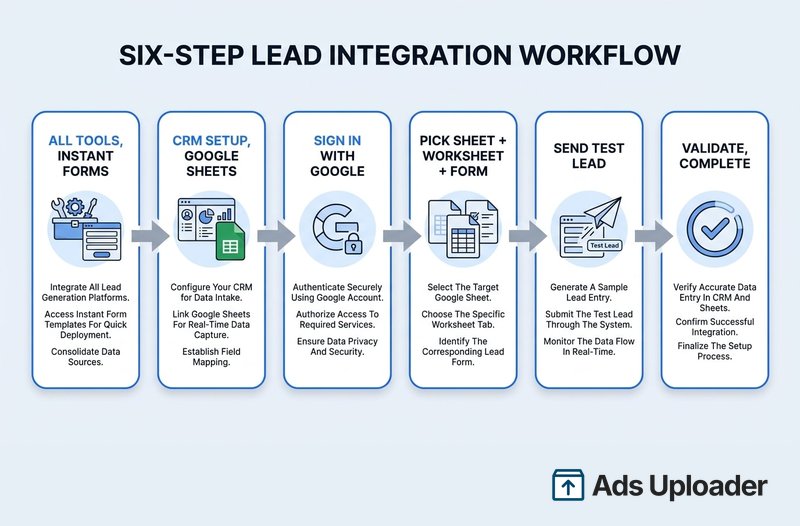
After the first test lead, Meta auto-creates the header row and then appends every new submission as a row: name, email, phone, plus context like ad name, campaign, form ID, country, and platform. Two setup options are worth knowing. You can tick Sync existing leads to backfill that form's past submissions into the sheet once. And you can enable an auto-integration toggle for future forms, which automatically spins up a new worksheet for each new instant form you launch, so you never have to repeat the setup. Meta documents the connection in its help center under connecting Google Sheets to retrieve your leads data.
Lead Retrieval vs Conversions API for CRM
The native setup has two variants, and it is worth knowing which you are choosing.
The basic lead retrieval mode simply writes form submissions into the sheet. That is all most teams need.
The advanced Conversions API for CRM mode does more. After you pick the sheet and form, you also select a business portfolio and dataset and click to connect the Conversions API. This adds a lead_status column (it starts at a created state) and a lead_id column. As a lead moves through your funnel, you update lead_status in the sheet to values like Qualified, Converted, Lost, or Not qualified, then confirm in Meta. That update fires a Conversions API event back to Meta, which feeds the optimization that decides who sees your ads. Meta covers this flow in its guide to connecting Google Sheets to share conversion leads data via CAPI. If you run on a cost-per-qualified-lead basis, this loop is the difference between optimizing for form fills and optimizing for real pipeline.
Launch More. Click Less.
Upload hundreds of creatives at once, auto-match thumbnails to videos, and export directly to Meta Ads Manager.
Try Ads Uploader FreeNo credit card required • 7-day free trial
What the Native Integration Does Not Do
The native connector is deliberately simple, and the limits are the reason teams sometimes outgrow it:
- No transformations. Each form field maps to one column as is. The single full_name field arrives as one column; the native tool will not split it into first and last.
- No filtering or branching. Every lead goes to one sheet and one worksheet. There is no "send only leads who answered X" logic.
- One destination. You can build several integrations for different forms, but each writes to a single sheet. It will not fan a lead out to a sheet and a CRM and Slack at once.
- It breaks if Google access expires. An expired OAuth token stops the flow, and you have to re-authorize in CRM Setup.
- Form edits can sever it. Meta locks a form's fields after its first live lead, so a recreated or heavily edited form usually needs the integration set up again.
Using Zapier for Field Mapping and Routing
When you outgrow the native connector, Zapier is the most common next step. The workflow is a New Lead trigger from Facebook Lead Ads feeding a Create Spreadsheet Row action in Google Sheets. You authenticate both apps, map each form field to a column, pull in a sample lead to test, and publish.
Two realities to plan around. First, cost: Facebook Lead Ads is a premium Zapier app, so you need a paid Zapier plan to use it. The free tier will not run this. Second, timing: Zapier's trigger is polled, not pushed. Depending on your plan it checks for new leads every 5 to 15 minutes, so expect a short delay between the submission and the row. That delay matters if your follow-up depends on speed.
What you get in exchange is flexibility. Zapier can split the full name with its Formatter step, filter leads so only the ones you care about reach the sheet, branch with Paths, and send the same lead to multiple destinations in one multi-step Zap. If that flexibility is the whole reason you are here, work through our dedicated guide to the Facebook lead ads Zapier setup, which goes deeper on triggers, mapping, and multi-step flows.
Other Connectors: N8n, LeadsBridge, and Reporting Tools
Zapier is not the only third-party route.
n8n is the option for technical or cost-sensitive teams. Its Facebook Lead Ads Trigger node watches for new leads and an Append Sheet Row node writes them into Google Sheets, with a Set or Function node handling tricks like splitting full_name into first and last. Self-hosted n8n is effectively free to run and gives you full control over the logic, at the cost of setup and maintenance time.
Dedicated bridges like LeadsBridge offer a managed, point-and-click experience with advanced mapping, name-field splitting, multi-form flows, and support. They are usually priced by lead volume or number of integrations, and they suit non-technical teams who want someone else to own the plumbing.
Reporting and BI tools are the trap to avoid. Windsor.ai, Coupler.io, Supermetrics, and Two Minute Reports all advertise Google Sheets integrations, but they import aggregated ad performance metrics, not live lead-form responses. They are great for dashboards and useless for following up with an actual person. If your goal is contacting leads, skip them.
Which Method Should You Use?
| Method | Cost | Real time | Field mapping | Multi-destination | Best for |
|---|---|---|---|---|---|
| Native Meta connector | Free | Yes | Limited (no transforms) | No | Most advertisers; fastest setup; backup and follow-up |
| Zapier | Paid plan | Polled (5 to 15 min) | Full | Yes | Routing to several tools, filtering, transforms |
| n8n | Free if self-hosted | Near real time | Full (code) | Yes | Technical teams wanting control and low cost |
| Dedicated bridge | Paid | Yes | Full | Yes | Non-technical teams wanting managed mapping |
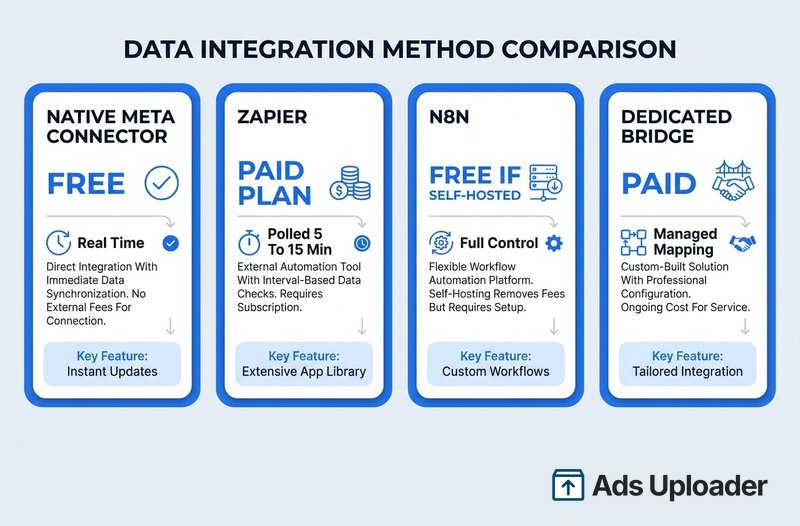
The short version: start with the native connector. It covers the most common need, capturing leads into a single sheet, with zero cost and zero delay. Add Zapier or n8n the moment you need to transform fields, filter leads, or hit more than one destination at a time. Reaching for a paid tool before you have that need just adds a subscription and a polling delay to a problem Meta now solves for free.
Save Hours on Creative Testing
Stop uploading ads one by one. Bulk process unlimited creatives with automatic media matching and direct API publishing.
Try Ads Uploader FreeNo credit card required • 7-day free trial
Field Mapping and the Gotchas That Break Your Sheet
A spreadsheet integration fails quietly. The campaign keeps spending while rows stop arriving or land in the wrong column, so it pays to get the structure right and to know the common traps.
- Keep a clean header row. Meta auto-fills headers after the first test lead, but if you write your own, the names need to match the form's questions. Freeze the header row so sorting never scrambles it. A missing or misspelled header can send data into the wrong column or fail to append.
- Plan for the full name. The full_name field comes in as one column. If your downstream process needs first and last name separately, split it yourself with a sheet formula, Zapier's Formatter, or an n8n node.
- Watch multiple-choice and short answers. Checkbox or multiple-choice answers can arrive as a single comma-separated string. Custom short-answer questions without clear titles can show up as generic columns like "Question 1," so name them deliberately in the form.
- No method auto-dedupes. If the same person submits twice, you get two rows. Teams usually add a formula that flags an email already present in the sheet, or a small script, to catch duplicates.
- Map consent explicitly. Privacy and opt-in checkboxes are part of the data feed, but you should label those columns clearly so consent is auditable later.
- Always send a test lead after any change. Editing a form, swapping a sheet, or reconnecting Google all warrant a fresh test lead before you trust the pipe.
Getting Your Historical Leads Into the Sheet
New integrations only capture leads going forward, with one exception. During native setup, the Sync existing leads option backfills that form's past submissions into the sheet a single time. Third-party connectors generally do not do this; they start from the moment you switch them on.
To pull in older leads outside those flows, export them from Meta directly. Go to your Page's Leads Center, or Publishing Tools, then Lead Ads Forms, and use Download Leads to get a CSV. Import that CSV into your Google Sheet, line up the columns, and you have your full history alongside the live feed.
Google Sheets vs a Real CRM
A Google Sheet is a genuinely good lightweight CRM at low to moderate volume. It is free, instantly shareable, and anyone can use it. For a team taking dozens of leads a week that mostly needs fast follow-up and a reliable backup, a sheet often is the whole answer.
The cracks show as you scale. Sheets have no real pipeline or deal stages, weak controls over who can edit what, and a constant risk of someone breaking a formula or pasting into the wrong cell. Once you need lead scoring, automated follow-up sequences, dependable deduplication, per-user permissions, and clean attribution, you are fighting the tool. A useful rule of thumb: somewhere around 500 leads a month, the automation and data hygiene of a dedicated CRM start to pay for themselves. When you reach that point, route the same Facebook lead ads into your CRM instead of, or alongside, the sheet.
Conclusion
For most advertisers in 2026, the best way to send Facebook lead ads to Google Sheets is Meta's own native connector: free, real time, set up once in Business Suite, and capable of backfilling your existing leads. Use the basic lead-retrieval mode to capture submissions, or the Conversions API for CRM mode when you want lead status to feed Meta's optimization. Step up to Zapier or n8n only when you need to transform fields, filter leads, or deliver to more than one place at once.
Whichever method you pick, the spreadsheet is only as useful as the follow-up behind it. Keep the header row clean, send a test lead after every change, and make sure someone is actually working the rows. A lead that hits the sheet within seconds is still wasted if it sits there for a day. Get the routing right, then move fast on what lands.