Connecting Facebook Lead Ads to Zapier sends each new Instant Form submission automatically into the apps you work in, like your CRM, a spreadsheet, an email tool, or Slack. Zapier's Facebook Lead Ads "New Lead" trigger fires the instant a lead submits, then maps the form fields to an action in another app. It requires a paid Zapier plan, Page admin access, and Lead Access granted to Zapier in your Page settings. Done right, it ends manual CSV downloads and lets you follow up while the lead is warm.
A lead who waits is a lead who cools. The data on this is brutal: contact a new lead within five minutes and you are vastly more likely to reach them than if you wait even an hour, which is the whole reason Harvard Business Review has written about the short life of online sales leads. If your Facebook leads are sitting in a CSV you download once a day, you are losing deals you already paid for. This guide is the deep version: the exact trigger, the permissions everyone trips over, the recipes worth copying, the fix for when leads silently stop arriving, and an honest take on when Zapier is the wrong tool.
If you are still wiring up your destination systems, the broader CRM integration guide covers the landscape, and the core Facebook lead ads guide covers objectives, forms, and lead quality. This page assumes you already run lead ads and just want the Zapier connection to work and keep working.
What the Facebook Lead Ads + Zapier Integration Actually Does
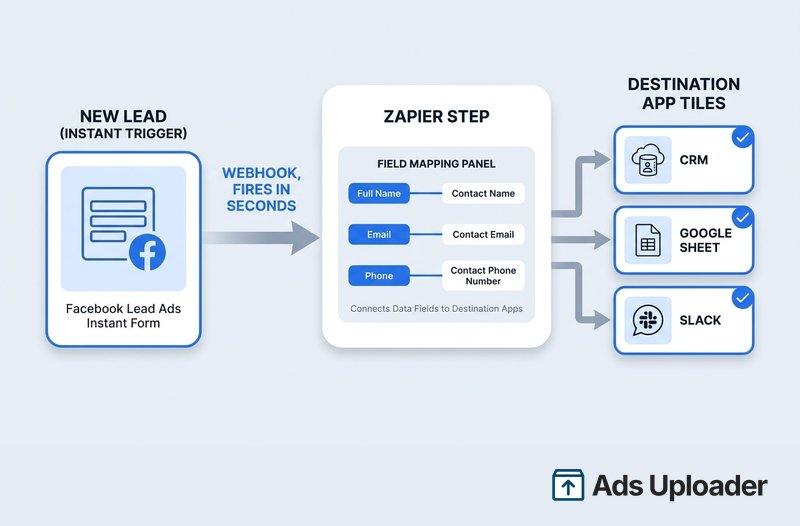
The whole integration hangs on one trigger. In Zapier, the Facebook Lead Ads app has a single trigger event, New Lead, described as "triggers when a new lead is created." The standard app is trigger-only: no searches, no actions. The lead is the starting gun, and everything useful happens in the action app you connect next.
That trigger is an instant trigger, not a polling one. Zapier states plainly that "the New Leads trigger is an instant trigger," which means Meta pushes each submission to Zapier over a webhook the moment it happens, rather than Zapier checking every few minutes. In the editor, instant triggers show a lightning-bolt icon. For a single Page at normal volume, a lead lands in your destination in seconds.
Two things to internalize early. First, the connection is scoped per Facebook Page: each Zapier connection is for one specific Page, and you pick one form inside that Page. Second, the trigger only ever fires on new leads. It will not backfill anything that came in before the Zap was on. Zapier's general trigger docs are explicit that Zaps "will not trigger for old data," and they point you to the separate Transfer feature if you need to move existing leads. Plan for that: turn the Zap on before the campaign, not after.
The Two Facebook Lead Ads Apps in Zapier (Pick the Right One)
This is the part almost no guide explains, and it quietly causes a lot of failed setups. Zapier actually has two Facebook Lead Ads apps, and which one you want "depends on the permissions of your Facebook account."
- Facebook Lead Ads (standard). Trigger-only, just New Lead. This suits a plain Page admin who only needs to receive leads. Its permission model is per-Page: Manage Pages, Manage Ad Account, and Leads Access.
- Facebook Lead Ads (for Business admins). Richer: it adds a New Comment on Ad trigger, a Find Ad search, and two actions (Create Lead Ad and Create Ad Statistics Report). Its permission model is portfolio-based: the Page must sit in a business portfolio, your account must be added to that portfolio, and you need full control access for the linked ad account and Page.
The decision rule is simple. If you run your own single Page, use the standard app. If you manage Pages inside a Business portfolio (most agencies and in-house teams with proper asset access), use the Business admins app, especially if you also want to create ads or pull comment and stats data through Zapier. The Business admins app carries a -beta slug in some URLs, but that is a legacy artifact, not a warning label.
Prerequisites Before You Build the Zap
Get these in place first and the build itself takes five minutes. Skip one and you will spend an afternoon debugging a Zap that was never going to fire.
A paid Zapier plan. Facebook Lead Ads is a premium app, so it is not available on the Free tier. You need Professional or higher. The 14-day Professional trial includes premium apps with no card required, so you can prove the integration out before paying, per Zapier's getting-started doc.
Page admin access and the right roles. You must be an admin of the Facebook Page. For the standard app you also need Manage Ad Account and business integration access. If you are not the Page owner, you may have to ask the owner or a Business Manager admin to grant these.
Lead Access granted to Zapier. This is the single most missed step. Beyond admin rights, Zapier needs explicit CRM access to your Page's leads. In Meta's words, the leads access permission "controls whether a notification is sent about a new lead" to the connected CRM. Grant it under your Page's Lead access settings. Path A, the most direct, is business.facebook.com/settings/leads-accesses/, then Integrations, then Lead access, where you look for Zapier (not "Zapier Inc.") and add it via Add CRMs if it is missing. Path B is through Meta Business Suite settings: Settings, then Integrations, then Leads access, then Assign CRMs. One important catch for agencies: only the business that owns the Page can assign leads access to a partner, and a person cannot access leads data without a Page role.
How to Connect Facebook Lead Ads to Zapier (Step by Step)
There are two ways in. Both end in the same place.
Launch More. Click Less.
Upload hundreds of creatives at once, auto-match thumbnails to videos, and export directly to Meta Ads Manager.
Try Ads Uploader FreeNo credit card required • 7-day free trial
Build It From Zapier's Side
- Create a new Zap and choose Facebook Lead Ads (or the Business admins app) as the trigger, then select New Lead.
- Connect and authenticate your Facebook account. Add a new account if yours is not listed.
- Select the Page and the specific Instant form from the dropdowns.
- Click Test trigger. Zapier pulls a recent lead so you can map fields. If none exists, generate one with the testing tool (below).
- Add your action app and its event, for example Google Sheets, Create Spreadsheet Row.
- Map the fields, matching Full Name, Email, Phone, and any custom questions to the destination fields.
- Test the action, confirm it landed in the destination, then publish and turn the Zap on. Zaps are off by default and auto-disable on errors, so check that it is actually on.
Build It From Meta's Side
Meta offers a mirror flow that starts inside Business Suite. Go to All tools, then Instant forms, then CRM Setup, search for a Zapier-supported CRM (often suffixed "by Zapier"), connect and authorize Zapier, then pick the account, Page, and form, test the trigger, set up the action, map fields, and create the Zap. One note worth flagging: storing the lead ID is required if you later want to set up a Conversions API for CRM integration, so map it now even if you do not need it yet.
Two Details That Save You Hours
The test-lead gotcha. Because the trigger is instant, the test only finds a lead if one exists. Use Facebook's Lead Ads Testing Tool to submit a sample, then immediately return to Zapier and test. If Zapier missed it, delete the sample lead and recreate it with the Zap open in another tab. Deleting test leads does not touch real ones.
Raw versus regular fields. Each question comes through twice, as a raw version (the exact data from Meta's API) and a regular version (formatted and uniform). Zapier recommends regular fields "to reduce formatting issues once the Zap is live." Use regular fields unless you have a specific reason not to. Also note: short-answer custom questions appear as numbered fields starting at 0, so map them by position carefully.
The Best Facebook Lead Ads Zapier Recipes
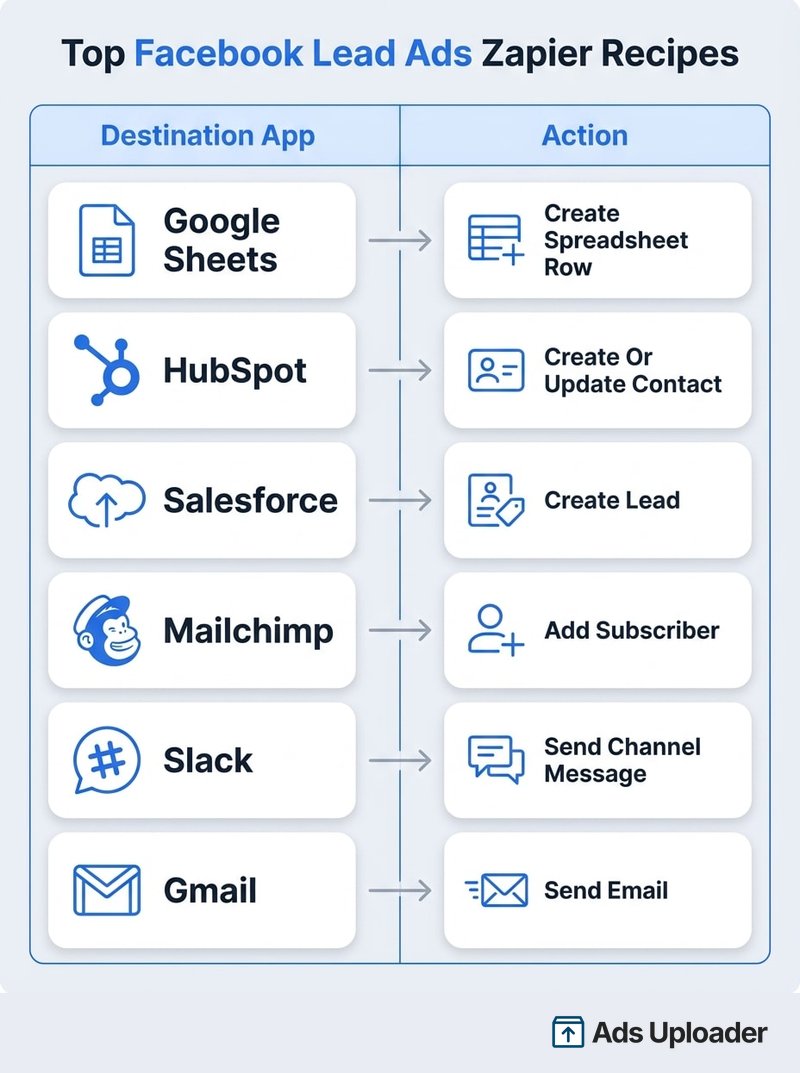
The standard app is trigger-only, so the action lives in the destination. These are the pairings worth building first.
- Google Sheets (the most popular). New Lead adds a row. It is the simplest audit trail and the easiest to share with a sales team. The full walkthrough lives in the Google Sheets guide, including multi-form setups.
- CRM (HubSpot, Salesforce, Pipedrive). Use a Create or Update Contact action keyed on email where the app offers it. That single choice handles most deduplication server-side, because it updates an existing record instead of making a second one.
- Email marketing (Mailchimp, ActiveCampaign, Brevo). Add or subscribe the lead to a list or audience so your nurture sequence starts automatically.
- Instant notifications (Slack, Gmail, SMS). A message to a sales channel the second a lead arrives is the cheapest speed-to-lead win there is. Notifications and follow-up pair well in a single multi-step Zap.
- Multi-step fan-out. Notify the team, create the CRM record, and tag the contact in one Zap, with a Filter step to drop test or junk submissions before they propagate.
Save Hours on Creative Testing
Stop uploading ads one by one. Bulk process unlimited creatives with automatic media matching and direct API publishing.
Try Ads Uploader FreeNo credit card required • 7-day free trial
Deduplication and Field Mapping Done Right
Duplicates rarely come from the trigger. Zapier notes that instant triggers "do not use deduplication because apps only send new data," so a single Zap will not double-fire on one lead. The real causes are two Zaps watching the same form (each fires independently, because dedup only checks within one Zap) and the same person submitting more than once over time.
To suppress repeat submitters, build it yourself with Filter by Zapier (continue only if a condition is met), Formatter by Zapier (normalize the email or phone before comparing), and Storage by Zapier or Tables (remember whether you have seen an email before). The good news is that these built-in tools do not consume tasks, so adding them is effectively free. On the destination side, behavior varies by app: a create action might duplicate, error, update, or ignore, which is exactly why the Create or Update Contact pattern is worth preferring.
Troubleshooting: When Zapier Stops Getting Your Leads
This is the section you will come back to. The most common failure is the scariest: setup tested fine, then live leads never arrive, or a Zap that worked for months goes quiet.
Leads stopped flowing. Per Zapier's Zap not triggering guide, if test leads worked but live ones do not, "it's likely a cause when Zapier does not have CRM access to your Facebook Page." This is different from admin access. Other triggers are an expired connection (Facebook tokens can expire or permissions can change) and a changed form ID (editing a form assigns it a new ID, invalidating the one your Zap selected). The fix: go to your Page's Lead access settings, confirm Zapier has CRM access, click Restore Default Access if it is listed but stuck, then reconnect the account in Zapier and re-select the form. A related variant is the "103 error, CRM access has been revoked from Lead Access Manager" message, which means the same reset.
Error (#200) user does not have sufficient administrative permission. Two causes: insufficient account permissions, or two-factor authentication not enabled when the Page's business requires it. Enable 2FA on the connecting account, upgrade your permissions, then reconnect.
The Page does not appear in the Zap editor. This maps to permissions. The Page will not show if the connecting account lacks the per-Page roles (admin, Manage Pages, Leads Access) or, for the Business admins app, if the Page is not in a portfolio you fully control. Fix the role, then reconnect.
Zap not triggering at all. Confirm the Zap is on (they disable on errors), that a sample lead exists, and that the selected form still matches. A quick reset that often works: turn the Zap off, wait a minute, turn it back on, which re-establishes the trigger connection.
One honest caveat. A generic "Cannot read properties of undefined (reading 'map')" error sometimes appears on action steps when a field a step expects as a list arrives empty. There is no official Facebook Lead Ads article for it; the practical guard is to use regular fields and add a Formatter or default value before any step that loops over data.
2026 Changes That Affect This Integration
The Meta work-account migration is the big one. If you upgraded a personal Meta account to a Meta work account, you must reconnect every previously connected Meta app in Zapier or your existing Zaps will stop working. This hits Facebook Lead Ads, the Business admins variant, Conversions, Custom Audiences, Offline Conversions, Pages, and Messenger. There is a 30-day grace period after the upgrade, per Zapier's migration notice. Reconnect under Apps, then the three-dot menu, then Reconnect, choosing the work account.
Advantage+ leads use the same pipeline. Advantage+ lead campaigns still run on Instant Forms, so their submissions flow through the same New Lead trigger. There is no separate app and no special handling, which means everything in this guide applies whether the campaign was built manually or by Advantage+.
Feeding lead status back to Meta. You can close the loop with the separate Facebook Conversions app to send "qualified" or "closed-won" status back via the Conversions API, which is how you optimize for conversion leads instead of raw volume. This is the payoff for storing the lead ID earlier.
Zapier Alternatives and When Not to Use Zapier
Zapier is excellent, but it is not always the right answer, and pretending otherwise would not help you. Here is the honest landscape.
- Native Meta CRM forwarding (Business Suite, Instant forms, CRM Setup) is free and real-time but limited to Meta's supported CRM list, with no field mapping, notifications, or multi-account routing. If your CRM is on the list and you need nothing else, Zapier is overkill.
- Make offers a visual builder with cheaper per-operation pricing and more complex logic, though its Meta lead module has historically been polling-based.
- n8n is self-hostable and free in its self-hosted edition, attractive for cost control and data residency if you can maintain the infrastructure.
- LeadsBridge and LeadSync are purpose-built lead-routing tools with flat pricing and real-time delivery, often a better fit at high volume than per-task billing.
So when is Zapier the wrong tool? At agency scale, per-task billing compounds and you accumulate Zap sprawl, since each Page needs its own connection, which can mean hundreds of Zaps to maintain. When speed-to-lead is mission-critical and you cannot tolerate any delivery variance, a dedicated real-time webhook tool removes a variable. And when your needs are simple and native CRM Setup already covers them, you do not need a general-purpose automation layer at all.
Zapier is the right tool when you need multi-app fan-out (lead to CRM to Slack to spreadsheet to email sequence), non-CRM destinations like Airtable or Trello, or when leads are one slice of a larger automation footprint you already run there. One note on the instant-versus-delayed debate: Zapier classifies the Lead Ads trigger as instant, while some competitors report 2 to 15 minute delays. Both can be true. The trigger is instant by design, but delivery latency and rate-limited polling across many connections at scale can introduce delay, which is itself a reason heavy users look beyond Zapier.
Key Takeaways
The Facebook Lead Ads Zapier integration is reliable once you respect what it actually needs:
- Permissions are the whole game. Page admin is not enough. Grant Zapier explicit Lead Access, or live leads will never arrive even though tests pass.
- Pick the right app. Standard for a single Page, Business admins for portfolio and agency setups.
- Use regular fields and turn the Zap on first. The trigger only fires on new leads, so activate it before the campaign, not after.
- Deduplicate cheaply. Filter, Formatter, and Storage steps are free and prevent messy CRM data.
- Know the failure mode. When leads stop, re-grant CRM access and reconnect. That single fix resolves most outages.
Wire it up carefully, watch the Lead Access permission, and your Facebook leads will reach your team in seconds instead of sitting in a spreadsheet you forgot to download. That speed is the difference between a lead you paid for and a customer you closed.