Meta Events Manager is the dashboard inside Meta's business tools where you connect, view, and manage the data sources that send conversion events to Meta. It pulls events from the Meta Pixel, Conversions API, mobile app SDK, and offline uploads into one place, then shows what is firing. Tabs cover Overview, Test Events, Diagnostics, History, and Settings, alongside data quality signals like Event Match Quality and deduplication. It is where you confirm tracking works before a campaign spends real budget.
"Check Events Manager" is advice you hear constantly. You open it, meet a wall of graphs and tabs, and quietly close it again.
Part of the confusion is that three Meta tools have nearly identical names: Events Manager, Ads Manager, and Business Manager. They do completely different jobs. On top of that, it is easy to blur Events Manager together with the pixel itself, as if they were the same thing.
They are not. Events Manager is the control room. The pixel and the Conversions API are instruments wired into it. This guide gives you the plain definition, a current tour of every tab, where Events Manager sits relative to the pixel and CAPI, and exactly where to go next to set each one up. We will keep the pixel and CAPI explanations deliberately short here, because each has its own dedicated guide.
What Is Meta Events Manager?
Meta Events Manager is the central place in Meta's ad ecosystem for collecting, organizing, and inspecting tracking events from your website, app, or other touchpoints. It is where you see whether tracking is working properly and what events are coming in.
The cleanest way to think about it: if the Meta Pixel is the measuring instrument bolted to your website, Events Manager is the control panel that shows you the readings. The pixel records actions. Events Manager is where those recordings show up, get tested, and get managed.
You reach it at business.facebook.com/events_manager, or by choosing Events Manager from the menu inside Meta Business Suite. Whatever data sources are shared with your account appear in the left panel when it loads.
One terminology note before we go further. Meta has gradually reframed pixels and server connections under the concept of datasets. The pixel ID still exists, but in the interface you will increasingly see your pixel and CAPI connection grouped as a dataset, listed under a panel labeled Data Sources or Datasets. If a tutorial from a couple of years ago talks about "the pixel tab," that is the same idea under older language.
What Counts as an "Event"?
An event is simply a recorded user action on your site or app that Meta is notified about through tracking. It can be something small, like viewing a page, or something business critical, like completing a purchase.
Meta provides a set of standard events with fixed names you are meant to use consistently. The common ones are:
- PageView when someone loads a page
- ViewContent when someone views a product or key page
- AddToCart when an item is added to the cart
- InitiateCheckout when checkout begins
- Purchase when a transaction completes
- Lead when a form is submitted
- CompleteRegistration when a signup finishes
On top of standard events, you can define custom conversions based on specific URLs or parameters, for actions that do not fit a standard label.
A word of restraint here, because it trips up most accounts: more events is not better. Tracking too many actions dilutes the optimization signal and makes it harder for Meta to learn which conversions matter. Most businesses only need one to three core events. There is also a hard ceiling worth remembering. Under Apple's Aggregated Event Measurement rules, each website domain can still prioritize only up to eight conversion events, and that limit remains in force in 2026. Choose your highest-value events deliberately.
The Data Sources Events Manager Holds
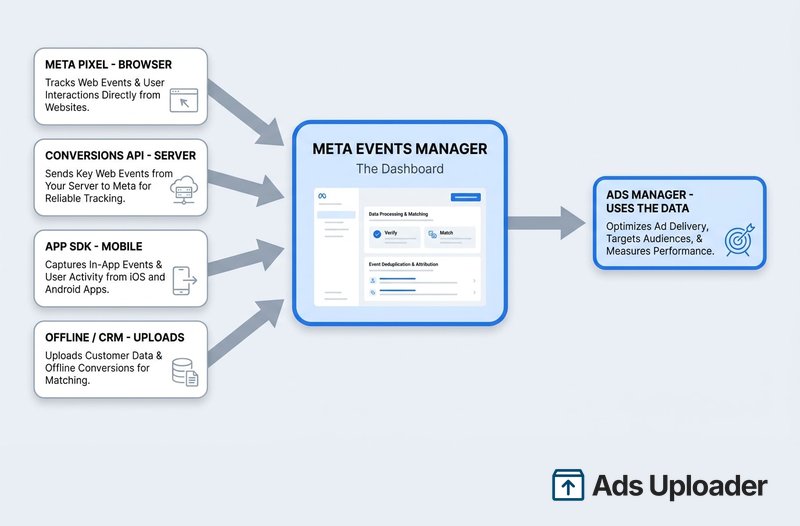
This is the heart of what Events Manager is: a container for the data sources that feed events to Meta. There are four main source types.
- Meta Pixel (browser): the JavaScript snippet on your website that sends client-side events. This is the most common starting point for ecommerce and lead-gen sites.
- Conversions API (server): the Conversions API sends events directly from your server to Meta, bypassing browser limits like ad blockers and iOS restrictions.
- App events (SDK): actions collected from a mobile app through Meta's SDK on iOS or Android.
- Offline events (CRM): bulk uploads of in-store sales, call conversions, or CRM data imported into Events Manager.
The important point for this page is structural, not technical: the pixel and CAPI are sources plugged into Events Manager, each with its own setup process and its own dedicated guide. Most serious advertisers run the pixel and CAPI together, sending the same actions from both browser and server so Meta has a more complete and resilient picture. When you do that, Events Manager uses deduplication to count a browser event and its matching server event as one, which we will come back to in the quality signals section.
If you want the full mechanics of either source, follow those two links. Here, just hold the mental model: Events Manager is the dashboard, and these four are the pipes feeding it.
A Tour of the Events Manager Tabs
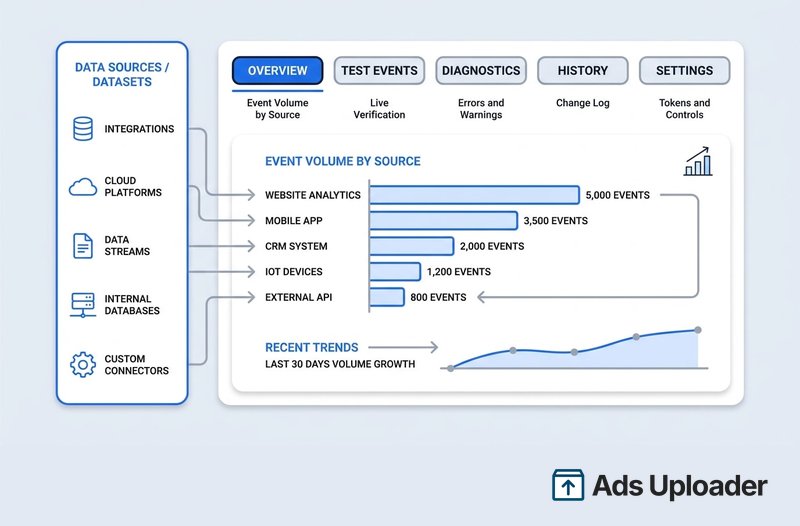
Once you open a specific data source, Events Manager organizes everything into a handful of views. Here is what each one is for as of 2026.
Data Sources / Datasets
The first screen. If you manage more than one pixel, app, or offline set, they are all listed here, often grouped as datasets. Click one to open its own pages. Agencies and anyone juggling multiple clients live in this list.
Overview
A time-series graph of recent events. The graph color-codes browser (pixel) events against server (CAPI) events, so you can tell at a glance how much volume each source is contributing. You will also see separate tallies for events received and events matched. If your two colors are wildly out of balance, that is a clue: a doubled pixel can inflate browser events, while a second active CAPI connection can inflate server events.
Test Events
A live debugging view. Browse your own site or fire test calls to your API, and watch the events arrive in real time, labeled browser or server. This is where you confirm a new setup or a recent change before trusting the data. It also shows whether two events carrying the same event ID are being deduplicated correctly.
Launch More. Click Less.
Upload hundreds of creatives at once, auto-match thumbnails to videos, and publish straight to your ad accounts through Meta's API.
Try Ads Uploader FreeNo credit card required • 7-day free trial
Diagnostics
The tab that earns its keep. Diagnostics flags problems with your setup: missing parameters, a pixel that stopped firing, sudden drops in event volume. Issues are color-coded by severity, so you can triage red critical errors first and treat yellow warnings as a to-do list. This is where silent tracking failures surface before they quietly waste spend.
History
An audit log of recent changes and uploads for the data source: token changes, bulk event uploads, configuration edits. Not glamorous, but invaluable when something breaks and you need to know who changed what and when.
Settings
Where you configure the source. For a pixel or dataset, Settings is where you generate your Conversions API access token, turn automatic advanced matching and automatic events on or off, and adjust privacy and data-sharing controls. Anything about how the source is wired up lives here.
Reading Your Data Quality Signals
Beyond raw event counts, Events Manager surfaces a few signals that tell you whether the data is any good. You do not need to master the fixes here, just recognize what the dashboard is telling you.
- Event Match Quality (EMQ): a 0 to 10 score for how well an event can be matched to a Meta account, based on the customer information you send with it. More identifying data, like a hashed email or phone number, raises the score. As a rough guide, 7 and above is strong, the middle band is fair, and a low score means Meta cannot tie the event to a real person, so it is largely wasted for optimization, attribution, and audience building. The fastest lift on your key conversions is sending hashed email and phone alongside events: Advanced Matching on the pixel, customer information parameters on CAPI.
- Deduplication: when the same action reaches Meta from both the pixel and CAPI with an identical event ID, Meta counts it once. Events Manager shows whether your browser and server events are deduping correctly. Getting this right is what makes running both sources safe rather than double-counted.
- Data freshness: pixel events usually appear within minutes, and almost instantly in Test Events, while the Overview graphs can lag 15 to 20 minutes. Offline uploads take longer to process.
If a signal looks wrong, Diagnostics will usually have already raised a flag. The depth on improving EMQ and configuring deduplication lives in the Conversions API guide.
How to Verify Your Tracking Actually Works
Verifying tracking is a two-sided check: confirm the browser is sending events, then confirm Meta is receiving them.
On the browser side, the quickest sanity check is the Meta Pixel Helper, Meta's free Chrome extension. Browse your site with it open and it lists which pixel IDs and events fire on each page, along with any code errors. The one limitation to remember: the helper only sees client-side pixel events. It cannot detect server-side CAPI calls at all. For a deeper walkthrough of the extension and its error messages, see the Meta Pixel Helper guide.
On the server side, use the Test Events tab inside Events Manager. The Test Events tool listens for incoming test traffic and shows both browser and server events live, including whether matching event IDs are being deduplicated. This is the only place that confirms your CAPI events are landing.
While you are in there, three quick checks tell you a pixel is genuinely live, not a stale leftover:
- Activity: a live source shows a steady stream of recent events.
- Usage: the pixel is actually attached to active ad sets, not just receiving stray data.
- Matching ID: the pixel ID firing on your site matches the one selected in Events Manager.
Run the helper first for a fast browser confirmation, then Test Events to prove the full path, including the server, reaches Meta.
Events Manager vs Ads Manager vs Business Manager
The similar names cause most of the confusion, so here is the clean split.
| Tool | Job | You use it to |
|---|---|---|
| Events Manager | Tracking and event data | Connect sources, verify events fire, debug tracking |
| Ads Manager | Campaign creation and reporting | Build audiences, set budgets, view performance |
| Business Manager / Meta Business Suite | Accounts, assets, permissions | Manage pages, ad accounts, datasets, and who has access |
Read top to bottom, it is a pipeline. Business Manager is the account layer that holds your assets and decides who can touch them. Events Manager is the data layer that collects user actions and confirms they are clean. Ads Manager is the campaign layer that consumes that data to build and report on ads. Events Manager never builds an ad, and Ads Manager never sets up a pixel. They share data, but they are separate rooms.
Access flows from that structure. You grant someone access to Events Manager by assigning them to the specific pixel or dataset in Business Settings, with an Admin or Editor role on that source. There is no separate Events Manager login; permissions come entirely from your business account.
Frequently Asked Questions
Save Hours on Creative Testing
Stop uploading ads one by one. Bulk process unlimited creatives with automatic media matching and direct API publishing.
Try Ads Uploader FreeNo credit card required • 7-day free trial
What Is Meta Events Manager Used For?
It is the interface where you manage and review your conversion data. Events Manager collects events from your Meta Pixel, Conversions API, app SDK, and offline uploads, then shows whether tracking is working. You use it to confirm events are reaching Meta, debug setup problems, and configure new data sources before campaigns optimize against that data.
Is Events Manager the Same as the Meta Pixel?
No. The Meta Pixel is a piece of JavaScript on your website, which is one data source. Events Manager is the dashboard that contains that pixel along with your Conversions API, app, and offline sources. The pixel is the sensor; Events Manager is the control panel that displays and manages everything the sources send.
What Is the Difference Between Events Manager and Ads Manager?
Events Manager handles data collection: making sure pixels and APIs fire correctly and event data is clean. Ads Manager handles campaign management: building audiences, setting budgets, and reporting performance. They share data, since conversions tracked in Events Manager feed reporting in Ads Manager, but they are separate tools with separate jobs.
How Do I Access Meta Events Manager?
Open it at business.facebook.com/events_manager, or select Events Manager from the menu in Meta Business Suite. You need to be logged into the correct business account, and the pixel or dataset must be shared with your user. If you have access to the ad account or data source, it appears in your Events Manager.
How Long Do Events Take to Show Up After Setup?
Browser pixel events usually appear within a few minutes, and almost instantly in the Test Events tab. The Overview graphs typically populate within 15 to 20 minutes. Offline or uploaded events can take a few hours to fully process. If you test and still see nothing after an hour, recheck your pixel or CAPI setup.
Can I Use Events Manager Without a Website?
Yes, if you have another data source. You can use Events Manager solely for app events through the mobile SDK, or for offline sales data uploaded as files. A website pixel is not strictly required. If you have no website, app, or CRM data connected at all, the dashboard simply shows zero events.
Who Can Access Events Manager and How Do I Grant Access?
Anyone with a role in your Meta Business account who has permission for that data source. In Business Settings you assign people or partners to specific pixels, apps, or offline event sets. Granting Admin or Editor access to the pixel or dataset gives that person full Events Manager access for that source.
The One Mental Model to Keep
Strip away the lookalike names and the wall of tabs, and Events Manager is simple: it is the control room for your tracking. The pixel and the Conversions API are instruments plugged into it, the Diagnostics tab is where you catch problems before they burn budget, and Ads Manager is a separate tool down the line that consumes the clean data you produce here.
From this hub, the two moves that matter are setting up your sources. Add the browser source with the Meta Pixel, then add the server source with the Conversions API, and use the Pixel Helper plus Test Events to confirm both are firing. Get those wired correctly and reporting in Events Manager becomes something you can actually trust, which is the whole point of opening it in the first place.