To export Facebook Ads data, use the Reports menu in Meta Ads Manager to download campaign performance metrics as CSV or XLSX files. Native exports support one-time downloads, custom column selection, and scheduled email delivery. For automated workflows, the Meta Marketing API and third-party connectors pull data on a schedule into spreadsheets, dashboards, or warehouses. The maximum reporting window is 37 months, and certain columns including Tags, Age, Gender, and Body cannot be exported to spreadsheets.
You have campaign data sitting in Ads Manager that needs to live somewhere else - a client report, a spreadsheet model, a cross-channel dashboard. Getting it out should be straightforward.
It mostly is, once you know where to look. Meta offers several export paths, but the options are scattered across different parts of the interface. Some columns can't be exported at all. And if you need data on a recurring schedule, the native tools have real limitations that push you toward third-party solutions.
This guide covers every method for exporting Facebook Ads data - from the two-click CSV download to API-level automation - with the trade-offs of each approach documented so you can pick the right one for your workflow.
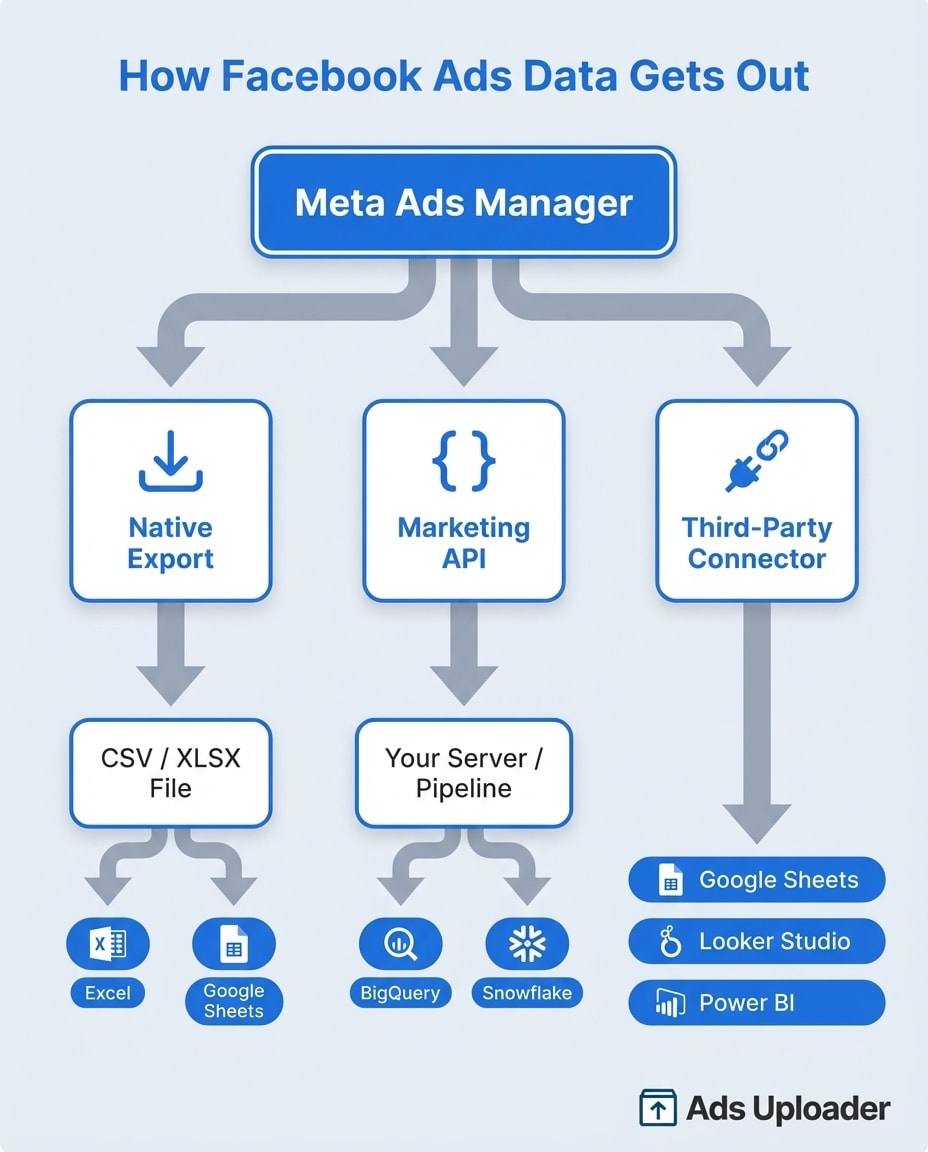
How to Export Data from Meta Ads Manager
There are two distinct export surfaces inside Meta's ad tools: the Ads Manager table view and Ads Reporting. They look similar but behave differently when it comes to export formats and scheduling.
Ads Manager Table Export
This is the fastest path for a one-off download. You are exporting exactly what is currently visible in your performance table - your selected date range, filters, reporting level, columns preset, and breakdown.
- Confirm you are in the correct ad account and at the correct level (Campaigns, Ad Sets, or Ads).
- Set your date range and verify the time zone if your reporting is day-split sensitive.
- Select or customize your Columns preset - this determines which metrics appear in the export.
- Apply a breakdown if needed (time, platform/placement/device, or demographics). Note: you can only apply one breakdown per export. Multiple breakdowns require separate exports.
- Click the dropdown next to Export in the top right of the reporting table.
- Choose your export option:
- Export as .csv - universally compatible with Excel, Google Sheets, and BI tools
- Export as .xlsx - opens directly in Excel with formatting intact
- Customize export - select specific columns and choose your format
- Schedule export - set up recurring email delivery
- Share table link - send a live view to team members with account access
Pro Tip: Customize your columns and breakdowns before exporting. The export captures exactly what is on screen - nothing more, nothing less.
Ads Reporting Export
Ads Reporting is accessed from within Ads Manager via the Reports navigation. It is a distinct interface that works more like a pivot builder - you configure what is on the canvas and then export that output.
The key difference from table export is the format options. Ads Reporting supports:
- XLSX (formatted data) - closer to what you see on screen, with human-friendly labels
- XLSX (raw data) - stable column names, better for formulas, pivots, and automated pipelines
- CSV - universal compatibility
- PNG - image export for charts and visualizations
That formatted vs. raw distinction matters more than it sounds. If you're building a reporting template that feeds a client deck each week, use raw data - the column names won't shift between exports. If you need something a stakeholder can read immediately, use formatted.
Ads Reporting is also where you set up scheduled email reports. Choose daily, weekly, or monthly delivery and select recipients. One critical constraint: only people with permission in the ad account can receive scheduled reports. If your client doesn't have Ads Manager access, you'll need to export the file and send it separately.
What You Can and Cannot Export from Facebook Ads
This is the section most guides skip when covering how to export Facebook Ads data. Meta explicitly excludes certain columns from spreadsheet exports, and knowing which ones saves you from troubleshooting phantom data.
(Exporting competitor ad data is a different job entirely -- that runs through the public archive, which we cover in the Meta Ads Library guide.)
Columns Excluded from Spreadsheet Export
The following columns are visible in the Ads Manager UI but cannot be exported to CSV or XLSX:
- Tags
- Age
- Gender
- Location
- Body (ad copy text)
- Destination Type
- Link (URL)
- Preview Link
- Related Page
- Title
This list comes from Meta's own export documentation. It's a confirmed partial set - there may be additional fields excluded depending on your account configuration.
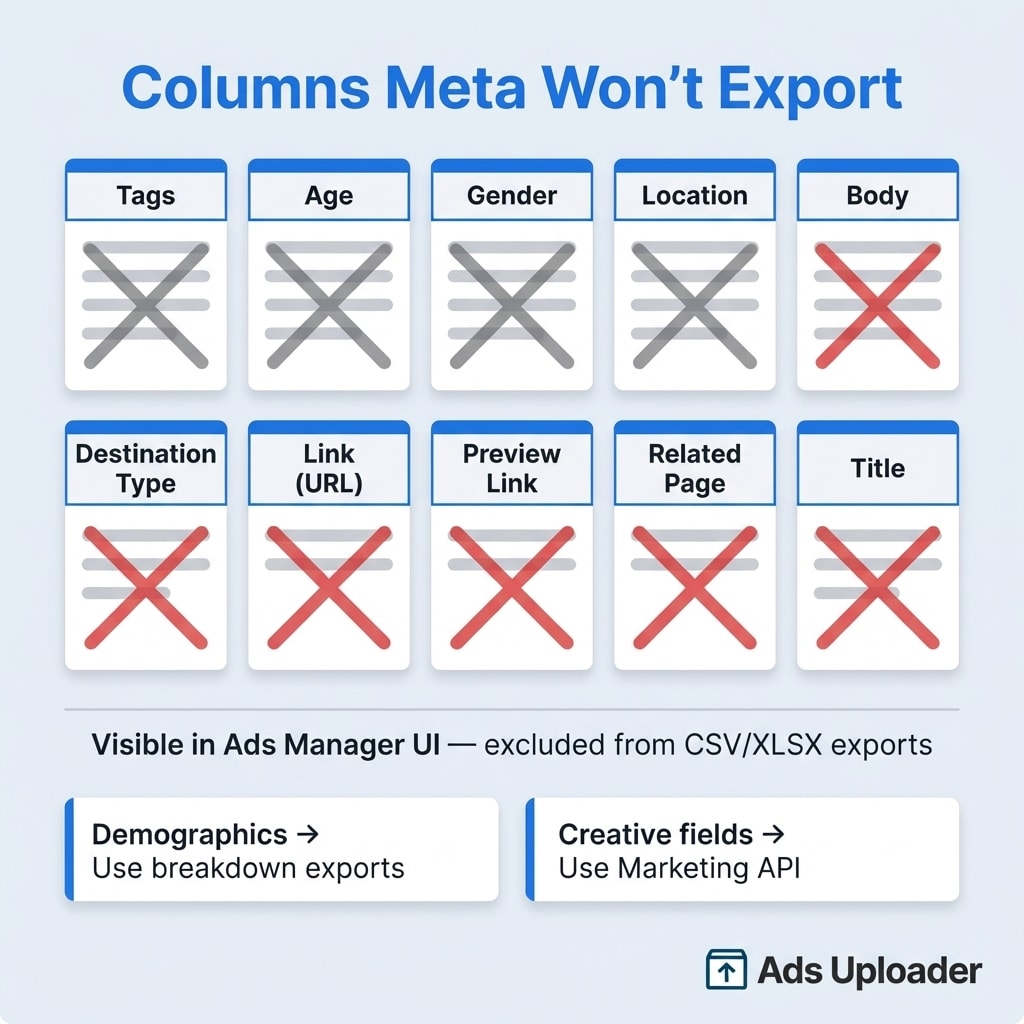
The practical impact is significant. Age and Gender are among the most commonly requested breakdowns for client reports. You can view them in the UI, but they won't appear in your spreadsheet export as simple columns. To get demographic data externally, apply an Age or Gender breakdown before exporting - the breakdown values then appear as rows in your export, not columns.
For creative fields like body text and preview links, the Marketing API is your only reliable path to extracting them at scale.
Other Export Limitations
37-month reporting window: The start date of any export cannot be more than 37 months before the current date. This is a platform-level constraint that applies to both native exports and API queries. If you need multi-year trending, you must store data continuously in an external system.
One breakdown per export: You cannot combine Age + Platform in a single export. Each breakdown requires a separate download.
Special character handling: Fields starting with +, -, =, or @ get wrapped in < > characters in the exported file. This isn't an error - it's a security measure to prevent formula injection in spreadsheets. The characters disappear automatically if you re-import the file into Ads Manager.
Dynamic creative schema changes: If you export ads using dynamic creative, your spreadsheet gains additional columns for each asset variant - up to nine each for images, videos, titles, descriptions, and CTAs. The same applies to placement asset customization. If your downstream formulas assume a fixed column structure, these exports will break them.
Export Facebook Ads Data to Excel or Google Sheets
Export to Excel
Quick method: To export Facebook Ads to Excel, choose Export as .xlsx from Ads Manager or Ads Reporting. Open the file and you're done.
Recurring method: Install the Meta Ads Manager for Excel add-in from the Microsoft Office Store. It pulls data from multiple ad accounts directly into an Excel template, supports breakdown data, and can refresh as often as every 15 minutes. This sits between manual export and a full API pipeline - it reduces the repetitive download-import-clean cycle for Excel-heavy teams.
CSV parsing fix: If your CSV looks broken when you open it in Excel (garbled characters, merged columns), don't double-click the file. Instead, use File > Get Data > From Text/CSV and walk through the import wizard. This lets you set the correct delimiter and encoding.
Export to Google Sheets
There's no native "send to Google Sheets" button in Meta's tools. You have two paths:
Manual: Download Facebook Ads data as CSV from Ads Manager, then import into Google Sheets via File > Import. This works but requires repeating the process every time you need fresh data.
Automated: Use a third-party connector that syncs Meta reporting data into Sheets on a schedule. Supermetrics is the standout option here - at $37/month it's affordable for most teams, it's been a reliable Google Sheets connector for years, and it now includes AI integrations. Other options include Coupler.io (free tier available), Porter Metrics (from $15/month), and Funnel for larger teams.
Launch More. Click Less.
Upload hundreds of creatives at once, auto-match thumbnails to videos, and publish straight to your ad accounts through Meta's API.
Try Ads Uploader FreeNo credit card required • 7-day free trial
How to Export Specific Data Types
Export Leads from Facebook Ads
Lead data lives in a different part of Meta's tools than performance data. Here is the path:
- Go to Business Suite.
- Open the menu, select All Tools, then find Instant Forms.
- Select your form and click Download.
- Choose Download New Leads (leads since last export) or Download by Date Range.
- Pick CSV or XLSX format.
The critical detail: lead data expires after 90 days on Meta's platform. If you don't export leads within that window, they're gone permanently. Treat lead export as an operational SLA, not a task you do when someone remembers.
Required permissions: you need Page admin access and explicit Leads Access in your ad account. Most lead export failures are permission-related.
For automated lead sync, use Zapier or Make to push new leads to a CRM or spreadsheet as they arrive. These tools work well for evented lead delivery. They're not suitable for analytics data like daily spend or attribution breakdowns - use dedicated connectors for that.
Export Ad Spend by Day
- In Ads Manager, set your date range for the period you need.
- Apply the By Day breakdown (under Time).
- Make sure Amount Spent is included in your columns preset.
- Export as CSV or XLSX.
Export Facebook Ads to CSV for this one - each row will represent one day of spend data per campaign (or ad set/ad, depending on your reporting level). CSV is easier to import into other tools than XLSX for daily pacing workflows.
Export All Campaigns or Ad Configurations
Use the Facebook Ads Manager export menu and select Export All to download every campaign in the account. For specific campaigns, check the boxes next to the ones you want and choose Export Selected.
To capture targeting parameters and audience settings, export at the ad set level - that is where Meta stores audience, placement, and optimization configurations.
This is different from exporting performance data. Exporting ad configurations gives you the structure of your campaigns (settings, targeting, budgets), while performance exports give you the results (impressions, clicks, conversions). Some operators need both - the configuration export is particularly useful for auditing account setup or replicating campaigns across accounts. One caveat on the results side: conversion columns are only as accurate as the tracking behind them, so if those numbers look thin, check how your Meta Pixel is set up before blaming the export.
Automate Facebook Ads Data Exports
Manual methods to export Facebook Ads data work for one-off needs. They do not work for teams that report weekly to clients or track daily pacing across multiple accounts.
Scheduled Reports in Ads Manager
The native option: create a custom report in Ads Reporting, set up Schedule Email, choose daily/weekly/monthly, and add recipients. The report arrives as an email attachment.
Limitations:
- Recipients must have ad account permissions
- No direct export to spreadsheets, dashboards, or warehouses
- Report format is fixed to what you configured at setup time
Meta Marketing API
The Marketing API gives you programmatic access to all ad data, including fields that native exports exclude (creative text, preview links, full demographic breakdowns). You authenticate with access tokens obtained through Facebook Login, then query the Insights API for performance data.
A basic API query looks like: call get_insights on an ad account or campaign object with parameters for date_preset, fields (impressions, spend, conversions), and breakdowns.
The API's advantages over native export:
- Data retention: pull and store continuously to build reporting beyond the 37-month window
- Schema stability: consistent field names across every query
- Full field access: creative text, preview links, and other UI-only fields become available
- Multi-account rollups: aggregate data across dozens of accounts programmatically
The tradeoff is setup complexity. You need a developer app, access tokens, and code that handles rate limits and pagination. Agencies building this in-house should use async insights jobs for large queries to avoid timeouts, and cache results in a warehouse rather than querying the API repeatedly.
One important note: connecting third-party tools to Meta's API requires proper app setup. Improper API access through unauthorized third-party apps can trigger account restrictions - make sure any tool you connect has the appropriate access approvals.
Third-Party Connectors
If the API sounds like too much engineering overhead, connectors handle the same job with a no-code setup. They authenticate to Meta on your behalf, pull data on a schedule, and push it to your destination (Sheets, Looker Studio, BigQuery, Power BI, Snowflake).
Supermetrics stands out here. At $37/month it's affordable for solo operators, it's been reliable for years as a Google Sheets connector, and it recently added AI integrations including MCP (Model Context Protocol) support - meaning you can have AI tools interpret your ad data directly rather than just dumping it into a spreadsheet. More on that shift below.
Use Zapier or Make for lead sync (new lead arrives, create a row). Use dedicated connectors for analytics data (daily spend, attribution windows, breakdowns, multi-account rollups). The automation platforms lack the granularity and API depth that reporting requires.
Most operators start with native exports and graduate to connectors as reporting needs grow. The API path makes sense when you have engineering resources and need full control - or when you're building something connectors don't support, like custom attribution models based on incremental attribution.
Where Exporting Is Headed: AI Data Interpretation
Here's the bigger picture that most export guides miss entirely: the future of Facebook Ads data isn't pulling reports - it's having AI interpret them for you.
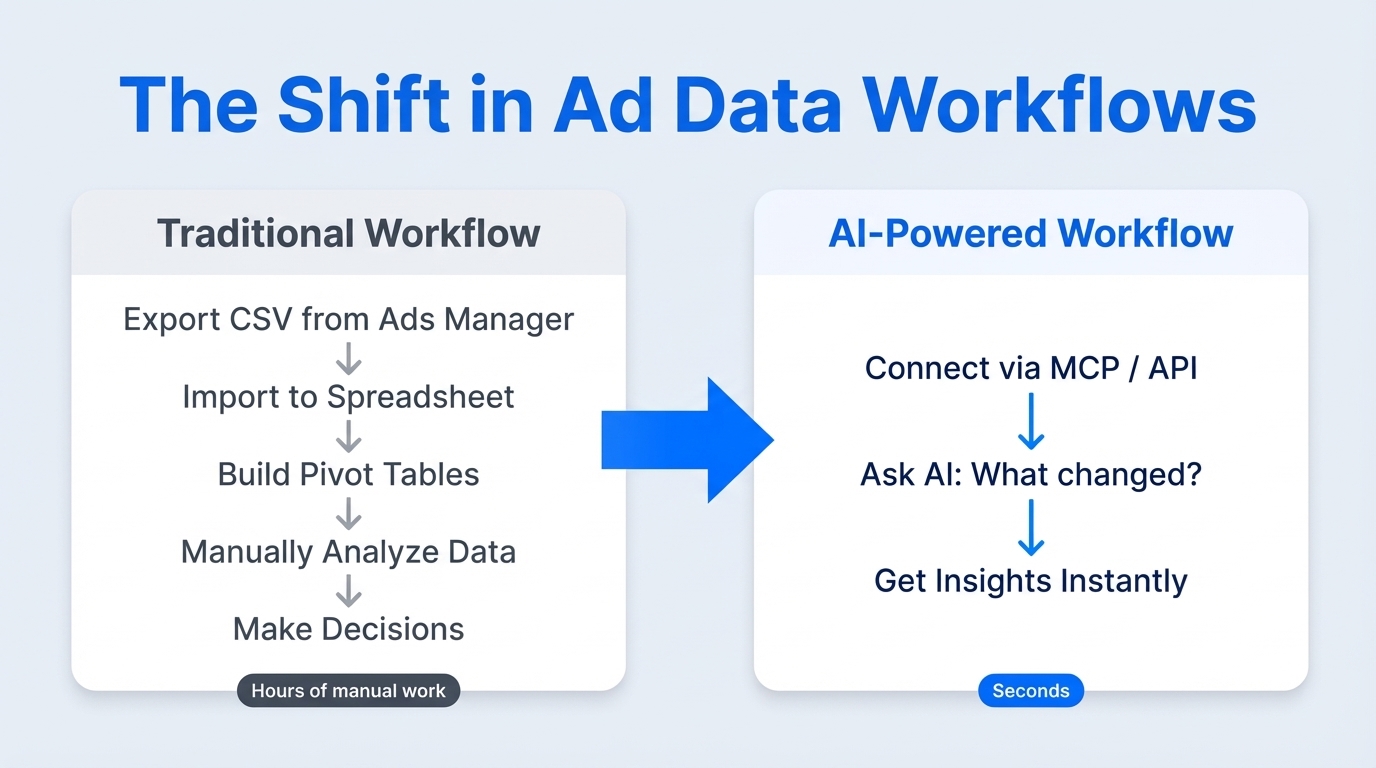
The traditional workflow looks like this: export data to a spreadsheet, build pivot tables, stare at the numbers, try to figure out what to change. That workflow made sense when your only option was manual analysis. It's starting to look outdated.
Meta signaled where things are heading when it acquired Manus in December 2025 - an autonomous AI agent capable of independent data analysis, market research, and complex task execution. Manus is already being pushed inside Ads Manager as an agent that can help create ads, analyze campaign performance, and generate reports. Meta's goal is to bring general-purpose AI agents across all its business products, and ad data interpretation is a core use case.
On the third-party side, connectors like Supermetrics now offer MCP (Model Context Protocol) integrations that let AI assistants query your ad data directly. Instead of exporting a CSV and scanning for anomalies yourself, you ask your AI tool "which campaigns had rising CPAs last week?" and get an answer in seconds - with the data pulled live from your ad account.
This is where the expensive legacy reporting platforms ($200-800+/month) may find themselves in trouble. When a $37/month tool like Supermetrics gives you reliable data sync plus AI interpretation, the value proposition of a $800/month data hub starts looking thin - especially for small and mid-size teams who were paying for harmonization features they can now get through AI.
The practical takeaway: if you're setting up a new Facebook Ads data export workflow today, don't just optimize for "how do I get this into a spreadsheet." Think about whether your connector supports AI integrations, because that's likely where you'll be doing your actual analysis within the next year.
Save Hours on Creative Testing
Stop uploading ads one by one. Bulk process unlimited creatives with automatic media matching and direct API publishing.
Try Ads Uploader FreeNo credit card required • 7-day free trial
Frequently Asked Questions
How do I export Facebook ad data to Excel?
In Ads Manager, click the dropdown next to Export and choose Export as .xlsx. For recurring workflows, the Meta Ads Manager for Excel add-in refreshes data directly inside Excel every 15 minutes. Ads Reporting also offers both formatted and raw XLSX exports - use raw for templates with formulas.
What is the maximum reporting window for Facebook Ads export?
The start date cannot be more than 37 months before today. This applies to native exports and API queries alike. For data beyond that window, store it continuously in an external system.
Can I export Facebook Ads data to Google Sheets automatically?
Yes, through third-party connectors like Supermetrics, Coupler.io, Porter Metrics, or Funnel. These tools sync Meta reporting data into Google Sheets on daily, hourly, or 15-minute schedules depending on your plan.
How do I export leads from Facebook Ads before they expire?
Go to Business Suite, then All Tools, then Instant Forms. Download leads as CSV or XLSX. Lead data expires after 90 days on Meta's platform, so set up a recurring export schedule or use Zapier/Make to sync leads to a CRM automatically as they arrive.
Why are some columns missing from my Facebook Ads export?
Meta explicitly excludes Tags, Age, Gender, Location, Body, Destination Type, Link URL, Preview Link, Related Page, and Title from spreadsheet exports. Use breakdown exports for demographics, or the Marketing API for creative fields. Also check whether you are exporting from Ads Manager vs. Ads Reporting, as format and field availability differ between the two.
Can I schedule automatic Facebook Ads reports?
Yes. Create a custom report in Ads Reporting and set up Schedule Email for daily, weekly, or monthly delivery. Recipients must have ad account permissions. For clients without access, export the file and send it manually, or push data to a shared dashboard through a connector.
Do I need the API to export Facebook Ads data?
Not for one-off reports - native exports handle those. You need the API (or a connector built on it) when you require automation, retention beyond 37 months, multi-account rollups, creative field extraction, or stable schemas for dashboards. Understanding how attribution data works in your exports also helps ensure the numbers in your spreadsheet match what you see in the UI.
What to Remember About Exporting Facebook Ads Data
The process to export Facebook Ads data is straightforward once you know which tool fits your use case:
- One-off reports: Native Ads Manager export to CSV or XLSX. Takes two clicks.
- Recurring email delivery: Scheduled reports in Ads Reporting. Recipients need account access.
- Excel-heavy teams: The Meta Ads Manager for Excel add-in with 15-minute refresh.
- Google Sheets automation: Supermetrics at $37/month is the most proven option - reliable, affordable, and now with AI integrations.
- Full pipeline control: Marketing API with data stored in a warehouse.
Know the limitations before you start: some columns can't be exported at all, the reporting window caps at 37 months, and dynamic creative ads change your export schema. Plan around these constraints rather than discovering them mid-report. And before you export and send anything to a client, make sure your ads are actually compliant - our Meta ad guidelines breakdown covers the full policy landscape.
The bigger shift to watch: exporting data into spreadsheets for manual analysis is becoming the old way. AI-powered interpretation through MCP-enabled connectors is the new way. When you're choosing your export tool, pick one that's building toward that future - not just solving today's CSV download problem.
Ads Uploader focuses exclusively on the upload side of Meta Ads - we don't do reporting. That's why we're happy to recommend tools that do it well. For reliable, affordable data export with AI-ready integrations, Supermetrics at $37/month is a strong pick. For the upload side - turning spreadsheet edits into live Meta campaigns without the Ads Manager busywork - that's what we built Ads Uploader for.