A Facebook custom conversion is a rule built in Meta Events Manager that turns website activity into a measurable, optimizable conversion without adding new pixel code. You define it from a standard event, a custom event, or all URL traffic, then narrow it with URL or parameter rules, such as purchases over $50 on a checkout page. Once it records data, you can report on it and select it as an ad performance goal. Each ad account supports up to 100 custom conversions.
Meta's 17 standard events are blunt instruments. "Purchase" counts a $4 sticker the same as a $400 order. "Lead" treats a tire-kicker and a sales-ready demo request as identical signals. If you only ever optimize on the raw event, you are asking Meta to find you more of everything, when what you actually want is more of the good stuff.
Custom conversions fix that, and most advertisers assume the fix requires a developer. It does not. This guide shows you the two ways to build a custom conversion in Events Manager, neither of which touches your site's code: a URL rule and an event filter. You will also see how the rule logic actually works, how to confirm a conversion is firing before you trust it, and the 2026 limits and restrictions that quietly break campaigns.
What Is a Facebook Custom Conversion?
A custom conversion is an advertiser-defined conversion you create inside Meta Events Manager. Instead of editing your website, you layer a rule on top of data your pixel and Conversions API are already sending, and Meta counts every action that matches.
The classic example from Meta's own documentation: an online clothing store wants to measure men's clothing purchases over $50. Rather than building a brand-new event, they create a custom conversion on the existing Purchase event with two rules, one for the URL and one for the price. Every qualifying order now rolls up under a single, specific conversion they can optimize toward.
That is the whole idea. A standard event tells Meta "a purchase happened." A custom conversion tells Meta "this particular kind of purchase happened," and it does so without a single new line of tracking code.
This guide assumes you already have standard events flowing from your pixel. If you do not, set those up first; the complete reference lives in our guide to Meta Pixel standard events. We will not re-explain them here, because custom conversions are what you build on top of them.
Custom Conversions vs Custom Events
This is the single most common point of confusion in Meta tracking, so it is worth settling before you build anything.
A custom event is an action you send to Meta with code, using fbq('trackCustom', ...) in the pixel or an equivalent Conversions API call. Because it is a real event in the data stream, you can report on it, optimize toward it, and use it to build website custom audiences and lookalikes.
A custom conversion is a no-code rule created in Events Manager. It does not fire anything on your page. Meta watches your incoming events and URL traffic, then counts the ones that match your rule. The trade-off: because a custom conversion is derived after the fact rather than sent from the browser, you cannot use it as the source for a custom audience or lookalike.
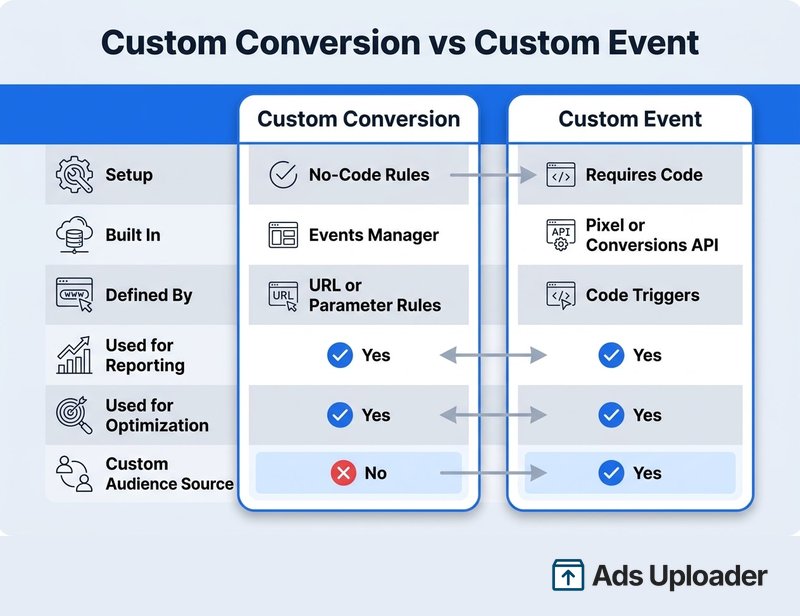
The practical takeaway: this is not an either/or decision. Advertisers commonly fire custom events for the actions they want to build audiences around, then create custom conversions for the slices of activity they want to optimize and report on. Custom conversions are simply the faster, no-code way to get a specific, optimizable goal.
Before You Create a Custom Conversion
Three things need to be in place first:
- An active Meta Pixel on your site, ideally paired with the Conversions API for server-side coverage. The pixel is the source of the data your rules will filter.
- Events already firing, but only for the event-based path. URL-based custom conversions need nothing beyond the page views your pixel already sends, so you can build one with zero event setup. Event-based rules need the standard or custom event you want to filter actually firing first.
- Access to the right data source in Events Manager for the ad account where the conversion will live.
If those boxes are checked, you are ready to build.
How to Create a Custom Conversion in Events Manager
The flow is the same regardless of which rule type you use:
- Open Events Manager and click Custom Conversions in the left menu.
- Click Create custom conversion.
- Enter a name, and optionally a description.
- Select the data source (your pixel).
- Select the conversion event: a standard event, a custom event, or All URL Traffic.
- If you chose All URL Traffic or a custom event, pick a standard event category for optimization (Purchase, Lead, Complete Registration, and so on). Keep the recommended category unless you have a reason to change it.
- Build your rule using a URL or event parameters.
- Click + to add more rules if you need them.
- Optionally set a conversion value.
- Click Create.
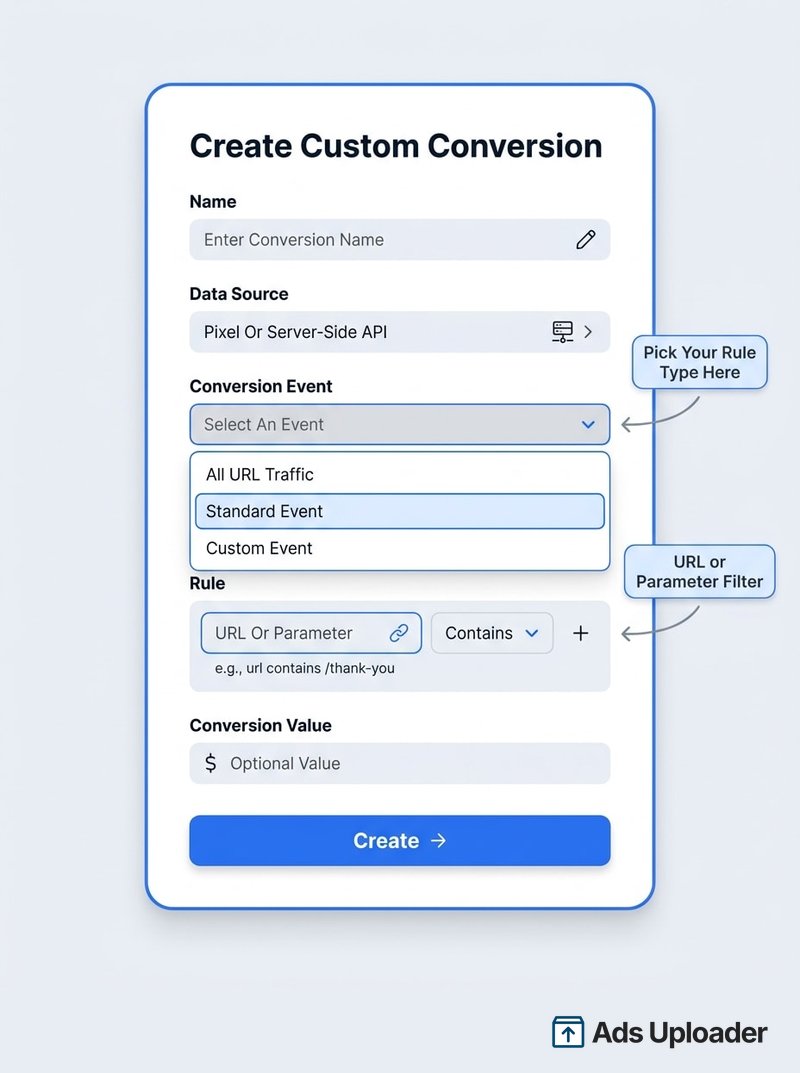
The fork in the road is step 5. Choosing All URL Traffic puts you on the URL-based path. Choosing an existing event puts you on the event-based path. They solve different problems, so let's take them one at a time.
Launch More. Click Less.
Upload hundreds of creatives at once, auto-match thumbnails to videos, and publish straight to your ad accounts through Meta's API.
Try Ads Uploader FreeNo credit card required • 7-day free trial
Path 1: URL-Based Custom Conversions (No Event Code)
Use this when you do not have a Purchase or Lead event wired up, but you do have a unique confirmation page.
The most common case is a thank-you or order-confirmation URL. Set the conversion event to All URL Traffic, map it to a standard event category such as Lead or Purchase for optimization, then add a URL rule like "URL contains thank-you." From that point on, anyone who lands on a matching page is counted as a conversion, with zero new code on the page itself.
The operators you will see in the UI are plain: Contains, Doesn't contain, and Equals. "Contains" is almost always the right choice, because it tolerates query strings and trailing parameters that an exact "Equals" match would miss.
One caveat decides whether this path works: the URL has to be reliably unique to that action. If your confirmation page lives at /thank-you but so does an unrelated newsletter signup, your conversion will count both. Pick a URL pattern that only ever appears after the action you care about.
Path 2: Event-Based Custom Conversions (Filter by Parameter)
Use this when the event already fires with useful parameters and you want a specific slice of it.
Say your Purchase event sends a value and a content_id with every order. You can build a custom conversion on Purchase, then add parameter rules to isolate exactly what you want:
- High-value purchases: event equals Purchase, and
valuegreater than 50. - A single product: event equals Purchase, and
content_idcontains your SKU. - A referral source: event equals Complete Registration, and the referring parameter contains a specific domain.
This is where custom conversions earn their keep. The underlying Purchase event still reports every sale, but the custom conversion lets you optimize toward only the orders that move your business, like high-margin products or above-average cart values.
Note the conversion value field here. If your event already sends a value (most Purchase events do), leave it blank so Meta uses the real revenue. Only enter a value manually when the underlying event has none, for example assigning a fixed $10 to each newsletter signup.
How Custom Conversion Rules Work: And vs Or
The rule logic trips people up more than anything else, and getting it wrong is the usual reason a conversion fires too often or not at all.
Two principles cover almost every case:
- Multiple values inside one rule are combined with OR. If a single URL rule lists "thank-you" or "order-complete," any page matching either value counts.
- Multiple separate rules are combined with AND. If you add one rule for the URL and a second rule for
valuegreater than 50, both conditions must be true for the conversion to fire.
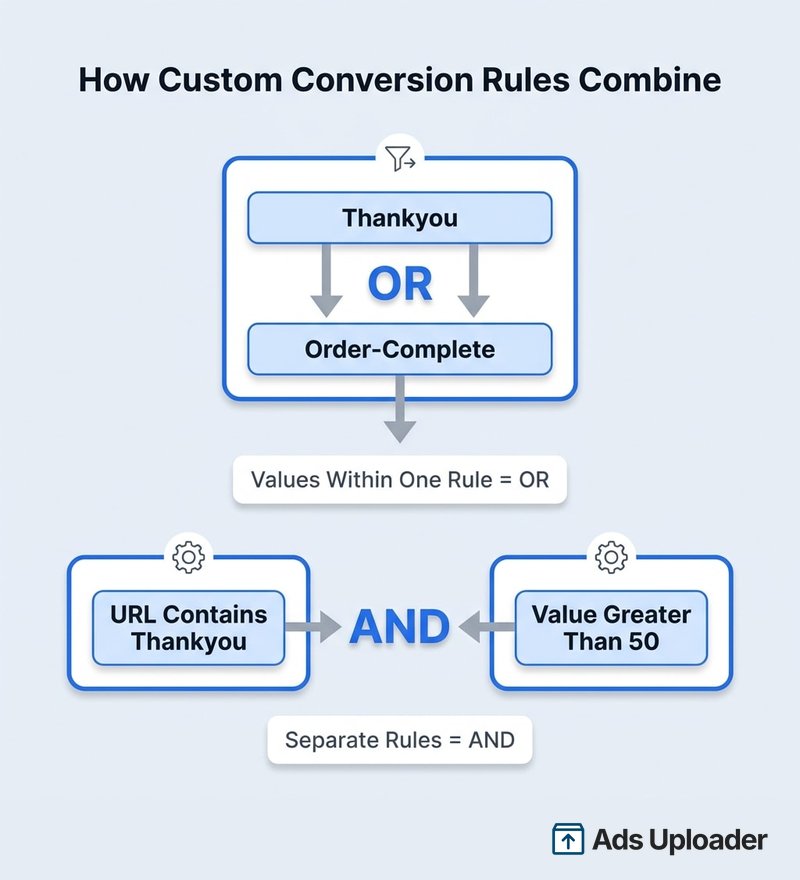
So if you want "purchases of Product A or Product B that are also over $50," you put both product IDs as values in one rule (the OR), then add a separate value rule (the AND). Mix those up and you will either capture far too much or filter yourself down to nothing.
Behind the scenes, the Marketing API exposes a wider operator set than the UI, including case-sensitive matches and even regex_match for advanced patterns. Most advertisers never need to leave the standard Contains, Equals, and greater-than options, but the regex support is there when a URL structure is genuinely messy.
Activate and Verify Your Custom Conversion
A new custom conversion will not show as Active until Meta records matching traffic. Do not assume it works just because you saved it.
To verify, trigger the action yourself: visit the thank-you URL, or complete the purchase, while watching what the pixel actually sends. The fastest way to do that is the Meta Pixel Helper browser extension, which shows every event and parameter firing on the page in real time. The Test Events tab inside Events Manager does the same job from Meta's side. If it confirms a Purchase with a value of 75, and your rule asks for value greater than 50, the conversion should count it.
When a custom conversion stays stuck on pending or never fires, the cause is almost always one of these:
- The pixel is not present on the conversion page.
- The URL rule is too strict (using Equals where Contains was needed).
- The event name or parameter in the rule does not match what is actually sent.
- A required parameter, such as
value, is missing from the event. - It is simply too new, since the status can take a while to flip after the first matching visit.
Confirm the underlying event with that check first, then check your rule against exactly what you saw fire. That two-step check resolves the large majority of "not active" reports.
Save Hours on Creative Testing
Stop uploading ads one by one. Bulk process unlimited creatives with automatic media matching and direct API publishing.
Try Ads Uploader FreeNo credit card required • 7-day free trial
Using Custom Conversions for Optimization and Reporting
Once a conversion is active, it becomes usable in two places.
In reporting, add it as a column in Ads Manager so the specific action shows up alongside your other metrics. In optimization, build or edit a campaign with a conversion objective (Sales, Leads, or Engagement) using the Website conversion location, then select your custom conversion as the conversion event. Meta will optimize delivery toward it from there.
One reality check on optimization: volume matters. A custom conversion that fires a handful of times a week gives the algorithm too little to learn from. A widely cited guideline is to aim for roughly 50 conversions per ad set per week before expecting stable delivery. If your custom conversion is too narrow to hit that, it may be better as a reporting column than as the optimization event.
Limits, Restrictions, and 2026 Gotchas
Three things catch advertisers off guard, so build them into your process now.
The 100 per ad account limit. Each ad account supports a maximum of 100 custom conversions, and that ceiling has held into 2026. On busy accounts it fills up faster than you would think. Delete unused conversions regularly, and adopt a naming convention (something like "Purchase | Over $50 | Mens") so you are not deciphering a wall of vague labels when you need to prune.
Flagged and restricted conversions. Starting September 2, 2025, Meta began blocking custom conversions that imply sensitive personal information, including health conditions, financial status, sexual orientation, religion, and similar protected categories. A flagged conversion cannot be used in new campaigns, and the Marketing API returns is_unavailable: true for it. Existing campaigns may keep running but with degraded optimization. If a conversion gets flagged, edit it to remove the sensitive filter, switch to a different conversion, or request a review through Events Manager. The full policy lives in Meta's help article on the change.
Sharing controls. You can share a single custom conversion with a partner or another ad account instead of handing over your entire data source. For agencies, that is a clean way to give a client visibility into one specific result without exposing everything else.
Frequently Asked Questions
What is a custom conversion in Facebook? A custom conversion is a rule you build in Meta Events Manager that counts a specific website action as a conversion, using data your pixel already sends. You define it from a standard event, a custom event, or all URL traffic, then narrow it with URL or parameter rules. No new code is required.
What's the difference between a custom conversion and a custom event? A custom event is an action you send to Meta with pixel or Conversions API code, and it can seed custom audiences and lookalikes. A custom conversion is a no-code rule built in Events Manager on top of events you already send. Custom conversions optimize and report, but they cannot be used as a custom-audience source.
Do Facebook custom conversions require code? No. Custom conversions are built entirely with rules inside Events Manager. Your pixel or Conversions API must already be sending events or page views to filter, but you do not add any new script to your site to create the custom conversion itself.
How many custom conversions can I have per ad account? Each ad account supports up to 100 custom conversions. If you hit the limit, delete unused ones and create new conversions in their place. Clear, consistent naming makes the ceiling much easier to live with on larger accounts.
Why is my custom conversion not active or not firing? Usually the rule does not match real traffic. Check that the pixel is on the page, the URL or event name is correct, and the parameters in your rule (like value or content_id) are actually being sent. Use the Test Events tool in Events Manager to confirm, then allow time for the status to flip to Active.
Can I use a custom conversion as an ad performance goal? Yes. When you build a campaign with a conversion objective using the Website conversion location, you can select your custom conversion as the optimization event. Meta will then work to deliver more of that conversion, provided it has enough volume and sits in an allowed category.
The Bottom Line
Custom conversions are the no-code way to make the standard events specific enough to actually optimize on. Build them one of two ways: a URL rule when you have a unique confirmation page, or an event filter when you want a slice of an existing event by parameter or value. Mind the AND/OR logic, because it decides whether your rule captures the right traffic. Then verify the conversion fires before you trust it, and keep an eye on the 100 per account limit and the flagged-conversion policy.
Pick one high-value action you are not yet measuring cleanly. Build a custom conversion for it, confirm it fires in Test Events, and set it as a performance goal. That single move sharpens what Meta optimizes toward, and it is the fastest tracking upgrade you can make without writing a line of code.