Facebook lead ads CRM integration is the connection that sends leads from your Meta instant forms into your CRM automatically. You set it up three ways: a native integration inside Meta Business Suite, a third-party connector, or a custom build on the Conversions API and lead webhooks. Connected systems receive each lead in real time, subject to leads access permissions, and Meta stores leads for only about 90 days. Real-time sync removes manual CSV downloads and lets sales follow up before leads go cold.
A Facebook lead ad is only as valuable as how fast the lead reaches someone who can act on it. Capture a name and email inside Instagram, then leave it sitting in Meta for three days, and you have paid for a contact that has already gone cold. CRM integration is the plumbing that closes that gap. It moves every lead from your instant form into the system your team actually works out of, the moment it is submitted.
Connecting lead ads to a CRM sounds like a one-click job, and sometimes it is. But two things trip people up constantly: permissions, which is why leads silently stop arriving, and expiry, which is why leads you never collected are simply gone. If you are new to the format itself, start with our guide to what Facebook lead ads are. This article assumes you already run them and now need the leads to land somewhere useful.
Below: the three ways to connect any CRM, how to choose between them, how leads access actually works, why Facebook deletes your leads after about 90 days, and how to keep the pipe from breaking without you noticing.
Why Connect Lead Ads to a CRM at All
You can collect leads without any integration. In Ads Manager you open the lead ad, click the Leads count in the Results column, and export a CSV. You can also pull them from Leads Center in Meta Business Suite. Both work, and both fall apart the moment you are running real volume.
The manual path has two failure modes. The first is speed: a lead exported once a day or once a week reaches your sales team hours or days after the person raised their hand, long after their attention has moved on. The second is loss, which is the quiet one. Meta only keeps each submission for a limited window, so a lead you forget to download does not just go stale, it disappears. Integration fixes both at once. Each lead lands in your CRM the instant it is submitted, your team works from one place, and nothing depends on remembering to export.
The Three Ways to Connect Any CRM
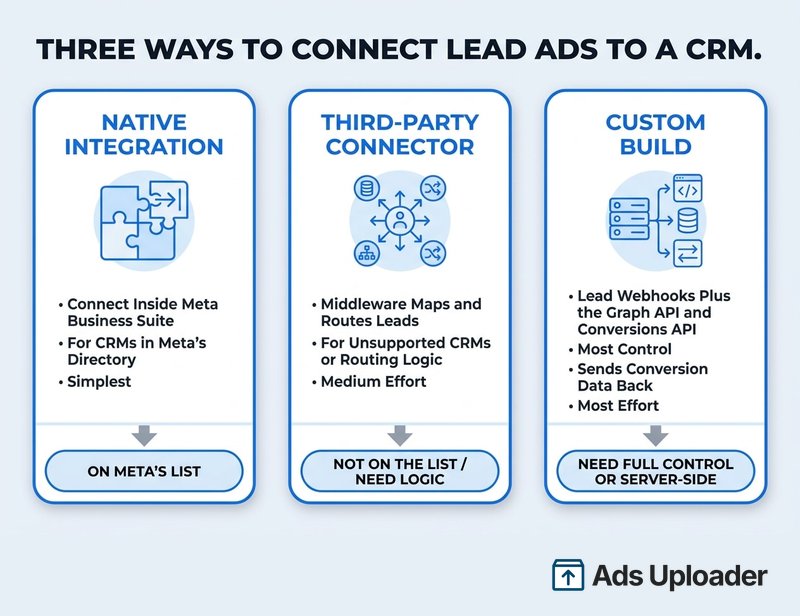
There are exactly three methods. Picking the right one is mostly about whether your CRM is on Meta's list and how much control you need.
1. A native CRM integration. Meta maintains a directory of supported CRM and marketing systems that you connect directly inside Business Suite. You search for your tool, authenticate on its side, and leads start flowing. This is the simplest option and the right default when your CRM is in the directory. Meta documents the full setup in its guide to connecting a CRM system.
2. A third-party connector. A middleware service sits between Meta and your CRM, listens for new leads, and routes them where you want. Under the hood it uses Meta's lead webhooks and APIs, but it adds field mapping, filtering, and routing you would otherwise build yourself. This is the path when your CRM is not natively supported, or when you need to transform or split leads before they land.
3. A custom build. A developer wires Meta's real-time lead webhooks and the Graph API straight into your stack, and uses the Conversions API to send lead events back to Meta. This is the most work and the most control. It suits bespoke systems, high reliability requirements, and any setup where you want to feed conversion data back for optimization.
A simple way to choose: if your CRM is in the directory, use the native integration. If it is not, or you need logic in the middle, use a connector. If you have developer resources and need full control or server-side delivery, build it custom.
How to Connect Your CRM in Meta Business Suite
The native path is the same regardless of which supported CRM you use. First, make sure you are a Page admin with leads access permissions, because only that role can set up or remove an integration. Then:
- Go to your Facebook Page and open Meta Business Suite.
- Click All tools, then under Advertise choose Instant forms.
- Select the CRM setup tab.
- Search for your CRM by name and select it from the directory.
- Click Connect and finish the authentication on the CRM provider's website.
Once connected, new leads pipe into that system automatically. One important catch: if you connect through an external provider rather than a fully native link, Meta Business Suite often will not let you edit or disconnect the integration. You manage and remove it on the provider's side instead. Decide where the integration lives before you build it, so you are not hunting for a disconnect button that does not exist.
Whichever method you choose, test it before you spend. Submit a test lead and confirm it reaches the CRM with every field intact. Our guide to testing your lead form before launch walks through generating test leads so you catch a broken mapping before it costs you real ones.
Launch More. Click Less.
Upload hundreds of creatives at once, auto-match thumbnails to videos, and export directly to Meta Ads Manager.
Try Ads Uploader FreeNo credit card required • 7-day free trial
Leads Access: Why Your Leads Might Not Show Up
This is the single most common reason a CRM integration appears connected but no leads arrive, and almost nobody explains it because it is not a feature anyone sells.
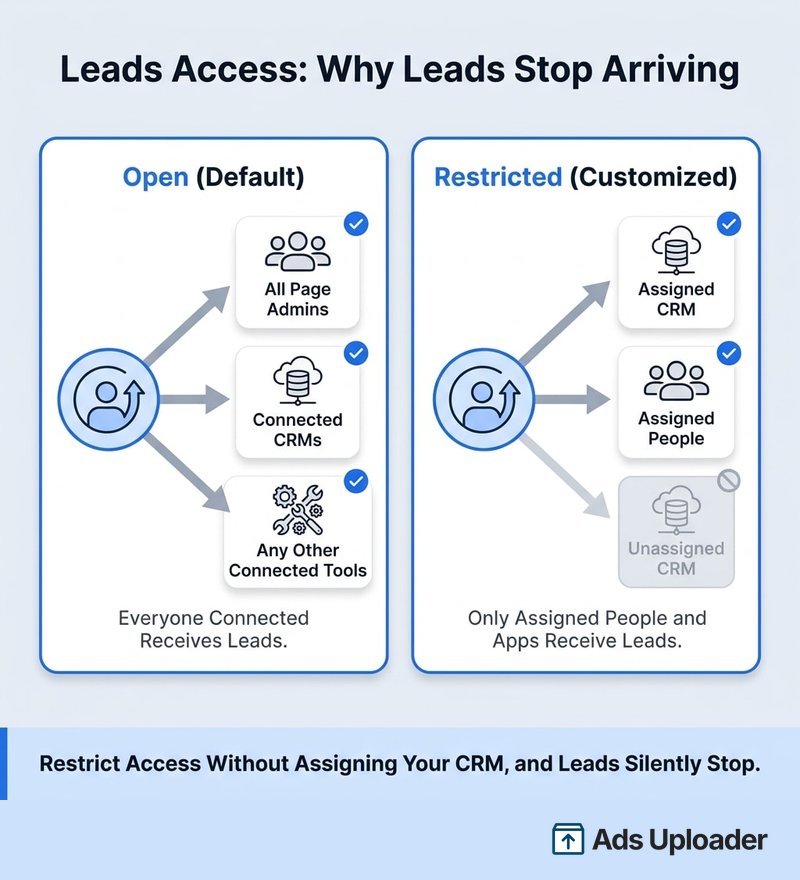
Meta's Leads access manager controls which people, Pages, and apps can retrieve leads from your forms. The behavior hinges on whether you have customized it:
- Default (open): every Page admin and every connected CRM automatically receives new leads. If you never touch leads access, integrations just work.
- Customized (restricted): the moment you restrict access, leads only go to the people and apps you explicitly grant. A CRM or agency that was receiving leads will stop the instant it is no longer on the list.
This is why agencies hit the problem constantly. Onboard or offboard a partner, restrict access for good reasons, and a connected CRM silently goes dry because nobody re-assigned it. The fix is to open the Leads access manager, confirm your CRM and the right people are assigned, and grant access where it is missing. Only a Business admin can change these settings. Meta covers the permission model in its documentation on leads access.
Why Facebook Leads Expire (The 90-Day Rule)
Meta does not store your leads forever. Submissions are retained for a limited window, commonly cited as about 90 days, after which they can no longer be downloaded from Ads Manager or pulled through the API.
The operational consequence is blunt. A lead you did not collect inside that window is not stale, it is gone, and no CSV export will bring it back. A team that relies on downloading leads every week or two is quietly running a clock on every contact it has paid for. A team with real-time sync never thinks about retention at all, because the lead was copied into the CRM the second it arrived and lives there permanently.
This is the real argument for integrating rather than downloading. Retention is not a setting you can extend. It is a deadline you avoid entirely by never letting a lead sit in Meta in the first place.
Conversion Leads: Sending CRM Data Back to Meta
Most of this article is about getting leads out of Meta. The conversion leads goal is about pushing information back in, and it is what separates a volume machine from a quality one.
By default, Meta optimizes lead ads for the number of form submissions. It has no idea which of those leads your sales team actually closed. The conversion leads performance goal changes that by having your CRM send lead-status events back to Meta: lead created, lead qualified, lead converted. Meta then learns what a good lead looks like for your business and targets people who resemble your real customers, not just anyone who taps submit.
Setting it up means connecting your CRM to send those events, through the Conversions API, an Events Manager dataset, or a partner that implements Meta's flow. Meta's conversion leads setup guide covers the paths. During the learning phase, send an event for each status change so the system has enough signal, Meta generally wants a steady weekly volume of conversion events before delivery stabilizes. It is more work than basic capture, but it is how you stop paying for cheap leads that never buy.
Save Hours on Creative Testing
Stop uploading ads one by one. Bulk process unlimited creatives with automatic media matching and direct API publishing.
Try Ads Uploader FreeNo credit card required • 7-day free trial
Keeping the Pipe From Breaking
An integration is not a set-and-forget. Here is what actually goes wrong, in rough order of how often you will see it:
- Leads access permissions. If leads stop arriving, check this first. A customized access setting that does not include your CRM is the usual culprit.
- Field mapping gaps. Most integrations require you to map each form question to a CRM field. Add a custom question to the form later and forget to map it, and that data lands nowhere or drops the record.
- Expired tokens. The access token behind the integration can lapse when a password or business setting changes. Confirm the connected user still holds the right Page and ad permissions, and re-authorize when sync fails.
- Form and ad mismatches. If a live ad uses a different Page or form than the one you connected, those leads route somewhere you are not watching.
- Silent errors. Meta's CRM setup panel and Events Manager diagnostics flag delivery problems. Check them when numbers look off rather than assuming the pipe is healthy.
The habit that prevents most of these is simple: test the integration before every important launch, and spot-check that the lead count in your CRM matches the lead count in Ads Manager.
Connecting Lead Ads to a Specific CRM
Everything above is universal. The exact clicks, field names, and quirks differ by tool, so once you have picked your method, follow the dedicated walkthrough for your stack: connect lead ads to HubSpot, to Salesforce, through Zapier, or into a Google Sheet. Pick the one that matches your setup and the rest of the steps are the same pattern you have read here.
Frequently Asked Questions
How do I connect Facebook lead ads to my CRM?
Open your Facebook Page, go to Meta Business Suite, click All tools, then Instant forms, and select the CRM setup tab. Search for your CRM, click Connect, and finish authenticating on the provider's side. New leads then flow in automatically. You need to be a Page admin with leads access. If your CRM is not listed, use a third-party connector or a custom webhook build.
Why are my leads not showing up in my CRM?
Almost always leads access permissions. By default leads flow to connected CRMs, but once access is customized, only explicitly assigned people and apps receive them. Check the Leads access manager and confirm your CRM is assigned. Then verify field mapping, that the access token has not expired, and that the live ad uses the Page and form you connected.
Do Facebook leads expire, and how long are they kept?
Yes. Meta retains submissions for a limited window, commonly about 90 days, after which they cannot be downloaded from Ads Manager or the API. A lead you never collected in that window is gone. Real-time sync to a CRM avoids the problem because the lead is captured immediately and stored indefinitely.
Native, third-party, or Conversions API: which should I use?
Native is simplest when your CRM is supported. A third-party connector is best when it is not, or when you need field mapping and routing. A custom build on the Graph API and Conversions API gives the most control and is required to send conversion data back. Real-time delivery beats CSV downloads in every case.
Can I edit or disconnect a CRM integration?
If you used Meta's native connector, manage it from the CRM setup screen. If you connected through an external provider, Meta usually will not show a disconnect button, so you manage it on the provider's side. Only a Page or Business admin with leads access can add or remove integrations.
Do I need the Conversions API for lead ads?
Not to collect leads. Standard fields come through a native connector or webhook. You want the Conversions API when you optimize for lead quality with the conversion leads goal, which needs lead-status events sent back to Meta, or when you need reliable server-side delivery.
What is leads access?
Leads access is Meta's permission system controlling which people, Pages, and apps can retrieve leads from your forms. It is open to Page admins by default, so you only touch it to restrict or re-grant access, such as when an agency is onboarded or offboarded. Restricting it without assigning your CRM is the classic cause of missing leads.
Is real-time sync better than a CSV download?
Yes. Real-time sync captures every lead immediately, so nothing is lost to the retention window, and it lets sales follow up within minutes, which lead-response research shows dramatically improves conversion. A weekly CSV export risks both stale leads and permanently missed ones.
Conclusion
Facebook lead ads CRM integration comes down to three methods and two gotchas. Choose native when your CRM is supported, a connector when it is not, and a custom build when you need full control or want to send conversion data back. Then watch the two things that quietly break real pipelines: leads access permissions, which decide whether your CRM receives anything at all, and the roughly 90-day retention window, which punishes anyone still downloading CSVs by hand.
Get those right and the rest is straightforward. Wire the leads into your CRM in real time, send conversion status back when lead quality matters, test before every launch, and pick the dedicated guide for your specific tool to handle the per-CRM details. The goal is the same one you started with: every lead in front of someone who can act on it, while they are still warm.