Duplicating a Meta ad means copying an existing ad, ad set or campaign in Meta Ads Manager so its settings become the starting point for a new one. You select it, click Duplicate, choose the original, an existing or a new campaign, set the number of copies, then edit and publish. To keep likes and comments, tick the existing engagement option or build the new ad from the original post ID. Swapping the media creates a new post, so every inherited field needs a recheck before launch.
Learning how to duplicate Meta ads, which many people still call Facebook ads, looks like a one-button job. Then the copy goes live with zero likes, an ad name ending in "Copy", Advantage+ enhancements you never switched on, and UTM tags still naming last month's creative.
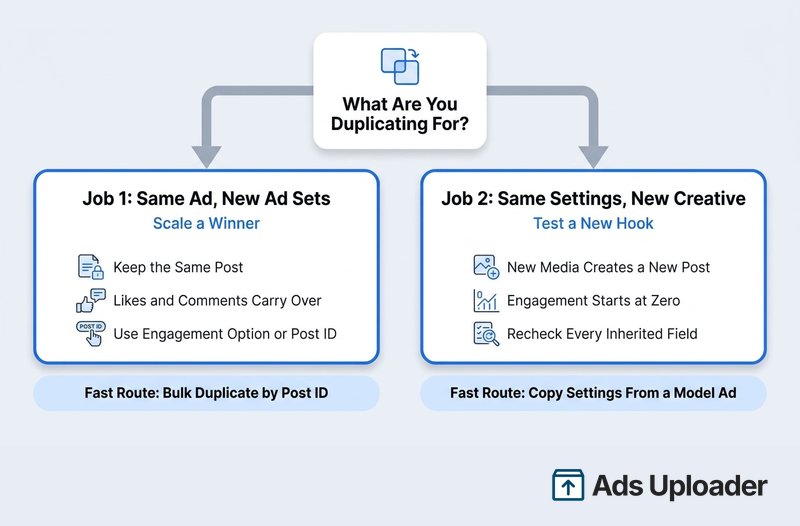
The problem is that "duplicate" covers two different jobs. Sometimes you want the same ad in more places: a winner moving into new ad sets with its social proof intact. Other times you want the same setup with new creative, so a fresh hook gets tested on settings you already trust. Meta Ads Manager handles both with the same button, and each one goes wrong in its own way.
This guide covers both jobs. You'll get the native steps in Meta Ads Manager, the post ID route that keeps engagement, what carries over and what resets, when to duplicate versus edit, and a checklist to run before you publish. Where a tool saves real time, such as bulk duplicating Facebook ads by post ID with Ads Uploader, you'll see exactly what it does and where its limits are.
Two Different Duplication Jobs
Before you click anything, decide which job you're doing. It changes which method you use and what you need to check.
| Job 1: Same Ad, New Ad Sets | Job 2: Same Settings, New Creative | |
|---|---|---|
| Goal | Scale a winner into new audiences, campaigns or budgets | Test a new image, video or hook |
| Must stay identical | The post (media, text, likes, comments) | Targeting, page, copy, URL, tracking, enhancements |
| Engagement | Kept, if the new ad uses the same post | Starts at zero (new media means a new post) |
| Native method | Duplicate with the engagement option, or Use existing post | Duplicate, swap the media, recheck every field |
| Faster method | Bulk duplicate by post ID | Use the winner as a model ad for new uploads |
How to Duplicate a Meta Ad in Meta Ads Manager
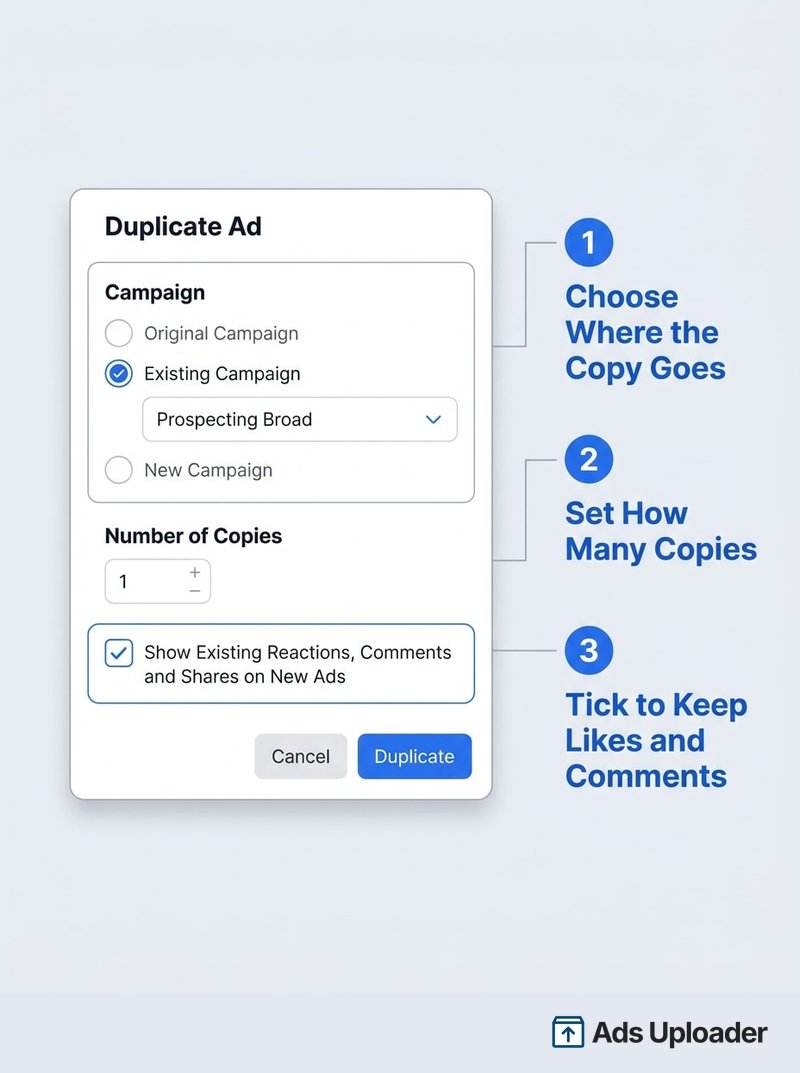
These steps come from Meta's own guide to duplicating ad campaigns in Meta Ads Manager, and they're the same for ads, ad sets and campaigns:
- Open Meta Ads Manager and check you're in the right ad account.
- Go to the Campaigns, Ad sets or Ads tab.
- Tick the checkbox next to what you want to copy.
- Click Duplicate.
- For an ad or ad set, choose Original campaign, Existing campaign or New campaign. For an ad, pick the destination ad set too.
- Set the Number of copies.
- For an unchanged ad, tick Show existing reactions, comments and shares on new ads if you want to keep its engagement.
- Click Duplicate, edit the draft, then click Publish.
Some accounts also show Quick duplicate, which makes a fast copy in the same place with fewer prompts. Use the full Duplicate dialog when you need to choose the destination, the copy count or the engagement option. If Meta offers to duplicate "with recommendations", pick your current settings when you want a faithful clone, and apply recommendations deliberately afterwards.
Duplicating a Meta Ad Set or Campaign
Duplicating an ad set copies its targeting, placements, optimization and budget, plus every ad inside it. Duplicating a campaign copies the whole tree. Whatever level you duplicate at is the level you edit. If you change the audience on a duplicated ad set, the ads inside are still identical copies until you open each one.
Copy and Paste for Several Destinations
Meta Ads Manager also has a clipboard. Select objects, press Ctrl+C (or Duplicate > Copy), select the campaigns or ad sets you want to paste into, then press Ctrl+V. It's handy for dropping one ad into five ad sets. The clipboard only works within one ad account, in one browser window, and it clears when you refresh, switch accounts or copy something else.
One detail to watch: Meta states that Advantage+ campaigns are duplicated with Advantage+ settings turned on, and campaigns built with manual settings can come back with Advantage+ switched on too. Treat every duplicate as a new build on today's defaults, not a frozen snapshot.
Job 1: Duplicate a Winning Meta Ad Into New Ad Sets Without Losing Likes
Social proof belongs to the post behind the ad, not to the ad itself. To keep the likes, comments and shares, the new ad has to point at the same post. There are two ways to do that natively, plus a bulk option.
Native Duplicate With the Engagement Option
Duplicate the winning ad, choose the destination ad set, tick Show existing reactions, comments and shares on new ads, and change nothing in the creative. Rename it, check the placement previews and publish.
This option isn't always available. If the original ad was customized by placement (different media or text for Feed, Stories and Reels), Meta Ads Manager shows: "This option is not available on new copies when the original ads were customized for different placements." Ads with several headlines, texts or placement versions are a poor fit too, for reasons covered below.
The Post ID Route, Step by Step
When the requirement is "use this exact post", the post ID route is the one you can verify. Meta documents it under creating ads from existing posts:
- Copy the winning ad's post ID. Our guide to finding a Facebook post ID covers the quickest ways.
- Open the destination campaign and ad set, then create a new ad.
- Under Identity, select the Facebook Page that owns the post.
- Under Ad setup, choose Use existing post, click Select post, then Enter post ID.
- Paste the ID and confirm the right post appears in the preview.
- Check the tracking settings (URL parameters usually stay editable under Tracking), then publish.
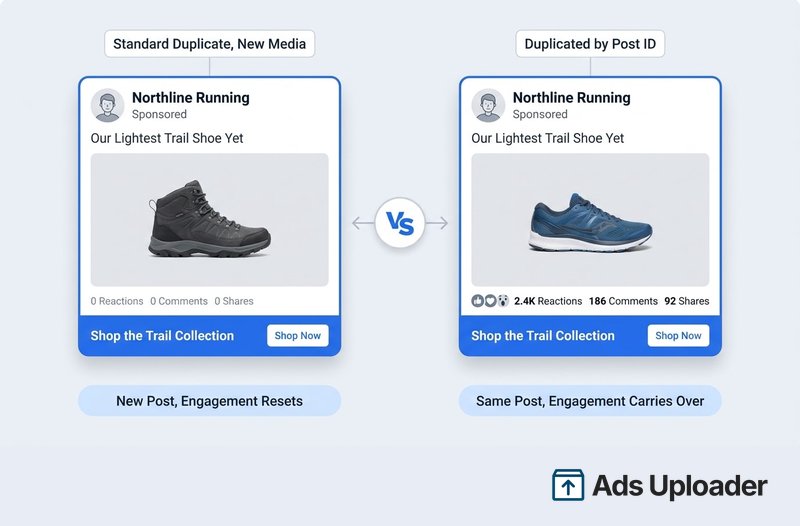
Every ad built this way gets its own ad ID but shares one Facebook post. A like on any of them adds to the same count. The flip side: the media, primary text and link belong to the post, so you can't change them per ad.
Instagram works separately. A Facebook post ID carries the Facebook post's engagement only. Meta notes that ads built from a Facebook post don't include the engagement of a matching Instagram post. If your Instagram comments are the stronger social proof, build the ad from the existing Instagram post instead.
Why Post ID Duplication Goes Wrong on Ads With Variations
A post ID points at one individual post. That works for a simple ad with one image and one set of text. It breaks down on ads with variations.
Take an ad loaded with five headlines and five primary texts, plus a Feed version and a Reels version. That's 5 x 5 x 2 = 50 combinations, so in practice the ad sits on 50 posts, and its likes and comments are spread across all of them. When you find "the" post ID the usual way, you get whichever single post you happened to be looking at. On your screen it can look like it has all the engagement you want, but what you copy depends on which post you picked.
For these ads, duplicate by creative ID instead. A creative ID copy forks the post: it starts with the engagement built up so far, then grows its own, with no link back to the original. Ads Uploader's Duplicator switches to the creative ID automatically for ads with no single post ID and warns you first.
Launch More. Click Less.
Upload hundreds of creatives at once, auto-match thumbnails to videos, and publish straight to your ad accounts through Meta's API.
Try Ads Uploader FreeNo credit card required • 7-day free trial
Duplicating Winning Meta Ads in Bulk by Post ID
The post ID route takes a couple of minutes per ad. Moving 20 winners into four new ad sets means 80 trips through the same screens. This is where Ads Uploader's Duplicator comes in. It copies existing ads into other ad sets by post ID, so every copy shows the original likes, comments and shares.
How it works:
- Select source ads. Tick ads in a three-column campaign, ad set and ad browser. Cmd/Ctrl-click picks several campaigns or ad sets, Shift-click selects a range, and Select all ticks a whole column (untick any you don't want), so you can pull winners from several places in one go.
- Pick a target campaign. It must already exist.
- Choose an ad set option. Add to Existing Ad Set, Create New Ad Set (copies an ad set you click in the target campaign as its template, so it gets that ad set's targeting, budget and schedule) or Create New Ad Set per Ad.
- Name the copies. The
{AdName}pattern keeps the original name, and you can add words such as{AdName} Scale. - Review and run. A preview table maps every source ad to its destination, and you can create the copies paused.
The source ads and destination must be in the same ad account. The Duplicator only copies existing ads; new media goes through the Uploader, covered next.
Job 2: Duplicate a Meta Ad and Swap the Creative
Now the goal flips. You want the winner's settings, not its post. The moment you replace the image or video, Meta creates a new creative and a new post, so the old likes and comments stay with the old ad. That's expected. What catches people out is everything else the duplicate inherited.
The Native Way: Duplicate, Swap, Recheck
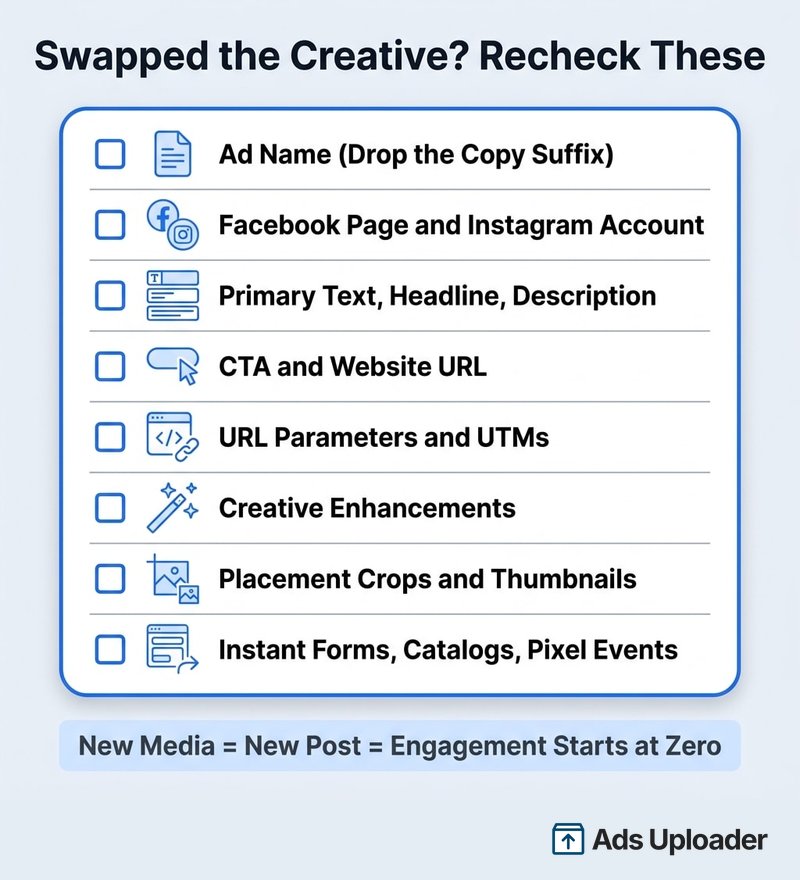
Duplicate the ad into the same ad set, rename it, swap the media, then go through every field. Targeting, budget and optimization live on the ad set, so those stay put. These don't:
- Ad name. Drop the "Copy" suffix before you publish. If your URL parameters use dynamic values such as
{{ad.name}}, rename first, because the name in your reports may not follow a rename made after launch. Consistent ad naming conventions make this painless. - Identity. Check the Facebook Page and Instagram account.
- Primary text, headline and description. Old copy often describes the old creative.
- CTA and website URL. Is it still the right offer and landing page?
- URL parameters. Hard-coded UTMs like
utm_content=ugc_old_hookdon't update themselves. - Creative enhancements. Swapping media can bring the enhancement screen back up. Review each toggle; Meta says some Advantage+ creative enhancements may be on by default.
- Placements and thumbnails. A crop that worked for the old asset may cut off the new one in Stories or Reels.
- Destination extras. Instant forms, catalogs and app destinations carry over silently.
Then preview Facebook Feed, Instagram Feed, Stories and Reels before you publish. Do it for each new creative, every time. For one ad that's fine. For 15 new videos, it's an afternoon.
Keep Every Setting by Using a Model Ad
Ads Uploader flips the order. Instead of duplicating and editing, you upload the new creatives first, then choose Select a Meta Ad to Copy Settings From and pick the winning ad as the model. Every new ad inherits its setup:
- Structure and targeting. The model supplies the campaign structure, targeting, pixel, exclusions and custom audiences.
- Text. Primary text, headline, description, URL and URL parameters are pulled from the model ad by default. Edit them globally, per ad set or per ad when one creative needs something different.
- Creative enhancements. Inherited from the model ad by default. Toggle individual enhancements on or off before launch.
- Destination. Launch into the model ad's existing ad set, or choose Create new ad set, Create new ad set per upload or group, Auto-divide ads into ad sets or Build custom ad set configuration.
Save the setup as a preset and next week's batch starts without reselecting the model ad. One tip: pick the original ad as the model, not a copy made from a post ID, because post ID ads don't carry a full creative to copy from. The new creatives are new posts, so their engagement starts at zero, exactly as it would in Meta Ads Manager.
What Happens When You Duplicate a Meta Ad
Here's what carries over, what resets and what can change on you:
| Element | Plain Duplicate | Post ID Duplicate | Duplicate and Swap Creative |
|---|---|---|---|
| Targeting, budget, optimization | Copied | Copied | Copied |
| Ad ID | New | New | New |
| Reporting history | Starts fresh | Starts fresh | Starts fresh |
| Learning phase | New ad set learns from scratch | Same | Same |
| Facebook post | Same post only if engagement option is ticked | Same post | New post |
| Likes, comments, shares | Kept with the option ticked | Shared | Reset |
| Instagram engagement | Check separately | Only if the Instagram post is reused | Reset |
| Text, CTA, URL | Copied | Come from the post | Copied, needs a recheck |
| URL parameters | Copied | Usually still editable | Copied, needs a recheck |
| Ad name | Usually gets a "Copy" suffix | Same | Same |
| Advantage+ settings | Can switch on | Review | Review every toggle |
| Ad review | New ad is reviewed | Reviewed | Reviewed |
The learning phase deserves a closer look. Meta tracks learning at the ad set level, and a duplicate never inherits it. A duplicated ad set starts from zero and needs roughly 50 optimization events in seven days to stabilize. Adding a duplicated ad to an existing ad set counts as a significant edit, so that ad set can re-enter learning. Reusing a post ID keeps the engagement, not the learning.
When to Duplicate Meta Ads vs Edit vs Create Fresh
Use this as a quick rule set:
- Duplicate when you want to test one change without touching a live winner, or scale a winner into a new ad set, campaign or budget. The original keeps running with its history intact.
- Edit only for small fixes you're happy to apply to the live ad. Creative and targeting changes are significant edits that restart learning, so a live winner usually deserves a duplicate instead.
- Create fresh when the objective or funnel changes, when old comments mention an expired price or offer, or when you're moving to another ad account. Duplicate and copy-paste stay inside one account; Meta's route between accounts is exporting to .xlsx, clearing the Campaign ID, Ad Set ID and Ad ID values, and importing.
Where the duplicate lands matters too. In a CBO campaign the budget lives at campaign level, so a new ad set competes with the existing ones for spend. Our ABO vs CBO breakdown explains how that plays out. And don't expect five identical ad sets to deliver five times the results. When several of your ads qualify for the same auction, Meta enters the strongest one and holds back the rest, which is known as auction overlap. Fresh creative is a better source of scale than clones.
Pre-Publish Checklist for Duplicated Meta Ads
Whichever way you duplicate Meta ads, run through this before you hit Publish:
- Correct ad account, campaign and ad set
- Ad name final, with no "Copy" suffix
- Facebook Page and Instagram account confirmed
- Job 1: engagement option ticked, or the same post ID entered; media and text untouched
- Job 1: post ID on the new ad matches the source
- Job 2: new media correct, with crops checked in Feed, Stories and Reels
- Job 2: primary text, headline, description and CTA match the new creative
- Website URL and URL parameters correct
- Advantage+ creative enhancements reviewed one by one
- Pixel, conversion event and any instant form or catalog confirmed
- Learning impact accepted (new ad set, or a significant edit to an existing one)
- Original winner left running unless your plan says otherwise
Frequently Asked Questions
Save Hours on Creative Testing
Stop uploading ads one by one. Bulk process unlimited creatives with automatic media matching and direct API publishing.
Try Ads Uploader FreeNo credit card required • 7-day free trial
How do I duplicate a Meta ad, swap the creative and keep every other setting the same?
In Meta Ads Manager, duplicate the ad into the same ad set, rename it, replace the image or video, then recheck the Page and Instagram identity, primary text, headline, description, CTA, website URL, URL parameters, placement crops and every Advantage+ creative enhancement. Targeting and budget live on the ad set, so they stay the same. In Ads Uploader, you pick the original as the model ad instead, and every new creative inherits its text, URL, parameters and enhancements. New media always creates a new post, so likes and comments start at zero.
How do I launch a winning Meta ad into new ad sets and keep its likes and comments?
Either duplicate the ad and tick 'Show existing reactions, comments and shares on new ads', or create a new ad in each target ad set, choose Use existing post and enter the winner's post ID. The post ID route is the easiest to verify, because every new ad points at the same Facebook post and keeps adding to the same engagement count.
Is there a tool that bulk duplicates Meta ads by post ID into lots of ad sets at once?
Yes. Tools built on Meta's Marketing API can take many winning ads and create new ads that reuse each ad's post ID in other ad sets. Ads Uploader's Duplicator does this: you tick the source ads, pick an existing target campaign, and put the copies into an existing ad set, one new ad set, or a new ad set per ad, all in one run.
Can Ads Uploader duplicate winning Meta ads by post ID?
Yes. The Duplicator copies existing ads into other ad sets using each ad's post ID, so the copies show the same likes, comments and shares as the original. Ads with several headlines, texts or placement versions sit on many posts rather than one, so it switches to the creative ID automatically and warns you first. A creative ID copy starts with the engagement built up so far, then grows its own. Source ads and destination must be in the same ad account.
Does duplicating a Meta ad reset the learning phase?
A duplicate never inherits learning. A duplicated ad set, or an ad duplicated into a new ad set, starts its own learning phase. Adding a duplicated ad to an existing ad set counts as a significant edit, so that ad set can re-enter learning. Reusing a post ID keeps the engagement, not the learning.
Why is the option to keep existing engagement unavailable when I duplicate a Meta ad?
The documented reason is placement customization. If the original ad used different media or text for different placements, Meta Ads Manager shows 'This option is not available on new copies when the original ads were customized for different placements.' Create a new ad with Use existing post and enter the Facebook post ID instead. Flexible and dynamic creative ads are worth checking too, because they have no single post behind them.
Can you duplicate Meta ads to another ad account?
Not with the Duplicate button or copy and paste, which both stay inside one ad account. Export the ads to .xlsx, clear the Campaign ID, Ad Set ID and Ad ID values, switch to the other account and import the file. The imports are new ads with no history or learning.
Do Instagram likes and comments carry over when I duplicate a Meta ad?
Only if you reuse the actual Instagram post. A Facebook post ID carries the Facebook post's engagement, but it does not pull in likes and comments from a matching Instagram post. If Instagram social proof matters more, create the ad from the existing Instagram post instead.
Conclusion
Knowing how to duplicate Meta ads well starts with naming the job. The button is the same; the risks aren't.
- Same ad, new ad sets: keep the post. Tick the engagement option or use the post ID, and leave the creative alone.
- Same settings, new creative: expect a new post with zero engagement, and recheck every inherited field, from the name and URL parameters to the creative enhancements.
- Learning never transfers. New ad sets start from scratch, and adding ads to a live ad set is a significant edit.
- Instagram is separate. A Facebook post ID won't carry Instagram likes and comments.
Start with your current winners. Check which ones you're about to scale and which you're about to refresh, then pick the route that matches. Your next duplicate should go live with its likes, a clean name and the right URL on the first try.