Placement customization in Meta Ads lets one ad show a different image or video in each placement, with its own crop, text or link if you need one. Meta calls the feature asset customization for placements. You upload a version for each aspect ratio and assign it, or, in the newer media customization workflow, add up to 10 versions and untick the placements each one shouldn't run in. Feeds get 4:5 or 1:1 and Stories and Reels get 9:16, so each placement shows a file made for it instead of an auto-crop.
You build a 4:5 cut for Feed and a 9:16 cut for Stories and Reels, open the Media section to swap them in, and the Replace button you've clicked a thousand times is gone. No announcement, no tooltip. Just a new panel full of checkboxes.
It looks like Meta killed placement customization. It didn't. The capability is still there, it just moved and flipped its logic. The same year, Meta also took manual ad set placements away from Sales, Leads, Engagement and App promotion campaigns. That second change makes per-placement creative more important, not less, because you can no longer switch Reels off to protect a Feed-only asset.
This guide covers what actually changed in Ads Manager, the step-by-step for both the original and the new workflow, which ratio goes where, how to fix "No valid formats" errors (including across a whole batch), and how to set a different file per placement for hundreds of ads at once. Everything below is checked against Meta's own Help Center, and anything that varies by account is labeled as such.
What Is Meta Ads Placement Customization?
Placement customization lets a single ad show a different image or video, crop, primary text, headline or destination in different placements. Meta's name for it is asset customization for placements. The usual setup is a 4:5 or 1:1 version for Feeds and a 9:16 version for Stories and Reels, all inside one ad.
Meta groups similar placements so you don't edit 20 of them one by one. The labels shift between accounts, but you will usually see groups like these:
- Feeds (Facebook Feed, Instagram Feed, Marketplace, profile feeds, in-stream ads for reels)
- Stories, Status and Reels (Facebook and Instagram Stories and Reels, Messenger Stories, WhatsApp Status, plus apps and sites)
- Right column and search results
According to Meta's guide to asset customization for placements, you can vary more than the media. Per group or per individual placement you can change the image or video, crop or trim it, set a video thumbnail, add captions, and edit the primary text, headline and destination URL. For video there are also polls, text overlays and logo overlays.
Why bother instead of running separate ads? One ad keeps the build simple and puts the creative in a single reporting row. The alternative, separate ads per ratio with different placements selected, doubles your build work. It also needs ad set placement control that many objectives no longer have.
What Changed in Meta Ads Manager in 2026?
Two separate changes landed in 2026. Many accounts moved from the original "Replace per placement group" workflow to a new media customization workflow with up to 10 assets per ad. And Sales, Leads, Engagement and App promotion campaigns lost manual placement selection at the ad set level. Per-placement media still exists in both cases.
Did Meta Remove Placement Customization?
No. Meta's own help page for the feature now describes itself as covering "the original placement asset customization workflow" and points to a newer "workflow for media customization". That is a redesign, not a removal.
Practitioners started reporting the new interface in early April 2026, and the complaints were still coming in October. Meta rolls it out gradually, so two accounts in the same Business Manager can show different screens on the same day. If a colleague insists the Replace button still exists, they may simply be on the original workflow.
Where Per-Placement Media Lives Now
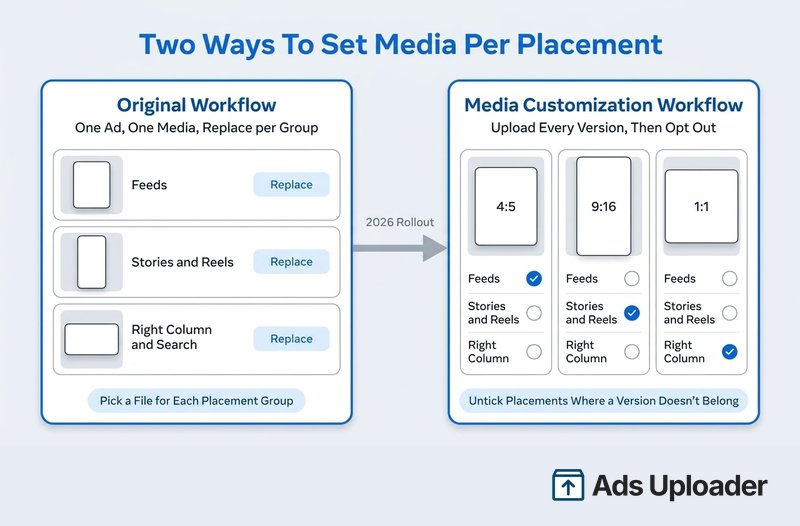
In the media customization workflow, the logic is inverted. You no longer tell Meta "use this file here". You upload every version, then tell it "don't use this file there".
| Original Workflow | Media Customization Workflow | |
|---|---|---|
| Upload | One main image or video | Up to 10 images and videos in one ad |
| How you assign | Pick a placement group, click Replace | Open each asset, opt it out of placements |
| Per-asset text and URL | Per placement group | Per asset |
| Cropping | Crop per placement group | Crop per asset, plus padding, expansion and AI adjustments |
| Rule to remember | Every group shows its replacement | At least one media is required for each placement |
Some accounts have shown a "Return to original single media experience" link when you hover the info icon next to Media. Treat that as a temporary fallback during the rollout. Meta hasn't committed to keeping it.
You may also see some placement checkboxes greyed out. Practitioners report this is Meta locking a file to the placements its aspect ratio suits, not a bug, but the behaviour varies by account.
Why the Ad Set Placement Change Matters More
Meta's update on placement settings says that for Sales, Leads, Engagement and App promotion, "you no longer choose placements manually at the ad set level". Awareness and Traffic keep manual placements. Meta's reasoning is its own experiment, in which Advantage+ placements delivered a 10% lower cost per result on average than manual placement settings.
The levers Meta leaves you are customizing media for each placement in the ad creative, placement value rules that bid placements up or down, and account-level placement exclusions by objective. Only the first one changes what people actually see. If your Sales campaign is going to serve in Reels whether you like it or not, a native 9:16 file is how you stop a Feed crop from running there.
How Do You Upload a Different Image or Video for Each Placement in Ads Manager?
Upload one version per aspect ratio at the ad level. In the new workflow, add all versions to Media, then opt each one out of the placements where it doesn't belong. In the original workflow, upload the main file, then click Replace on each placement group. Either way, preview every placement before publishing.
Steps in the Media Customization Workflow
- Build your campaign and ad set as usual until you reach the ad.
- Under Media, add every version of the creative: for example a 4:5, a 9:16 and a 1:1.
- Open the media customization panel and select the 4:5 file. Keep it on for Feeds and untick Stories and Reels.
- Select the 9:16 file. Keep it on for Stories and Reels and untick Feeds.
- Select the 1:1 file and keep it on only where you want a square fallback, such as the right column and search.
- Adjust each file's crop, text or URL if the panel offers it.
- Check the aspect ratio view. Turn off any padding, expansion or AI adjustment you don't want.
- Confirm every placement still has at least one eligible file, then preview and publish.
Steps in the Original Workflow
Meta's documented steps for the original workflow are:
- Create the ad, choose Set up creative, then Image ad or Video ad.
- Add your main file and click Next.
- On the Crop screen, select Replace to change the media for each placement group, or Crop to change the focal point.
- Continue through Enhancements and click Done.
- To edit later, hover a group under Ad creative and click Edit. For one placement only, open View more options on the group, then Edit.
Preview Every Placement Before You Publish
Open the advanced preview and click through every placement, not just Feed and Stories. You are checking three things: that the right file shows in each placement, that primary text isn't truncated awkwardly in tighter placements, and that nothing important sits under the interface.
One detail trips up a lot of buyers. Meta's help page states that "cropping alone won't restrict delivery". A 9:16 crop doesn't make a file Stories-only. If a version must stay out of Feed, opt it out. And if Flexible media is on, Meta can still adapt assets into extra placements, so switch it off when strict routing matters.
Which Aspect Ratio Goes to Which Placement?
Use 4:5 for Facebook and Instagram Feeds, 9:16 for Stories, Status and Reels, and 1:1 as the square fallback for right column, search and carousels. Add 16:9 only if you run in-stream video. Three versions (4:5, 9:16 and 1:1) cover almost every placement Meta will choose.
| Placement Group | Version to Give It | Fallback |
|---|---|---|
| Feeds | 4:5 | 1:1 |
| Stories, Status and Reels | 9:16 | 4:5 |
| Right column and search results | 1:1 | 1.91:1 |
| In-stream video | 16:9 | 1:1 |
That's the short version. For pixel sizes, format-by-format specs and the full breakdown of Meta's recommendations, see our guide to Meta ads placement aspect ratios. For vertical files, design inside the Stories and Reels safe area too. Our Meta ads safe zones guide has the exact margins, so captions and CTAs don't land under the interface.
Launch More. Click Less.
Upload hundreds of creatives at once, auto-match thumbnails to videos, and publish straight to your ad accounts through Meta's API.
Try Ads Uploader FreeNo credit card required • 7-day free trial
How Do You Fix "No Valid Formats" and Other Placement Errors?
"No valid formats" means Meta can't find a valid file for at least one placement the ad can serve in. The usual causes are a placement with no eligible file after opt-outs, a missing ratio, or a format that doesn't support customization. Fix one representative ad first, then apply the same repair to the batch.
"No Valid Formats" (#1487569)
The full message reads: "No valid formats: Your ad's creative is incompatible with the selected placements. Try selecting different placements or change your creative. (#1487569)". Meta doesn't publish a dedicated explanation for this error code, so work through the causes in order of likelihood:
- A placement has no eligible file. In the new workflow, opting your 4:5 out of Stories and Reels without opting the 9:16 in leaves a gap. Meta's rule is that at least one media is required for each placement.
- A ratio is missing. One 1:1 file across every placement can fail where a vertical version is expected. Add a 4:5 or 1:1 and a 9:16 at minimum.
- The format isn't supported. Existing posts, Advantage+ catalog ads, carousels and collection ads don't work inside the new multi-media workflow.
- Inherited settings from a duplicate. A copied ad can carry a catalog, destination or enhancement setting that clashes with the new creative.
Practitioners also report fixes such as turning off Website Highlights, removing UTM parameters, updating the destination URL before replacing media on a duplicated ad, and removing and re-uploading the file. Meta hasn't documented any of these as causes, so test them after the structural checks, not instead of them.
"Doesn't Support Ads With Media Customized for Different Placements"
This message usually shows up when you duplicate a placement-customized ad into a Sales campaign, or move it into a configuration that expects a different creative setup. It doesn't mean Sales campaigns can't use placement customization; Meta presents media customization as a control for Sales. Check that Advantage+ catalog ads aren't switched on by accident, then rebuild one clean ad in the target campaign's own workflow rather than duplicating the old creative. Our Meta flexible ads guide covers the Flexible-specific version of this error.
Formats and Features That Block Placement Customization
Meta lists several setups that don't work with placement asset customization. Check these before you build at volume:
- Ads built from an existing post
- Advantage+ catalog ads
- The old Flexible ad format (removed from ad setup in March 2026)
- Dynamic Creative
- Store set location targeting and Shops ads
- The Buy tickets and Save CTA buttons
- Different assets by device (one for mobile, another for desktop)
Duplicating an ad that uses placement asset customization also can't carry over its existing reactions, comments and shares.
How to Fix the Error Across a Batch of Ads
- Go to the Ads tab and filter delivery for errors.
- Export the failing ads with their objective, format, destination and creative name.
- Group them by shared setup. Ads with the same objective, format and destination usually fail for the same reason.
- Repair one ad per group: confirm every placement has an eligible file, add any missing ratio, check opt-outs, and remove stray catalog or post settings.
- Turn Flexible media and non-essential enhancements off while you diagnose.
- Publish the repaired ad paused, check every placement preview, then apply the same fix to the rest of the group.
- If duplicated ads keep failing, stop patching them. Rebuild one clean ad and recreate the batch from it.
How Do You Customize Placements for Lots of Ads at Once?
At volume, name each version of a creative with the same base name and a ratio token, then use a tool that groups those files into one ad and writes Meta's placement asset customization rules through the API. That replaces opening every ad and assigning files by hand with a naming rule your editors follow once.
In Ads Manager, placement customization is per ad. Ten creatives with three ratios each means ten trips through the media panel, ticking and unticking the same boxes. Bulk tools solve this by doing the same thing Meta's own feature does, just from file names. The Marketing API still supports placement asset customization through asset customization rules, and Meta hasn't announced any deprecation. So a bulk build isn't a workaround: it's the same feature, set up in bulk.
Here is how that works in Ads Uploader. It's a web app, with a CLI and MCP for the same jobs.
Name Each Version With Its Ratio
Give every version the same base name and add a ratio token:
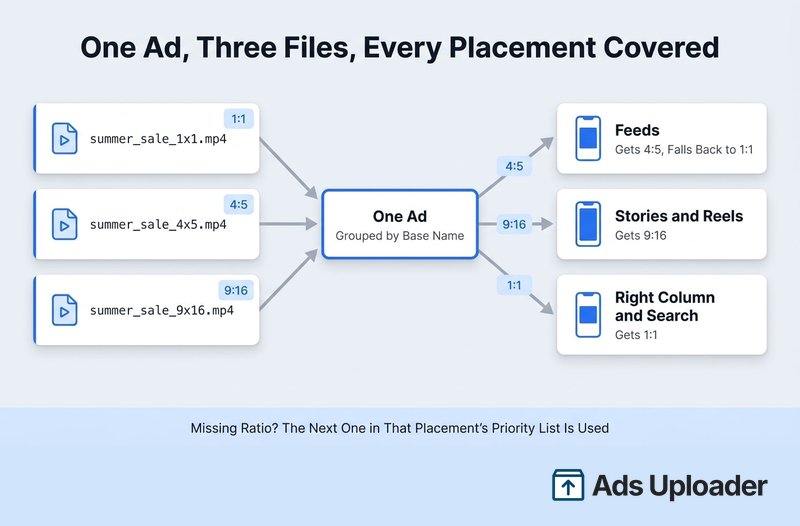
summer_sale_1x1.mp4
summer_sale_4x5.mp4
summer_sale_9x16.mp4
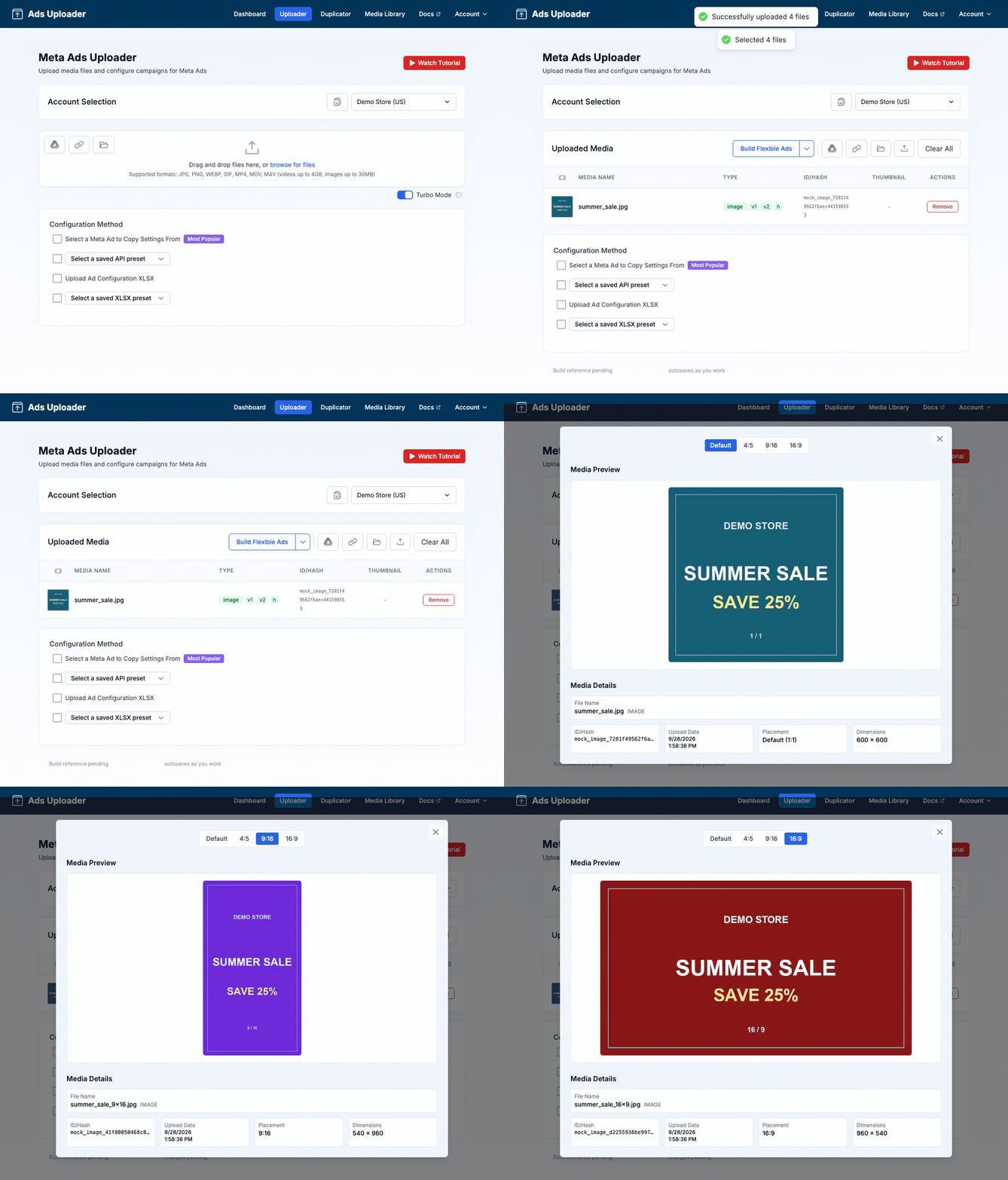
Ads Uploader recognises five tokens: 1x1, 4x5, 9x16, 16x9 and 1.91x1. Files with the same base name and media type become one ad with several variants, so the three files above launch as one ad, not three. The token can go at the start, middle or end of the name (the end is easiest to read). The default separator is an underscore, and you can change it to a hyphen or a custom character if your team already names files another way.
How Each Placement Picks Its File
Every Meta placement has a priority list of ratios. At launch, each placement gets the first ratio in its list that you uploaded. With the three files above, Facebook Feed gets the 4:5, Stories and Reels get the 9:16, and the right column gets the 1:1. If a placement's first choice is missing, it falls back to the next ratio in its list.
You can reorder those lists for your account in Account > Defaults > Placements, for example if you'd rather Instagram Feed took the 1:1 before the 4:5. The defaults follow Meta's specs. Threads, for instance, skips 9:16 because Threads crops tall media to 4:5 anyway.
Carousels With a Version per Placement
Meta's new multi-media workflow doesn't support carousels, so this is where doing it by hand gets hardest. In Ads Uploader, ratio variants work for carousel cards with the same naming rules. Upload each card's versions, and every card adapts to the placement it lands in. One limit to plan around: a carousel that contains ratio variants can have only one primary text.
Check the Groups Before You Launch
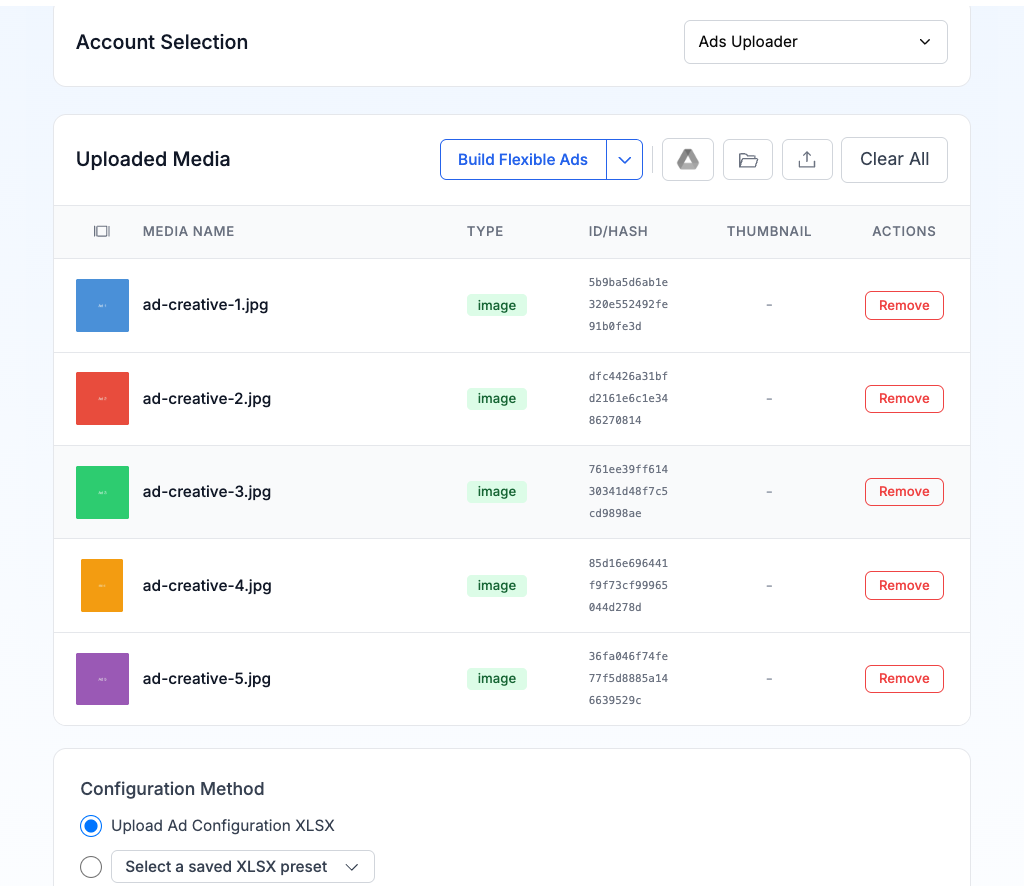
After upload, each group shows as a single row in the Uploaded Media table, with small chips for the extra ratios linked to the main file. Hover a chip to see which file it is. If two files claim the same ratio, the conflict is flagged so you can remove one. The full naming rules are in the aspect ratio variations docs.
Save Hours on Creative Testing
Stop uploading ads one by one. Bulk process unlimited creatives with automatic media matching and direct API publishing.
Try Ads Uploader FreeNo credit card required • 7-day free trial
Frequently Asked Questions
Did Meta remove placement asset customization in 2026?
No. Meta changed the interface, not the capability. Many accounts moved from the original workflow, where you replaced media per placement group, to a media customization workflow where you upload up to 10 images and videos into one ad and opt each one in or out of placements. Separately, Sales, Leads, Engagement and App promotion campaigns lost manual placement selection at the ad set level. Per-placement media still lives at the ad level.
Where did the Replace button for placement creative go?
In accounts on the new media customization workflow there is no Replace button per placement group. Upload every version into the Media section, open the customization panel, and untick the placements where each version should not run. Some accounts have shown a temporary Return to original single media experience option under the info icon next to Media, but Meta has not said it will stay.
How do I upload a different video size for Stories, Reels and Feed on lots of Facebook ads at once?
Make every version of each creative with the same base name and a ratio token, such as summer_sale_4x5.mp4 and summer_sale_9x16.mp4, then use a bulk tool that groups those files into one ad and writes Meta's placement asset customization rules through the Marketing API. Ads Uploader does this from the file names, so each placement gets its preferred ratio across the whole batch.
How do I fix No valid formats: your ad's creative is incompatible with the selected placements across a batch of ads?
Filter the Ads tab for delivery errors, group the failing ads by objective, format and destination, and repair one ad per group first. Check that every placement still has an eligible file, that a 4:5 or 1:1 and a 9:16 version are attached, and that no catalog, existing post or unsupported format slipped in. If a duplicated ad keeps failing, rebuild it clean and then recreate the batch.
Does placement customization work with Advantage+ placements?
Yes. Advantage+ placements decides where Meta can deliver the ad, and placement customization decides which file shows in each of those placements. With manual ad set placements gone for Sales, Leads, Engagement and App promotion, giving each placement a native file is the main way to control how the ad looks in Reels and Stories.
Does cropping a version stop it showing in other placements?
No. Meta states that cropping alone won't restrict delivery. A crop changes how a file looks, while placement opt-outs change where it is eligible to run. If a version must only appear in Stories and Reels, opt it out of every other placement and check that Flexible media is not widening its delivery.
Can I use placement customization with carousel ads?
Not inside Meta's new multi-media workflow, which does not support carousels. Carousels need a consistent ratio across every card, with 1:1 the safest choice for Feed. Ads Uploader can build carousels with a version per placement for each card through the API, with one limit: a carousel that contains ratio variants can have only one primary text.
Can I use placement customization with an existing post?
No. Meta lists ads built from existing posts among the formats that don't work with placement asset customization, along with Advantage+ catalog ads and the old Flexible ad format. To give each placement its own file, build a new ad from uploaded media instead of selecting a post.
What to Do Next
Meta ads placement customization survived 2026. It moved, and it now matters more because four objectives can't drop placements any more.
- Expect two interfaces. Depending on the account, you'll see Replace per placement group or per-asset opt-outs. Same result, opposite logic.
- Make three versions per creative. A 4:5, a 9:16 and a 1:1 cover almost every placement Meta will pick.
- Opt out, don't just crop. Cropping changes the look. Only opt-outs control where a file runs.
- Fix errors by group. Repair one representative ad, then apply the fix across the batch, and rebuild duplicates that keep failing.
- Name files by ratio. Ratio tokens turn per-placement creative into something you can launch in bulk.
Start with your next creative batch. Export each concept in 4:5, 9:16 and 1:1 with matching base names, build one ad, preview every placement, and use that as the template for everything after it.