Connecting Facebook lead ads to HubSpot links your Meta ad account so lead-form submissions sync into HubSpot automatically as contacts and form submissions. You connect the ad account, turn on lead syncing for each Facebook page, and HubSpot pulls submissions through a webhook. Setup requires admin and Lead Access permissions on both platforms, new leads take up to about two hours to appear, and enabling sync imports the last 90 days. Fields map to HubSpot properties, and synced forms can trigger workflows for instant follow-up.
A lead that sits in Facebook's Leads Center for three days is usually a dead lead. Speed-to-lead is the whole game, and exporting CSVs by hand kills it. Getting leads from Facebook lead ads into a CRM where they can be routed, scored, and followed up automatically is the difference between a pipeline and a graveyard. This guide covers the HubSpot side of that job in depth: it is one piece of the broader work of connecting Facebook lead ads to your CRM.
HubSpot happens to have one of the cleaner native integrations for this, which is why so many teams run their lead ads straight into it. If you are on a different stack, the Salesforce version of this setup follows the same logic with different menus. Everything below is HubSpot-specific: the two ways to connect, the exact permissions that trip everyone up, where your leads actually land, how to fire workflows, and how to close the loop by sending conversion events back to Meta.
Why Connect Facebook Lead Ads to HubSpot?
The point of the integration is not storage. It is speed and feedback.
When a lead submits a form on Facebook, you want that record in your CRM in minutes, not at the end of the day when someone remembers to download a CSV. Native syncing removes the manual export entirely. Every submission becomes a HubSpot contact with a form submission attached, ready to be segmented, assigned to a rep, and dropped into a nurture sequence the moment it arrives.
The second payoff is the closed loop. HubSpot can send conversion events back to Meta through the Conversions API, so Facebook learns which leads actually became customers, not just which ones filled out a form. That lets you optimize delivery for real outcomes like sales-qualified leads and closed deals. Storage is table stakes. The feedback loop is the reason to bother.
The Two Ways to Connect: Sync vs Build in HubSpot
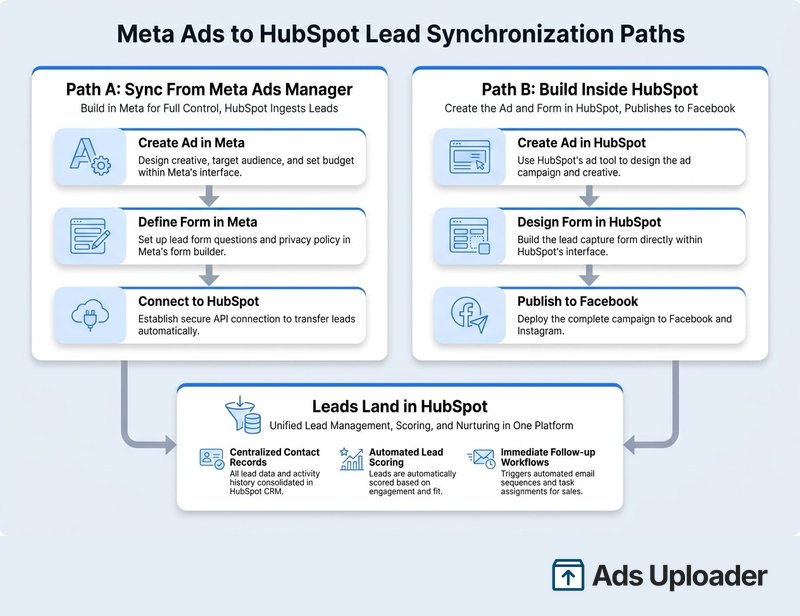
There are two distinct paths, and they are easy to confuse. Pick the one that matches how your team works.
Path A: Sync leads from ads you build in Meta Ads Manager. You keep creating campaigns in Facebook, where you have the full set of targeting, placement, and bidding controls. HubSpot simply ingests the leads those ads produce. This is the most common setup and the right one if you care about advanced campaign control.
Path B: Build the entire lead ad inside HubSpot. You create the campaign, the Facebook form, the targeting, and the budget from HubSpot's Ads tool, and it publishes to Facebook for you. It is simpler and keeps everything in one window, at the cost of some of the granular options you get in Ads Manager.
Both are fully supported. Many teams use a hybrid: build in Meta for control, sync into HubSpot for routing. Whichever you choose, the permissions and sync mechanics below are the same.
Before You Start: Permissions and Prerequisites
This is where most setups fail. Sort it out before you click anything, because a missing role produces silent failures, not error messages.
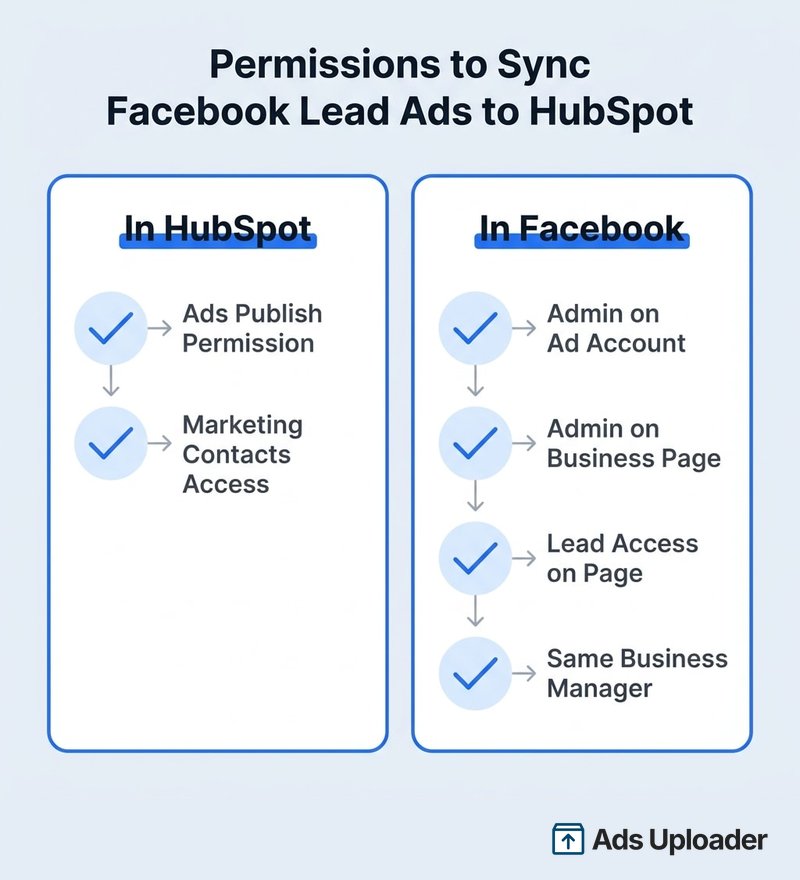
You need all of the following:
- Ads Publish permission in HubSpot for the user connecting the account.
- Marketing contacts access in HubSpot if you plan to build lead ads inside HubSpot.
- Admin on the Facebook ad account for the connecting user.
- Admin on the Facebook business page(s) for the same user.
- Lead Access on the page, set under Business Settings in Facebook. Page admins usually have it by default, but if your business uses the Leads Access manager, verify each user explicitly.
- The ad account and the page in the same Business Manager. If they live in different Business Managers, syncing will not work.
- Lead Ads Terms of Service accepted. Facebook requires one user to accept the Lead Ads Terms for each page, and that should be the connected user with Lead Access.
The native Meta Ads app itself is free and included with all HubSpot plans. You only pay Meta for ad spend. If leads are not flowing later, the cause is almost always one of the bullets above.
How to Sync Facebook Leads to HubSpot (Step by Step)
This is Path A: you have ads running in Meta and you want their leads in HubSpot.
- In HubSpot, click the settings icon, then go to Marketing, then Ads, and connect your Facebook ad account if you have not already. Grant the requested permissions when Facebook prompts you.
- At the top, click the Lead syncing tab.
- In the upper right, click Connect, then select Facebook as the ad network.
- Select the checkbox next to each page you want to sync. Pages do not auto-connect, even when they are managed inside the same connected ad account, so this step is easy to miss.
- Choose a sync timeframe. New and recent imports the last 90 days of leads plus all new ones. New only imports leads going forward from the moment you switch it on. Use the broader option when you first connect so you capture recent history.
- Optionally toggle synced leads on as marketing contacts if your subscription uses that model.
- Click Save.
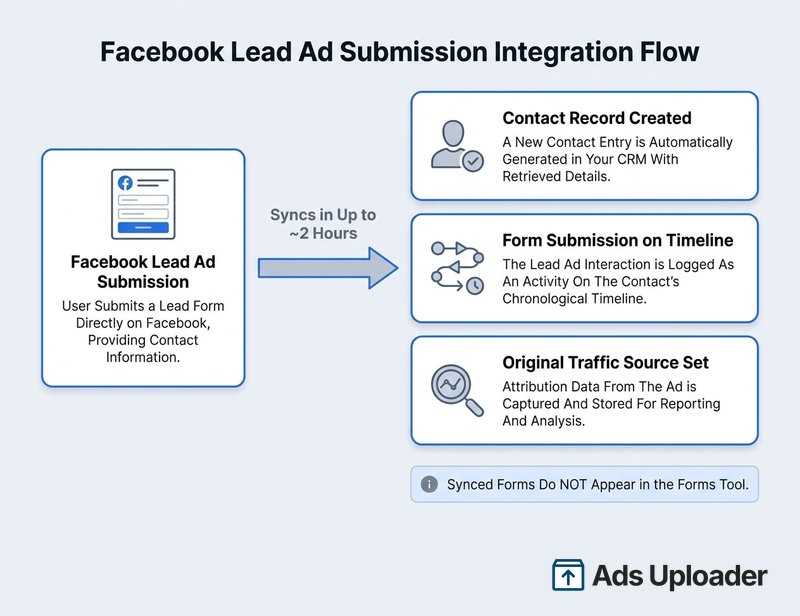
After this, your existing lead ad forms and their leads from the last 90 days are created in HubSpot, and new submissions flow in automatically. Remember the timing: a new lead can take up to about two hours to appear, though it is often much faster. HubSpot's own lead syncing documentation covers the same steps if you want the click-by-click reference with screenshots.
Launch More. Click Less.
Upload hundreds of creatives at once, auto-match thumbnails to videos, and export directly to Meta Ads Manager.
Try Ads Uploader FreeNo credit card required • 7-day free trial
How Fields Map to HubSpot Properties
Once leads are flowing, you want them landing in the right properties.
Standard Facebook fields like name, email, and phone map automatically to the matching HubSpot contact properties, and you cannot change those standard mappings. Custom questions on your Facebook form become new single-line text properties inside an auto-generated group called Lead Ad Properties. A consent checkbox on the form syncs across as a property too, which matters for compliance records.
Two limits worth knowing. Custom field names must be 255 characters or fewer, or the mapping throws an error. And any change you make to a custom field mapping applies only to leads synced after the change. Contacts already in HubSpot keep the mapping they came in with, so set your mappings up before you scale spend, not after.
Where Do My Leads Go? The "Missing Leads" Answer
"Where are my Facebook leads?" is the most common panic, and it usually has a calm answer.
Synced leads appear as contacts and as form submissions. When a lead converts, HubSpot creates the contact record and logs a submission against a form it generated automatically for that Facebook lead ad form. You can use those submissions for lists, segments, and workflow triggers.
Here is the gotcha that confuses people: the auto-created forms do not appear in the standard forms tool. They exist behind the scenes to process submissions, but you will not find them under Marketing, then Forms, and you cannot edit them there. The submissions still show on contact timelines and count as form submissions, so nothing is broken, it just is not where you expect.
Two more things to recognize. If someone shares or comments on your lead ad and a person outside your targeting submits it, that contact gets an Original Traffic Source drill-down value of Facebook organic lead, and you did not pay for it. Test leads created with Meta's Lead Ads Testing Tool show the same value, which is handy for confirming your pipe works without polluting paid metrics. If leads are genuinely missing, recheck permissions, confirm the page is toggled on, and verify the sync timeframe imported history.
How to Create Facebook Lead Ads Inside HubSpot
This is Path B, building the ad without leaving HubSpot.
Go to Marketing, then Ads, then click Create ad campaign and select Lead generation ad (this requires marketing contacts access). HubSpot opens a builder with a live preview on the right:
- Ad creative: pick the ad account, Facebook page, and campaign name, then add your image or video, body copy, headline, and call-to-action. You can associate it with a HubSpot marketing campaign for reporting.
- Facebook form: choose an existing form from the page, or click Create new Facebook form. In the builder you set the form name and language, an optional intro headline and description, the form fields (including hidden fields for tracking), the privacy policy link, a notice-and-consent prompt, and the thank-you message.
- Targeting, budget, and schedule: set location, age, audiences, exclusions, and a daily or total budget with a run schedule.
- Publish: the first time, you will be asked to accept the Facebook Lead Ad Terms of Service, which must be done by the Primary Connected User for the ad account.
One hard rule: a Facebook form you create inside HubSpot cannot be edited after you save it. If you need to fix a typo or add a field, build a new form and attach that to the ad. Get it right the first time, or be ready to recreate it.
Automate Follow-Up With Workflows
Routing leads in is only useful if something happens next. HubSpot gives you three levels of automation.
New contact notifications. In the Automation tab of a lead ad campaign, set "Send new contact notification to" a user or email so someone is alerted the instant a lead arrives. This works for ads built in Facebook or in HubSpot, but not for dynamic lead ads.
Lists and ad audiences. Add contacts who convert to active lists, then sync those lists back to Meta as custom audiences or lookalike sources.
Workflows. This is the one people miss. Because HubSpot auto-creates a form behind each Facebook lead ad form, you trigger a workflow with the form submission enrollment trigger, selecting that Facebook form. From there you can assign owners, send a sequence, update lifecycle stage, or kick off any follow-up you would build for a website form. HubSpot does not treat the lead ad form differently from a normal form for enrollment, even though it is hidden from the forms tool. Note that automation is not available for dynamic lead ads or ad sequences.
Save Hours on Creative Testing
Stop uploading ads one by one. Bulk process unlimited creatives with automatic media matching and direct API publishing.
Try Ads Uploader FreeNo credit card required • 7-day free trial
Close the Loop: Send Conversion Events Back to Meta
The integration earns its keep when data flows both ways.
HubSpot can send conversion events back to Meta through the Conversions API. Map HubSpot events like a form submission, a lifecycle stage change, or a closed-won deal to Meta's standard events, and HubSpot forwards them with user identifiers. Facebook then learns which leads turned into real customers and optimizes delivery toward people likely to do the same, instead of optimizing for cheap form fills that never convert.
You can also build custom audiences and lookalikes from any HubSpot list. Export a list of your best customers or your highest-intent lead ad conversions, sync it to Meta, and build a lookalike from it. Pairing conversion events with these audiences is how teams move a campaign from "optimize for leads" to "optimize for revenue," which is the entire reason to connect the two platforms in the first place.
Native Integration vs Third-Party Connectors
The native integration covers most needs, but it is worth being honest about its edges.
- Sync lag. Most leads arrive in minutes, but the window can stretch toward two hours. For workflows where seconds matter, that delay is real.
- Facebook-side control. You still manage targeting, creative, and bidding in Meta. HubSpot mirrors the basics, so advanced setups stay in Ads Manager.
- Scale and cost. The ads tool is free, but some teams running very large or highly automated programs hit the limits of what the built-in interface handles gracefully.
Third-party connectors like Zapier, Make, or dedicated lead bridges can push leads with sub-second timing and more elaborate routing logic, which helps if you need instant delivery or integration with systems HubSpot does not natively support. For most teams already on HubSpot, though, the native connector handles the vast majority of cases at no extra cost, and a third-party tool is overkill. If your CRM is Salesforce rather than HubSpot, the tradeoffs shift, which is covered in the Salesforce guide linked earlier.
Troubleshooting Common Issues
Most problems trace back to a handful of causes.
- No leads syncing at all: a permission gap (admin or Lead Access), the page not toggled on, the ad account and page in different Business Managers, or the Lead Ads Terms of Service not accepted.
- Old leads missing: the sync timeframe was set to new only, or you are outside the 90-day historical window. Reconnect the page with the broader timeframe.
- Forms not in the forms tool: expected behavior, not a bug. Synced lead ad forms are intentionally hidden there.
- Field mapping errors: usually a custom field name over 255 characters. Use the View errors flow on the Ads dashboard to find and fix the mapping.
- Leads arriving late: the normal sync delay of up to about two hours, not a failure.
Frequently Asked Questions
How do I connect Facebook lead ads to HubSpot?
Go to Settings, then Marketing, then Ads, and connect your Facebook ad account. Grant the requested permissions in Facebook, then open the Lead syncing tab, click Connect, select each page, set the sync timeframe, and save. Existing lead ads then appear on your Ads dashboard and new submissions sync automatically.
Why are my Facebook leads not showing up in HubSpot?
Almost always permissions, page selection, or timing. Confirm the user is an admin on the ad account and page with Lead Access, that both sit in the same Business Manager, that the page is toggled on for syncing, and that the sync timeframe imported history. Allow up to about two hours for new leads.
How long does it take for Facebook leads to sync to HubSpot?
Up to about two hours, though often within minutes. Enabling syncing for a page imports the last 90 days as historical contacts, which may not appear in some attribution reports because of the delay between submission and creation.
What permissions do I need to sync Facebook leads to HubSpot?
Ads Publish permission in HubSpot (plus marketing contacts access to build ads there), and on Facebook, admin on the ad account, admin on the page, and Lead Access on the page. The ad account and page must share a Business Manager.
Is the HubSpot Meta Ads integration free?
Yes. The native integration and lead syncing are included with all HubSpot plans. You only pay Meta for ad spend. Some features depend on your HubSpot subscription tier.
How do I trigger a HubSpot workflow from a Facebook lead?
Use the form submission trigger and select the auto-created Facebook lead ad form as the enrollment criteria. HubSpot treats it like any other form for workflows, even though it does not appear in the forms tool.
Can I create Facebook lead ads inside HubSpot?
Yes. Go to Marketing, then Ads, then Create ad campaign, and choose Lead generation ad. Note that a Facebook form created inside HubSpot cannot be edited after saving, so build a new one to make changes.
Do synced Facebook lead forms appear in the HubSpot forms tool?
No. They are auto-created behind the scenes for processing and workflow triggers, but they do not show in the standard forms tool and cannot be edited there. Submissions still log on contact timelines.
Conclusion
Connecting Facebook lead ads to HubSpot is mostly about getting four things right: pick the path that fits your team, clear the permissions before you start, know where your leads actually land, and automate the follow-up so no lead goes cold. Do that and the integration quietly does its job, turning form fills into contacts, contacts into workflow enrollments, and outcomes into signal that Meta can optimize against.
The real upgrade is the closed loop. Most teams stop at importing leads, but sending conversion events back to Meta is what shifts a campaign from chasing cheap leads to compounding on the ones that become customers. Set up the sync, fix the permissions once, and let the data flow both ways.