A Conversions API system user is a non-human Meta Business Manager account that owns the access token authenticating your server-side CAPI events. You create it in Business Settings, assign your pixel (now a dataset) and ad account, then generate a token scoped to ads_management, business_management, and pages_read_engagement. The token is shown once and does not expire, so store it securely and revoke it to rotate. It lets your server send events to Meta without relying on any person's login.
Your Conversions API integration needs exactly one thing before it can send a single event: an access token tied to a system user, not to you. Get that token wrong, or generate it under the wrong account, and the events never arrive.
The trouble is the setup hides a few traps. There are two different ways to create the token, the Generate button is invisible unless you have the right access, and the token only ever displays once. This guide covers the authentication layer end to end: what a system user is, both creation paths, the exact permissions to grant, how to keep the token safe and revoke it, and how to do all of this for a client's pixel. For what the Conversions API actually is and why server-side tracking matters, see the Conversions API hub guide. Here, we focus on the credential.
What Is a Conversions API System User?
A system user is an account in Meta Business Manager that represents a server or piece of software, not a person. Meta describes system users as accounts that "represent servers or software that make API calls to assets managed by a business portfolio." Think of it as a robot account you create for your backend, and the token it holds is the credential your server presents when it sends events to Meta.
This is why CAPI uses a system user instead of your personal login. A personal access token is tied to an individual's Facebook account, expires regularly, and has to be refreshed through a login flow. None of that works for an unattended server. A system user token, by contrast, is long-lived and does not expire on its own, so it behaves like a permanent API key for your business.
There are two kinds. A regular (employee) system user can only touch the assets you assign it. An admin system user can additionally create other system users and assign permissions. For routine CAPI event sending, a regular system user is enough and safer. Reserve the admin type for cases that genuinely manage other users, and guard its token carefully because it carries far more power.
Before You Start: Access and Prerequisites
The single most common reason people get stuck is access. Before you can generate a token, make sure you have all of this in place:
- Business admin role. You must be an admin of the Business Manager that owns the pixel (dataset), not just an advertiser or analyst. Without admin rights, the controls to create a system user or token do not appear.
- Developer access to an app. The token is issued in the context of a Meta app, so you need developer or admin access to an app in that business. If you lack it, the Generate Access Token control is hidden or disabled.
- A claimed app. Your business must own (claim) a Meta app to associate with the token. If you do not have one, create it in Meta for Developers and add it under Business Settings, then set the business as owner.
- Ownership of the pixel. The pixel or dataset must belong to the same business where you create the system user. If it was created in a different business, switch to that business or have the pixel shared to yours.
If any of these is missing, the interface either hides the Generate option or returns an insufficient-permissions error. A frequent trap: people who are "the owner" of an account still cannot generate a token because they lack admin rights on the specific business that owns the pixel. Fix the role first, then proceed.
Note the 2026 label change: your pixel now appears under Data Sources as a dataset in Events Manager. Same object, newer wording.
Two Ways to Create the Access Token
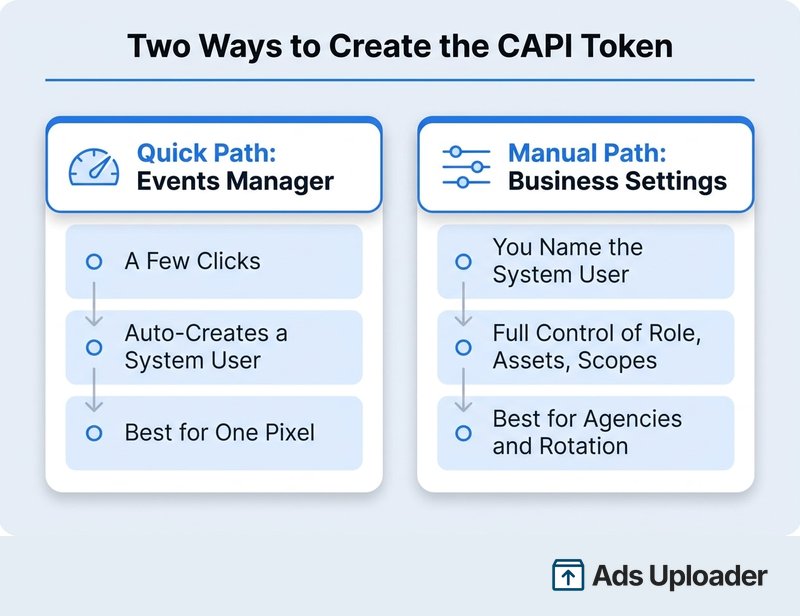
There are two routes to a working token, and only one is usually shown. The quick path generates it inside Events Manager in a few clicks. The manual path builds the system user yourself in Business Settings, giving you control over its role, assets, app, and scopes.
| Quick Path (Events Manager) | Manual Path (Business Settings) | |
|---|---|---|
| Speed | Fastest, a few clicks | More steps |
| System user | Auto-created as "Conversions API System User" (admin) | You name it and set the role |
| Control | Minimal | Full: role, assets, app, scopes |
| Best for | A single direct integration | Agencies, multiple assets, rotation |
Quick Path: Generate the Token in Events Manager
If you just need a token for one pixel, the Events Manager shortcut is the fastest route:
- Open Events Manager and select your pixel or dataset under Data Sources.
- Click the Settings tab for that data source.
- Scroll to the Conversions API section and click Generate Access Token (sometimes behind a Get Started or Set Up Manually step).
- Confirm the prompt. The token is displayed exactly once. Copy it immediately.
Here is the part that is easy to miss: this shortcut silently creates a system user named "Conversions API System User" in the background and grants it control of the pixel. Look under Business Settings, then Users, then System Users afterward and you will see it sitting there. That matters later, because that is where you go to manage or revoke this token.
No Generate Access Token link? That is the single most common place this flow dies, and it is an access problem, not a bug: you are missing developer access to an app in the business. Sort out the prerequisites above first. The direct URL to the dataset settings, if you want to skip the clicks, follows the pattern business.facebook.com/events_manager2/list/dataset/<PIXEL_ID>/settings.
Launch More. Click Less.
Upload hundreds of creatives at once, auto-match thumbnails to videos, and publish straight to your ad accounts through Meta's API.
Try Ads Uploader FreeNo credit card required • 7-day free trial
Manual Path: Create a System User in Business Settings
The manual path takes longer but gives you full control, which is what you want for agencies, multiple assets, or a deliberate rotation policy.
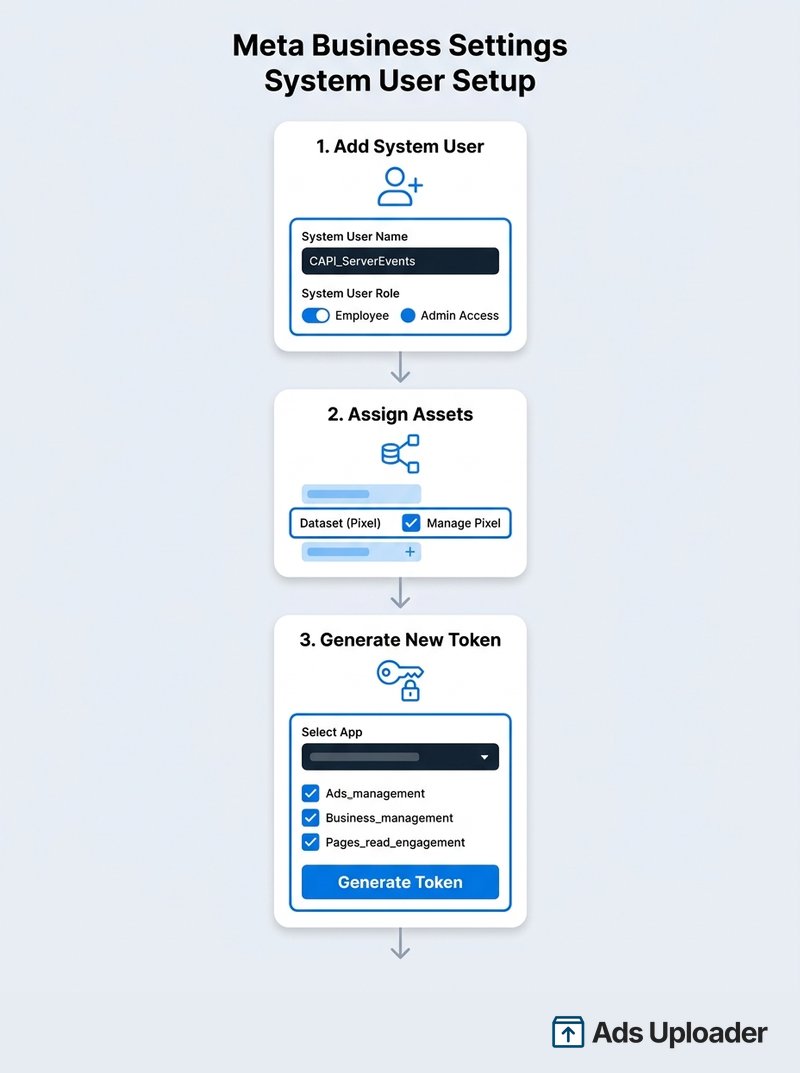
Add the System User
Go to Business Settings, then Users, then System Users, and click Add. Give it a clear name like "CAPI_ServerEvents" and pick a role. Choose Employee unless this user genuinely needs to manage other system users, in which case choose Admin. Least privilege wins here.
Assign Assets
With the system user created, click Add Assets. Assign the pixel (dataset) with the Manage Pixel permission (full control), and assign any ad account the integration needs. If you skip the Manage Pixel permission, Meta rejects the CAPI calls with a permission error even when the token itself looks valid.
Generate the Token and Choose Permissions
Now click Generate New Token. Select one of your business-owned Meta apps, then choose the permission scopes. For standard CAPI event sending, grant:
ads_managementto publish events to the ad account and pixelbusiness_managementfor general business asset accesspages_read_engagementif your events involve Page data
Click Generate Token, then copy the string immediately and paste it into secure storage. You cannot view it again after closing the dialog. The direct settings URL follows the pattern business.facebook.com/settings/system-users?business_id=<BUSINESS_ID>.
Token Permissions and Roles Explained
Three different permission layers decide whether your token actually works. Keep them straight:
| Layer | What to set | What it controls |
|---|---|---|
| Business role (you) | Admin on the business | Whether you can create the system user and token at all |
| System user role | Employee or Admin | Whether the user can manage other users; Employee is fine for CAPI |
| Asset permission | Manage Pixel on the dataset | Whether the token can send events to that pixel |
| Token scopes | ads_management, business_management, pages_read_engagement | What the token is allowed to do via the API |
Meta's partner-level "Conversions API as a Platform" documentation also lists ads_read, but that scope is generally only needed for reading insights or for App Review, not for a self-serve CAPI token. Grant the minimum the integration needs and nothing more.
Save Hours on Creative Testing
Stop uploading ads one by one. Bulk process unlimited creatives with automatic media matching and direct API publishing.
Try Ads Uploader FreeNo credit card required • 7-day free trial
Keep the Access Token Secure
This token is a secret, full stop. It lets a server send events into your ad data and read business assets, so treat it like a password.
- Store it server-side only. Put it in an environment variable or a secrets manager. Never paste it into client-side code, a browser, a public repository, or a shared doc.
- Mind the admin token. If you used an admin system user, its token is especially powerful. Meta explicitly warns to "carefully safeguard the admin system user token" and to limit where it is used. Where you can, send routine CAPI events with a regular system user token instead.
- Adding assets does not require a new token. If you later assign another pixel or ad account to the same system user, the existing token automatically gains those rights. No reissue needed.
How to Revoke or Rotate a Token
Because these tokens are effectively permanent, plan to rotate them. To revoke one, go to Business Settings, then Users, then System Users, select the user (for the quick path that is "Conversions API System User"), and click Revoke Tokens. Revocation is immediate, and any integration using that token stops sending data at once. To rotate cleanly, generate the new token first, update your server to use it, confirm events still flow, then revoke the old one.
Generate a Token for a Client's Pixel (Agencies)
If you run CAPI on behalf of clients, you have three workable options:
- Client shares the pixel. The client adds your Business Manager as a partner on their pixel (dataset). Your business then assigns its own system user to that shared pixel and generates a token. You still need to be an admin in your business to create it.
- Client creates and hands over the token. The client builds the system user and token in their own business, assigns their pixel, and securely shares the string with you. The advantage is that the client keeps control and can revoke it any time.
- Facebook Business Extension or the platform API. For deeper integrations, Meta's Conversions API as a Platform program lets your app retrieve client tokens programmatically, and you attribute events with the
partner_agentfield.
For most agencies, the share-the-pixel route is simplest. Either way, events are attributed to the client's pixel as long as you send to the correct pixel ID.
Verify the Connection Works
Once the token is live, confirm events actually land before you trust the setup:
- Send a test event. POST a sample event to the Graph API events endpoint for your pixel with the new token. A successful call returns a
200response with an eventid. - Use the Test Events tool. In Events Manager, open Test Events for the pixel, copy the
test_event_code, and include it on a server event. Your event should appear in the dashboard in real time, which confirms the system user token is authenticating correctly. - Know the limits of the browser extension. The Meta Pixel Helper only sees browser-side pixel events, so it cannot show your server-sent CAPI traffic. It is still the right tool to confirm the browser pixel is firing, which matters for deduplication: send the same
event_idfrom both the pixel and CAPI so Meta merges the duplicates.
If you would rather avoid managing a token and server entirely, the managed Conversions API gateway handles the connection for you as a lower-code alternative.
Conclusion
The Conversions API system user is the identity that owns your server-side credential, and getting it right is mostly about access and care:
- Confirm you are a business admin with developer access before you start, or the Generate control stays hidden.
- Pick the quick Events Manager path for one pixel, or the manual Business Settings path when you want control over role, assets, and scopes.
- Assign Manage Pixel on the dataset and scope the token to ads_management, business_management, and pages_read_engagement.
- Copy the token once, store it server-side, and revoke it from System Users to rotate.
With the token created and verified, you are ready to wire it into your server or integration and start sending durable, server-side events to Meta.