A Facebook product catalog is a container in Meta Commerce Manager that holds data about every product you want to advertise or sell across Facebook, Instagram, Messenger, and WhatsApp. Each item carries a unique ID, title, image, price, and availability. You fill a catalog with a data feed, a partner platform sync, or manual entry, then attach it to a business portfolio. A catalog powers Advantage+ catalog ads, collection ads, carousel ads, and Shops, letting Meta match the right product to each shopper automatically.
The catalog is the quiet backbone of every high-performing e-commerce Meta campaign. Get it right and Meta can render thousands of personalized product ads from one setup. Get the feed slightly wrong and products silently drop out of delivery while you wonder why a campaign that should scale never does.
Meta's own documentation scatters the answer across a dozen help articles: one page to create, another to manage, a third to view products, and separate references for feeds, sets, and ads. This guide pulls the whole chain into one place. You will learn what a catalog actually is, how to create one the right way, the three ways to add products and when each fits, how to organize items into product sets, and how to turn all of it into catalog sales ads that convert. Every fact here is grounded in current Meta documentation, with the 2025 and 2026 naming changes flagged so you are not following outdated screenshots.
What Is a Facebook Product Catalog?
A Facebook product catalog, which Meta increasingly calls a Meta catalog, is a structured inventory asset owned by a business portfolio. Each record supplies the information Meta needs to identify, classify, display, and advertise an item: its ID, title, description, price, availability, URL, image, brand, and optional merchandising attributes. For a typical online store, the catalog holds one record per sellable variant, so a shirt in three colors and four sizes becomes twelve records grouped under one parent.
You build and manage a catalog in Commerce Manager. Full setup and administration are best done from a desktop browser, since some workflows are unreliable on mobile, though Commerce Manager is a web application rather than a strictly desktop-only tool. Ownership and access live one layer up, in Business Settings under Data sources, then Catalogs.
A catalog is not the same thing as a Shop. The catalog is the backend database. A Shop is a customer-facing storefront that displays products from a catalog. You can run catalog ads with no Shop at all, which is the path most direct-response advertisers take. It is also worth separating a few related terms:
- Data feed: a CSV, TSV, XML, or Google Sheets file that carries item rows into a catalog. It is one way to fill a catalog, not the catalog itself.
- Data source: any connection that supplies or updates items, whether a feed, a partner platform, Pixel microdata, or the API.
- Dataset: Meta's event-data container for website, app, or offline activity. A dataset holds behavior, not inventory. Your Pixel and its dataset can share the same ID.
- Business portfolio: the ownership and security container that decides who can administer the catalog.
When you create a catalog, you pick an inventory type such as e-commerce products, travel, automotive, real estate, or media. The user-facing options in Commerce Manager are a simplified grouping of Meta's underlying API verticals, and the exact choices you see depend on your account and intended channel. One rule matters more than the labels: you cannot change the type after creation. Meta's update endpoint does not accept the vertical as an editable field, so if you pick the wrong type, you build a new catalog and migrate the items. Choose deliberately.
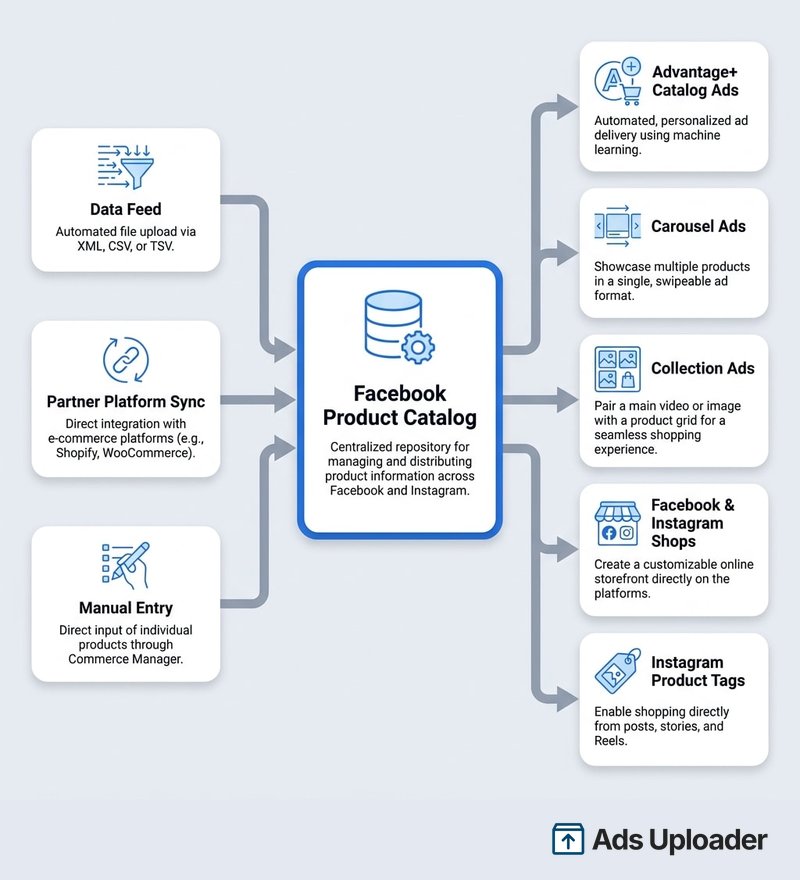
Facebook Catalogue vs Facebook Catalog
If you searched for "facebook catalogue" and landed here, you are in the right place. There is no functional difference. Catalog is the US-English spelling used in Meta's API field names and most US interfaces. Catalogue is the UK and Australian spelling, and Meta's UK Help Center uses "catalogue," "catalogue ads," and "select catalogue" for the identical assets and workflows.
The one place spelling is fixed is inside your feed. Column names must use Meta's documented US-English forms such as availability, condition, image_link, and custom_label_0, no matter where your business is based. So write "catalogue" freely in your team's docs, but keep the feed headers in US English.
How to Create a Facebook Product Catalog
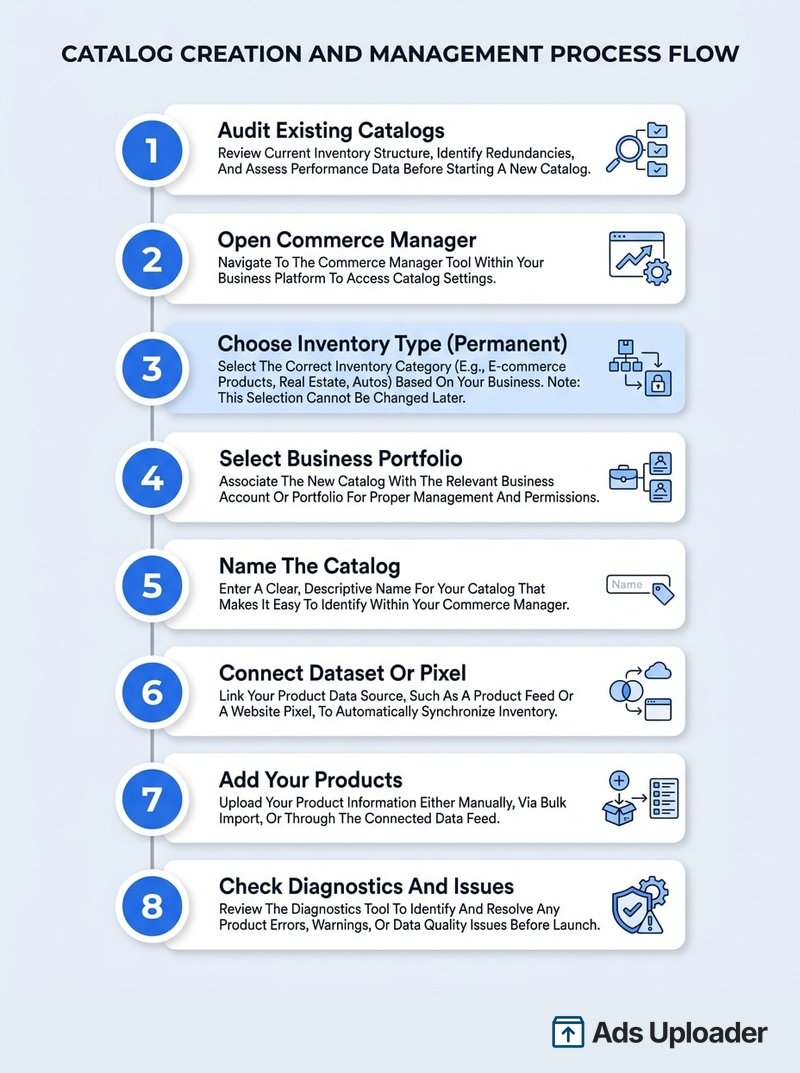
Meta changes labels and screen order often, but the working flow is stable. The screen-by-screen version, including the Shopify and WooCommerce paths, is in our walkthrough of how to set up a Facebook catalog. Before you start, make sure you have a business portfolio with full control, a source of product data ready, and a dataset or Pixel if you plan to run behavior-based ads.
- Audit existing catalogs first. Open Commerce Manager and Business Settings to see whether the business already owns an active catalog connected to a Shop, dataset, or campaign. Reusing one catalog beats creating a duplicate.
- Open Commerce Manager and select Add Catalog or Get started.
- Choose the inventory type. Most retailers select online products or e-commerce. Pick the correct travel, property, or vehicle vertical if that is your business, and remember the choice is permanent.
- Select the owning business portfolio. The brand should own its catalog. Agencies belong as partners, not owners (more on that below).
- Name the catalog with something stable and descriptive, such as "Brand, Main Product Catalog."
- Connect a dataset or Pixel if prompted. This is optional for simply holding inventory but important for catalog advertising and match rate.
- Choose how to add products, then add them by feed, partner platform, manual entry, microdata, or API.
- Check Diagnostics and Issues. Resolve rejected items and upload errors before you build campaigns.
If you plan to run behavior-based ads, connect your tracking early. A Pixel is not required to create a catalog or upload items, but it is what lets Meta retarget shoppers and optimize for purchases later.
Keep All Your Items in One Catalog
Meta's clear recommendation is to keep items of the same inventory type in a single catalog rather than spinning up duplicates. The reasons are practical: one place to manage inventory, consolidated Pixel and engagement signals, a higher catalog match rate, and a larger pool of products for Meta's delivery system to optimize against. A commerce account also connects to one catalog, so duplicates create Shop conflicts.
Separate catalogs make sense only for genuinely separate cases: different legal owners, fundamentally different verticals and schemas, hard permission boundaries, or a collaborative-ad arrangement where a retailer controls its own catalog. Country and language differences alone rarely justify a second catalog, because Meta supports localized country and language feeds inside one.
Business Portfolio and Permissions
Catalog access is assigned under Business Suite, Settings, Data sources, Catalogs. Meta offers two broad levels. Partial access suits advertising tasks: viewing products, creating product sets, checking match rate, and using the catalog in ads without editing inventory. Full control adds the ability to add or edit items, manage data sources, and change catalog settings.
When an outside agency has its own business portfolio, use Assign partner rather than inviting individual employees. Sharing does not transfer ownership. The catalog still belongs to the portfolio that created it, and a formal transfer through the Claim option is account-dependent and blocked while the catalog powers a Shop or collaborative ads. The safe structure for agencies is simple: the client owns the catalog, and the agency holds partner access from day one. Note that catalog access does not carry over to the ad account, Page, or dataset. Share each asset separately.
Ways to Add Products to Your Catalog
There are three practical ways to populate a catalog, plus two developer-oriented methods. The right choice depends on catalog size, how fast your stock changes, and how much control you need over the data.
Launch More. Click Less.
Upload hundreds of creatives at once, auto-match thumbnails to videos, and publish straight to your ad accounts through Meta's API.
Try Ads Uploader FreeNo credit card required • 7-day free trial
Data Feed (CSV or XML)
A data feed is a file of item rows in CSV, TSV, RSS XML, Atom XML, or Google Sheets format. You can upload it once or schedule it to refresh. A one-time upload suits small, stable inventories and initial testing. Scheduled feeds fetch automatically, and Meta caps scheduling at hourly, so anything faster needs the API.
Meta supports two schedule behaviors worth understanding. An update schedule creates new items and updates the fields you supply, ideal for small delta files of changed prices or stock. A replace schedule performs a full refresh and can delete items missing from the source. A common pattern is an hourly delta update plus a daily full replace. Meta also advises marking sold-out items as out of stock rather than deleting them, so its system can still recommend similar products.
A feed gives you the most control over exactly which fields and values reach Meta, which is why many advanced advertisers prefer it over a black-box sync. If you manage large volumes of products and ad variations, feed-based workflows pair naturally with bulk upload approaches for Facebook ads.
Partner Platform Integration
If your store runs on Shopify, WooCommerce, BigCommerce, or a similar platform, a native integration can sync products into a Meta catalog automatically. Shopify's Facebook and Instagram channel is free on all plans, subject to eligibility, and WooCommerce's Meta integration syncs a product whenever it is created or updated.
The trade is convenience for control. Automatic inventory, price, and availability updates are a real advantage, and the platform stays your single source of truth. But the partner determines item-ID conventions and field mapping, edits made directly in Commerce Manager can be overwritten by the next sync, and platform limits are sometimes stricter than Meta's. When an integration breaks, Meta usually directs you back to the platform's support team, not its own.
Manual Entry and Pixel Microdata
For a very small or proof-of-concept catalog, roughly under fifty items, you can add products by hand in Commerce Manager under Catalog, Items, Add items. It works, but price, stock, and imagery go stale quickly, and every new variant is manual labor.
Meta can also build products from your website using a connected Pixel and structured product-page metadata such as Open Graph tags. This method is crawler-dependent and gives less deterministic control, so it should not be the default for a large or fast-moving retail catalog.
For developers, the Catalog Batch API (the /{catalog_id}/items_batch endpoint) handles create, update, and delete operations in batches of up to 5,000 items, which is the right tool for near-real-time inventory that hourly feeds cannot keep up with.
Product Sets: Organizing a Catalog for Ads
A product set is a saved subgroup of catalog items that tells Meta which part of your catalog a campaign, audience, or feature may use. You create sets in Commerce Manager under Catalog, Sets, Create set, using either a dynamic filter or a manually curated list.
Filter-based sets are the workhorse. As feed attributes change, items flow in and out of the set automatically. You can filter on fields such as title, brand, price, availability, product type, condition, and the custom label fields, so a set like "in-stock bestsellers under 50" maintains itself. Manually selected sets stay fixed and must be updated by hand, which suits a small curated collection but not a live catalog.
A few structures earn their keep in almost every account: all in-stock products as a broad baseline, category or use-case groups, new arrivals, best sellers, sale items, and high-margin products. Keep enough eligible products in each set to give Meta room to personalize, and avoid fragmenting a small catalog into dozens of thin sets. One warning worth building into your process: a live campaign can quietly stop delivering if its product set becomes empty after a feed change, so verify sets after every structural feed update.
For labeling, Meta supports custom_label_0 through custom_label_4, each up to 100 characters, and these can filter sets. For values that change often, such as a rotating promotion flag, Meta now recommends internal_label instead, because internal-label edits do not push the item back through policy review the way custom-label edits can, which avoids interrupting delivery.
Catalog Sales on Facebook: Turning a Catalog Into Ads
A catalog only earns its keep once it is running ads. This is the "catalog sales" side of the picture, and it is where the naming has shifted most, so it pays to get the current terms straight.
Advantage+ Catalog Ads (Formerly Dynamic Product Ads)
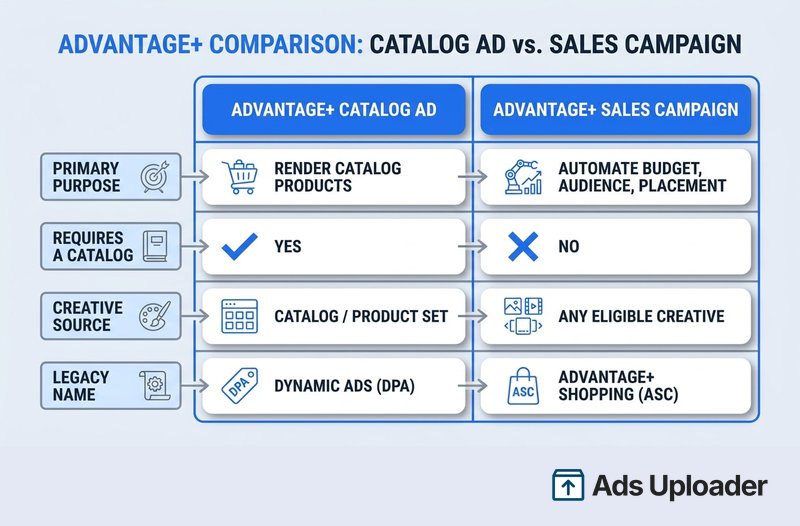
The current official name for catalog-powered ads is Advantage+ catalog ads. You will still hear dynamic product ads, DPA, dynamic ads, and "catalog sales ads" in the wild, but Meta folded dynamic ads into the Advantage+ brand back in March 2022. They all describe the same thing: an ad that uses a product set and template rather than a hand-built ad for every SKU, with Meta selecting the item and populating the image, title, price, and link at render time.
The mechanics are straightforward. A shopper views, adds to cart, or buys a product. Your Pixel or dataset sends an event carrying content_ids. Meta matches those IDs to the id values in your catalog, then serves the viewed product, related products, or items it predicts are relevant, pulling live stock and pricing from the catalog. This product-level matching is part of the same delivery machinery behind Meta's Andromeda retrieval engine, which is why feed quality and match rate matter so much to performance.
Save Hours on Creative Testing
Stop uploading ads one by one. Bulk process unlimited creatives with automatic media matching and direct API publishing.
Try Ads Uploader FreeNo credit card required • 7-day free trial
Retargeting and Prospecting
Catalog ads are not just for remarketing. They work in two modes. Retargeting reaches people who viewed products, added to cart, purchased, or interacted with a defined product set, with the common rule being to include cart abandoners and exclude recent buyers. Prospecting shows catalog items to people who have never visited your site, letting Meta predict relevance from its own signals.
One 2025 change is worth knowing so you are not thrown by an interface that no longer matches old tutorials. In January 2025 Meta removed the simple Audience Types selector from Advantage+ catalog ads under the Sales objective. Retargeting still works, but now through catalog custom audiences built on people who interacted with a specified product set. For prospecting reach, broad delivery paired with catalog ads has replaced the old "dynamic ads for broad audiences" setup, and pairing catalogs with broad audience targeting gives Meta the widest field to find buyers.
Advantage+ Sales Campaigns vs Manual Control
Here is the naming update that trips up the most advertisers. In 2025 Meta renamed Advantage+ shopping campaigns to Advantage+ sales campaigns, and it removed the hard choice between a "manual" and an "Advantage+" campaign for the Sales objective. Meta's own help now states you no longer need to choose between running a manual or Advantage+ campaign. Instead, you build one Sales campaign and decide how many automated controls to keep on.
A Sales campaign counts as fully Advantage+ when the core automation is active, especially Advantage+ audience, Advantage+ placements, and Advantage+ campaign budget. Meta reports an average 9% improvement in cost per conversion for advertisers using Advantage+ sales campaigns. Note that an Advantage+ catalog ad and an Advantage+ sales campaign are different layers: the ad dynamically renders catalog products, while the campaign automates budget, audience, and placement. One does not replace the other, and a sales campaign can contain static, video, and catalog ads together.
So the real 2026 decision is not "which of two campaign types," it is "how much automation to retain." Lean into automation when your purchase data is reliable, you want broad scale, and you have few geographic or compliance constraints. Keep more manual control when strict targeting rules apply, a specific product set must be isolated, or budget must be guaranteed across categories.
Catalog Ad Formats
Catalog data flows into three creative formats. Single image or video shows one dynamically selected item per impression. Carousel populates multiple product cards, each with its own image, title, price, and link, and is a natural fit for showing a range from a set. Collection pairs a hero image or video with a group of catalog products below it. The classic Facebook Feed collection layout shows four product tiles under the hero, though the exact count and layout can vary by placement, so treat four as the traditional default rather than a guarantee.
Catalog Specs and Data Quality Best Practices
Catalog ads are only as good as the feed behind them. These are the fields and limits that matter most, drawn from Meta's catalog data reference.
The required fields for standard product ads are id, title, description, availability, condition, price, link, image_link, and brand. A few specifics catch people out:
- id: unique and case-sensitive, up to 100 characters, and it must exactly match the
content_idsyour Pixel sends. Duplicate IDs cause every copy to be ignored. - title: up to 200 characters, but Meta recommends 65 or fewer to avoid truncation. Lead with the differentiating detail, and skip all-caps and keyword stuffing.
- price: formatted as a number, a space, and an ISO currency code, such as
29.99 USD. No currency symbol, and use a period for the decimal. - image_link: a direct JPEG or PNG URL, at least 500 by 500 pixels and under 8 MB. If you change an image, publish it under a new URL, or Meta may keep serving the cached version.
- availability: the current values are
in stockandout of stock. Out-of-stock items do not appear in ads.
For variants, give every sellable variant its own id and group them under a shared item_group_id, then distinguish them with attributes such as size and color. Keep item IDs stable across feed refreshes and when changing feed providers, since unstable IDs wreck your match rate.
Catalog Match Rate
Catalog match rate is the share of product IDs received from your event source that Meta can match to item IDs in the catalog. It is the single metric that most often explains why catalog ads underperform. Meta Business Engineering materials have used 90% or higher as a strong benchmark when one catalog is connected to the event source, though the public reference does not publish a hard pass or fail threshold, so treat 90% as a target rather than a delivery guarantee.
The usual culprit for a low match rate is an identifier mismatch: the catalog holds variant IDs while the Pixel sends parent product IDs, or prefixes and capitalization differ between the two. To improve it, connect the correct dataset to the correct catalog, decide whether events use product, variant, or group IDs and apply that model everywhere, send item IDs with ViewContent, AddToCart, and Purchase events, and export the unmatched IDs in Commerce Manager to compare them against your catalog directly. Checking both the browser Pixel and any server-side payloads is worth the effort, since a single ID-format mismatch can silently halve delivery.
Troubleshooting a Facebook Product Catalog
Most catalog problems trace back to a handful of causes. This table maps the symptoms to their fixes.
| Symptom | Likely Cause | Check and Fix |
|---|---|---|
| Product exists but does not show in ads | Out of stock, archived status, policy rejection, or not in the selected set | Open the item's Issues tab; confirm active status, in-stock availability, valid link and image, and set inclusion |
| Product missing from a Shop | Commerce eligibility, unsupported country, or checkout URL issue | Check Shop review status and eligibility; Shop review can take up to four weeks |
| Feed upload fails | Missing headers, duplicate IDs, bad price or currency, or inaccessible images | Download the upload error report and validate a sample against Meta's template |
| Data wrong after a manual edit | A scheduled feed or partner sync is overwriting your change | Edit the true source (Shopify, WooCommerce, or the feed) instead of Commerce Manager |
| Price or stock is stale | Failed schedule, cached feed URL, or partner-sync delay | Check Data Sources and last successful upload; trigger a re-sync or move to API updates |
| Image will not update | Meta cached the old URL | Publish the new image under a new URL |
| Low match rate | Product-versus-variant ID mismatch or wrong Pixel | Export unmatched IDs and compare raw Pixel payloads to catalog IDs |
| Product set has no usable products | Filters no longer match or items went unavailable | Review the set's item count and filters; keep an in-stock condition |
For an eligible catalog or Shop, Meta's support path runs through Commerce Manager, Help, then a topic where email or live chat is available.
Conclusion
A Facebook product catalog is the data foundation the rest of your e-commerce advertising stands on. The catalog itself is just a well-structured inventory database, but everything valuable flows from getting it right: clean required fields, stable IDs, a high match rate, and product sets that maintain themselves. Do that, and Advantage+ catalog ads can render personalized product creative at a scale no manual ad build could match.
Three moves separate catalogs that perform from catalogs that stall. First, keep one high-quality catalog per inventory type instead of scattering duplicates. Second, connect the correct dataset and confirm your feed IDs match your Pixel content IDs, because match rate quietly caps everything downstream. Third, structure product sets before you scale, so your campaigns always have a clean, in-stock pool to personalize from. Audit those three now, and your next catalog sales campaign starts from a position of strength rather than a mystery to debug.