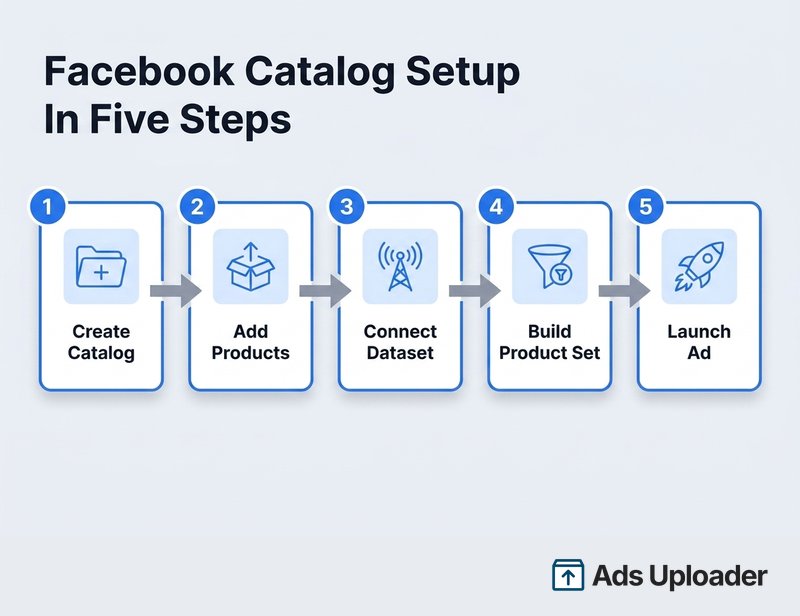
A Facebook (Meta) catalog is a container that holds the product data (titles, images, prices, links, and availability) you promote across Facebook and Instagram. You create it in Commerce Manager, or in Meta Business Suite under Settings, Data sources, Catalogs, using a business portfolio you fully control. After naming the catalog and choosing its type, you add products manually, through a data feed, via the Meta Pixel, or by connecting a platform like Shopify or WooCommerce. A filled catalog powers Advantage+ catalog, carousel, and collection ads.
Catalog-powered ads are some of the highest-return formats Meta offers, but none of them run until a catalog exists and is filled with clean product data. The problem is that Meta scatters the steps across Commerce Manager, Business Suite settings, partner platform docs, and Blueprint courses, and almost nobody covers the parts that actually stall people: the Shopify and WooCommerce connections, keeping the catalog current, and the errors that block a launch. This guide walks the whole path in order, from an empty account to a catalog ready for ads, and fixes the blockers along the way.
One quick note on labels. Meta is rolling out a redesigned Commerce Manager, so an older account may still say Items, Sets, and Data sources where a newer one says Products, Product sets, and Product data sources. The workflow is the same. The steps below use the current labels and flag the older ones where it helps.
What a Facebook Catalog Is (And What You Need First)
A catalog is the data asset that stores everything Meta needs to show your products: titles, descriptions, images, prices, availability, and the link to each product page. A shop is different. A shop is the customer-facing storefront on Facebook and Instagram that uses a catalog and adds its own requirements. You can run catalog ads without ever opening a shop, which is what most advertisers actually need.
Before you start, line up three things:
- A business portfolio with full control. The business portfolio is the current name for what older guides call Business Manager. The catalog needs a portfolio to own it, and you should have full control, not partial access, of that portfolio.
- A Facebook Page (situational). You do not need a Page to create a standalone catalog for ads. You do need one for a Facebook Shop, for the Shopify sales channel, and as the identity your ads run under.
- Access to Commerce Manager. This is the central tool for catalogs, product data, and shops.
A filled catalog unlocks Advantage+ catalog ads, collection ads, product tags, shops, and catalog-powered Meta carousel ads. Meta's own guidance is to keep one consolidated catalog wherever practical rather than spinning up a new one per campaign or collection.
How to Create a Facebook Catalog in Commerce Manager
Commerce Manager is the primary way to create a catalog. Here is the current flow.
- Open Commerce Manager and use the portfolio selector in the top-left to confirm you are in the correct business portfolio. Working in the wrong portfolio is the most common early mistake.
- Start creation. A new account shows Get started or Add products, then Create a catalog. An account with existing assets shows a + or Add catalog button.
- Choose the catalog type. For a standard ecommerce store, select Online products. This is the current label for what older flows called Ecommerce then Products.
- If your inventory already lives on Shopify, WooCommerce, Magento, or BigCommerce, select Connect to a partner platform. Otherwise continue with a feed or manual setup.
- Select the business portfolio that will own the catalog.
- Review Give people access. In the 2026 flow this is on by default and grants eligible people in the portfolio access to the catalog. Turn it off if you would rather assign access individually.
- Name the catalog and click Next.
- Connect event tracking. Select an existing dataset or Meta Pixel, or add a new one in Events Manager. Some rollouts show a Skip option here. A dataset is not required just to store products, but it is required for website-event matching and dependable Advantage+ catalog ad measurement, so connect one if you can. If you have not created a pixel yet, set one up first.
- Choose how to add products: connect a data feed or add products manually. You can also add more sources later.
One decision here is permanent. The catalog type cannot be changed after creation. There is no edit control for it in Commerce Manager. If you pick the wrong type, your only option is to create a new catalog and reload everything, so choose Online products (or the correct vertical) deliberately.
The available types include Online products, Local products or services, Travel, Property (real estate), and Automobiles, with more granular verticals such as media, apps and software, publications, and professional services exposed in some entry points.
Create a Catalog in Meta Business Suite (Alternative Path)
If you live in Meta Business Suite, you can create the catalog there instead. Go to Settings, then Data sources, then Catalogs, click Add, and select Create a new catalog. Name it, pick the type, connect tracking, set permissions, and choose an upload method. The direct settings route also works if you prefer to bookmark it. Commerce Manager is still where you manage products afterward, so most people end up there regardless of where they created the catalog.
How to Add Products to a Facebook Catalog
There are four ways to add products, plus API and supplementary routes for larger operations. Picking the right one up front saves hours of cleanup later.
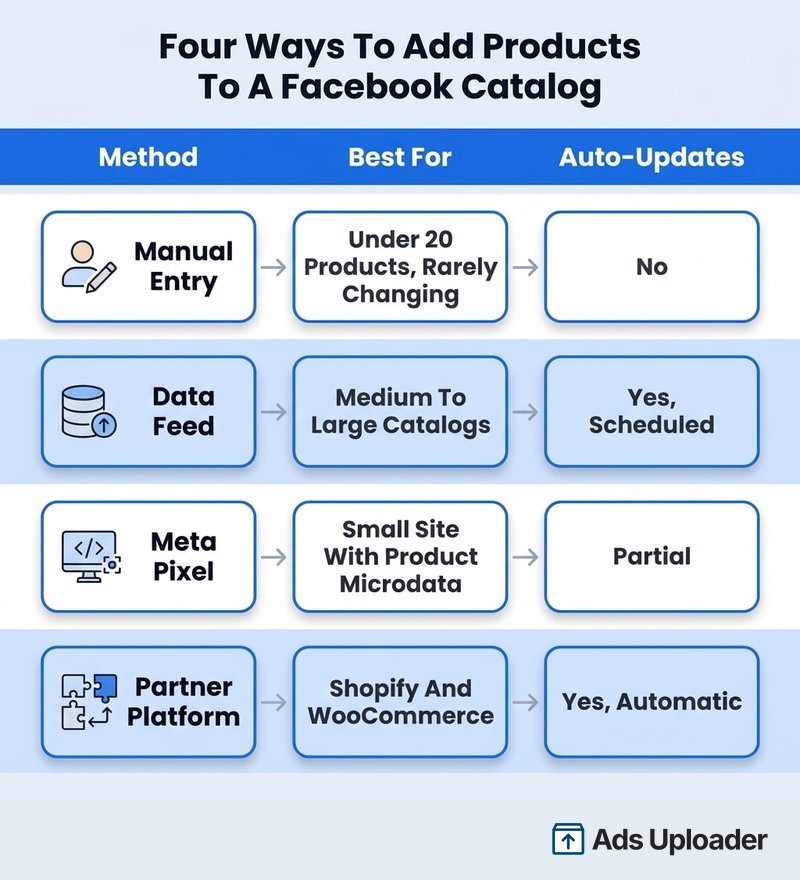
Use this as your default logic: fewer than roughly 10 to 20 products that rarely change, add them manually. A Shopify or WooCommerce store, use the official integration. A custom store with dozens to thousands of items, use a scheduled feed. Prices or stock that move within the hour, use the API or a partner integration.
Add Products Manually
In Commerce Manager, open your catalog, go to Products (older UI: Items), click + Add, and choose Add manually. For each product, populate at least the image, title, description, website link, price and currency, availability, condition, brand, product category, and a content ID. Add sizes and colors as variants through the row menu, then click Upload items.
Keep two specs in mind. Images should be JPEG or PNG, at least 500 by 500 pixels, and under 8 MB, though you should use a clean high-resolution square rather than treating 500 by 500 as the target. And the content ID you enter must exactly match the content_ids your pixel sends if you plan to run Advantage+ catalog ads, or the products will not match. The full field list and image requirements are collected in our catalog ads specs reference.
Add Products With a Data Feed
A data feed is the workhorse for anything beyond a handful of products. You upload a file once, host it at a URL, or connect a Google Sheet, and Meta ingests it on a schedule.
Meta's specification requires nine fields, and products with missing or malformed fields simply will not upload: id, title, description, availability, condition, price, link, image_link, and brand. A few formatting rules trip people up: price must be a number, a space, then a three-letter currency code (for example 29.99 USD), availability accepts in stock or out of stock, and IDs must be unique and stable. Accepted formats are CSV, TSV, RSS XML, Atom XML, and Google Sheets. The full field list lives in Meta's product data specification.
If you are comfortable managing products in bulk from spreadsheets, this is the same mindset as running Facebook Ads bulk uploads: get the source data clean once, and the rest is scheduling.
Launch More. Click Less.
Upload hundreds of creatives at once, auto-match thumbnails to videos, and publish straight to your ad accounts through Meta's API.
Try Ads Uploader FreeNo credit card required • 7-day free trial
Add Products With the Meta Pixel
The pixel method lets Meta discover and update products when visitors load product pages that carry valid Schema.org or Open Graph microdata. It sounds convenient, but it is the least reliable option. Discovery depends on page visits and successful crawling, so an unvisited product may never appear, and incomplete microdata causes missing fields. Treat pixel ingestion as a fallback for a small, well-marked-up site, not as the primary source for a real store.
How to Add Shopify Products to a Facebook Catalog
For a Shopify store, use the official Facebook and Instagram by Meta sales channel. It manages one catalog shared by your Facebook Shop, Instagram Shopping, and Facebook ads. Note that it is a sales channel, not an app, so it appears under Sales channels rather than under Apps.
The current setup from Shopify's side:
- In Shopify admin, open Settings, then Sales channels.
- Open the Shopify App Store and search for Facebook.
- Select Add channel or Add app.
- Under the first feature to configure, select Start setup, then Connect account.
- Sign in to Facebook and select or create the required assets: business portfolio, Page, catalog, ad account, and pixel or dataset.
- Accept the terms and select Finish setup.
Prerequisites include an active, non-password-protected store, a published Facebook Page, and full control of the assets. The exact requirements are documented in Shopify's Facebook and Instagram channel setup guide.
After setup, products made available to the channel sync automatically, and edits in Shopify usually appear on Meta within a few minutes. Shopify stays the source of truth, so make product changes in Shopify, not in Commerce Manager. Two things worth knowing: since August 2025, checkout for channel orders happens on your own store, and Shopify collections sync to Meta only for US-based stores, so outside the US you build product sets in Commerce Manager instead.
How to Set Up a Facebook Catalog for WooCommerce
For WooCommerce, the official route is the Meta for WooCommerce plugin (formerly Facebook for WooCommerce), published by Facebook on WordPress.org. It installs the pixel, uploads your catalog, and connects the store to Facebook and Instagram. Install it from the WordPress.org plugin directory, which is the actively maintained distribution.
To connect it:
- Install and activate Meta for WooCommerce.
- In WordPress admin, open Marketing, then Facebook, and select Get Started.
- Sign in to Facebook and select or create the business portfolio, Page, ad account, pixel or dataset, and catalog.
- Authorize the connection, then map your Google Product Categories and attributes.
- Run the initial catalog sync.
The plugin syncs each product when it is created or changed. To force a full sync, use Marketing, Facebook, Product sync, then Sync products. Because WooCommerce runs on WordPress, the same site houses your tracking setup.
If you would rather not run the plugin, you can generate a product feed URL with a dedicated feed extension and add it to Commerce Manager as a scheduled data feed. Just watch the usual WooCommerce blockers: unpublished products, out-of-stock items hidden by your store settings, all-caps titles, and expired connection tokens all silently drop products from the sync.
How to Update a Product Catalog on Facebook
How you update a catalog depends on how you built it.
- Manual products: edit the item in Commerce Manager; changes apply after processing.
- One-time feed: edit the original file and re-upload it to the same source.
- Scheduled feed: update the source file or Google Sheet, or force a fetch with Upload now, then Request update now. Scheduled feeds refresh hourly, daily, or weekly, and cannot run more often than once per hour.
- Shopify or WooCommerce: edit the product in the store; platform-synced catalogs update on their own, with a manual sync available for stale items.
Meta distinguishes a replace schedule, which fully refreshes and deletes items missing from the new file, from an update schedule, which only changes the items included. For fast-moving prices and stock, Meta recommends an incremental update feed, and marking an item out of stock rather than deleting it. The details are in Meta's scheduled feeds documentation.
One metric to watch after any update is catalog match rate, the share of your product-event IDs that Meta can match to items in the catalog. Commerce Manager warns when it drops below 90%, because a low match rate limits the products available to your catalog ads. If you see that warning, check that the IDs in your feed match the content_ids your pixel sends, and that the right dataset is connected to the right catalog.
Product Sets in a Facebook Catalog
A product set is a saved subset of your catalog that you can target in a specific ad. A filter-based set updates itself as your data changes; a manually selected set stays fixed until you edit it.
To create one, open your catalog, go to Product sets (older UI: Sets), and select Create set. Choose Use filters or Manually select items, name the set, and if you are filtering, add Attribute, Condition, and Value rules such as product type, brand, availability, or price. Preview the item count, then create it. You then select that set when building Advantage+ catalog, carousel, or collection ads so Meta only promotes those products.
If you hit "not enough items in product set," it rarely means your catalog is empty. It usually means too few eligible items remain after Meta applies your filters plus active status, in-stock status, policy approval, and regional availability. Broaden the filters, confirm the filtered fields are actually populated, and fix any rejected or out-of-stock items.
Assign Catalog Access to People and Partners
To let a teammate work on the catalog, open Meta Business Suite settings, select the owning portfolio, go to Data sources, then Catalogs, select the catalog, choose Assign people, pick the person, and grant Partial access or Full control. Partial access covers viewing products, managing product sets, and using the catalog in ads; full control adds editing items, managing feeds, and administering access.
To bring in an agency, use Assign partner instead, and either enter their business portfolio ID or generate a shareable link. The shareable link is single-use and expires after 30 days. Remember that catalog access alone does not let an agency run ads; they also need the ad account, Page identity, and dataset permissions.
Save Hours on Creative Testing
Stop uploading ads one by one. Bulk process unlimited creatives with automatic media matching and direct API publishing.
Try Ads Uploader FreeNo credit card required • 7-day free trial
Troubleshooting Common Facebook Catalog Problems
Most catalog problems fall into two buckets: an asset that is not eligible, or items that are not valid. Diagnose them separately.
The Selected Catalog Is Not Eligible for Facebook Commerce
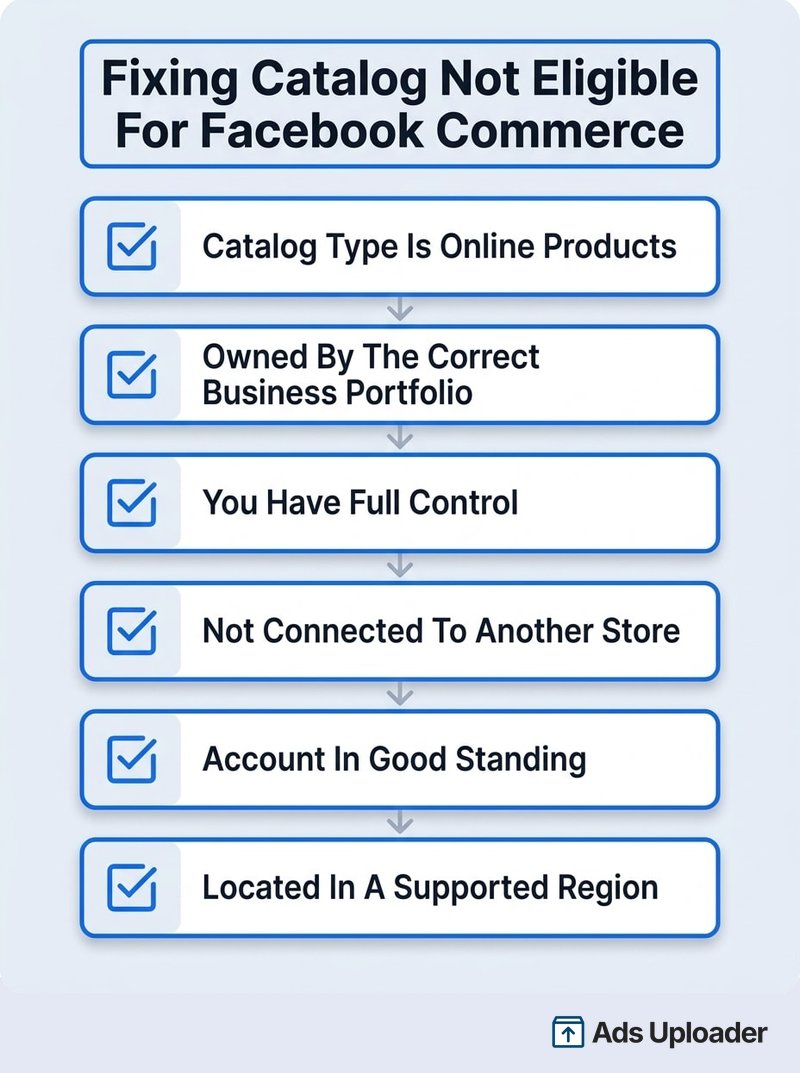
This is an umbrella error that shows up during shop or partner onboarding, not a single fixable setting. It reflects the gap between a catalog for ads (just an inventory asset) and a commerce-enabled catalog for a shop (which must also meet Meta's commerce-account, regional, identity, and checkout requirements). A catalog can be perfectly usable for Advantage+ catalog ads while still being ineligible for a shop.
Work through these in order:
- Confirm the catalog type is Online products (ecommerce). A travel, auto, or other vertical will not qualify for a standard product shop, and the type cannot be changed, so you may need to recreate it.
- Confirm the catalog, Page, and intended commerce account are all owned by the same business portfolio, and that you have full control.
- Make sure none of those assets are already connected to another store or shop. Disconnect the old integration first.
- Check Account Quality for restrictions on the account, Page, or business, and resolve them.
- Confirm your commerce account is in a supported region. Meta's commerce eligibility requirements spell out the policy, location, and trustworthiness conditions.
- Complete the shop's checkout configuration, including the checkout URL and policies.
Products Not Showing or Rejected
When items do not appear in ads or your shop, check the source sync finished, the product is published to the channel and set to active, it is in stock, all nine required fields are present and formatted correctly, the image and landing page are valid, and the product passes Commerce Policies. Commerce Manager surfaces these in Diagnostics, in the data source upload history, and in each item's Issues panel.
The Wrong Catalog Type
It bears repeating because it is the one mistake you cannot undo: a catalog's type is locked at creation. If you built a Travel catalog and needed Online products, there is no switch. Create a new catalog with the correct type, reload your inventory, reconnect the dataset and any shop, and reassign access.
Frequently Asked Questions
Do I need a Facebook Page or Business Manager to set up a catalog? You need a business portfolio, the current name for Business Manager, to own a standard catalog. A Facebook Page is not required for a standalone ad catalog, but it is normally required for a shop, for the Shopify channel, and as your ad identity.
What is the difference between a Facebook catalog and a shop? A catalog stores your product data. A shop is the customer-facing storefront that uses a catalog and adds requirements like an eligible commerce account, a supported region, and a checkout URL. A catalog can power ads without a shop.
Can I connect Shopify to a Facebook catalog? Yes. Install the Facebook and Instagram by Meta sales channel from Shopify admin, connect your business portfolio, Page, catalog, ad account, and pixel, and finish setup. Shopify then syncs eligible products automatically, usually within minutes.
How do I fix "the selected catalog is not eligible for Facebook commerce"? Confirm it is an Online products catalog owned by the right portfolio, get full control of the catalog, portfolio, Page, and Instagram account, disconnect assets tied to another store, resolve account and eligibility issues, confirm a supported region, and finish the shop checkout setup. If the type is wrong, recreate the catalog.
How often does a Facebook catalog update? It depends on the source. Scheduled feeds run hourly, daily, or weekly, API updates can be near real time, Shopify changes usually appear within minutes, and WooCommerce syncs after product changes. Feeds cannot fetch more often than hourly.
Can I have more than one catalog, and should I? A portfolio can own several, but Meta recommends one consolidated catalog with multiple feeds and product sets inside it. Create another only for a separate business, an incompatible type, or an integration that requires it.
Why are my products not showing in the catalog? Usually a failed sync, unpublished channel availability, archived or out-of-stock status, missing required fields, an invalid image or landing page, a policy rejection, restrictive set filters, or IDs that do not match your dataset events. Check Diagnostics and the item Issues panel.
Conclusion
Setting up a Facebook catalog comes down to a few clear decisions made in the right order. Create it in Commerce Manager or Business Suite, choosing the Online products type carefully because you cannot change it later. Pick the add-products method that matches your inventory: manual for a handful of items, a scheduled feed for a large custom store, and the official integration for Shopify or WooCommerce. Keep it fresh so your match rate stays high, organize it into product sets, and when a shop refuses to enable, remember that catalog eligibility and item eligibility are separate problems.
Get the catalog clean and current, connect a dataset, build a product set, and you have the foundation for Advantage+ catalog, carousel, and collection ads. That is where the real return on catalog ads comes from.