Facebook catalog ad overlays are labels Meta draws over product media in an Advantage+ catalog ad, filled from each item's catalog record rather than typed by hand. You enable them at the ad level in the Advantage+ creative panel, choosing automatic or manual setup. Four retail types exist: price, strikethrough price, percentage off and free shipping. Banner shape, position, color, font and opacity are configurable, and delivery is limited to the Facebook Feed placement. They put the offer inside the creative, where shoppers see it before clicking.
Every catalog in a competitive category looks roughly the same in the feed. A product, a white background, a small headline. The cheapest thing you can change about that is the label Meta paints on top of it, and it costs nothing but a toggle.
The catch is that this feature is scattered. Meta documents dynamic overlays on one help page, frames on a second, catalog text on a third, and product extensions barely at all. The names have moved too: what Ads Manager called catalog info labels became dynamic overlays in April 2025, and product extensions now appears in the interface as Show products. Meanwhile plenty of advertisers switch overlays on and never see one render, because a field in their feed does not support the label they picked.
This guide covers the whole family in one place: every overlay type and the catalog field it depends on, the click path, the character limits Meta publishes but almost nobody repeats, frames, product extensions, and a diagnostic list for when nothing appears. Where the evidence is thin or dated, it says so.
What Are Facebook Catalog Ad Overlays?
A dynamic overlay is a label Meta renders onto product media at delivery time, using data pulled live from your catalog, which makes it a creative layer unique to catalog-powered dynamic product ads. One setting applies to every product in the ad, but the value changes per item and per viewer. Enable the price overlay across a 400-product set and each impression carries that specific item's price, without you touching a single image.
That is why overlays behave differently from anything you upload. A static graphic is identical on every product. An overlay reads the feed.
Meta's own wording on adding dynamic overlays in Advantage+ catalog ads is direct:
With dynamic overlays, you can show information from your catalog such as prices or discounts in a label on your ad media. This enhancement will currently only deliver to Facebook feed.
The naming history matters when you go looking for help, because most material online still uses the old terms: labels, catalog info labels, info labels, Add catalog info. In April 2025 Meta moved the controls into the Advantage+ creative enhancement area and renamed them dynamic overlays, as Search Engine Land reported at the time. The rename shipped with a real functional change: the four label types became independently toggleable, where the older control let you pick only one.
Overlays sit inside the broader set of Advantage+ creative enhancements available to catalog ads, alongside image touch-ups, background generation and catalog text. They are the only member of that group whose content comes straight from your product data.
The Four Dynamic Overlay Types and What Each One Needs
Every overlay type has a prerequisite in the feed. Miss it and the label silently does not render while the ad delivers normally, which is exactly why this looks like a bug rather than a data problem.
| Overlay type | What it renders | What the catalog must contain |
|---|---|---|
| Price | The item's current price | A valid price. If an active sale exists, the displayed current price may reflect the sale price |
| Strikethrough price | The sale price with the original crossed out | Both price and a valid sale_price, with the sale price genuinely lower, inside its active date window |
| Percentage off | The sale price plus the calculated discount percentage | The same valid price and sale_price pair. Meta computes the percentage, you do not supply it |
| Free shipping | A free shipping indicator, shown only where that offer applies to the viewer | The product's shipping cost set to 0.0 in the catalog, with region entries that cover the viewer's location |
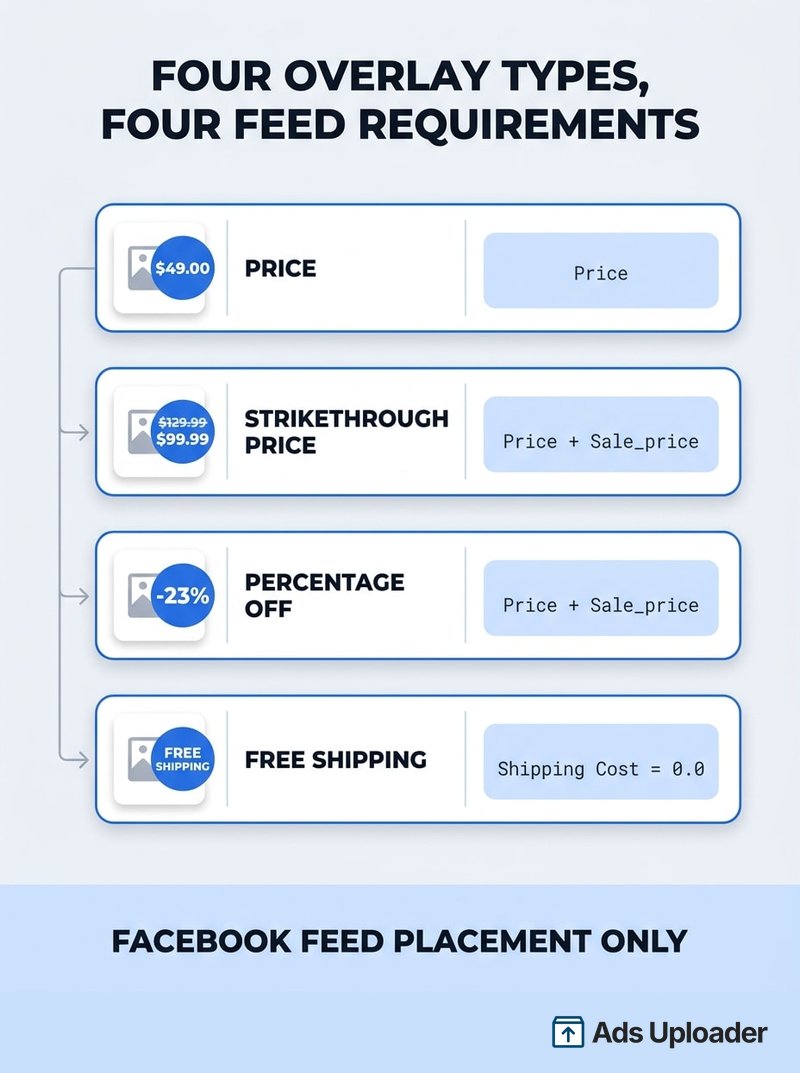
Two of these trip people up regularly.
Strikethrough and percentage off are the same dependency wearing different clothes. Both need an original price and a sale price, and both need the sale to be live. A sale_price_start_date and sale_price_end_date window that closed last week takes the label down with it, and nothing in Ads Manager tells you that happened.
Free shipping is a product-level record, not a store policy. Saying "free shipping on everything" in your primary text does nothing for the overlay. Meta reads the shipping cost on the item, and it must be exactly zero for the region the viewer is in. A store offering free domestic shipping and paid international shipping will correctly show the badge to one shopper and correctly withhold it from another.
Worth stating plainly: as of August 2026 those four are the verified retail types. Meta's API enumerations contain broader values including star ratings and stock signals, but SDK presence is not the same as UI availability, and several of those belong to travel or to legacy interfaces. If you want a rating or a stock count on the image, native overlays are not the mechanism.
How to Add Dynamic Overlays to a Catalog Ad
The path varies slightly by account, because Meta has been rolling out interface changes through 2026. The stable version:
- Build a campaign on an eligible catalog, selecting the catalog or product set where Ads Manager asks.
- At the ad level, open Ad creative.
- Open Advantage+ creative, or Creative tools then Edit creative, depending on which interface your account has.
- Select Dynamic overlays, or Add an overlay if your account exposes that dropdown directly.
- Choose Automatically add dynamic overlays or Manually set up dynamic overlays.
- In manual mode, enable the types you want and style the banner.
- Preview several catalog items, not one, then publish.
That last step is the one people skip. A single preview tells you almost nothing, because eligibility is per product. Check a full-price item, a discounted item and a high-ticket item, and you will catch most problems before they reach the auction. Note too, straight from Meta's documentation, that overlays deliver whether or not a preview appears, so an empty preview is not proof of failure.
The format dropdown matters as well. Dynamic overlays are available on single image or video and on the carousel format. If you cannot see Single image or video in Ad setup, it is usually hidden behind More options rather than unavailable.
Automatic vs Manual Overlay Setup
In automatic mode, Meta decides which eligible overlay to show, if any, for a given person and impression. It is not a rotation through everything you enabled, it is a prediction about what will perform. Manual mode pins your choice: you select the types, you set the styling, and the system works within that.
There is no published Meta study showing one mode beats the other, so treat this as a control preference rather than a performance decision. Accounts that want to know exactly what shipped use manual. Accounts running broad and trusting delivery leave it automatic.
What "Always Show" Actually Overrides
Manual mode includes an Always show option, and it is narrower than the name suggests. It overrides Advantage+ creative's discretion to omit an eligible overlay on a Facebook Feed impression. It does not override anything else.
It will not rescue a product with no sale_price, a price too long for the banner shape, an item still in review, or an Instagram placement. It removes exactly one variable: delivery choosing not to show a label it could have shown. Useful when debugging, and useful when a promotional price is the whole argument of the campaign, but it is not a fix for eligibility.
Setting Overlays Through the Marketing API
If you build ads programmatically rather than clicking through Ads Manager, overlays are addressable. Meta's creative object exposes both object_story_spec.link_data.image_overlay_spec and the lower-level object_story_spec.link_data.image_layer_specs.
The overlay spec carries fields including custom_text_type, position, text_font, text_type, overlay_template and theme_color. The layer spec goes further, exposing frame hashes, layer type, opacity, shape, scale and text and background colors, with a shape enumeration of circle, pill, rectangle and triangle that matches the interface exactly.
One warning: the API enumerations are broader than any single account's interface, and some values are experimental, vertical-specific or effectively read-only. Build one ad by hand in the target account, read its creative spec back through the same Graph API version, and reproduce that structure. Guessing from the SDK reference produces ads that validate and then do not render what you expected.
Launch More. Click Less.
Upload hundreds of creatives at once, auto-match thumbnails to videos, and publish straight to your ad accounts through Meta's API.
Try Ads Uploader FreeNo credit card required • 7-day free trial
Overlay Shapes, Fonts and Character Limits
This is the part of the documentation almost nobody repeats, and it explains a surprising share of missing overlays. For the feed fields and image rules these labels depend on, see the catalog ads specs reference.
| Banner shape | Character limit |
|---|---|
| Rectangle | 13 |
| Pill | 13 |
| Triangle | 6 |
| Circle | 6 |
Meta counts the whole formatted string: digits, currency symbol and spaces. Its own example is that $5.99 counts as 5 characters. For a strikethrough overlay both prices count, and Meta advises keeping each to six characters or fewer.
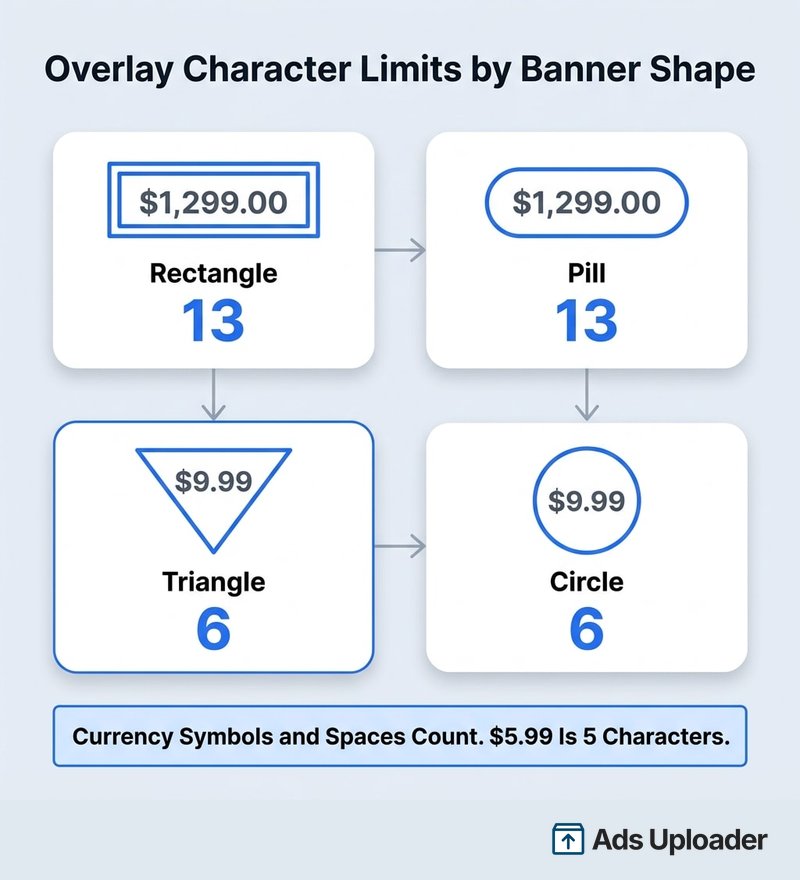
Run your own catalog through that and the constraint gets obvious fast. A $1,299.00 desk chair is 9 characters: comfortably inside a rectangle or pill, hopelessly outside a circle or triangle. A strikethrough from $129.99 down to $99.99 puts the original price at 7 characters, one over the guidance, before you count the sale price.
Two rules fall out of this. Rectangle or pill is the safe default for anything above two figures. And circle and triangle are for cheap catalogs, single-digit and low double-digit prices where a compact badge still reads.
Currency formatting quietly changes the math. There is no separate limit table by locale, but $99.99, €99,99 and a three-letter code like JPY 1200 consume different character counts for the same economic value. A catalog running multiple markets can pass in one currency and fail in another with identical products.
The other controls are banner position, banner color, text color, opacity and font. Meta does not publish a font table in the help center, but its SDK exposes the available identifiers, and they are a short list: Droid Serif Regular, Dynads Hybrid Bold, Lato Regular, Noto Sans Regular, Nunito Sans Bold, Open Sans Bold, Open Sans Condensed Bold, PT Serif Bold, Roboto Condensed Regular and Roboto Medium. No custom font upload exists. If brand typography is non-negotiable, native overlays will not get you there.
Position behaves like a corner picker in practice, and this is where overlays collide with your product photography. A badge parked in the bottom right of a square crop will land on the product in some shots and on empty background in others, because your catalog images were never composed with a badge in mind. The same discipline that governs safe zones applies here: pick the corner that is empty across the most items, not the corner that looks best on your hero product.
Two interactions are worth knowing. When background generation is active, Meta may automatically adjust the overlay's font, color and layout to suit the generated background, so your styling choices become suggestions. And Meta has no published compatibility matrix covering overlays against every other enhancement, so if you are running touch-ups, expansion or generated backgrounds together, previewing across products is the only real check.
Frames: The Static Half of Catalog Ad Overlays
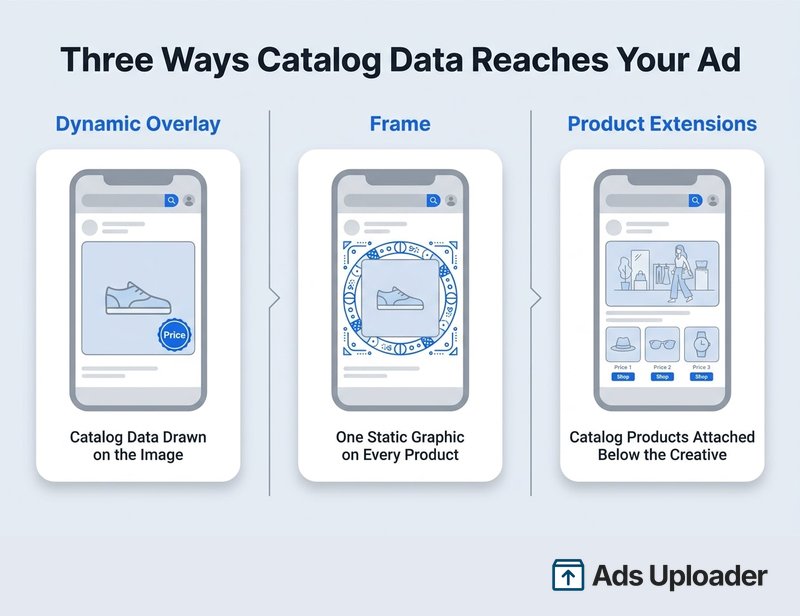
A frame is the other thing people mean by "catalog ad overlays", and it works on opposite principles. Where a dynamic overlay reads your feed and changes per product, a frame is one image you upload that sits over every product identically. Borders, logo treatments, seasonal graphics, a promotional surround.
Meta's current specs:
| Requirement | Specification |
|---|---|
| Aspect ratio | 1:1 |
| Minimum size | 1080 x 1080 pixels |
| File size | Under 1 MB |
| Background | Transparent recommended |
| Text | Little or no overlaid text, to maximize delivery |
The setup path sits in the older creative customization tools: at the ad level open Ad creative, then Creative tools or Edit creative, select Add a frame, choose Custom, then Upload image or pick eligible existing account media. From there you adjust opacity, size and position and save. Some 2026 accounts surface the same function under Add an overlay instead, which is a rollout difference rather than a removal.
The 1:1 requirement is not decorative. A frame designed at any other ratio will be forced into square, and the parts you cared about will not land where you drew them. If your creative pipeline works in multiple aspect ratios, the frame is a separate asset built square from the start.
Two constraints define what frames are good for:
- They do not run on Instagram placements. Same limitation as dynamic overlays, from a different direction.
- One frame applies to every product in the ad. There is no per-SKU or per-category logic. Different frames means different ads with different product sets, which is ad-level segmentation rather than conditional design.
Meta's "little or no overlaid text" guidance is not a revival of the retired 20% text rule. It is delivery advice about legibility, and worth following for a practical reason: a frame with baked-in promotional text ("30% OFF") is a static claim sitting on top of dynamic products, some of which are not on sale. That mismatch costs more than it earns.
The productive combination is a frame for identity and an overlay for the number. Keep the frame's artwork out of whichever corner you assigned to the banner.
Catalog Text and Meta Product Extensions
Two adjacent features get lumped in with overlays because they also pull from the catalog. They do different jobs, and both are worth knowing.
Pulling Catalog Fields Into Ad Copy
Overlays put catalog data on the image. Catalog text puts it in the copy, and it is toggled separately.
At the ad level, scroll to Links, then in Text, Headline or Link description on Feed, click + and choose the catalog field to insert. Template variables such as {{product.name}}, {{product.price}}, {{product.brand}} and {{product.description}} resolve per item at delivery, the same way the overlay does.
A related enhancement covers carousel descriptions, where Meta chooses which item detail to surface based on what a viewer is predicted to respond to. The practical value: a product name in the headline is often more useful than a price on the image, particularly for multi-brand retailers whose shoppers are comparing rather than deciding.
The picker varies by catalog vertical, and Meta's help page on adding catalog text to ad creative does not publish an exhaustive list, so check what your account offers before planning around a specific field.
Product Extensions, Now Called Show Products
Product extensions is the API name. In Ads Manager you will almost certainly see Show products.
It inverts the catalog ad. Instead of the catalog supplying the creative, you supply a normal single image or video, and Meta appends personalized catalog products to it: a row of tappable product tiles beneath the hero, or, with the newer Show as carousel option, catalog products as the cards that follow your creative. Meta's own framing is that the system can turn a single-media ad into a catalog-backed one when it predicts that will perform better.
What it needs:
- A connected catalog the ad account can access, with an optional product set
- A Traffic or Sales objective
- A manually uploaded single image or single video, with partnership and Reels variants added during 2025
Setup runs through the same creative area: at the ad level open Advantage+ creative or Edit creative, find Show products, connect the catalog, choose a product set if your account offers one, and enable the display. Some 2026 accounts place it under Creative setup then Products, with a catalog dropdown whose "Not connected" option switches it off.
On performance: Meta reported that advertisers testing Show products on Meta partnership ads saw 4% higher click-through rate and 3% more conversions than partnership ads without it. Meta did not publish sample size, spend, dates or confidence intervals, so treat that as a directional signal from one specific format, not a benchmark.
Where this earns its place is with advertisers not running catalog campaigns at all. If your account is built on produced creative and a catalog sits unused, product extensions is the cheapest way to put that catalog to work without rebuilding anything. It does depend on clean event data to match products to people, so the catalog and purchase events need to be firing correctly first.
Worth drawing the boundary clearly, because these get confused:
| Feature | What it is |
|---|---|
| Product extensions / Show products | A normal hero image or video with catalog products appended |
| Advantage+ catalog ads | The catalog supplies the products and the creative at serve time |
| Collection ads | A defined format: cover media plus a product grid opening an Instant Experience |
| Product tags | Tappable tags on specific products within the media, strongest on Instagram shopping surfaces |
Why Your Catalog Ad Overlays Are Not Showing
No competing guide on this topic has a troubleshooting section, which is odd, because "I turned it on and nothing happened" is the second thing every advertiser searches. Work down this list in order.
1. Check the placement first. Dynamic overlays deliver on Facebook Feed only. If you are looking at an Instagram, Reels, Stories, Marketplace or Audience Network preview, the absence of an overlay is correct behavior, not a fault. This single check resolves more cases than everything below it combined.
2. Open one affected product in Commerce Manager. Verify price, verify sale_price is present and genuinely lower, verify the sale date window is currently open, and verify the shipping entries if you enabled free shipping.
3. Count the formatted characters. Include the currency symbol and any spaces, and compare against the shape limit: 13 for rectangle and pill, 6 for triangle and circle. For strikethrough, count both prices.
4. Confirm the item is eligible at all. It needs to be approved, in stock, and inside the product set the ad selects from. An overlay cannot appear on a product the ad was never going to show.
5. Rule out the automation. Switch from automatic to manual, enable the specific type, and turn on Always show. If it appears, the label was always eligible and delivery was choosing not to use it.
6. Turn off background generation and image touch-ups temporarily. They can restyle or reposition an overlay to the point where you do not recognize it.
7. Force a feed refresh and wait. In Commerce Manager, check Catalog then Data sources for upload history and trigger a fetch. Edits can send items back into review, which commonly takes a day or two rather than minutes.
8. Do not trust an empty preview as a verdict. Meta explicitly warns that overlays deliver even when the preview does not show them. Before you conclude the feature is broken, look at a live impression. The Ads Library is a reasonable sanity check for how competitors' catalog ads are actually rendering in feed, and for confirming that the badges you are chasing exist in the wild.
One more failure mode belongs to advertisers who design their own catalog images rather than using native overlays: Meta caches catalog images. Replacing the file at the same URL often does not refresh promptly. A new or cache-busted URL plus a catalog fetch is far more reliable than overwriting in place and waiting.
Native Overlays vs Designed Catalog Creative
There is a whole category of software built on the argument that Meta's native overlays are not enough. Some of that argument is fair. Here is the boundary, without the pitch.
Save Hours on Creative Testing
Stop uploading ads one by one. Bulk process unlimited creatives with automatic media matching and direct API publishing.
Try Ads Uploader FreeNo credit card required • 7-day free trial
What Native Tools Cover
Native overlays and frames give you: four commercial label types drawn from live catalog data, one uploaded static frame, banner shape, position, color, font from a fixed list and opacity. Zero cost, zero extra tooling, values that never go stale because Meta reads the feed at delivery.
What they do not give you: product name or brand on the image, star ratings, stock or urgency messaging, per-SKU or per-category design rules, custom fonts, background replacement, or any delivery outside Facebook Feed.
That boundary is the actual decision. If price is the argument your category competes on, native overlays cover it: discount-led retail, marketplaces, anything where the number does the selling. If your products need naming, or your brand needs to be recognizable at a glance, you hit the ceiling quickly.
Catalog Ad Templates, Meta's 2026 Layer Builder
The boundary moved in 2026, and it is a recent enough change to be worth flagging. Meta appears to have rolled out Catalog Ad Templates, a native layer-based builder reached through Add an overlay then Template at the ad level, or through Commerce Manager under the catalog's Templates area.
Reported capability is a genuine step up: Product, Catalog Field, Text, Image, Sticker and Background layers, 1:1, 4:5 and 9:16 variants, and catalog fields including product name, brand, description, price, current price and custom labels 0 through 4, with the ability to reference numbered additional images rather than only the primary one.
One caveat, stated clearly: there is no public Meta help center or newsroom announcement for this builder. The detailed evidence comes from dated third-party walkthroughs in July and August 2026, and rollouts like this are usually staged. Check whether Template appears in your own Add an overlay dropdown rather than planning a quarter around it. If it is there, it closes most of the gap third-party design tools were built to fill.
Designing the Image in the Feed
The other route is older and completely deterministic: render the design into the product image itself and supply that as the catalog's primary image. Whatever pixels are in that file travel with the product to every placement where the image is eligible, including Instagram. No overlay restrictions, because there is no overlay.
The tradeoffs are real. Baked-in prices go stale the moment catalog prices change, so the rendering pipeline has to run on every price update or you are advertising numbers you no longer honor. Commerce Manager's supplementary feeds can enrich or override fields on items already in a primary feed, which is the usual mechanism, though some partner-managed catalogs (certain Shopify integrations among them) do not expose supplementary feed controls at all.
One claim in this area deserves correcting, because it circulates widely: changing feed images is often described as a way to refresh creative without resetting Meta's learning phase. Meta's own documentation does not confirm this. A feed image change does not edit targeting, bid, budget or the ad set object, so it probably avoids the formal significant-edit trigger. But items can be reprocessed and reviewed, the effective creative does change, and delivery can shift regardless. "Usually avoids an ad set rebuild" is supportable. "Cannot disturb learning" is not.
What the Performance Data Actually Says
There is no Meta-controlled study isolating the effect of dynamic price, strikethrough, percentage-off or free-shipping overlays. Anyone quoting you a precise lift figure for switching on a native overlay is quoting something else.
The largest catalog-specific dataset comes from Confect, a catalog-ad design vendor, covering roughly 6.5 billion impressions, $30.8 million in spend and 568 ecommerce advertisers between December 2023 and September 2024. It is observational rather than randomized: ads containing a field compared against ads without it, across advertisers who chose their own designs. Offer quality, price point, margin and funnel stage are all uncontrolled. Treat it as a source of hypotheses. The directionally useful findings:
- Showing price correlated with 41% higher ROAS but 16% lower click-through rate
- Showing savings or discount amount correlated with 57% higher ROAS, and much more in affordable categories than luxury
- Showing product name correlated with 22% higher ROAS, concentrated in multi-brand retailers
- Showing shipping information correlated with a 2% ROAS decline overall, and a 38% decline for direct-to-consumer brands
That last line is the most useful thing in the dataset, precisely because it cuts against intuition. Free shipping feels like a universal win, and the data does not support treating it that way for single-brand DTC advertisers. The pattern across the set is consistent: badges that ease a price decision help most where price is the decision, and cost you where it is not. Test price and savings labels first, test the shipping badge rather than assuming it, and expect none of these numbers to transfer to your account unexamined.
Overlays on Travel Catalog Ads
Travel catalogs have their own overlay behavior, and it needs a clear caveat: the last detailed public documentation for it dates to 2017, and it could not be revalidated against current Meta material in August 2026.
As last documented, hotel ads supported price, strikethrough price and percentage off, while flight and destination ads supported price only. The historical path sat at the ad level under Show more catalog information, then Add an overlay to images, though modern accounts are likelier to expose it through the same dynamic overlays editor as retail. Invalid prices suppressed the overlay while the ad continued to deliver, matching how retail overlays behave today.
If you run hotel, flight or destination catalogs, verify these options in your live account rather than trusting nine-year-old documentation, including this summary of it.
Frequently Asked Questions
What are dynamic overlays in Facebook catalog ads? They are labels Meta renders over Advantage+ catalog ad media using each product's catalog data. The four retail types are price, strikethrough price, percentage off and free shipping, and they currently deliver on the Facebook Feed placement only.
How do I add a price overlay to a Facebook catalog ad? At the ad level, open Ad creative, then Advantage+ creative or Add an overlay. Turn on dynamic overlays, pick automatic or manual setup, enable Price, and set the banner shape, position, color and font. Confirm the item carries a valid price before publishing.
Do Facebook catalog ad overlays show on Instagram? No. Meta's documentation limits dynamic overlays to Facebook Feed, and custom frames are separately documented as unavailable on Instagram placements. Getting a badge onto Instagram requires the design to be rendered into the catalog image itself.
What is the difference between a frame and an overlay? A frame is one static image applied identically to every product in the ad. An overlay is a data-driven label whose text comes from each product's own catalog record, so it differs product by product.
Why is my strikethrough price overlay not showing?
Most often a missing sale_price, a sale price not actually lower than the original, a closed sale date window, a price longer than the banner shape allows, a non-Facebook-Feed placement, an item in review, or automatic mode declining to show it.
What are Meta product extensions? Product extensions is the API name for the enhancement Ads Manager labels Show products. It attaches personalized catalog products to a standard single image or video ad, as tiles beneath the creative or as carousel cards after it, on Traffic and Sales objectives.
What are the character limits for catalog ad overlays?
Rectangle and pill allow 13 characters, triangle and circle allow 6. Currency symbols and spaces count, so $5.99 is 5 characters. Strikethrough counts both prices, with Meta advising six characters or fewer for each.
Can I use my own design instead of Meta's overlays? Yes, through a custom frame, a pre-designed image supplied as the product's primary catalog image, or Meta's Catalog Ad Templates builder where your account has it. Only the feed-rendered image travels to every placement.
Key Takeaways
Facebook catalog ad overlays are one of the highest-leverage toggles in a catalog campaign, and one of the easiest to misdiagnose. What to hold onto:
- Four types, four prerequisites. Price needs a price. Strikethrough and percentage off need a live
sale_pricebelow the original. Free shipping needs a product-level shipping cost of exactly0.0for the viewer's region. - Facebook Feed only. Dynamic overlays and custom frames both stop at the Instagram boundary. If a badge has to appear everywhere, it belongs in the catalog image, not in an overlay setting.
- Count your characters. Rectangle and pill take 13, triangle and circle take 6, symbols and spaces included. This quietly kills more overlays on high-ticket catalogs than any other cause.
- Frames and overlays do different jobs. The frame carries identity, the overlay carries the number. Keep them out of each other's corner.
- Product extensions are the catalog play for accounts that do not run catalog ads. A normal image or video, with catalog products attached underneath.
- Test the shipping badge rather than assuming it. The largest available dataset shows it going backwards for DTC brands, which is not what most advertisers expect.
Start with the feed, not the toggle. Audit price, sale_price, sale windows and shipping entries across a sample of products first, then switch overlays on knowing what will actually render. Nearly every "my catalog ad overlays are not working" case turns out to be a field, a placement or a character count.