Meta Commerce Manager is the tool inside Meta's business platform where advertisers and merchants create product catalogs, manage commerce accounts, and configure shops for Facebook and Instagram. Product data arrives through manual entry, scheduled data feeds, the Meta Pixel, or a partner platform such as Shopify. Catalogs power Advantage+ catalog ads, product sets, and organic product tags, and a catalog can run ads with no shop attached. Since September 2025, shops on Facebook and Instagram send buyers to website checkout instead of processing payments on Meta.
Most media buyers open Meta Commerce Manager for one reason, and it is not to build a storefront. They open it because a catalog campaign is not delivering, because a client's feed broke overnight, or because someone needs to check why half the product range vanished from an ad set.
That is a very different job from the one almost every guide describes. Commerce Manager spans two roles: it holds the product data that Meta's advertising systems read, and it hosts the shop experience on Facebook and Instagram. Those two roles used to be roughly equal in weight. They are not any more, and the practical consequences of confusing them are laid out in Facebook Shop vs catalog. Meta moved shops to website checkout in September 2025 and stopped processing shop payments, which quietly turned Commerce Manager into something closer to a product-data control plane than a sales back office.
This guide covers what Commerce Manager is today, how its objects actually fit together, the catalog workflows that decide whether your catalog ads deliver, the Shopify path, permissions for agencies, and a symptom-based troubleshooting section for when things break.
What Is Meta Commerce Manager?
Meta Commerce Manager is the interface where a business creates and maintains the product data Meta uses across Facebook and Instagram. In practice it handles:
- Catalogs and the individual items inside them
- Data sources: feeds, partner platform syncs, API connections, manual entries
- Product sets, the saved subsets used for ad targeting and shop merchandising
- Item issues, policy status, and data source diagnostics
- Event source connections and catalog match reporting
- Catalog and commerce account permissions
- Shop configuration, in eligible markets only
You will still see it called Facebook Commerce Manager. Same product. The name follows Meta's company rebrand, and both terms point at the same tool at the same URL.
The distinction that matters most for advertisers: a catalog and a shop are separate things. A catalog is a product-data asset. A shop is a storefront experience layered on top of a catalog through a commerce account. You can create a catalog, connect it to an ad account and a pixel, and run catalog campaigns without ever creating a commerce account or a shop. Meta's own sales objective documentation lists a catalog, inventory, and pixel integration as the advertising prerequisites. A shop is not on that list.
What Changed in 2025 and 2026
If you are working from an older guide, one section of it is now wrong. Meta's Business Help Center currently states that as of September 2025, shops on Facebook and Instagram use website checkout, and that payment processing has been discontinued for shops. The full notice is on Meta's recent changes page.
Here is the practical shape of it:
| Capability | Status in 2026 |
|---|---|
| Catalogs, feeds, product sets, item diagnostics | Current |
| Advantage+ catalog ads | Current |
| Shop storefronts and organic product tagging | Current, supported countries only |
| Website checkout from a shop | Current, and now the default path |
| Meta-processed checkout and payments for shops | Discontinued, September 2025 |
| Order, return, and payout management for new shop orders | Discontinued |
| Commerce Order Management API | 47 endpoints blocked in Graph API v26.0 on 29 July 2026, extending to all supported versions on 27 October 2026 |
| Facebook Live Shopping events | Discontinued, 1 October 2022 |
| Instagram Live product tagging | Discontinued, 16 March 2023 |
Two related points, because they get conflated. First, removing the Instagram shop navigation tab in early 2023 did not end Instagram Shopping. Eligible profiles still expose a shop and product tags. Second, Shopify launched a separate, limited-release direct checkout inside certain Meta surfaces in 2026 for eligible US stores. Shopify processes those orders and the merchant stays merchant of record, so it is a Shopify product appearing on Meta, not a revival of Meta's retired checkout.
Shop availability is also narrower than it first appears. Meta's supported country list currently splits markets three ways: full shops and shops ads in the United States; open beta in Australia, Canada, Japan, Korea, Mexico, Taiwan, and the United Kingdom; and limited shop functionality without shops ads across a further group including Brazil, France, Germany, Italy, Spain, and several others.
The takeaway is simple. Build the catalog first, because the catalog works everywhere. Treat shop features as market-dependent and confirm eligibility inside the account before planning a campaign around them.
Commerce Manager vs Business Manager vs Ads Manager
The single most common source of confusion in this whole area is which tool owns what. Four surfaces, four jobs:
| Tool | What it owns |
|---|---|
| Business portfolio settings | Ownership and permissions for Pages, Instagram accounts, ad accounts, datasets, catalogs, and commerce accounts |
| Commerce Manager | Catalog data, data sources, product sets, item diagnostics, shop configuration |
| Events Manager | Pixel and Conversions API setup, event testing, signal diagnostics |
| Ads Manager | Campaign structure, budgets, delivery, attribution, reporting |
A shorthand worth keeping: the business portfolio owns and grants access, Commerce Manager maintains product data, Events Manager supplies the behavioral signal, and Ads Manager spends against the result.
The object hierarchy underneath looks like this:
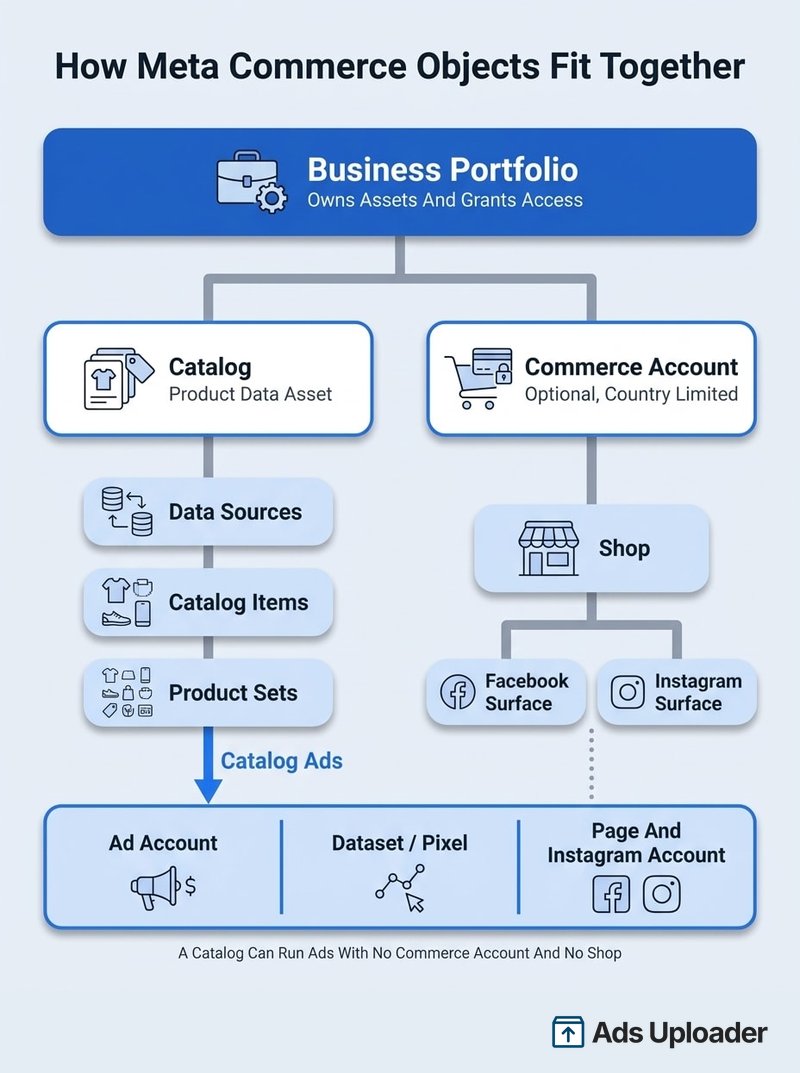
A few structural rules that save real time:
- A commerce account selects one catalog for its shop.
- A business portfolio can hold multiple catalogs and, after messy onboarding, sometimes multiple commerce accounts.
- A catalog can be used by multiple ad accounts, as long as each has permission.
- One catalog serving both ads and a shop is usually the right call. It keeps item IDs, availability, product sets, and event matching consistent.
- Creating a catalog in Commerce Manager and creating one under Business Suite settings produce the same underlying asset. Commerce Manager is the operational view; settings is the ownership and permissions view.
Meta does not publish reliable current caps on catalogs per portfolio or total items per catalog, so treat any specific number you find in an older post with suspicion.
How to Access Commerce Manager
The direct URL is business.facebook.com/commerce. If you would rather navigate, the reliable paths are:
- Meta Business Suite, then All tools, then Commerce Manager
- Business Suite, then Settings, then Data sources, then Catalogs
- Ads Manager, then All tools, then Commerce Manager
If Commerce Manager is not visible, the cause is almost always one of three things, and none of them is an account ban. Check the selected business portfolio first, since assets live inside a specific portfolio and the switcher does not always land where you expect. Then check whether the catalog or commerce account has actually been assigned to you. Finally, check the level of access you were given, because partial access on a catalog is not the same as full control and hides several settings.
Creating and Managing a Catalog
Creating a catalog is quick. Creating one that keeps working is the actual skill.
In Commerce Manager, choose to create a catalog, pick the catalog type (ecommerce sellers want Online products), select the owning business portfolio, name it, then add items and connect an event source and ad account.
Name catalogs so a stranger can identify them a year later. "Catalog 2" tells the next person nothing. Include the brand, the market, and the source, along the lines of "Northline Home, UK, Shopify sync".
Launch More. Click Less.
Upload hundreds of creatives at once, auto-match thumbnails to videos, and publish straight to your ad accounts through Meta's API.
Try Ads Uploader FreeNo credit card required • 7-day free trial
The Ways to Add Products
There are five realistic ways to get items into a catalog, and choosing wrong is the root of most later pain.
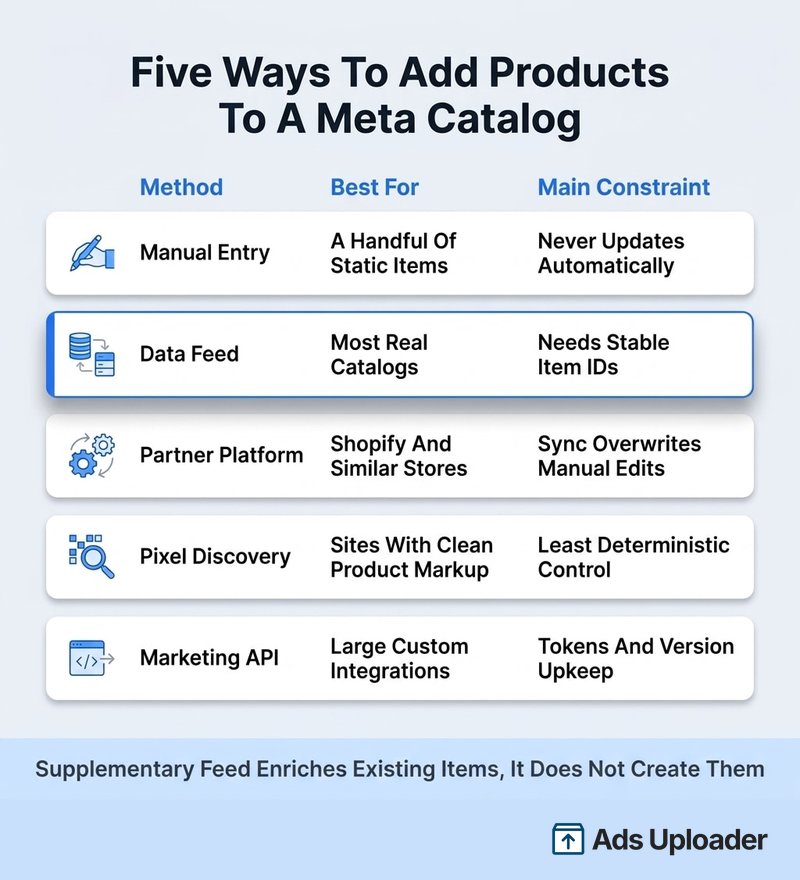
Manual entry suits a handful of items that rarely change. Nothing upstream will ever update them, so it does not survive contact with a real inventory.
Data feed is the workhorse. Meta's product catalog reference documents CSV, TSV, RSS XML, Atom XML, and Google Sheets. Feeds can be uploaded once or fetched from a URL on an hourly, daily, or weekly schedule. Ignore older tutorials that list XLSX as a canonical format.
Partner platform covers Shopify and comparable systems, where the store becomes the source of truth and pushes changes automatically.
Pixel-based item discovery builds a catalog from structured product metadata on your site. It depends entirely on your markup being correct and gives you less deterministic control than a feed.
Marketing API is for large or custom integrations, and carries the usual cost of tokens, batching, versioning, and monitoring.
A supplementary feed is a different animal. It does not create products. It enriches or overrides selected attributes on items that already exist, keyed to the exact same item id. It is the correct way to add custom labels or better titles on top of a partner-managed catalog.
The required ecommerce fields are id, title, description, availability, condition, price, link, image_link, and brand. Titles allow up to 200 characters but get truncated around 65 in many placements, so front-load the useful words. Images need to be JPEG or PNG, at least 500 by 500 pixels, under 8 MB, and served from a stable public URL. Change the URL when the image changes, or caching will keep serving the old one.
Product Sets and Why Advertisers Care
A product set is a saved subset of a catalog defined by filters, and it is the unit your ad sets actually target. It does not duplicate items; it queries them.
Useful filters include brand, product type, price band, availability, sale status, and the custom_label_0 through custom_label_4 fields. Those custom labels are the most underused fields in the entire spec. They are where margin tiers, seasonal flags, bestseller status, and stock-depth rules belong, because anything you put there becomes a filter you can build sets from later.
Common set patterns worth having ready: core bestsellers, high-margin only, clearance, new arrivals, and an exclusion set for products you never want advertised at all. Resist splitting a catalog into a dozen tiny sets, though, since a set without enough eligible items will starve delivery.
Keeping Catalog Data Accurate
Catalog hygiene is not a launch task, it is a recurring one. Three habits cover most of it.
Match your feed schedule to how fast your prices and stock actually move. A retailer running frequent promotions on an hourly feed is fine; a daily feed on the same store will advertise prices that no longer exist.
Use the Issues filter in the Products tab as a weekly check rather than an emergency tool. It surfaces rejected items, policy problems, and missing required fields before a client notices the range has shrunk.
Fix bad data upstream where you can. Product data rules can rename headers, normalize availability values, or add and remove ID prefixes at ingestion, which is genuinely useful, but a rule patches the symptom inside Meta while your source database stays wrong for every other channel reading the same feed.
Meta Commerce Manager and Shopify
Shopify is the most common path into Commerce Manager, and it comes with its own failure modes.
The supported route is the Facebook and Instagram by Meta sales channel. In Shopify Admin, open Settings, then Sales channels, add the Facebook and Instagram channel, start setup, connect the Facebook account, select the Meta business assets, accept the terms, and finish. Shopify's setup documentation walks the current flow.
Depending on what already exists, that connection can create or link a catalog, a commerce account and shop where eligible, a Page, an Instagram professional account, an ad account, and a dataset. You pick the Meta assets during onboarding, which means catalog ownership sits with the portfolio you select. Choose carefully, because this is where agencies accidentally create client catalogs inside their own portfolio.
Three things to know before you rely on it:
Shopify becomes the source of truth. Products, variants, titles, prices, images, availability, and URLs sync automatically, usually within minutes. A manual edit to a synced field in Commerce Manager can be overwritten on the next sync. Edit in Shopify, or use a scoped supplementary feed for the fields the integration permits.
Do not run the app sync and a full manual feed into the same catalog. Two primary sources against one catalog produces duplicate products with different IDs, conflicting price and availability updates, sets that grab the wrong duplicate, and pixel events matching only one version. Pick one primary source. If you need a second, make it supplementary and key it to identical IDs.
Inspect the actual item IDs. Some Shopify and third-party integrations produce prefixed identifiers along the lines of shopify_US_123456789_987654321, but the pattern varies by connector, market, and catalog generation. Do not hard-code an assumed prefix. Open a real catalog item, copy its Content ID, and compare it against what your pixel actually sends. If you are setting up tracking on the same store, the Meta Pixel on Shopify setup determines which identifiers those events carry.
A plain feed is often the better choice when you need deterministic IDs shared with other analytics systems, complex custom labels, country and language overrides, feed QA and rollback, or a catalog that is independent of shop eligibility. The native channel wins for a standard store that mostly wants fast, low-effort price and inventory sync.
How Advertisers Use the Catalog in Campaigns
Advantage+ catalog ads, which Meta still labels as formerly dynamic ads, read from a catalog through a chain that is worth understanding end to end:
- The catalog supplies eligible products, images, prices, and URLs
- A product set narrows which items can enter the auction
- Pixel or Conversions API events describe what people viewed, added to cart, and bought
- Meta matches event identifiers to catalog item identifiers
- Meta renders a matched product into a catalog template, carousel, or collection
- The destination sends the customer to the website, the shop, or both
Step four is where most accounts quietly fail.
Save Hours on Creative Testing
Stop uploading ads one by one. Bulk process unlimited creatives with automatic media matching and direct API publishing.
Try Ads Uploader FreeNo credit card required • 7-day free trial
Catalog Match Rate, the Silent Killer
Catalog match rate is the share of product identifiers arriving from your event source that Meta can resolve to items in the selected catalog. It is not the same thing as Event Match Quality, which scores customer-information parameters, not products.
Commerce Manager currently warns that a rate below 90% limits the catalog products available for targeting, so treat 90% as the practical floor and investigate anything under it. Meta's match rate troubleshooting guide covers the official diagnostics.
The identifier in content_ids has to equal the catalog item's id when content_type is product, or the group identifier when you are intentionally using product_group. Mismatches usually come from one of these: the pixel sends a parent product ID while the catalog stores variant IDs, the pixel sends a SKU while the catalog uses an internal database ID, a prefix exists on one side only, content_type is set to group while the IDs are variants, or browser and server events send structurally different identifiers.
The diagnostic sequence is short and works. Open a real catalog item and copy its exact Content ID. Open Events Manager Test Events, view that product, add it to cart, and complete a test purchase. Read the actual content_ids, contents[].id, and content_type in the payload. Decide whether you are matching variants or groups, then make the feed and the events agree. Check browser and server events separately, since the Conversions API can carry different identifiers than the browser pixel on the same store. The standard events that matter here are ViewContent, AddToCart, and Purchase, each carrying the right identifiers plus value and currency.
One thing not to do: deleting and recreating a production catalog as a first fix. That breaks ad associations, product sets, the shop connection, and historical diagnostics without touching the ID mismatch that caused the problem.
Managing Access and Permissions
Meta's current access labels are partial access and full control, applied per asset. Partial access on a catalog is typically enough to build ads and use products, sets, and diagnostics. Full control adds data sources, item editing, settings, and the ability to grant access to others.
Assign a person through Business Suite settings, then Data sources, then Catalogs, then the catalog, then Assign people. Commerce account access is granted separately, so someone can hold catalog access and still be unable to touch the shop.
For agencies, the pattern that survives an offboarding is straightforward: the client's business portfolio owns the catalog, commerce account, Page, Instagram account, ad account, dataset, and verified domain, and the agency receives partner access via its business ID. The client adds the partner through Settings, then Users, then Partners, then gives that partner access to the specific assets, with the least permission that does the job.
Get this wrong and offboarding is genuinely painful. If the agency's portfolio owns the catalog, the client can lose the data source configuration, product sets, historical issue data, the pixel-to-catalog connection, and the shop link in one go. Meta offers no dependable catalog merge or universal ownership transfer, so ownership needs to be right before launch, not after the relationship ends.
Troubleshooting Common Commerce Manager Problems
Most Commerce Manager problems present as one of a small number of symptoms.
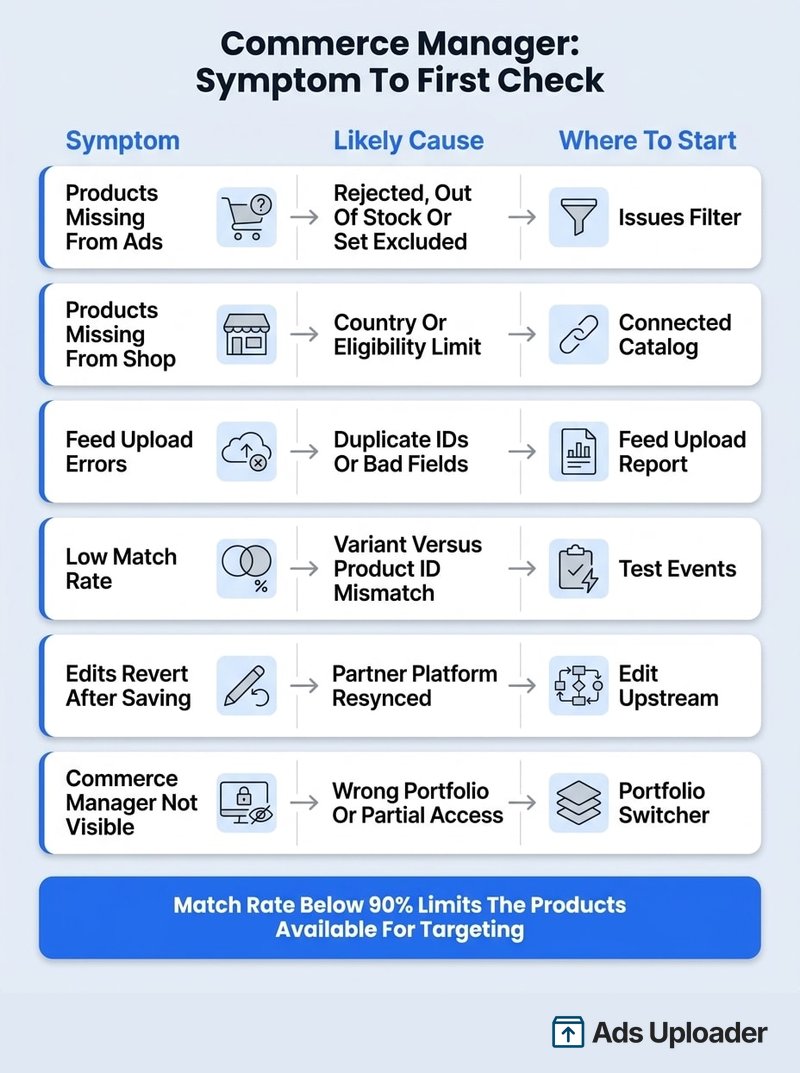
| Symptom | Likely cause | Where to start |
|---|---|---|
| Products missing from ads | Archived, rejected, out of stock, missing required fields, excluded by the product set, or wrong catalog selected | Commerce Manager Issues, then preview the product set |
| Products missing from the shop | Unsupported country, eligibility failure, shop in review, or wrong catalog connected | Supported country list, then the shop's connected catalog |
| Item rejected | Commerce policy issue, misleading listing, landing page mismatch, or missing product information | Item-level rejection reason, then fix the source listing |
| Feed upload errors | Duplicate or missing IDs, invalid headers, malformed delimiters, bad price or availability values, unreachable image URL | Feed upload report, then test the source URL logged out |
| Low or zero match rate | Variant versus product ID mismatch, SKU versus ID, prefix discrepancy, wrong content_type or dataset | Compare a live Content ID against Test Events |
| Edits revert after saving | A partner platform or feed resynced its own values | Edit upstream, or use a supplementary feed |
| Commerce Manager not visible | Wrong portfolio selected, asset not assigned, or partial access where full control is needed | Portfolio switcher, then Data sources, then Catalogs |
One honest gap worth naming. During shop onboarding, some merchants hit "There are potential issues with your checkout URL" and Meta has not published a definitive cause list. A widely viewed Square community thread ran from late July 2025 into August without a confirmed root cause from either company. Reasonable checks are to test the URL while logged out, use HTTPS on the verified selling domain, avoid forced login or geo-blocking, preserve cart parameters, and try the platform's recommended cart URL rather than the final checkout step. Treat that last one as a workaround, not a documented fix.
Frequently Asked Questions
Is Meta Commerce Manager free? Yes. Meta does not charge to create or maintain a catalog, commerce account, or eligible shop. You still pay for ad delivery, and you still carry your own ecommerce platform and payment processing costs.
What is the difference between Commerce Manager and Business Manager? Business portfolio settings, the modern form of Business Manager, control ownership, people, partners, and asset permissions. Commerce Manager operates the catalog and shop. Meta Business Suite is the wider workspace that links to both.
Do I need a shop to run catalog ads? No. You need a catalog with eligible items, ad account access, and normally an event source. Meta's sales objective documentation does not list a shop as a prerequisite.
Where is Commerce Manager on Facebook? Go to business.facebook.com/commerce, or open Meta Business Suite, then All tools, then Commerce Manager. Catalog ownership and access sit under Business Suite settings, then Data sources, then Catalogs.
Can one catalog be used for both ads and shops? Yes, and it is usually the better setup. A single production catalog keeps item IDs, availability, product sets, and event matching consistent. A shop connects to one catalog, while multiple permitted ad accounts can use that same catalog.
How do I connect Shopify to Meta Commerce Manager? Add the Facebook and Instagram by Meta sales channel in Shopify, sign in to Facebook, select the correct Meta business portfolio and assets, enable product sync, and complete review. Confirm afterwards which catalog was created and who owns it.
Why are my products not showing in my ads? Usual suspects are out-of-stock or rejected items, feed errors, exclusion by the product set, missing catalog permission, the wrong catalog selected at ad set level, or an ID mismatch between events and catalog items. Start in Issues, then compare a real Content ID against Test Events.
Can I have more than one catalog? Yes. A business portfolio can hold multiple catalogs, and Meta does not publish a dependable current maximum. Operationally, run one catalog per coherent source of truth and use product sets for segmentation instead of splitting into more catalogs.
Is Facebook Commerce Manager the same as Meta Commerce Manager? Yes. The names are interchangeable, following Meta's company rebrand. Older documentation and third-party guides still use the Facebook version.
Key Takeaways
Meta Commerce Manager rewards a specific mental model. Hold on to these:
- The catalog is the durable asset. It powers ads everywhere, regardless of shop eligibility in your market.
- The shop is optional and country-limited. Since September 2025 it routes buyers to website checkout, which makes it a discovery and merchandising layer rather than a sales back office.
- Feeds beat manual entry. Manual items never update, and partner syncs overwrite manual edits.
- Product sets are the targeting unit. Custom labels are what make good sets possible, so populate them at feed level.
- Match rate is the silent killer. Below 90% Meta limits the products available for targeting, and the cause is almost always an identifier mismatch you can verify in ten minutes.
- Ownership belongs to the client. Catalogs created in an agency portfolio are painful to unwind and Meta offers no clean transfer.
The most useful next step is not a campaign change. Open Commerce Manager, run the Issues filter on your main catalog, then check the match rate on the connected dataset. Those two numbers explain more delivery problems than any amount of ad set restructuring.