Carousel Ads
Build carousel ads with 2-10 cards that users swipe through. Each card has its own image or video, headline, description, and destination link.
Accessing the Builder
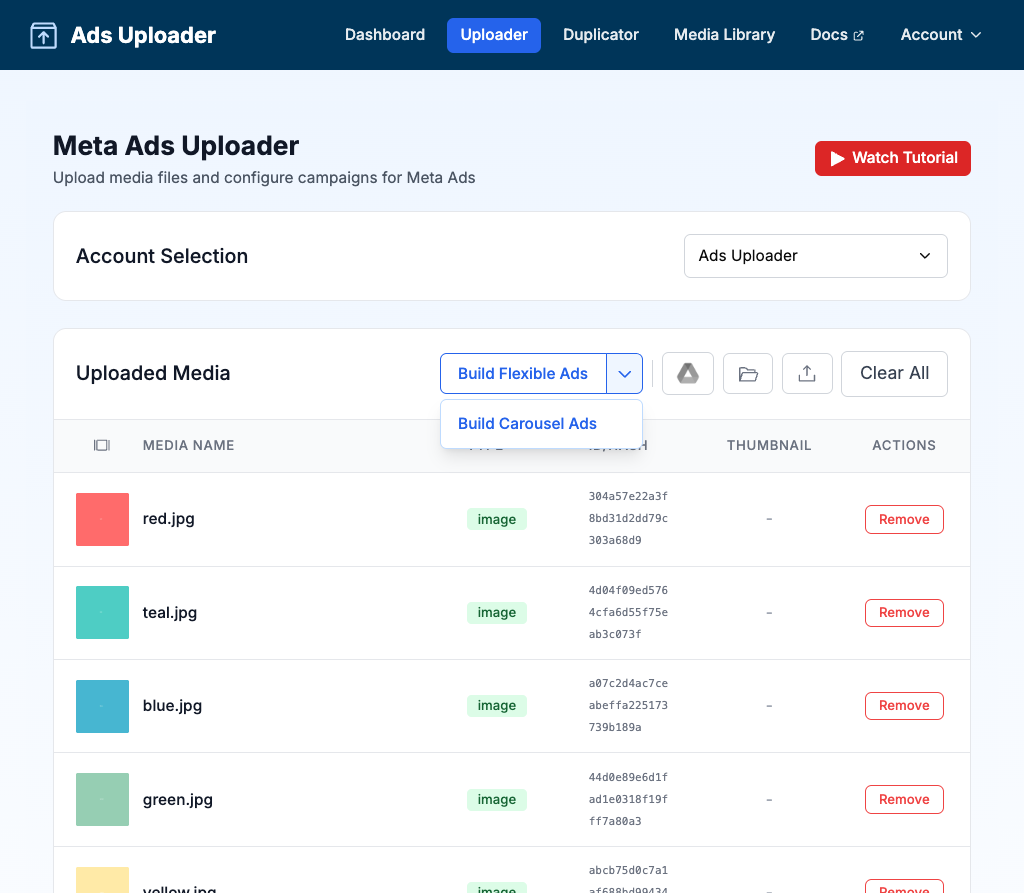
After uploading media, click the dropdown arrow next to the Build Flexible Ads button in the toolbar and select Build Carousel Ads. The button label switches to reflect the active builder. Once selected, clicking the button opens the Carousel Ads builder.
How It Works
Upload media to your library, then use the Carousel Ads builder to arrange assets into cards. Each card becomes a swipeable panel in the final ad. You can customize text per card or apply common text across all cards.
Per-Placement Aspect Ratios
Carousel cards support the same aspect ratio variations as single image and video ads, so each card can adapt to the placement it lands in (square in feeds, vertical in Stories and Reels).
You don't do anything special in the builder. Upload each card's ratios using the normal variant-grouping naming convention (for example card1_1x1.jpg and card1_9x16.jpg), and Ads Uploader treats them as one card with multiple variants. When you add that card to a carousel, its variants come along automatically and apply at launch.
This works across campaign objectives, including website-traffic and lead-form campaigns.
Requirements
| Requirement | Value |
|---|---|
| Cards per Ad | 2-10 |
| Media Types | Images, videos, or mixed |
| Ad Account | All cards from the same account |
Building Carousel Ads
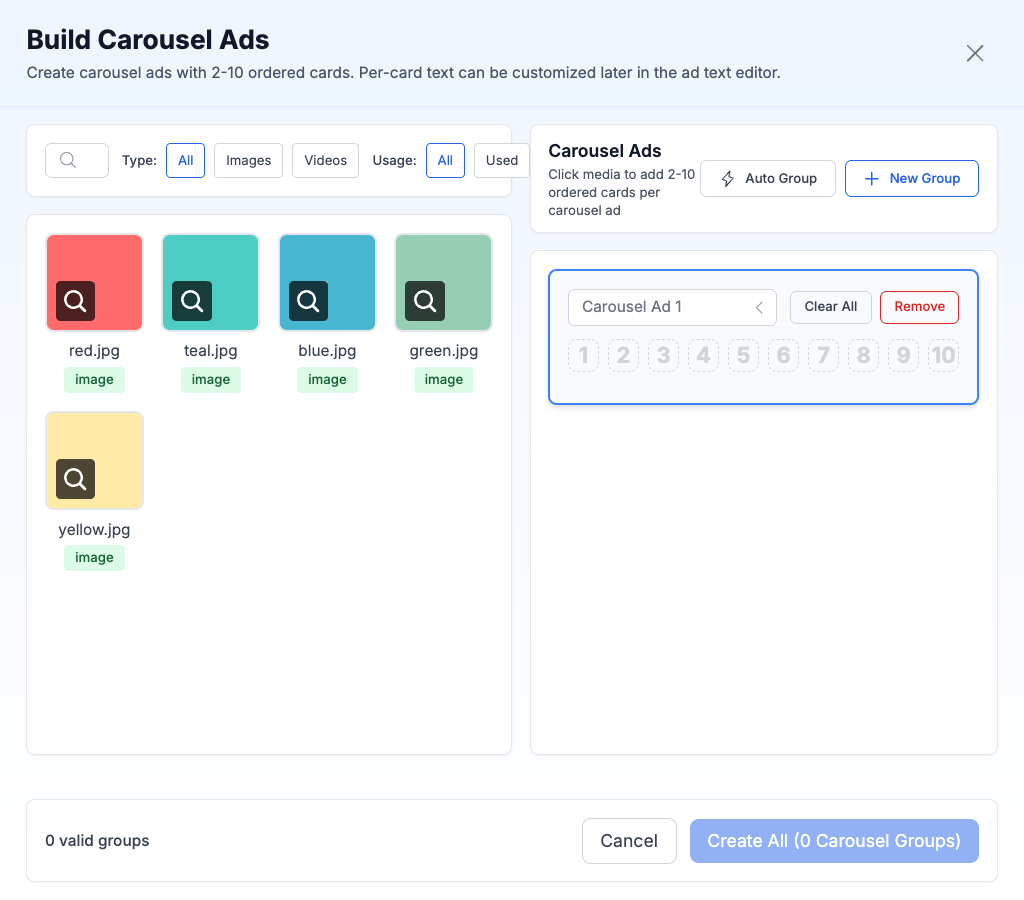
- Click "Build Carousel Ads" in the Uploader toolbar
- Click media from the left panel to add cards to the active group
- Arrange card order in the right panel
- Click "Create All" when groups have 2-10 cards each
Interface Layout
| Left Panel | Right Panel |
|---|---|
| Media grid with search | Group editor with 10-slot rows |
| Type and usage filters | Editable group names |
Card Slots
Each group displays as a row with 10 slots:
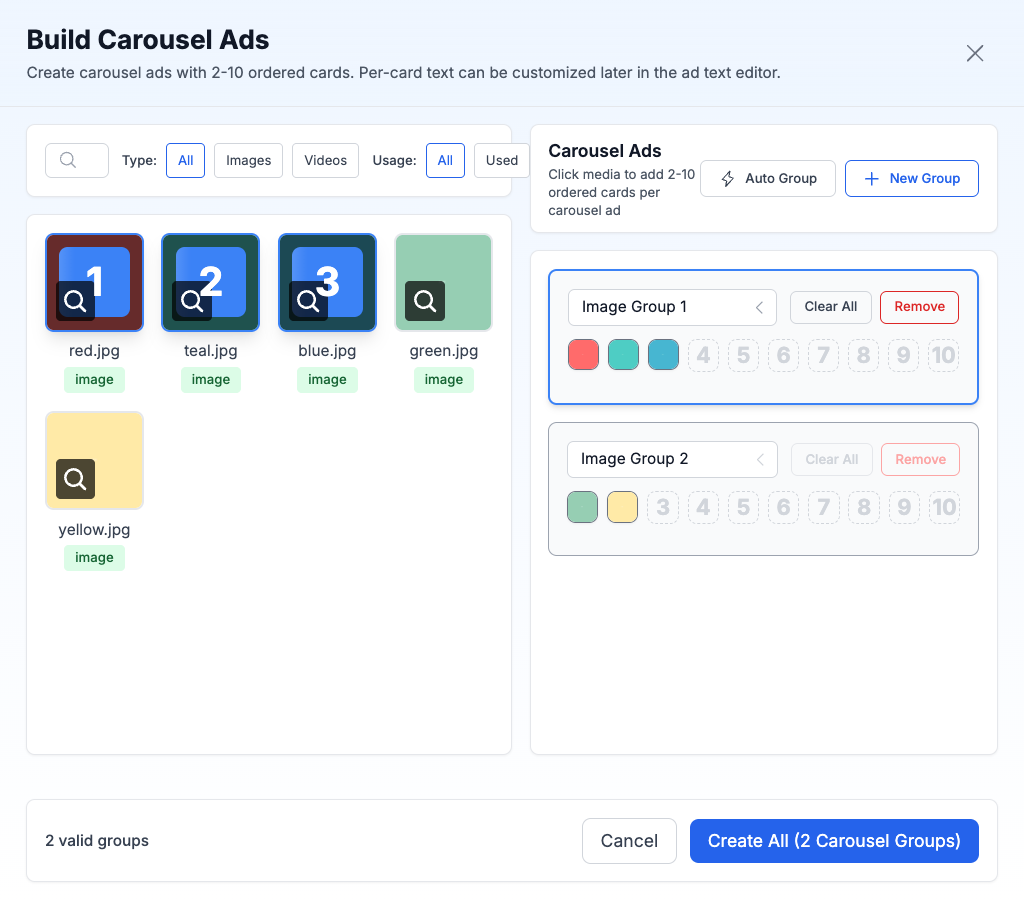
- Filled slots show thumbnails with position badges
- Empty slots accept new media
- Minimum 2 cards required
- Card order determines swipe sequence
Multiple Groups
Build several carousel ads at once. Each group becomes a separate carousel ad in your library. Click a group to make it active before adding media.
Media Selection
Filters
| Filter | Options |
|---|---|
| Type | All, Images, Videos |
| Usage | All, Used, Unused |
| Search | Name, Facebook ID, hash |
Supported
- Images (JPG, PNG, WebP)
- Videos (MP4, MOV, M4V)
- Mixed combinations within a single carousel
Not Supported
- Other Carousel or Flexible Ads (no nesting)
- Media from different ad accounts
Auto-Grouping
Distribute media across multiple carousel groups automatically instead of adding cards one at a time.
- Select media in the left panel
- Click "Auto Group"
- Configure options and apply
Options
| Setting | Options | Default |
|---|---|---|
| Group Size | 2-10 cards | 6 |
| Mode | Mixed, Separate (by type) | Separate |
| Order | Upload order, Random | Upload |
Per-Card Text
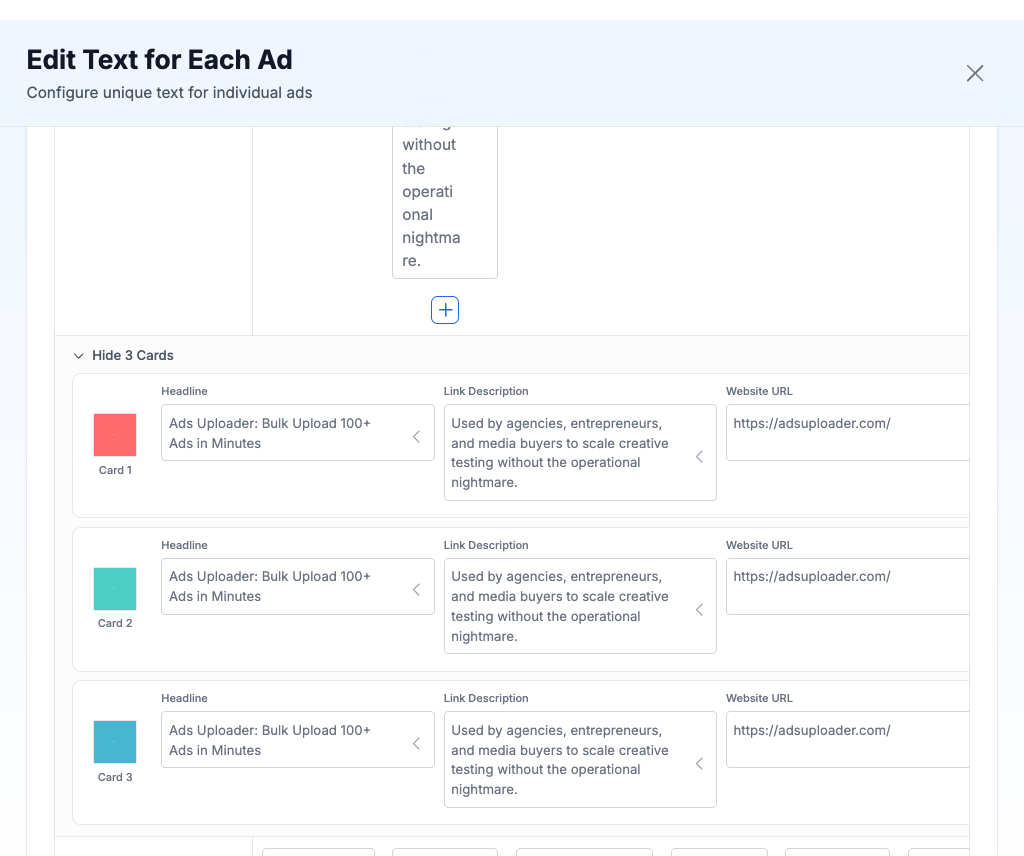
Carousel ads support per-card text customization when using the "Write unique ad text for each ad" text mode.
How to Edit Card Text
- Select "Write unique ad text for each ad" in the Ad Text Options
- In the text editor table, find your carousel ad row
- Below it, click "Show N Cards" to expand the per-card editor
- Edit each card's headline, description, and link individually
Card Text Fields
| Field | Description |
|---|---|
| Headline | Card-specific headline (falls back to common headline) |
| Link Description | Card-specific description text |
| Website URL | Card-specific destination link |
Any field left blank inherits the common text from the main carousel row.
After Creation
Created Carousel Ads appear in your library with:
- 2x2 grid thumbnail of the first 4 cards
- Card count indicator
- Hover preview showing all card thumbnails
Carousel vs Flexible Ads
| Feature | Carousel Ads | Flexible Ads |
|---|---|---|
| User sees | All cards (swipeable) | One asset (Meta picks) |
| Per-card text | Yes | No |
| Per-card links | Yes | No |
| Card order | You control | Meta decides |
| Cards shown | All cards visible | Single asset shown |
Tips
| Do | Don't |
|---|---|
| Use per-card links for different landing pages | Nest carousels inside carousels |
| Keep consistent card dimensions | Mix ad accounts |
| Add per-card headlines for context | Leave cards without thumbnails |
| Use 3-5 cards for best performance | Exceed 10 cards |