Multi Media Ads
A Multi Media ad is a Meta ad format that packages 2 to 10 images or videos into one ad. Each asset can have its own primary text, headline, description, website URL and display link, so every creative can carry the message that suits it.
When to Use Multi Media
Ads Uploader has three builders that combine several files into one ad. Here is how Multi Media compares:
| Multi Media | Flexible | Carousel | |
|---|---|---|---|
| Assets per ad | 2 to 10 | 2 to 10 | 2 to 10 cards |
| Text and link per asset | Yes: primary text, headline, description, website URL, display link | No: one set of text for the whole ad | Yes: headline, description, website URL per card |
| You set a swipe order for the cards | No | No | Yes |
Choose Multi Media when:
- Your campaign objective rejects flexible format. Meta does not allow flexible format for some objectives, such as website leads. Ads Uploader suggests Multi Media as the alternative when Meta returns that error.
- You want different text or links on each asset, without building a swipeable carousel.
Choose a carousel when people should swipe through cards in a set order. Choose flexible when one message fits all your assets and your objective supports it.
Open the Builder
After you upload media, use the Build split button in the toolbar above the Uploaded Media table:
- If the button reads Build Multi Media Ads, click it.
- Otherwise, click the arrow next to it and choose Build Multi Media Ads.
The button remembers the builder you used last in this browser, so next time it shows Build Multi Media Ads.
Build Multi Media Ads
The Build Multi Media Ads window has your media on the left and your groups on the right. Each group becomes one Multi Media ad.
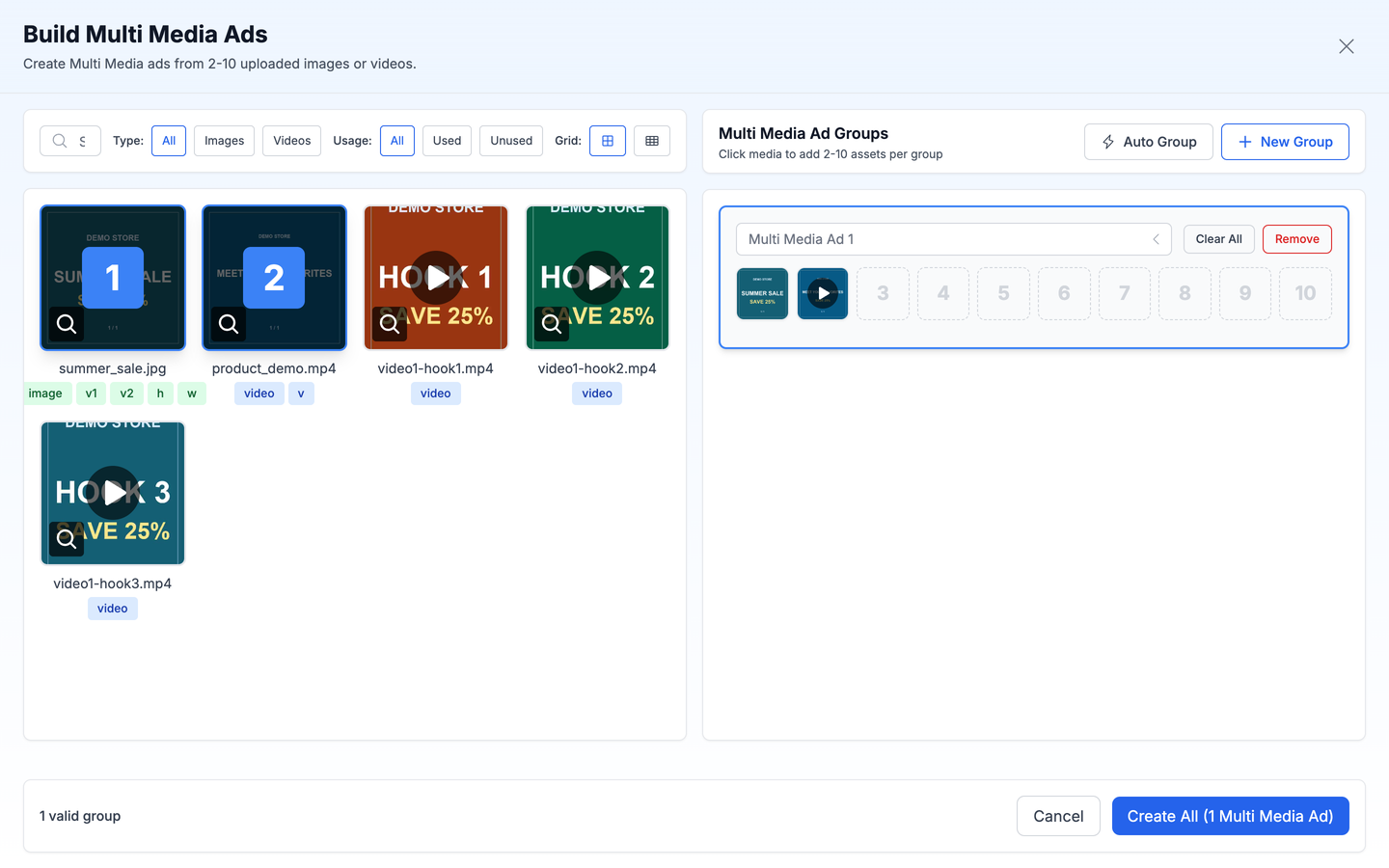
- Click New Group to start a group, or use Auto Group (see below).
- Click a group on the right to make it active.
- Click media on the left to add it to the active group. Each group needs 2 to 10 assets, and the same file can be used only once per group.
- Repeat for more groups. You can rename a group by editing its name.
- Click Create All (N Multi Media Ads). N is the number of valid groups.
- Choose what happens to the original files (see below), then click Continue.
Each group row has 10 slots and two buttons that work on the active group: Clear All empties the group and Remove deletes it.
Find Media
The filters above the media grid work the same as in the other builders: search by name, Meta media ID or image hash, filter by Type (All, Images, Videos) and by Usage (All, Used, Unused).
You cannot add another flexible, carousel or Multi Media ad to a group, or media from a different ad account.
Auto Group
Click Auto Group to spread your media across several groups automatically. The options are the same as for flexible ads: Assets per group (2 to 10, default 6), Grouping Strategy (Separate by Type or Mix Videos and Images) and Order (Upload Order or Random). See Auto Group.
Keep or Replace Your Originals
After you click Create All, the Multi Media Ad Build Options window asks what to do with the individual files you used:
- Keep Original Media (the default): add the Multi Media ads to your session and keep the individual files too. Each file can still become its own ad.
- Replace with Multi Media Ads: remove the individual files that are now inside a Multi Media ad, so they do not also become separate ads.
Either way, the individual files stay available in your Media Library.
Each Multi Media ad then appears as a row in the Uploaded Media table. The Type column reads Multi Media, and the thumbnail is a 2x2 grid of the first four assets.
Write Text for Each Asset
By default, a Multi Media ad uses the same text as your other ads. To give each asset its own text:
- In the ad text options, select Write unique ad text for each ad.
- In the text table, find your Multi Media ad's row.
- Below it, click Show N Assets to open the asset editor.
- For each asset, fill in any of these fields:
| Field | What it sets |
|---|---|
| Primary Text | The main text shown with this asset |
| Headline | The headline for this asset |
| Description | The description for this asset |
| Website URL | Where this asset links to |
| Display Link | The link text shown instead of the full URL |
Any field you leave blank uses the ad's main text and URL.
One asset in each ad is the primary asset. If the ad mixes images and videos, it is the first image; otherwise it is the first asset. The primary asset always uses the ad's main text and link. If you type text for the primary asset, that text becomes the first option in the ad's main text.
Build Multi Media Ads from the CLI
You can also create Multi Media ads from a spec file, with per-asset text in assetTexts. See Multi Media Ads in the CLI reference.