User Defaults
Defaults are settings that apply every time you use the uploader, so you do not have to set them again for each launch. Open them at Account > Defaults.
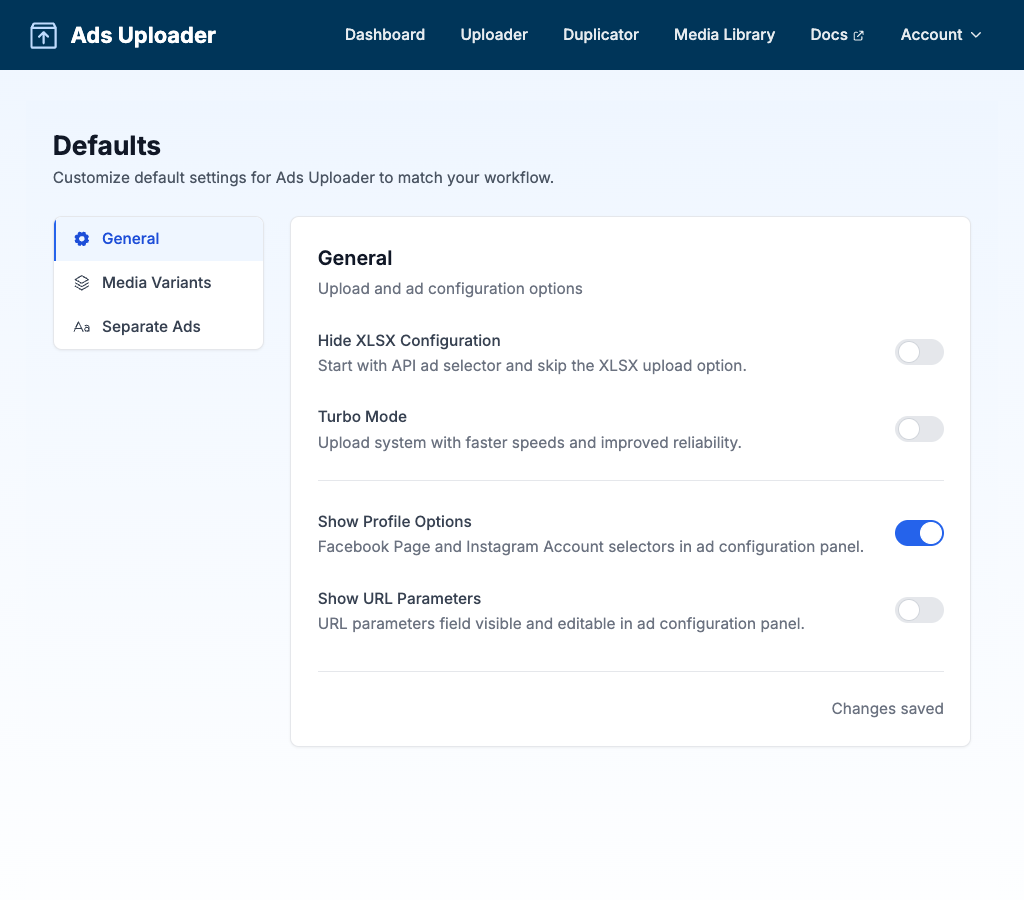
The settings are organized into four tabs: General, Favorite Accounts, Placements, and Separate Ads.
General
Upload and ad configuration options. Each toggle saves as soon as you switch it.
Hide XLSX Configuration
Hides the spreadsheet method so the uploader starts with the source ad selector. Use it if you only set up ads from an existing ad.
- On: Upload Ad Configuration XLSX and your saved XLSX presets are hidden.
- Off (default): The XLSX method and XLSX presets are available.
Turbo Mode
Switches between the faster Turbo upload system and uploading straight to Meta.
- On: Faster, more reliable uploads.
- Off: Files upload directly to Meta.
Unlike the other defaults, this choice is saved in this browser only, not in your account. If you switch browsers or clear your browser data, set it again. See Turbo Mode.
Show Ad Set Targeting
Adds an Edit Ad Set Targeting button to Ad Set Options, so you can set countries, cities, zip or post codes, age, gender and detailed targeting for new ad sets instead of copying the source ad set's audience. When a launch creates more than one ad set, each one can have its own targeting.
- On: The Edit Ad Set Targeting button appears when you create new ad sets.
- Off (default): New ad sets use the source ad set's full audience.
See Ad Set Targeting for the full guide.
Show Profile Options
Shows the Profile Options section, where you choose the Facebook Page and Instagram account your ads run from. This helps if you manage several pages or Instagram accounts. A Threads Profile selector also appears when your source ad has a Threads profile.
- On (default): Page and Instagram selectors appear in the Ad Configuration panel.
- Off: The selectors are hidden and new ads use the source ad's profiles. Partnership ads still show them.
If your source ad has a Threads profile, the new ads inherit it. If you do not want that (or it causes an error on the ad account), keep Profile Options on and set Threads Profile to None before you launch.
Show URL Parameters
Shows the URL Parameters field (UTM tags) in Ad Texts & Settings so you can edit it.
- On: You can edit URL parameters for your new ads.
- Off (default): New ads keep the source ad's URL parameters.
Enable Split Destination Testing
Lets you test several landing pages by creating a copy of each ad set per URL, so Meta optimises every ad and landing page pair on its own. When it is on, a Single Destination / Split Destination toggle appears in Ad Set Options when you create new ad sets. Off by default. See Split Destination.
Thumbnail Matching
When you upload a video together with an image named like videoName_thumbnail.jpg, the image is attached as the video's thumbnail. These two fields set the naming rule. Changes save when you click out of the field.
| Setting | Default | Description |
|---|---|---|
| Separator | _ | The character(s) between the video name and the suffix. Up to 3 characters. |
| Suffix | thumbnail | The word that marks a thumbnail file. Up to 20 characters. |
Examples:
| Separator | Suffix | Video | Thumbnail |
|---|---|---|---|
_ | thumbnail | promo.mp4 | promo_thumbnail.jpg |
- | thumb | promo.mp4 | promo-thumb.jpg |
_ | cover | promo.mp4 | promo_cover.jpg |
Favorite Accounts
Choose which ad accounts appear first in the ad account selector across the app. Click the star next to the accounts you use most, and they are pinned to the top of every account picker. This helps when you manage many accounts but work in only a few each day. Use Search accounts... to find an account quickly. Stars save as soon as you click them.
Placements
Controls how Ads Uploader detects aspect ratio variants in your filenames and which Meta placement each variant serves at launch.
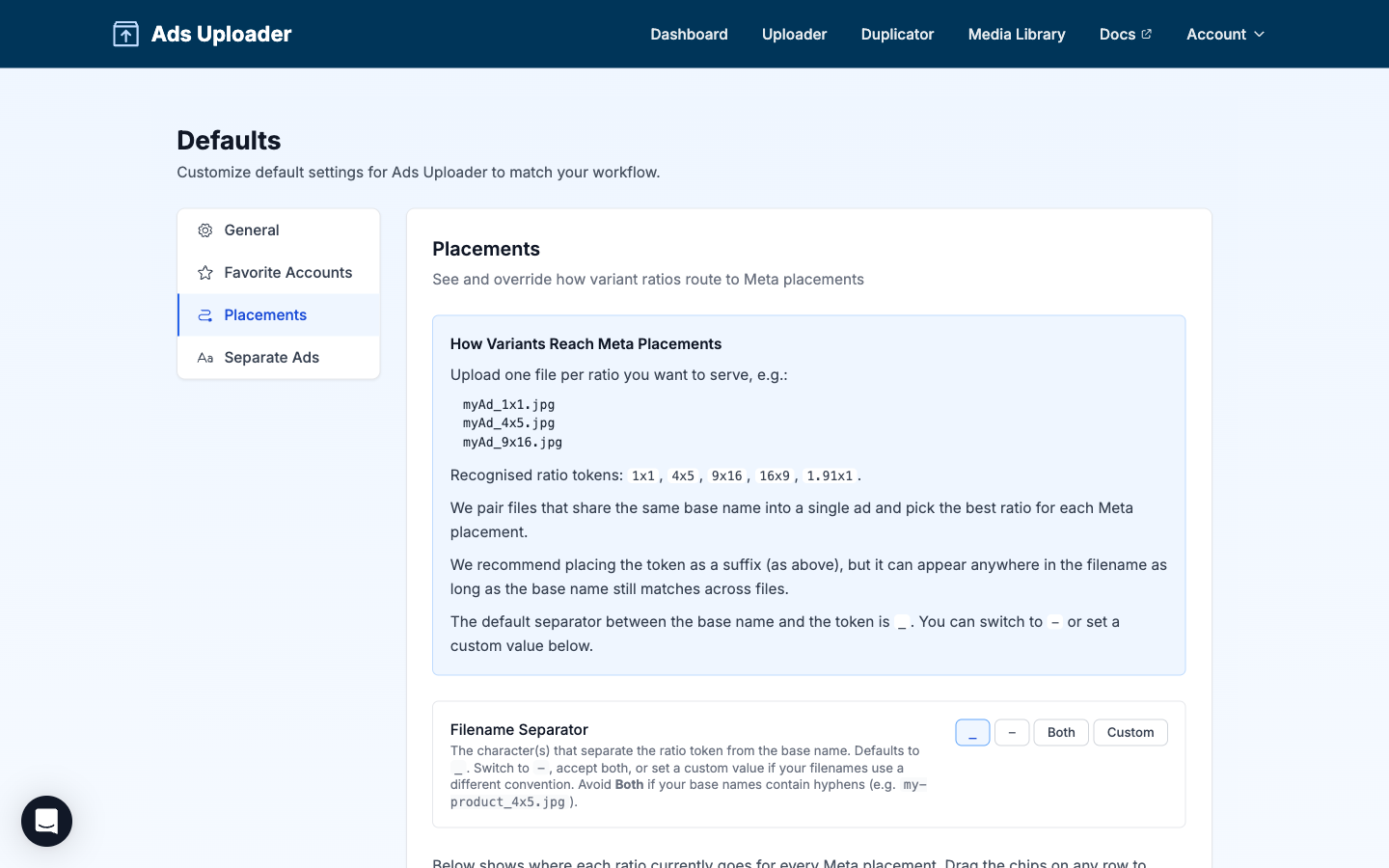
How Variants Reach Meta Placements
Upload one file per ratio you want to serve. Files that share the same base name are paired into a single ad with multiple variants, then each Meta placement receives the variant that best matches its preferred ratio.
Recognised ratio tokens: 1x1, 4x5, 9x16, 16x9, 1.91x1 (also 191x100 and 19x10).
The token can appear at the end of the filename (recommended), in the middle, or at the start, as long as the base name matches across files in the group. The legacy _vertical and _horizontal suffixes still work and map to 9x16 and 16x9.
See Aspect Ratio Variations for the full naming guide.
Filename Separator
The character(s) between the base filename and the ratio token. The default is an underscore (_).
| Option | Behavior |
|---|---|
_ (default) | creative_4x5.jpg |
- | creative-4x5.jpg |
| Both | Accepts either _ or -. Avoid it if your base names contain hyphens, such as my-product_4x5.jpg. |
| Custom | Set your own separator (up to 3 characters). |
Click Save Changes at the bottom of the Placements tab to keep your changes.
Routing Matrix
The matrix shows where each ratio currently goes for every Meta placement. Each row lists the placement on the left and a chain of ratio chips on the right, in priority order.
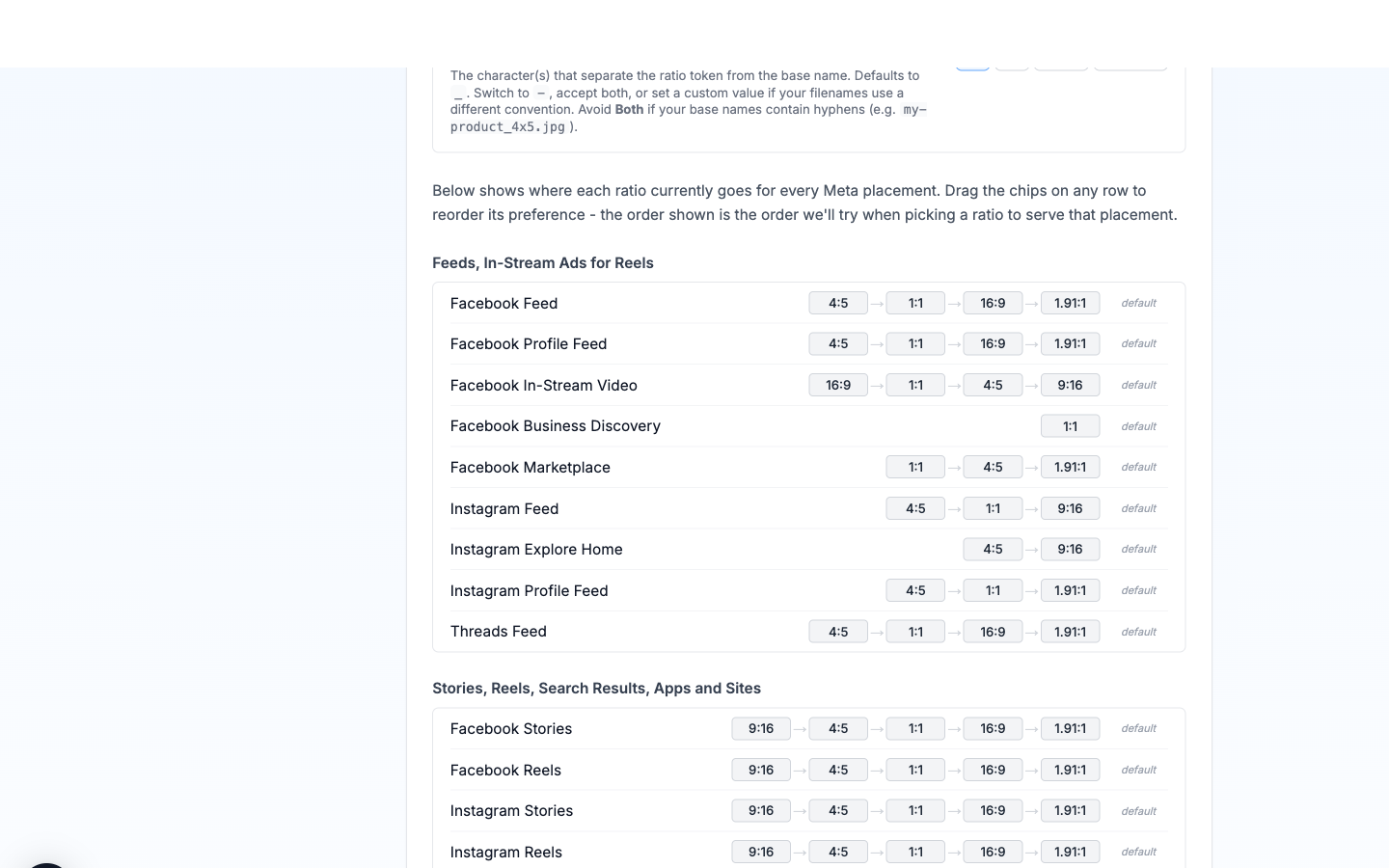
How the chain is read: Ads Uploader walks the chain from left to right and serves the first ratio in the chain that you actually uploaded for that ad. For example, if Facebook Feed's chain is 4:5, 1:1, 16:9, 1.91:1 and you uploaded a 1:1 and a 16:9 for an ad, Facebook Feed gets the 1:1 (the first ratio in the chain that's available). If you uploaded only a 9x16, the chain falls through and Meta's own placement defaults take over.
Reordering: Drag the chips on any row to set your own priority order for that placement. Rows you have not changed say default. A changed row shows a reset icon; click it to restore the default order for that placement. Once you change any row, a banner at the top says how many placements are customised, with a reset icon that restores every row at once.
Placement groups: Rows are grouped by the same families Meta uses in Ads Manager:
| Group | Placements |
|---|---|
| Feeds, In-Stream Ads for Reels | Facebook Feed, Facebook Profile Feed, Facebook In-Stream Video, Facebook Business Discovery, Facebook Marketplace, Instagram Feed, Instagram Explore Home, Instagram Profile Feed, Threads Feed |
| Stories, Reels, Search Results, Apps and Sites | Facebook Stories, Facebook Reels, Instagram Stories, Instagram Reels, Instagram Profile Reels, Instagram Search Results, Instagram Shop, Messenger Stories, Audience Network Native, Banner and Interstitial, Audience Network Rewarded Videos |
| Right Column, Search Results | Facebook Right Column, Facebook Search Results, Facebook Notifications |
Defaults Worth Knowing
A few placement chains have non-obvious defaults you may want to leave alone:
- Threads Feed: the chain is
4:5,1:1,16:9,1.91:1. There is no9:16because Threads crops vertical media to4:5. If you upload only9:16, the chain falls through and Meta's own fallback handles it. - Instagram Explore Home: the chain is
4:5,9:16. Meta limits Explore Home video to ratios between9:16and4:5, so1:1is left out. - Audience Network Rewarded Videos:
9:16comes first because the format is built for vertical full screen.
Separate Ads
When you use Separate Ads for your text (one ad for each headline and primary text combination), these settings decide how the extra ads are named. Click Save Changes to keep them, or Reset to Defaults to go back to the values below.
Settings
| Setting | Default | Description |
|---|---|---|
| Separator | _ | Character(s) between ad name and suffix (max 3) |
| Headline Prefix | H | Prefix for headline variations (max 10) |
| Primary Text Prefix | P | Prefix for primary text variations (max 10) |
Preview
With default settings, ads are named like:
- Headline variation only:
AdName_H1,AdName_H2 - Primary text variation only:
AdName_P1,AdName_P2 - Combined:
AdName_H1_P1,AdName_H1_P2,AdName_H2_P1, etc.
Custom Example
With separator -, headline prefix hl, and primary text prefix pt:
AdName-hl1-pt1,AdName-hl1-pt2,AdName-hl2-pt1, etc.
This naming pattern is used in both Excel/CSV exports and the in-app ad creation flow.