Saved Builds
A saved build is a snapshot of an in-progress configuration in the web uploader. It keeps the choices you have made so far, including your media selection, campaign structure, text, and any ad set targeting overrides, and gives that work a stable build_<hash> reference. The web uploader, CLI, and MCP all use the same reference.
A build is not a launched ad or a finished job. You can save a partial build, hand it to another surface, and continue working before you create anything.
Autosave in the Web Uploader
The uploader saves your current build quietly as you work. The build reference appears in two places:
- At the bottom of the Ad Configuration panel
- In the header of the per-ad and per-ad-set text editor, beside Reset All
Select the copy icon beside the reference to put it on your clipboard. You can then paste it into the CLI, an MCP conversation, or your own notes without copying the whole configuration.
Autosave keeps a working copy current. It does not launch ads or replace the normal preview and creation steps.
Autosaves and Named Builds
An autosave is the current unnamed working copy. A named build is an autosave you have explicitly saved with a useful name so it remains easy to find.
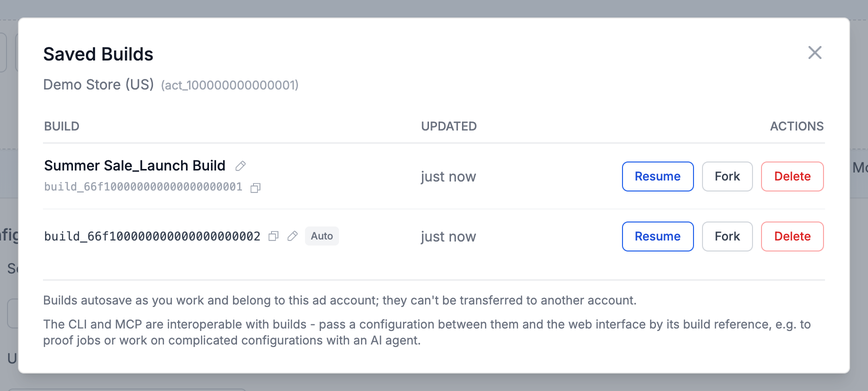
After the account has at least one build, a Saved builds icon (a stack of files) appears next to the ad account selector in Account Selection. Click it to open Saved Builds, which lists all named builds and your most recent autosaves for that account. From there you can:
- Resume a build
- Copy its build reference with the copy icon
- Save an autosave with a name
- Rename a named build with the pencil icon
- Fork a build into a new copy
- Delete a build
A Web only badge means the build can be finished in the web uploader but not launched from the CLI or MCP yet. Hover over it to see why.
Use a named build for work you want to return to later. Naming an autosave keeps it as a saved build instead of leaving it in the rotating set of recent autosaves.
Resume a Build
To resume from the web app, open Saved Builds and select Resume. The uploader restores the saved configuration into the live controls so you can continue editing it.
Resume continues working on that same build, so later autosaves update it in place. Select Fork when you want to use a build as a template while keeping the original intact. Fork creates a new unnamed draft with its own build reference, then opens the copy for you to edit.
You can also open a build directly with this URL format:
https://adsuploader.com/dashboard/uploader?build=build_...
The uploader switches to the ad account that owns the build before restoring it. If the build was based on an API preset, the uploader reselects that preset. If it was based on a Meta ad, the uploader reloads that source ad and then applies the saved configuration.
The direct URL is useful when an agent returns a build to you or when the original uploader tab is closed.
Work with an AI Agent
The per-ad and per-ad-set text editors include Claude and ChatGPT buttons. Each button opens a new conversation with the current build reference and an MCP editing prompt already filled in. Describe the text changes you want, and the agent can fetch and update that same build through the Ads Uploader MCP.
If the build is still open in the uploader, the page checks for external updates when you return to the tab or focus the window, and it also checks periodically while the page is visible. When the server has a newer version and you have no local edits waiting, the uploader applies the update automatically.
Select the refresh icon beside the build reference when you want to check immediately. The same control appears in the Ad Configuration footer and the text editor header.
If you have local edits when an external update arrives, the uploader does not overwrite them. It shows a banner, "This build was updated externally.", with Load changes and Keep mine:
- Load changes applies the newer saved build.
- Keep mine leaves your current local work in place and dismisses that update.
If your uploader tab is closed, ask the agent for the build URL. It does not need to share the URL after updating a build that is already open.
Move Work Between the Web, CLI, and MCP
Saved builds are the bridge between the three surfaces. You can start with uploaded media and a source configuration in the web app, pass the build_... reference to a CLI or MCP agent for a specific change, and then review the result in the same uploader tab or through a URL you requested.
The reference continues to identify the same build as it moves between surfaces. You do not need to recreate the preset, source ad, media choices, or text configuration for each handoff.
Partial Builds and Launchability
A build can be useful before it is ready to launch. You can resume and finish a partial build in the web uploader even when the CLI or MCP marks it as web-only.
For a CLI or MCP launch, the saved build needs a usable source configuration, such as an API preset or source ad, resolvable media for its ad account, and a complete configuration that the headless workflow supports. If any of those pieces are missing, the build reports why it is not launchable so you can return to the web uploader and finish it.
Always preview before creating ads. See Configure Your Ads and Launch Your Ads for the web workflow or CLI Configuration for the command-line workflow.
Video Media Identifiers
For videos, mediaItems[].mediaId must be the numeric Facebook video ID: use the upload response’s videoId, not its internal id. videoId is accepted as an alias, and linkedAssets[] follow the same rule. Internal upload IDs are resolved on save only when they belong to the authenticated user and selected account. Without a numeric ID or a batch link, an unresolved video makes the build unlaunchable.
A canonical video item with a 4x5 primary and linked 9x16 variant:
{
  "mediaName": "X__H01.mp4",
  "mediaType": "video",
  "mediaId": "1805649190475379",
  "thumbnailHash": "PRIMARY_THUMBNAIL_HASH",
  "placementType": "portrait",
  "isGroupPrimary": true,
  "assetGroupId": "ag_1",
  "linkedAssets": [
    {
      "mediaName": "X__H01-9x16.mp4",
      "mediaType": "video",
      "mediaId": "1234567890",
      "thumbnailHash": "STORY_THUMBNAIL_HASH",
      "placementType": "story"
    }
  ]
}
Partnership Builds
Saved builds keep partnership settings too: imported post references, creator and sponsor identities, header mode, text, enhancements and publication settings. Raw ad codes are never stored in a build or shown in output. A verified code may be reused for the same brand and post, but you may still need renewed permission or a fresh code at launch.
Complete Instagram existing-post builds, and uploaded-media partnership builds (including per-row partners and No Partner), can be previewed and launched from the web, CLI and MCP. Legacy Facebook-post builds stay web-only. Imported posts cannot be mixed with uploaded media. If an imported build has settings the web editor cannot show, the web uploader will not overwrite it; keep editing it through the CLI or MCP. For the partnership spec fields, see the CLI Reference.
Account and Access Notes
Saved builds belong to the ad account where they were created and cannot be transferred to another account. A direct link can switch the uploader to the correct connected account, but it does not change the build's ownership.
CLI and MCP access are reserved for paid users and are not available on trials. MCP uses the same access controls as the CLI, so disabling CLI access also disables MCP access. See MCP Configuration for connection and authentication instructions.