Troubleshooting Launching Ads
Meta's advertising platform has evolved over many years of development, with new features and requirements continuously added on top of existing systems. Every ad account has unique configurations and settings, so if you encounter an error not listed here, please contact support at support@adsuploader.com and we'll figure out what's going wrong as quickly as possible.
Common Errors
"Something went wrong"
Solution: Simply try creating the ads again. This generic error sometimes occurs due to temporary Meta-side issues and often works on retry.
"The ad creative is not compatible with the campaign objective"
Cause: Mismatch between the creative format and what the campaign expects. Common with specialized campaigns (WhatsApp, catalog ads, etc).
Solution: Verify your campaign uses a supported objective. If the objective is supported, try selecting a different source ad for configuration.
Ads Created But Not Visible in Ads Manager
If Ads Uploader shows successful creation but you can't find the ads, see Meta Platform Limits: Ads Not Appearing for troubleshooting steps.
Budget Issues
"Budget Below Minimum"
Cause: Ad set budget is below Meta's minimum requirements
Solution:
- Increase budget in Meta Ads Manager
- Check currency settings match your account
- Verify daily vs lifetime budget settings
Connection Errors
"Failed to Connect to Meta"
Cause: Authentication or network issues
Solution:
- Re-connect your Meta account (see Facebook Account Connections)
- Check internet connection
- Clear browser cache and cookies
- Try incognito/private browsing mode
Permission Errors
"Insufficient Permissions"
Cause: Account lacks necessary permissions
Solution:
- Verify you have advertiser or admin role
- Check ad account access in Business Manager
- Request additional permissions from account owner
"Ad account has no access to this Instagram account"
Full error:
Ad Account Has No Access To Instagram Account: Ad account has no access to this Instagram account. Please use authorized Instagram account or assign ad account to this Instagram account first.
Cause: Meta cannot see your Instagram account as an asset connected to the specific ad account you are uploading to. Connecting the Instagram account to your Facebook Page is not enough for API uploads. Meta needs the Instagram account connected to that ad account in Business Settings. This error is expected even when your campaign setup otherwise looks fine.
Solution:
- Go to business.facebook.com > Business Settings > Accounts > Instagram accounts
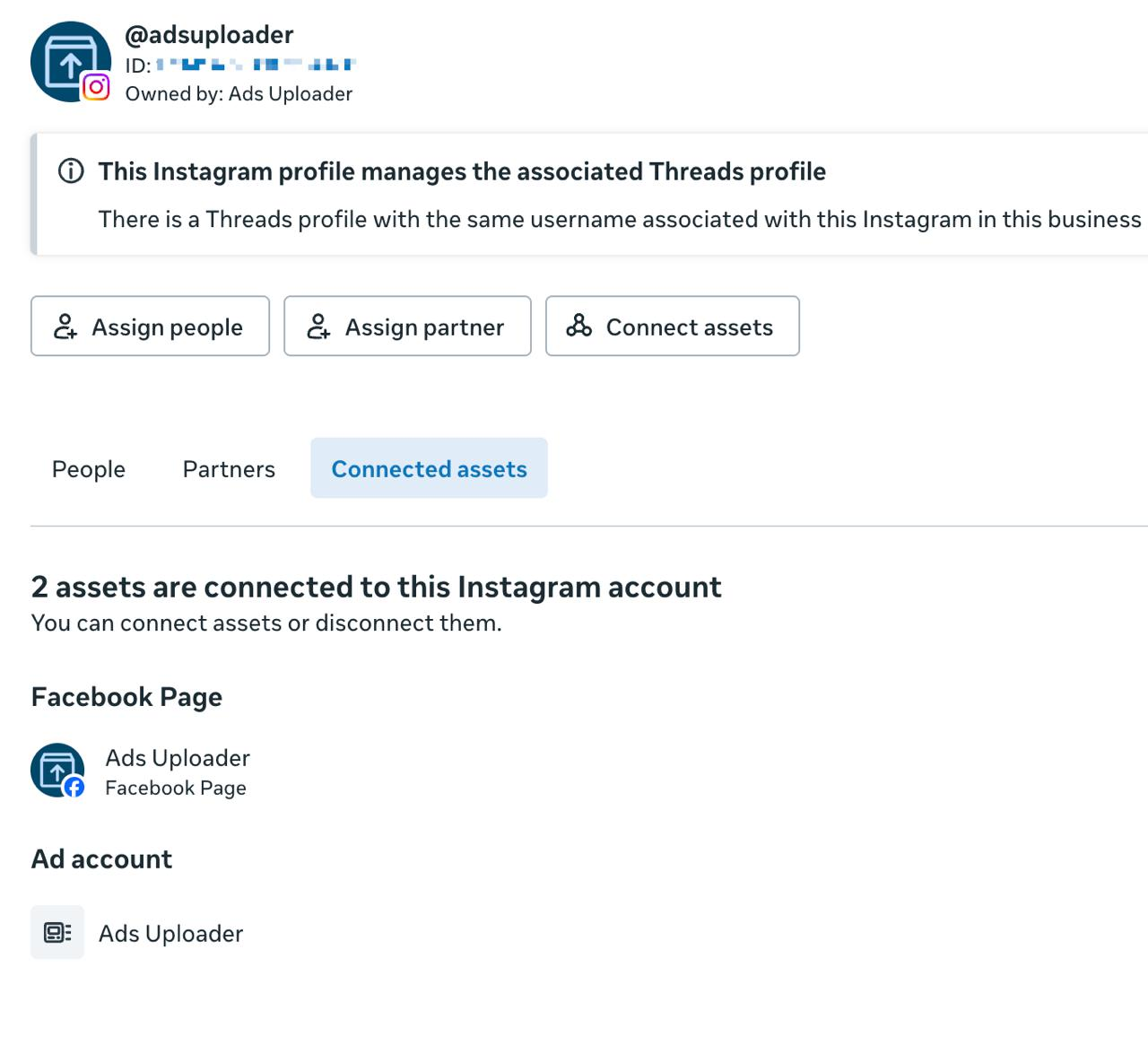
- Select your Instagram account, then open its Connected assets tab
- Click Connect assets (top right) and connect the exact Ad account you are publishing from. When it is set up correctly, the Connected assets tab lists both your Facebook Page and your Ad account, as shown below.
- Back in Ads Uploader, go to Account > Profile > Reconnect Facebook so the new permissions refresh
This is a Meta Business Settings setup and cannot be changed from inside Ads Uploader. Once the Instagram account is connected to the ad account, you can keep publishing everything from that Facebook ad account.
Creative Issues
"Creative Not Found"
Cause: Referenced creative doesn't exist
Solution:
- Refresh the ad selector
- Choose a different source ad
- Verify the ad still exists in Meta
Transient Errors
Some errors are temporary and resolve on their own:
"An unknown error occurred"- Retry usually succeeds"There was an error processing your request"- Meta server hiccup- Connection timeouts - Network issues between Ads Uploader and Meta
What to do: Wait 1-2 minutes and retry. If the same error occurs repeatedly with the same message, contact support.